
On this page
1.Getting started: no account, just open and go
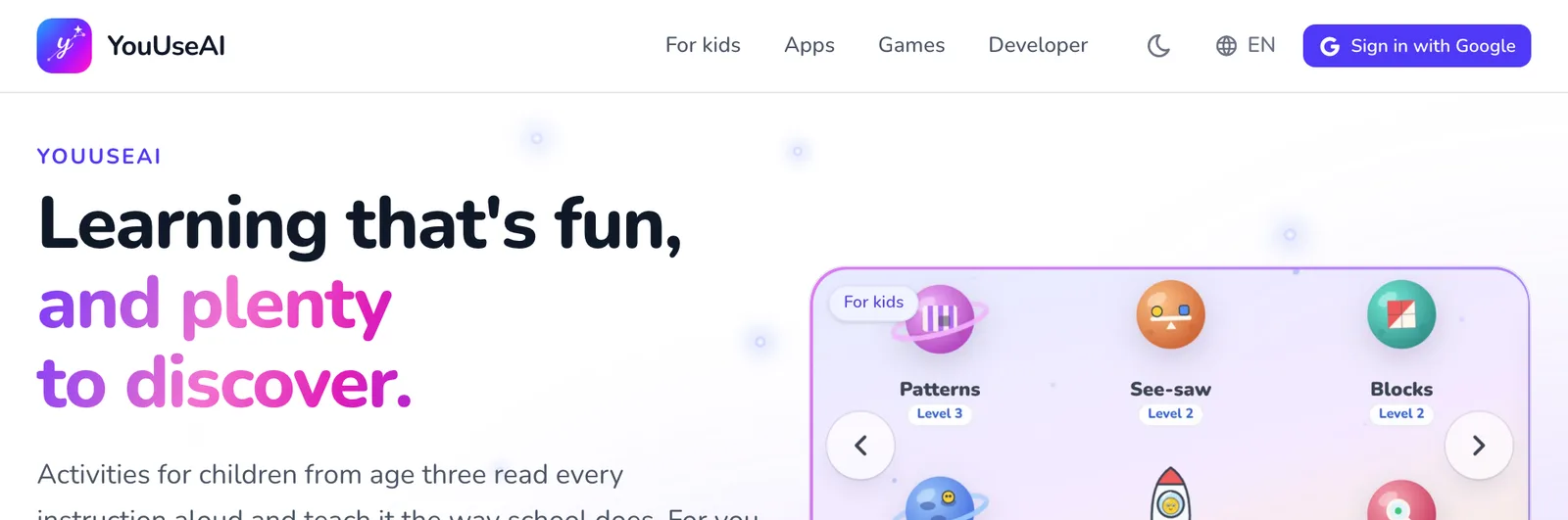
Every activity, game and app here works the moment you open it. The bar along the top has everything you need to find your way around.
- 1Logo — back to the home page
- 2The four main sections
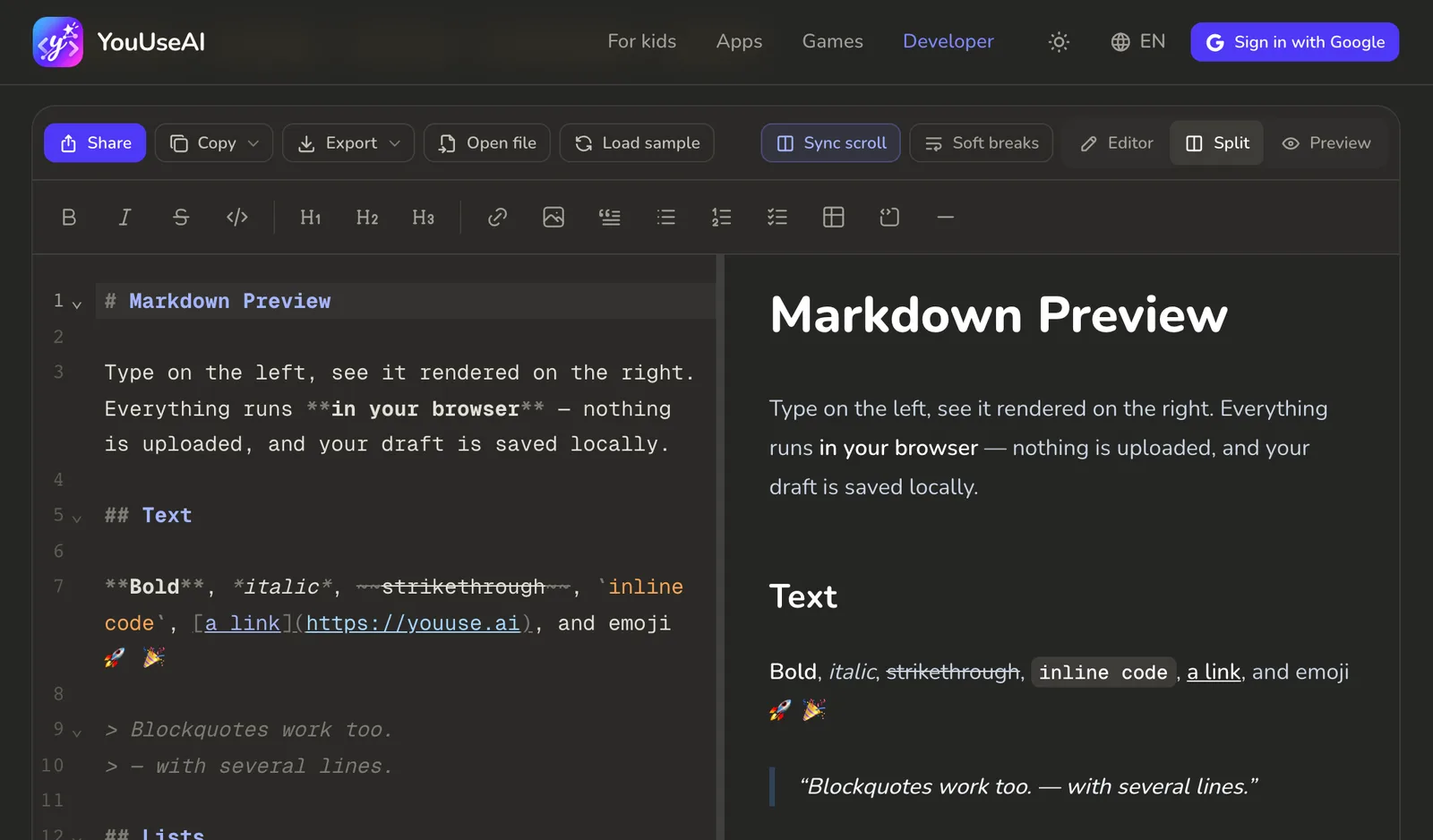
- 3Light or dark background
- 4Vietnamese or English
- 5Sign in with Google
Getting around. Click a section in the top bar: For kids, Apps, Games or Developer. The logo takes you back to the home page. On a phone, or a tablet held upright, the sections sit behind the three-line button on the right.
Light or dark. The moon (or sun) button switches between a light and a dark background, and the site remembers your choice.
Language. The globe button switches between Vietnamese and English. The language is part of the address — English pages start with /en — so anyone you send a link to sees the page in the language you were reading.
Signing in is only needed to keep your progress on another device, share a link or send feedback — see Your account and profile.
2.The home page: a few highlights from each section
The home page follows the menu's order and shows a few highlights from each section, so you can see what's here before you choose.
- Right under the heading are the two most-used ways in: Open the kids' corner and Open an app. The carousel beside them steps through the products; use the arrows to go back or forward.
- Further down are four rows, in the order For kids, Apps, Games, Developer, with the Hot ones first.
- Click a card to open that product, or the link at the end of a row — See all games, for instance — to see the whole section.
- At the bottom you'll find the common questions and a way to send feedback.
3.For kids: they play, you see what they've learnt
19 activities for children from age 3 to Year 4. They don't need to read yet: every activity talks them through it with big buttons, and when they get one wrong the owl shows them how and lets them try again.
Pick an activity for your child's class
- 1What each activity solves and teaches
- 2One band of activities, with what children practise
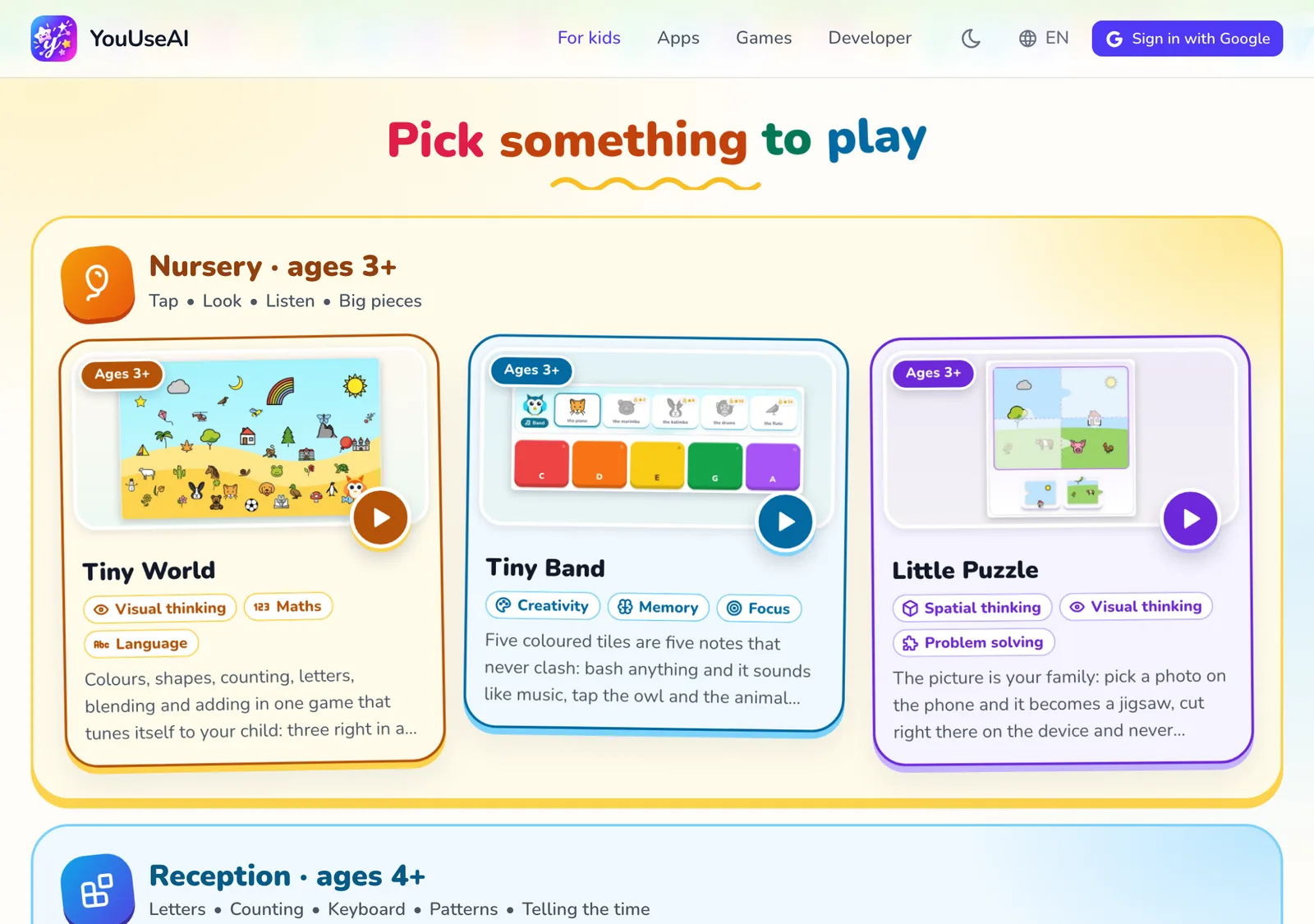
The The kids' corner page groups activities into four bands: Nursery · ages 3+, Reception · ages 4+, Year 1 · ages 6+ and Years 2–4 · ages 7+. The small line under each band says what children practise there.
- To see what an activity is for before handing over the device, tap What is each one for?: each one explains the everyday problem it solves, what your child learns and what you get out of it.
- Once your child has played, the top of the page also shows their stars, their daily streak, today's minutes and a Carry on card that takes them straight back to where they left off.
Inside an activity
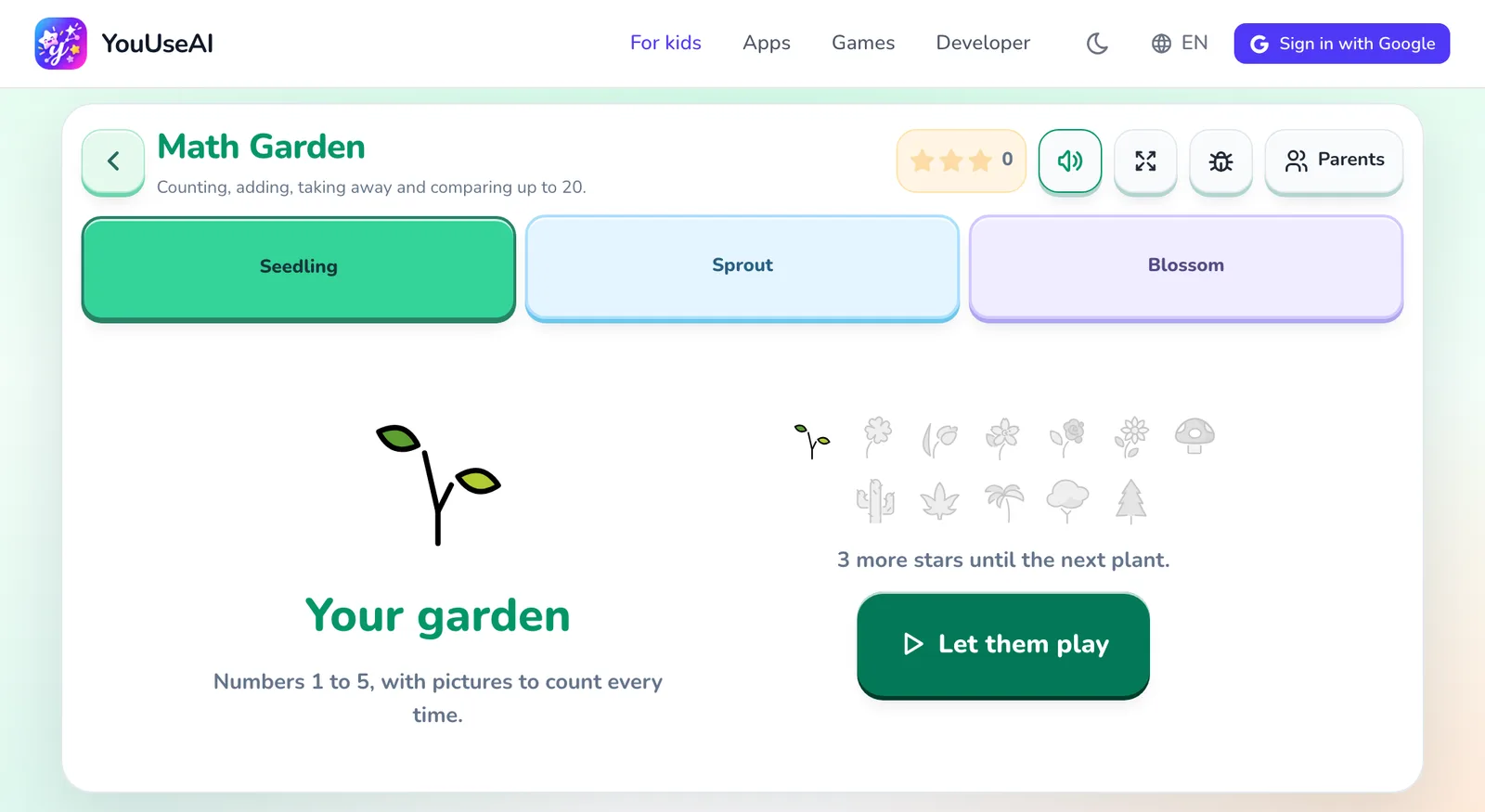
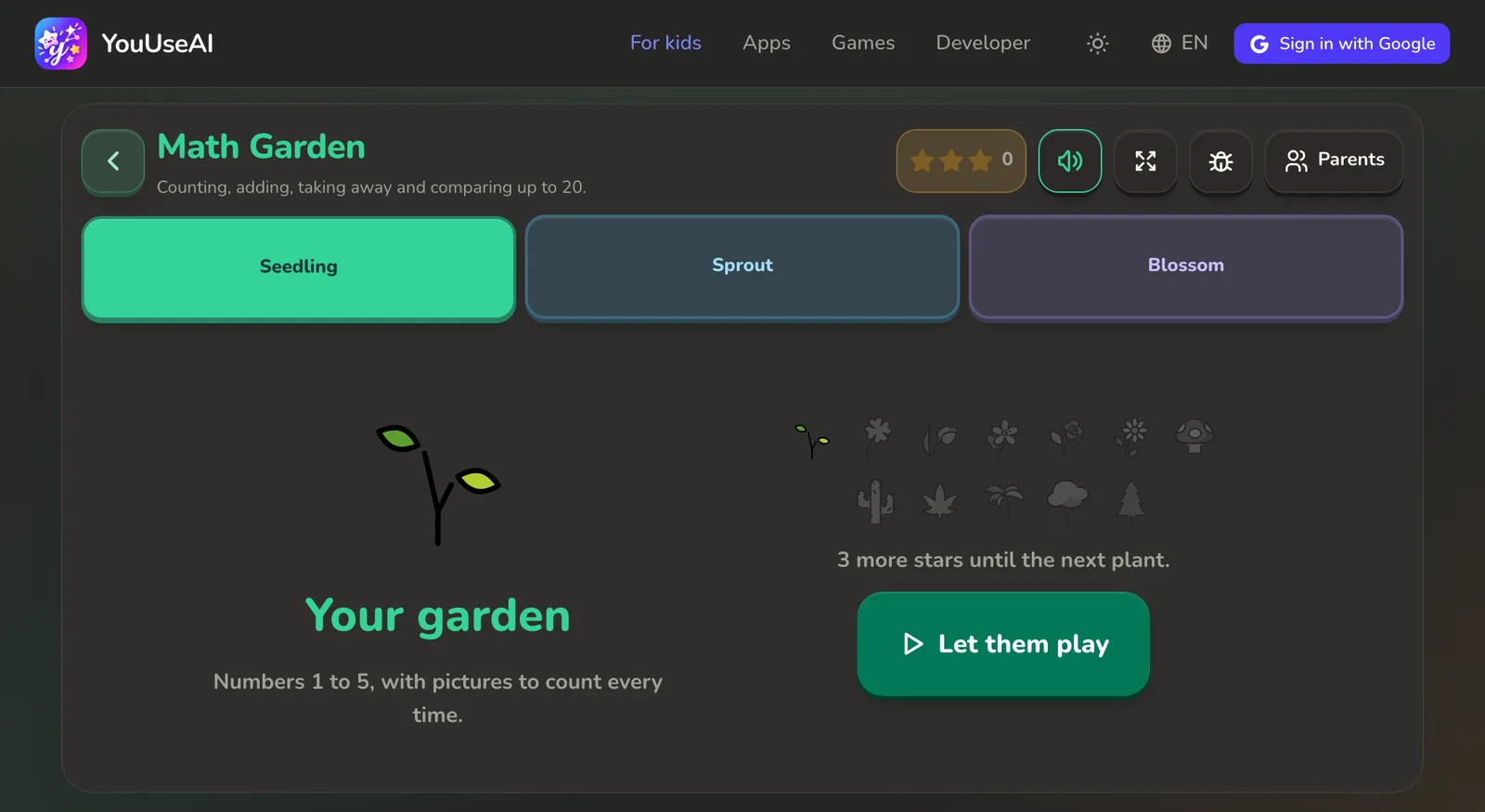
- 1Back to For kids
- 2Sound off or on
- 3Full screen
- 4Report a bug (behind the parents' gate)
- 5Parents panel (behind the parents' gate)
- Choose a level (where there's more than one), then tap the big Let them play button.
- Your child hears the question and taps an answer. Listen again plays it again.
- At the end of a round they see how many they got right and the stars they've earned, then choose Play again or Quit.
The Parents panel
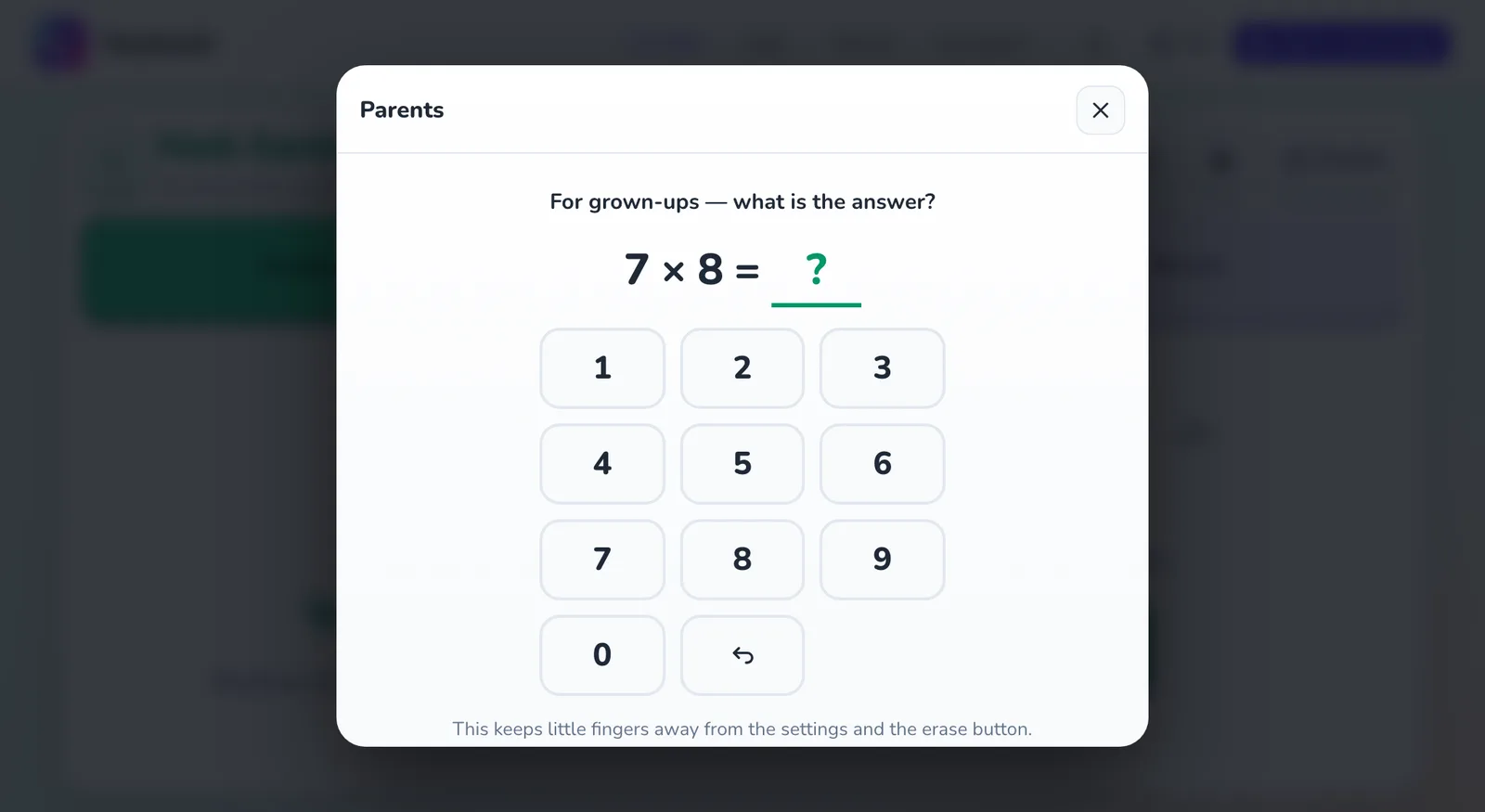
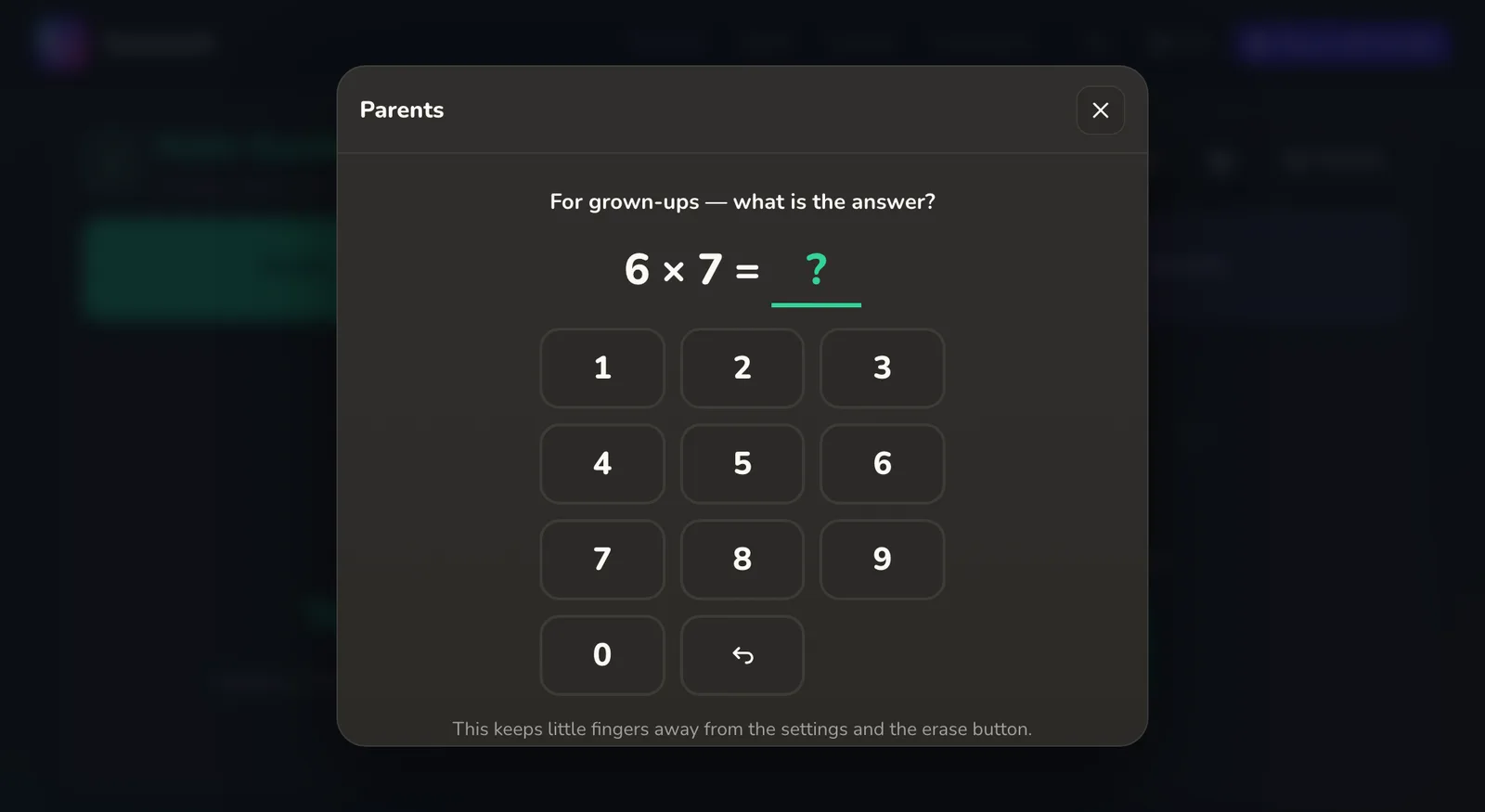
The Parents button opens a panel for grown-ups. In front of it sits a gate: one multiplication of two single digits — too hard for a small child, instant for you. The Report a bug button goes through the same gate, so nothing gets sent by accident.
- Today: stars, minutes played today and the daily streak.
- What your child knows: each skill marked Just started, Getting there or Knows it.
- Settings: the reading voice and its speed. Keep it slow for a beginner.
- Your child's data: the Erase progress button. Once it's gone, it can't be brought back.
Every activity in For kids
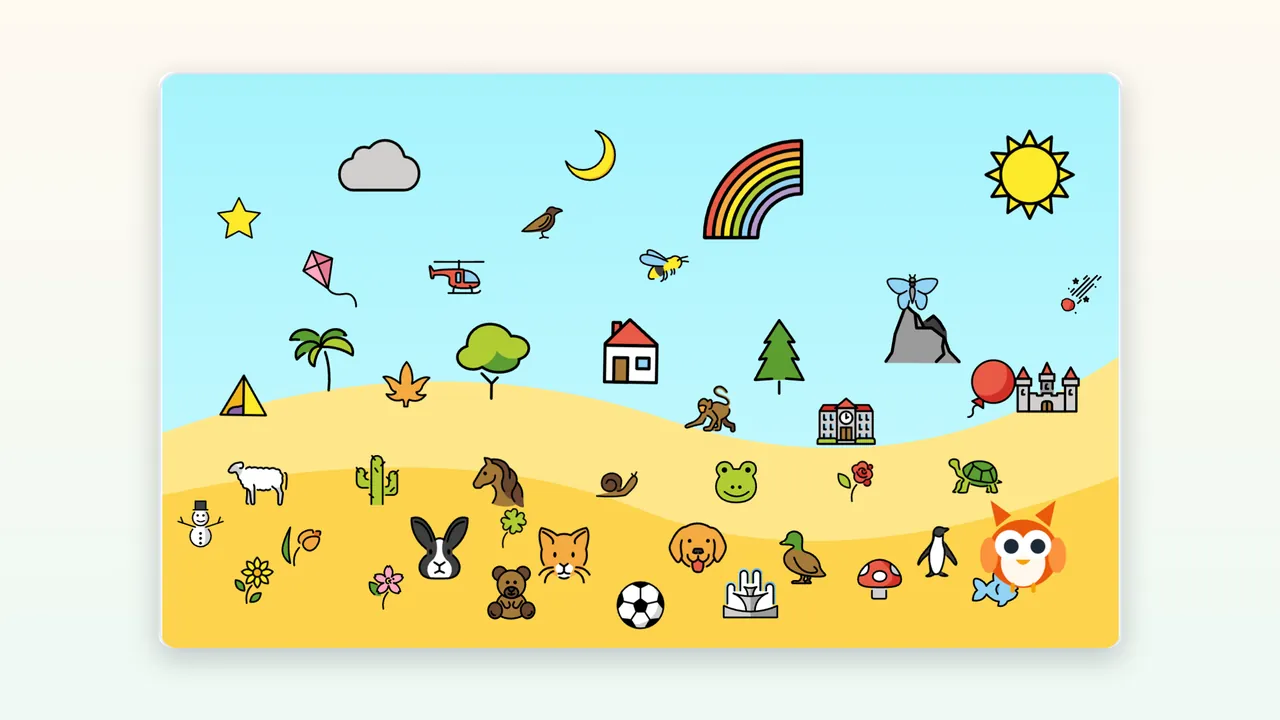
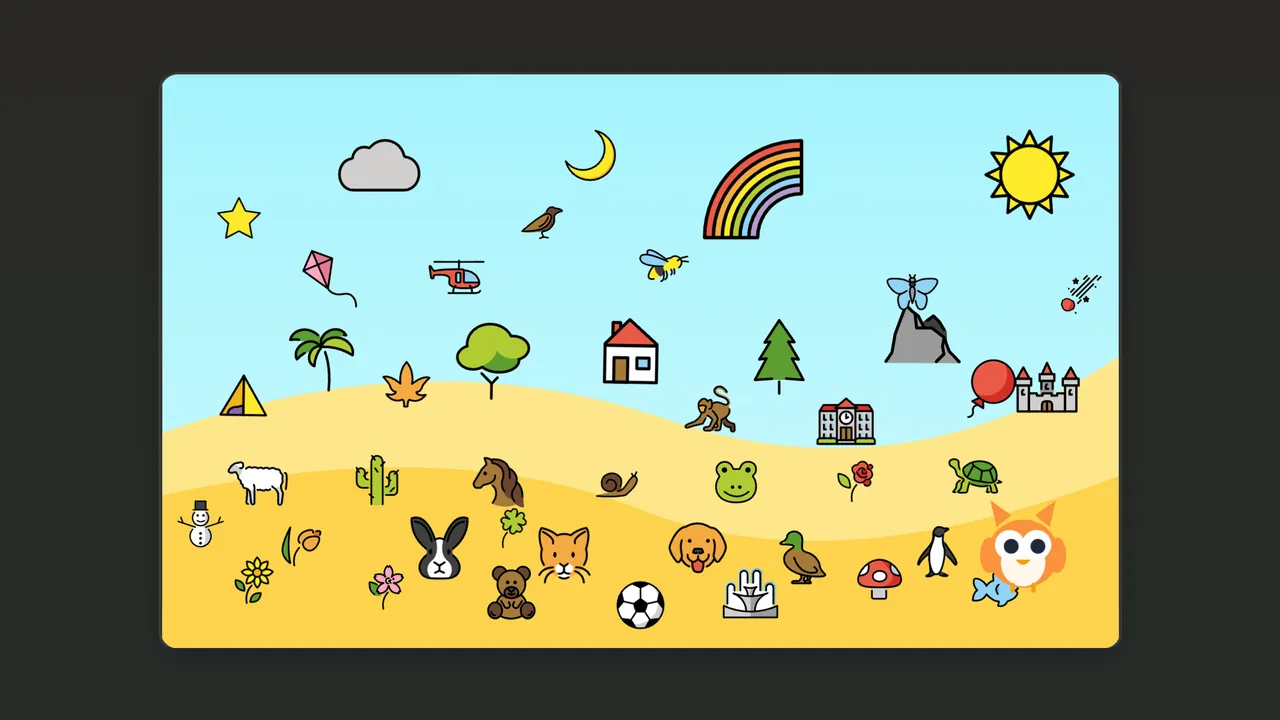 Tiny WorldAges 3+ · adapts itself · 44 rewards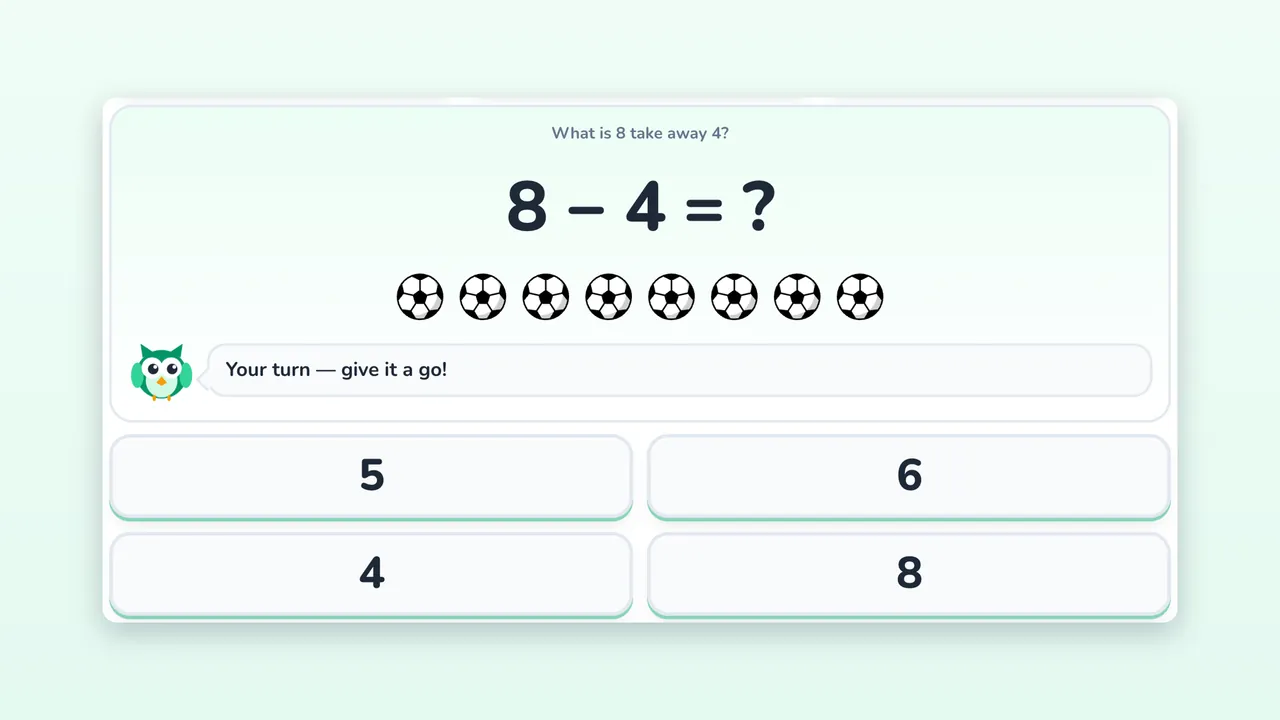
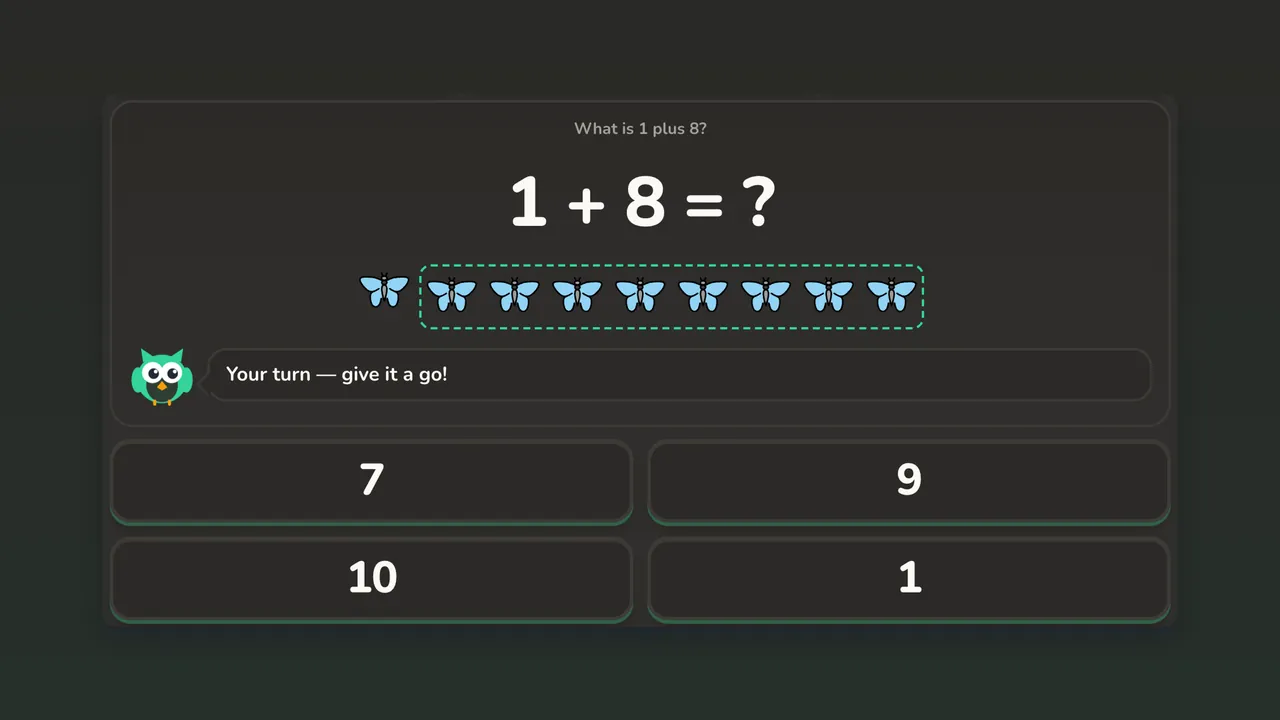 Math Garden3 levels · teaches the answer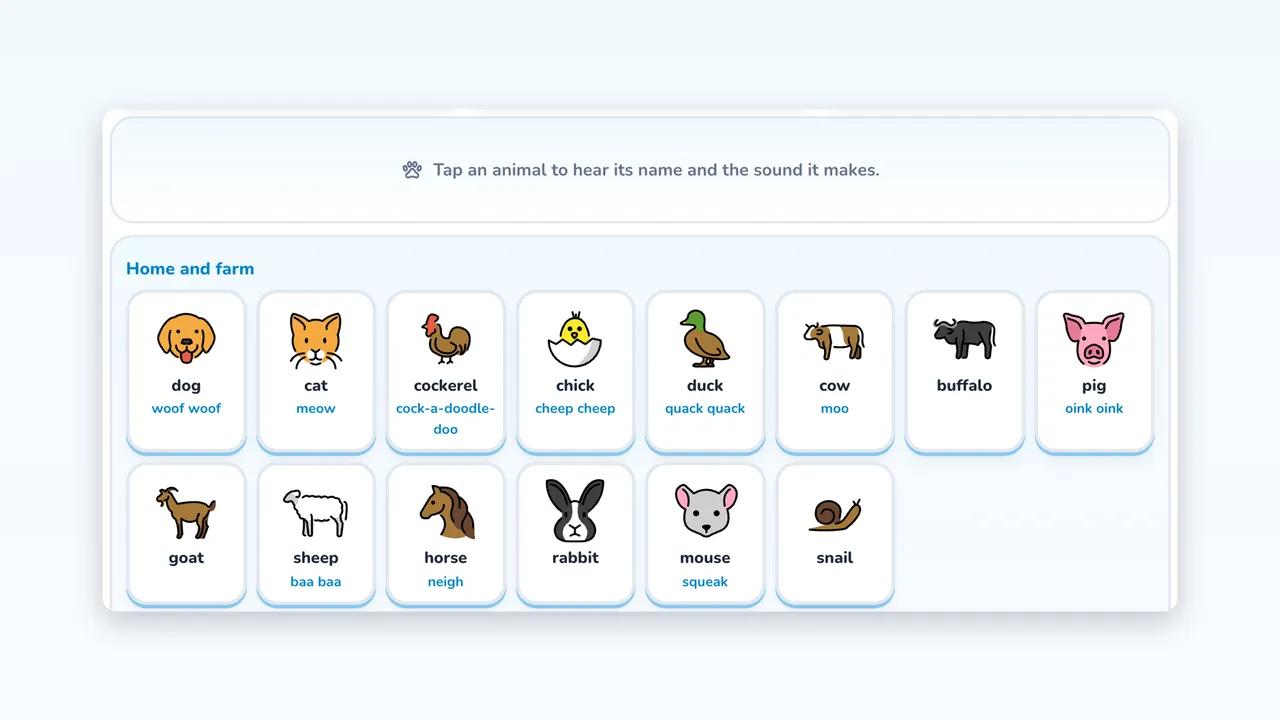
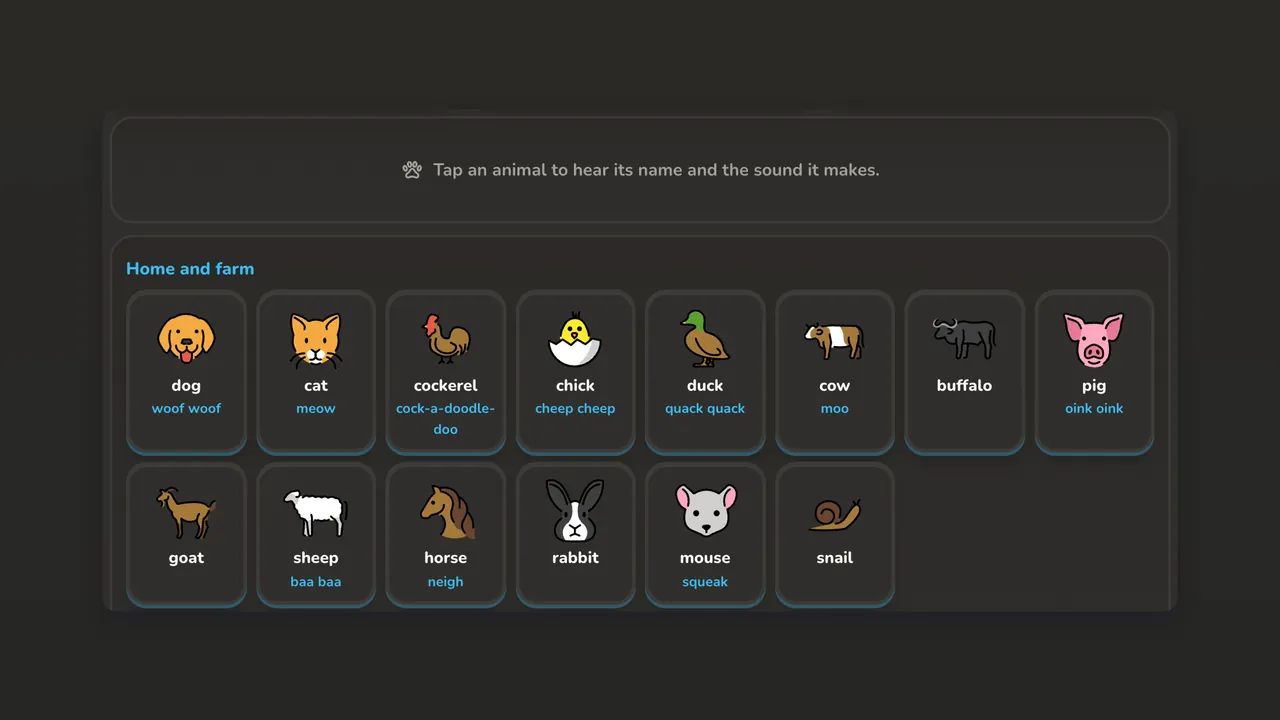 ABC Zoo26 letters · 3 quiz levels · 50 animals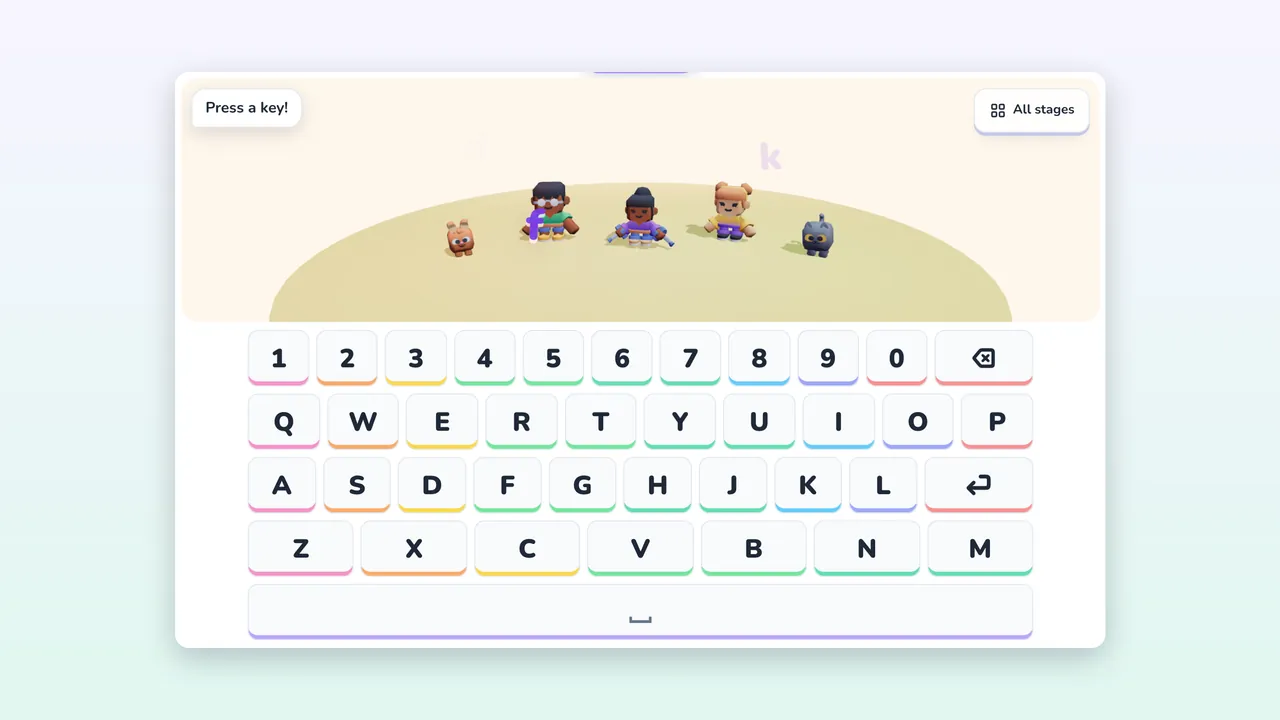
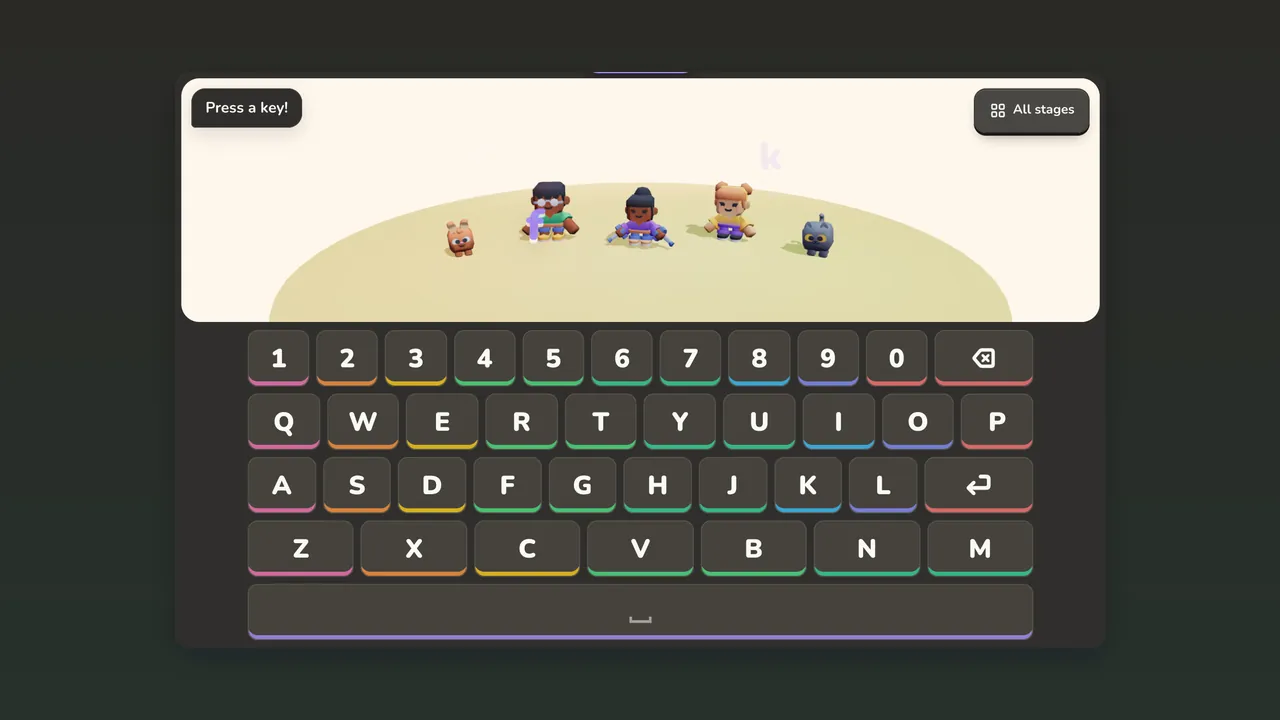 Key DanceAges 4+ · real keyboard · finger hints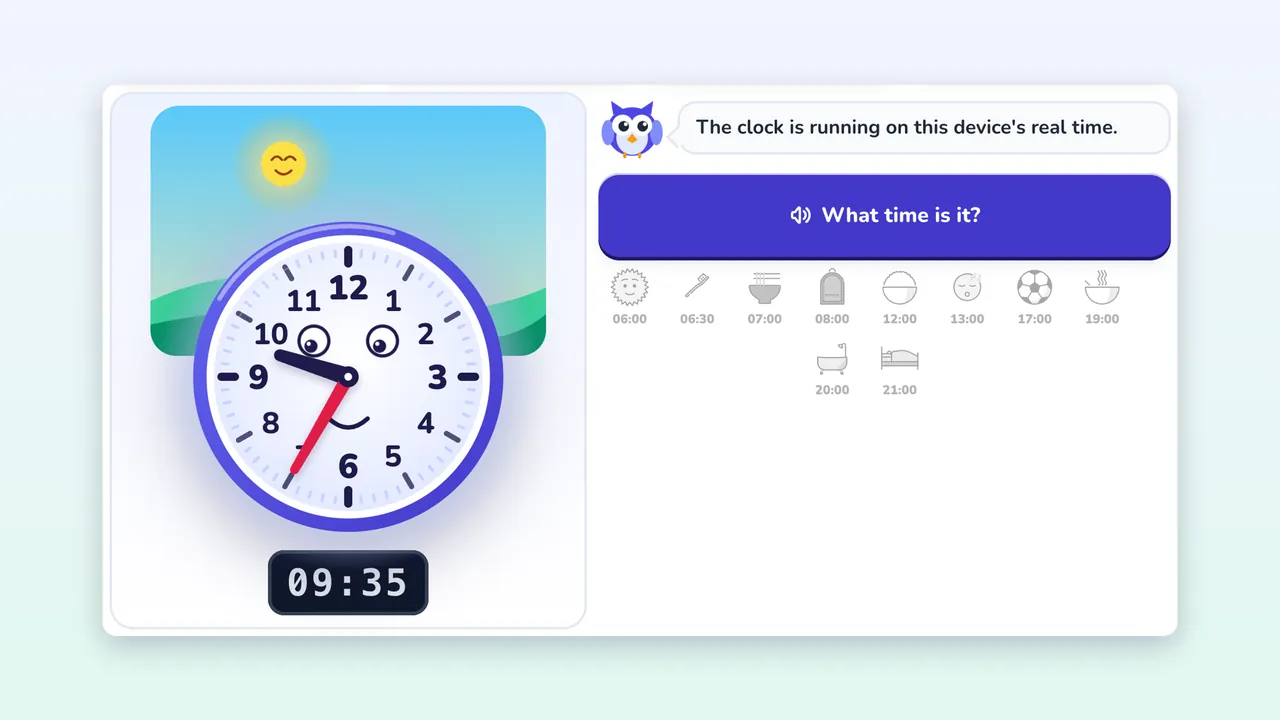
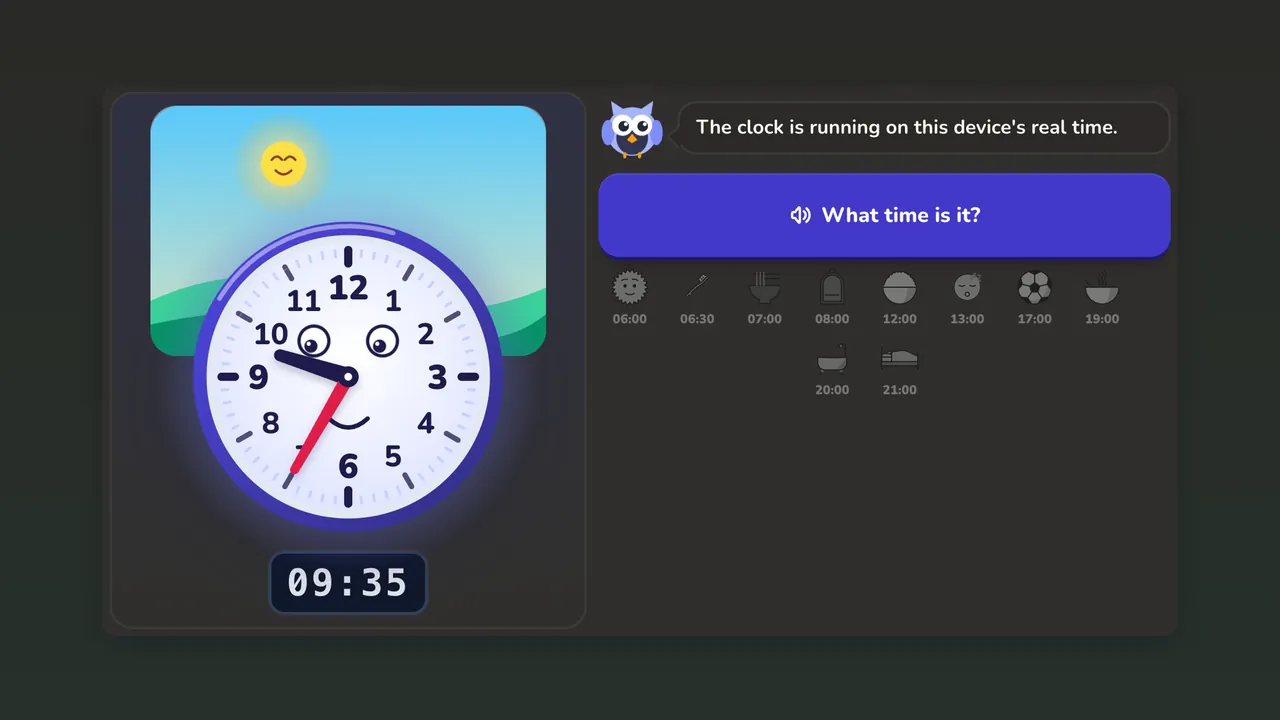 Clock LabAges 5+ · 3 levels · sleeps countdown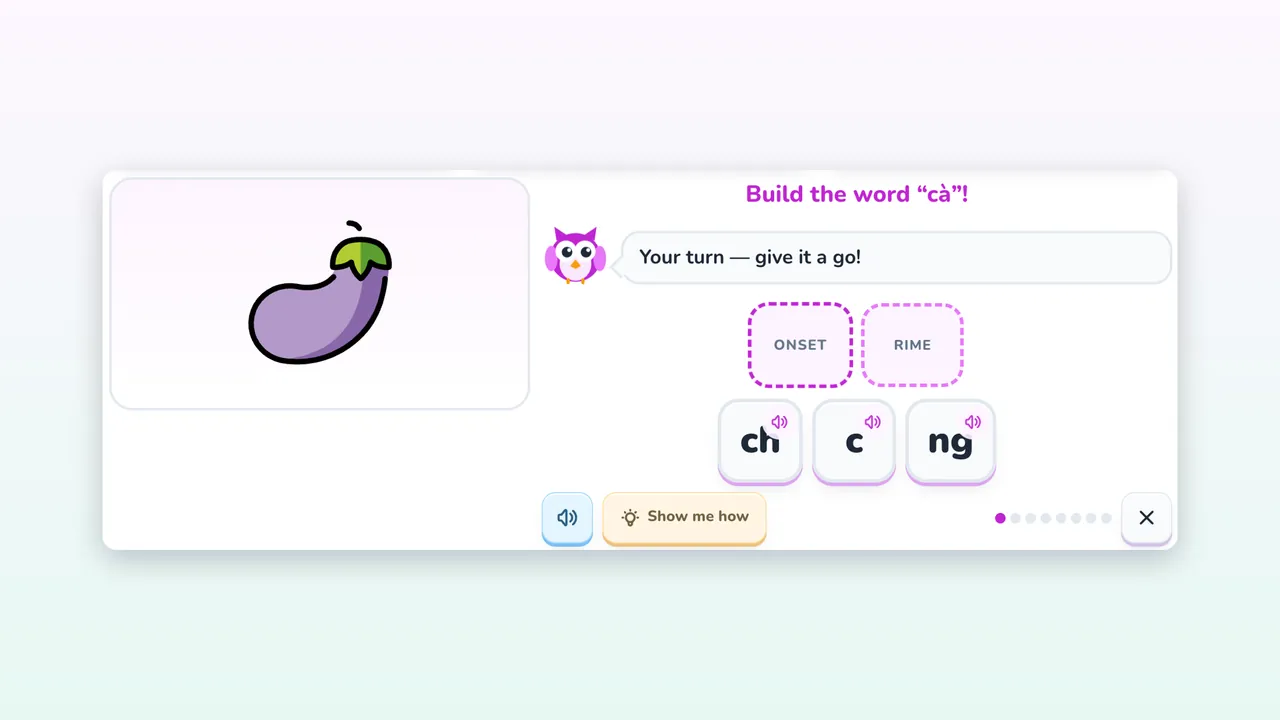
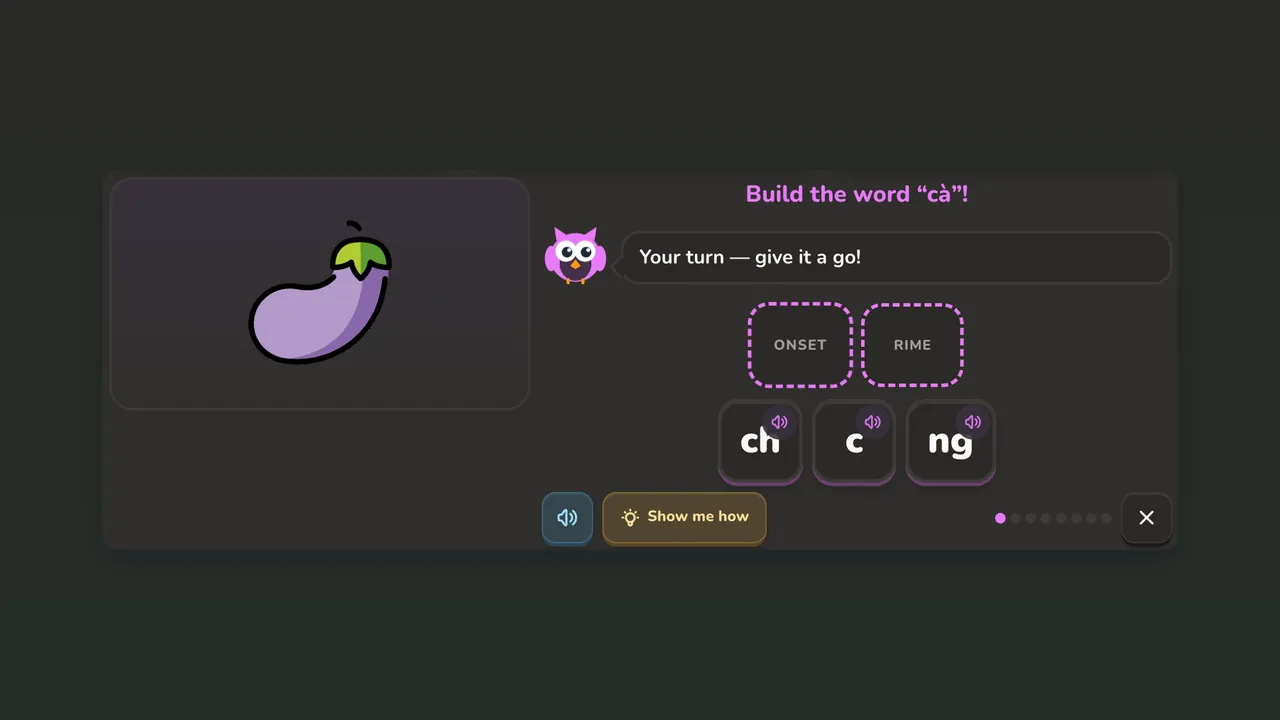 Little ReaderAges 6+ · 3 levels · their own book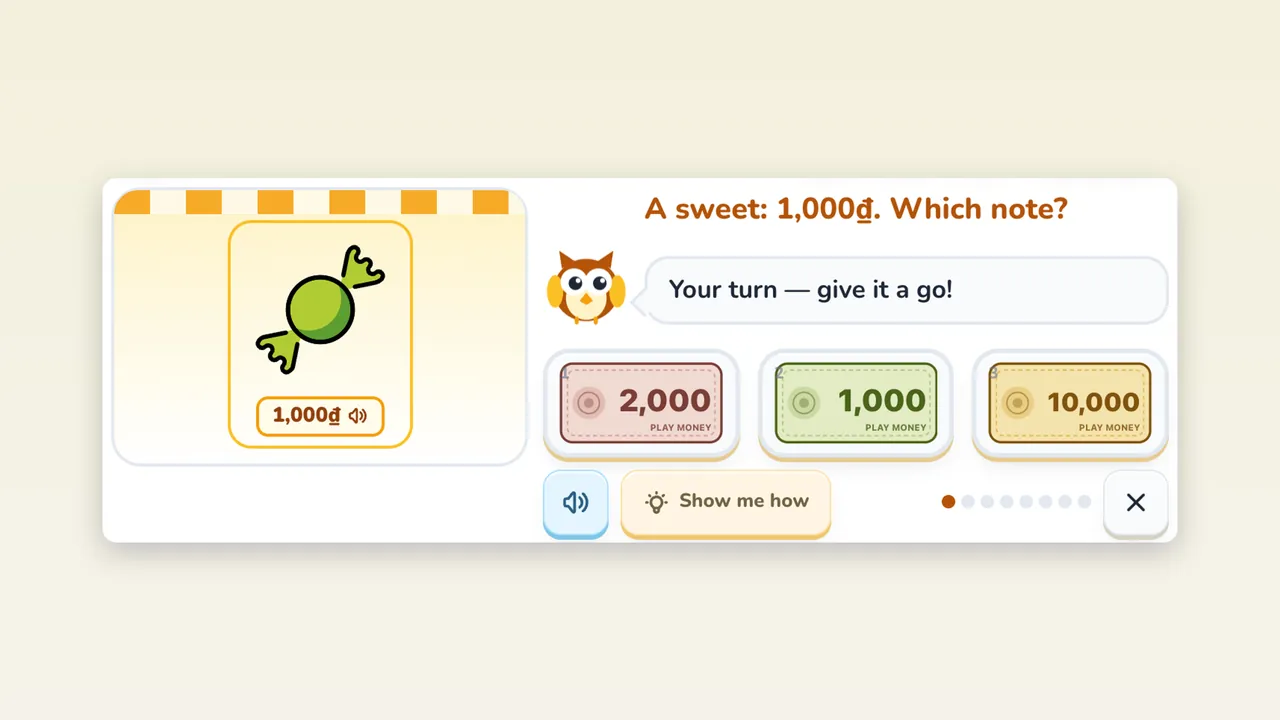
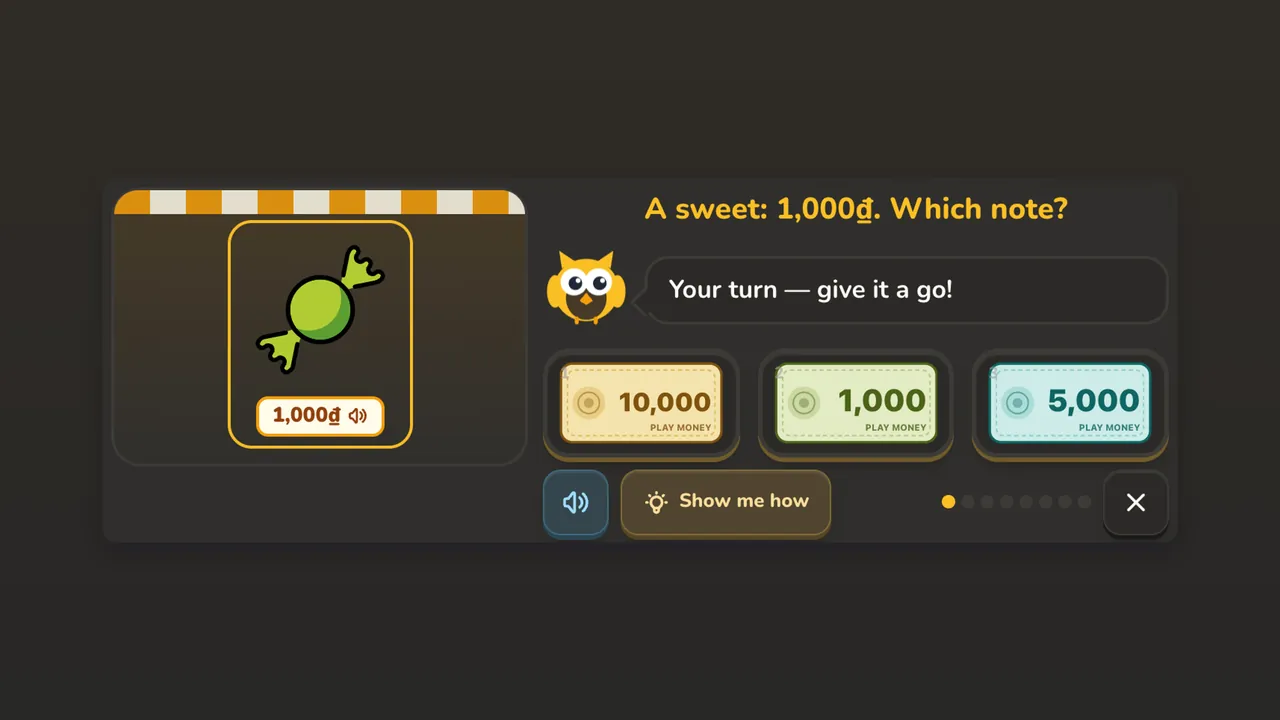 Little MarketAges 6+ · 3 levels · Vietnamese money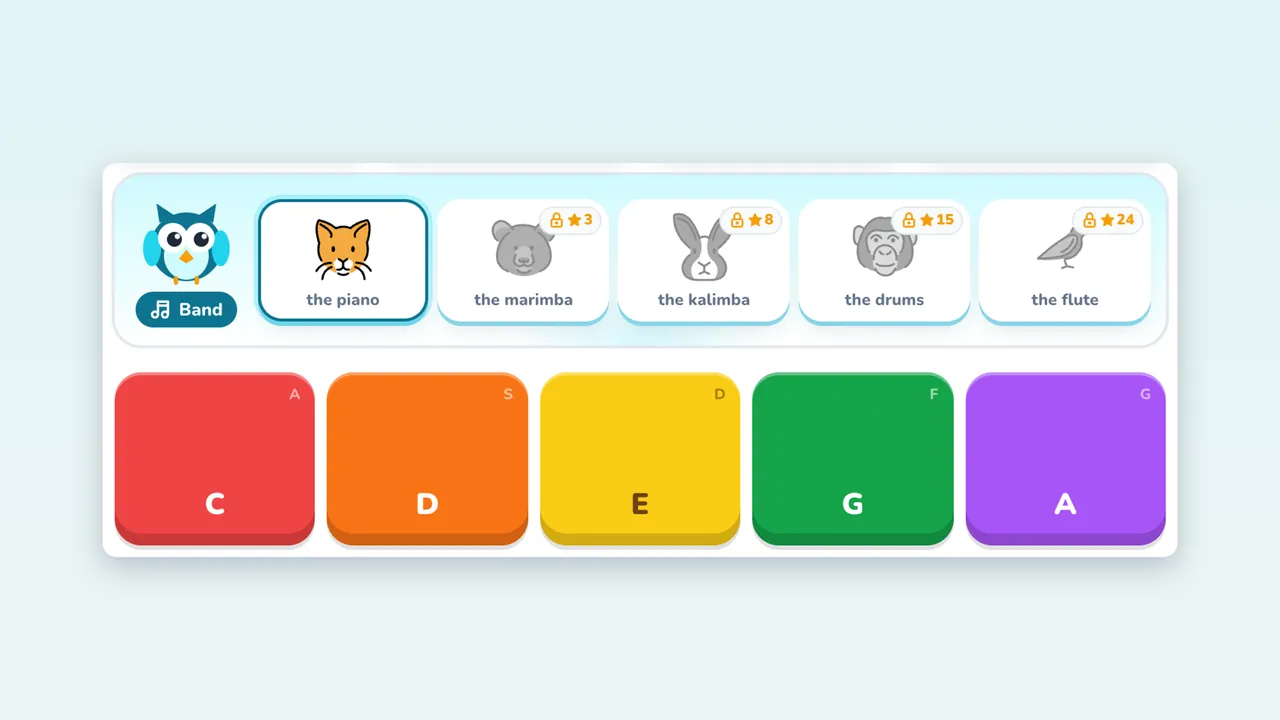
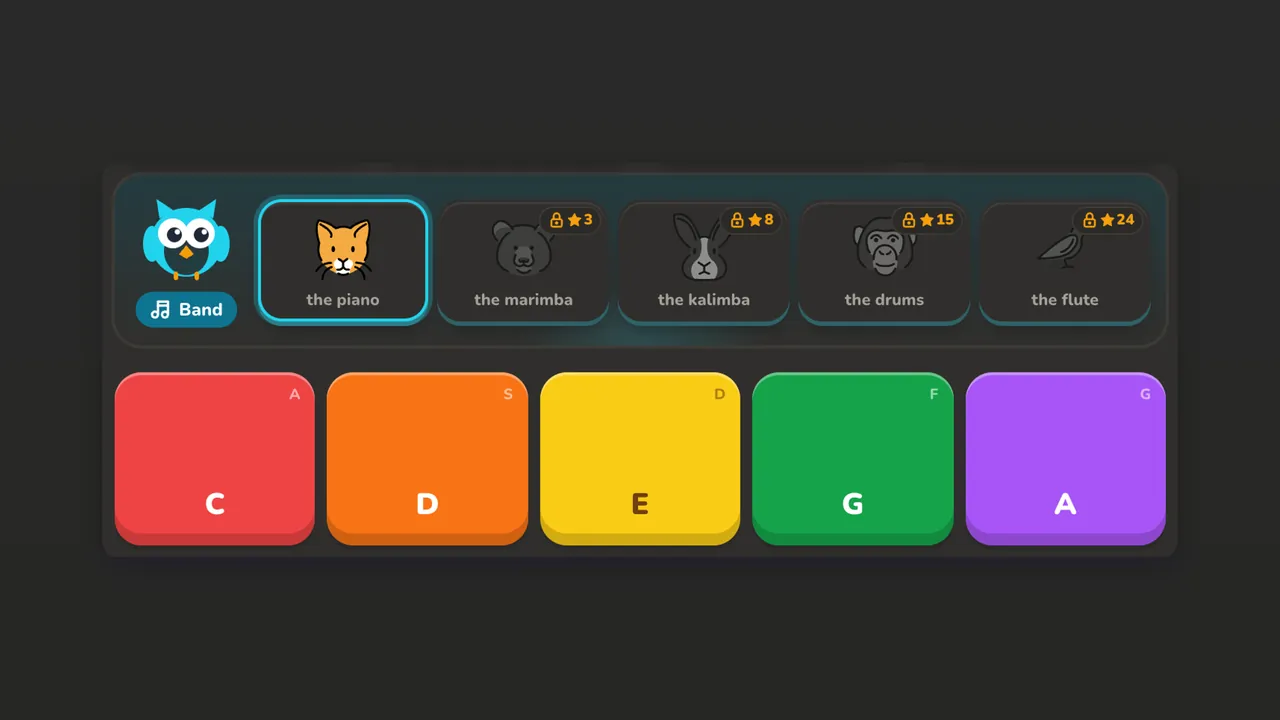 Tiny BandAges 3+ · 5 instruments · 6 songs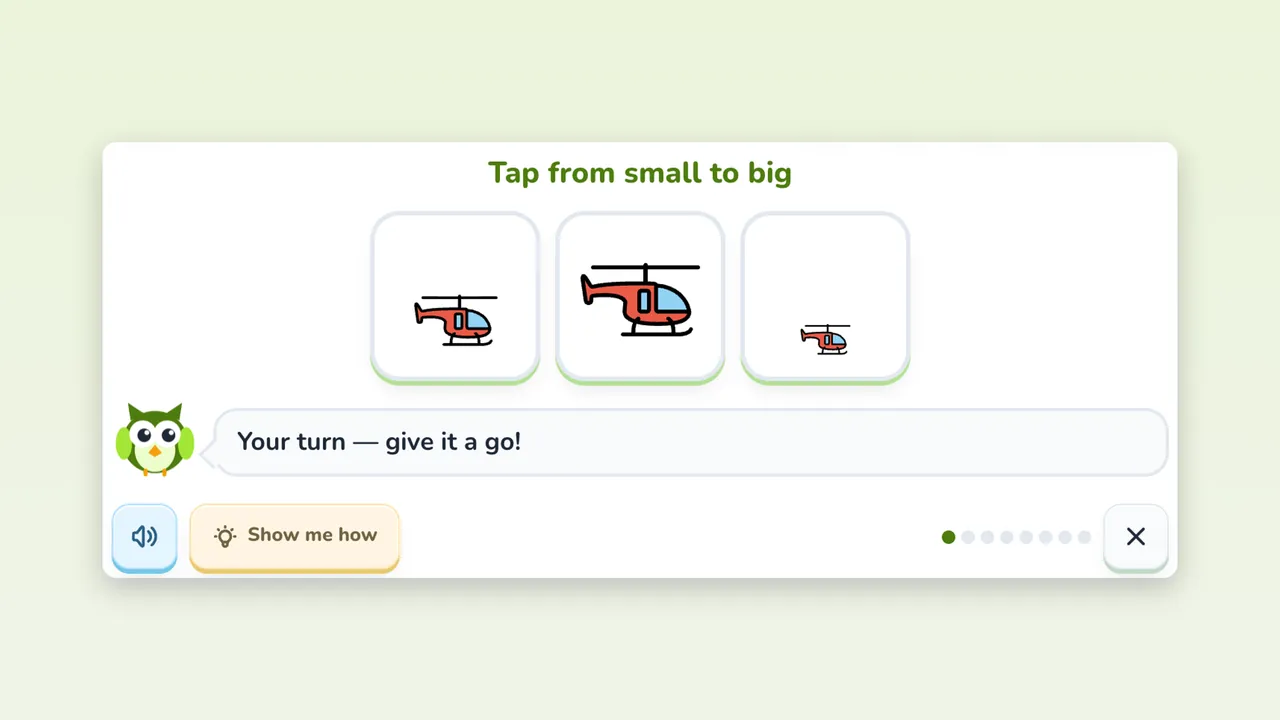
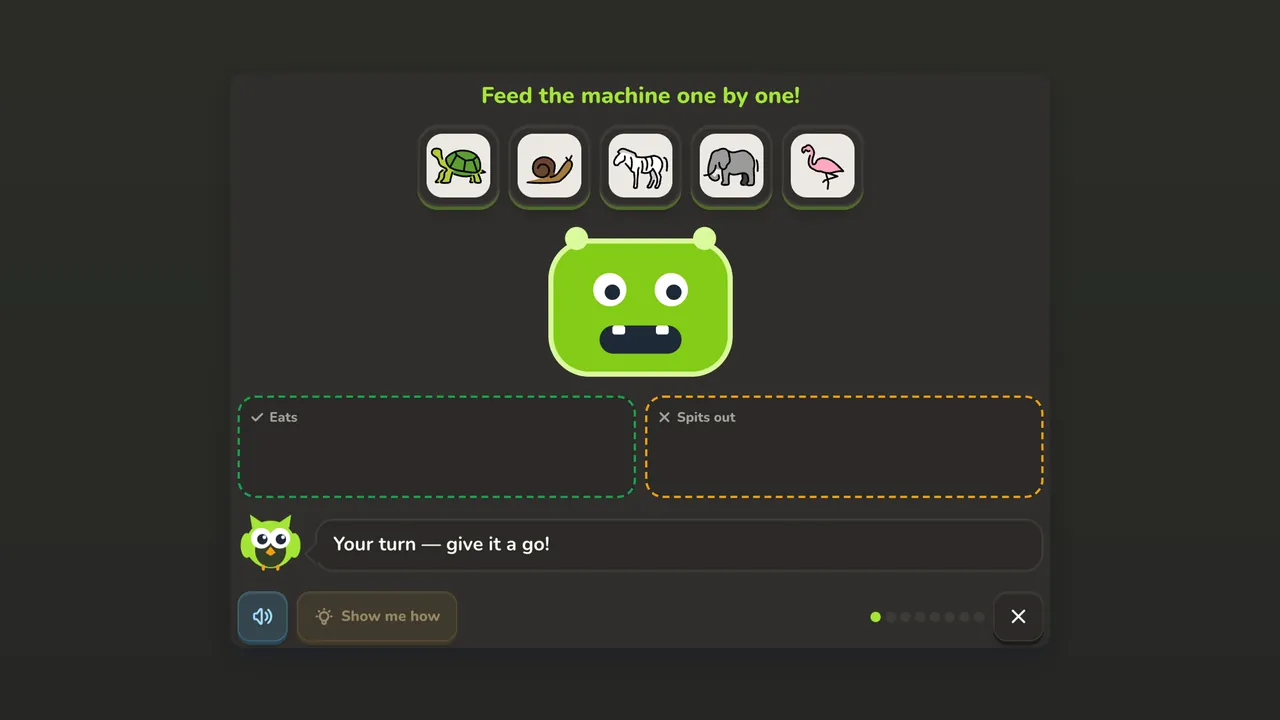 Logic GardenAges 4+ · 3 levels · 8 puzzle types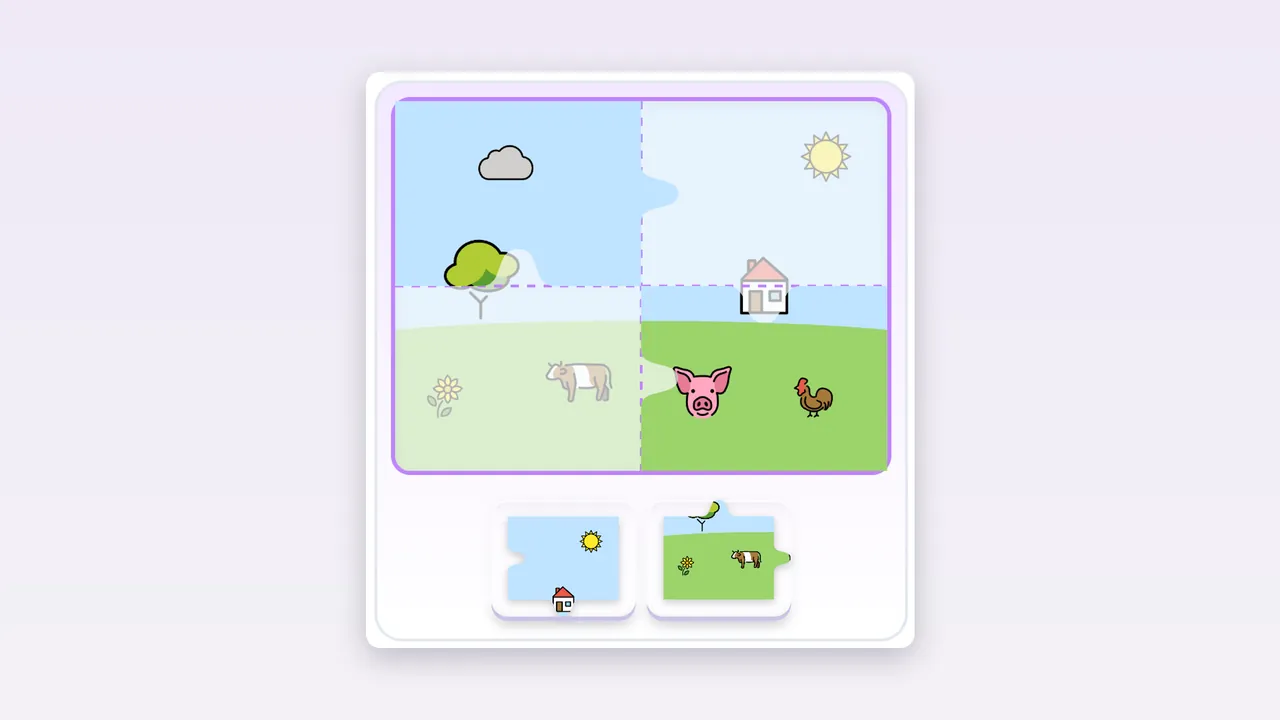
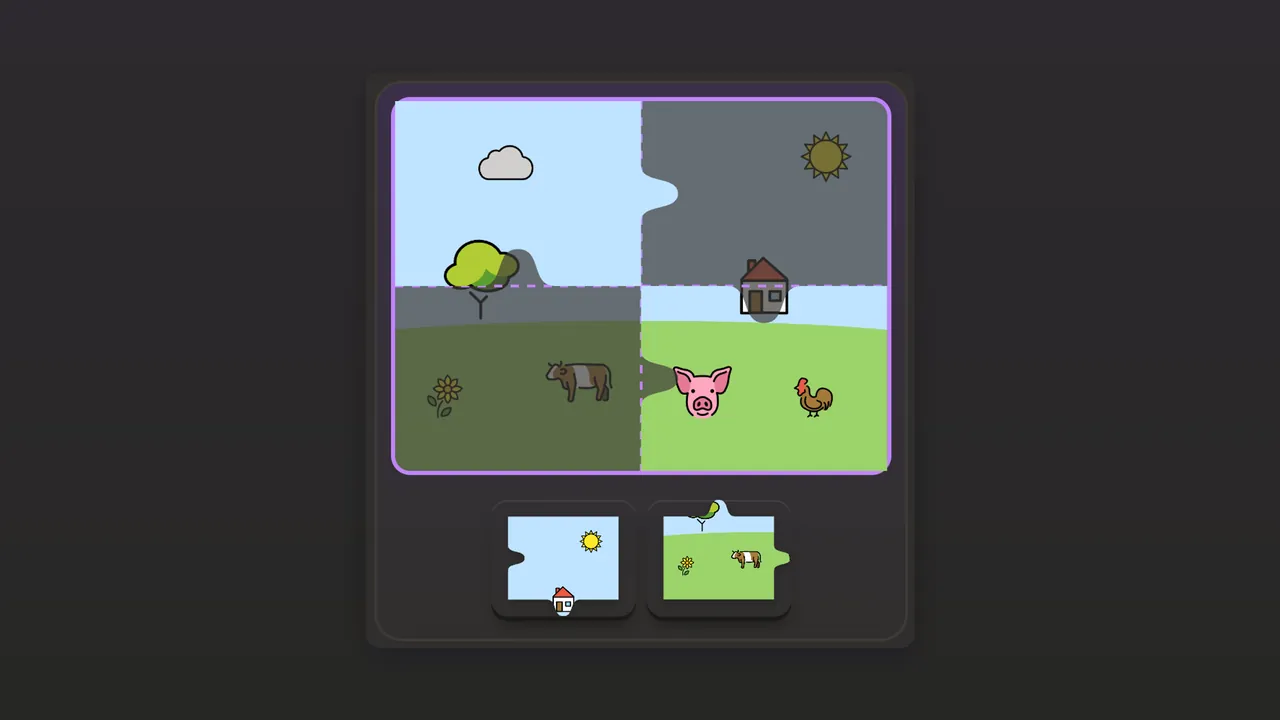 Little PuzzleAges 3+ · 4 sizes · your own photos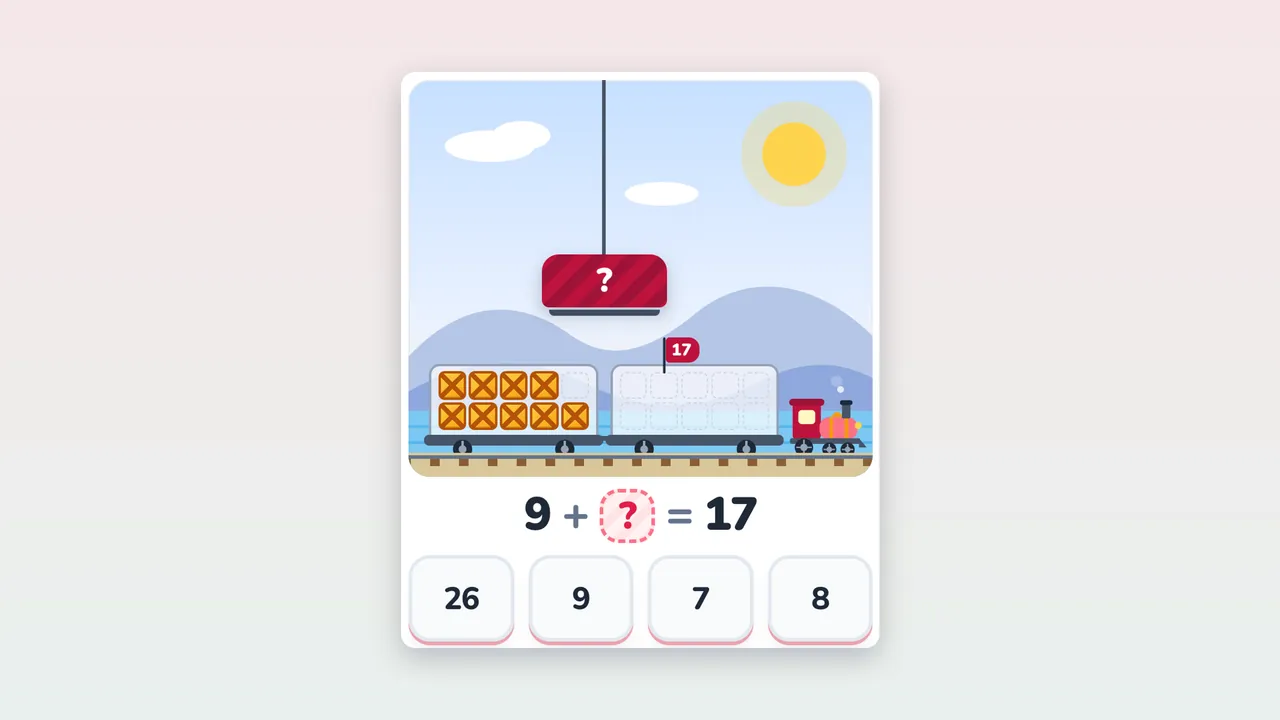
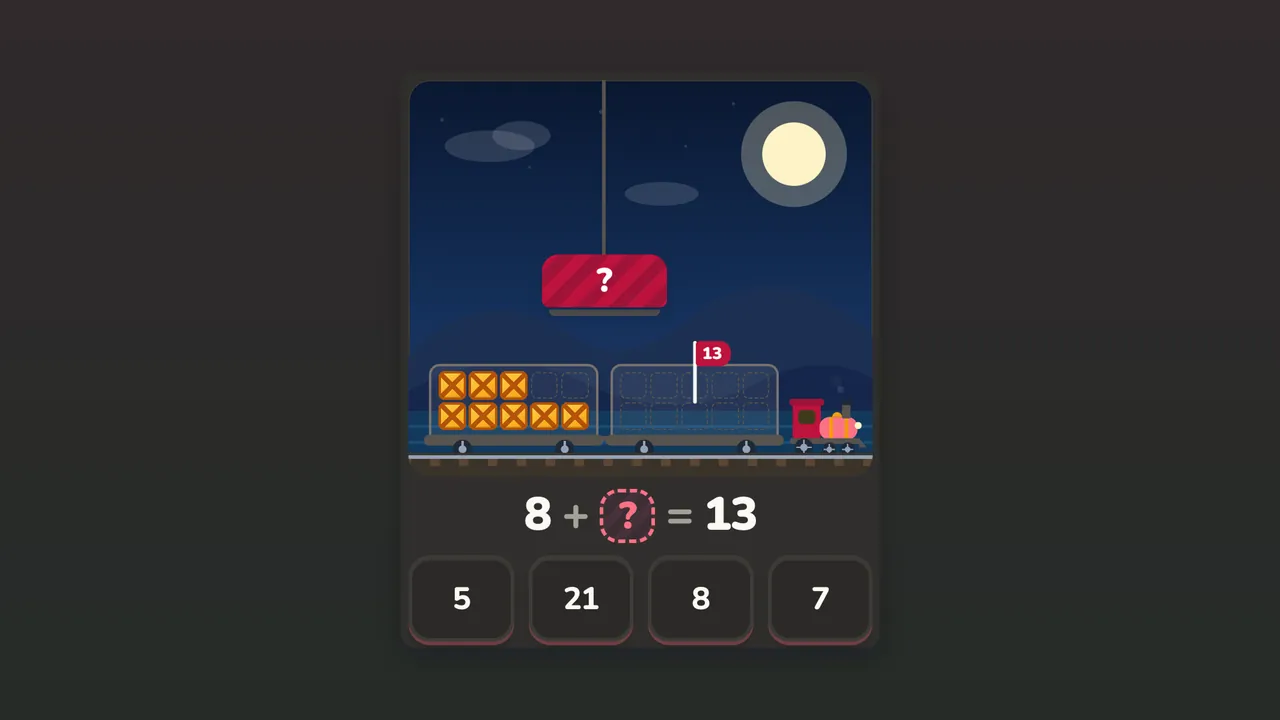 Math ExpressAges 6–8 · 3 lines · 90 stations
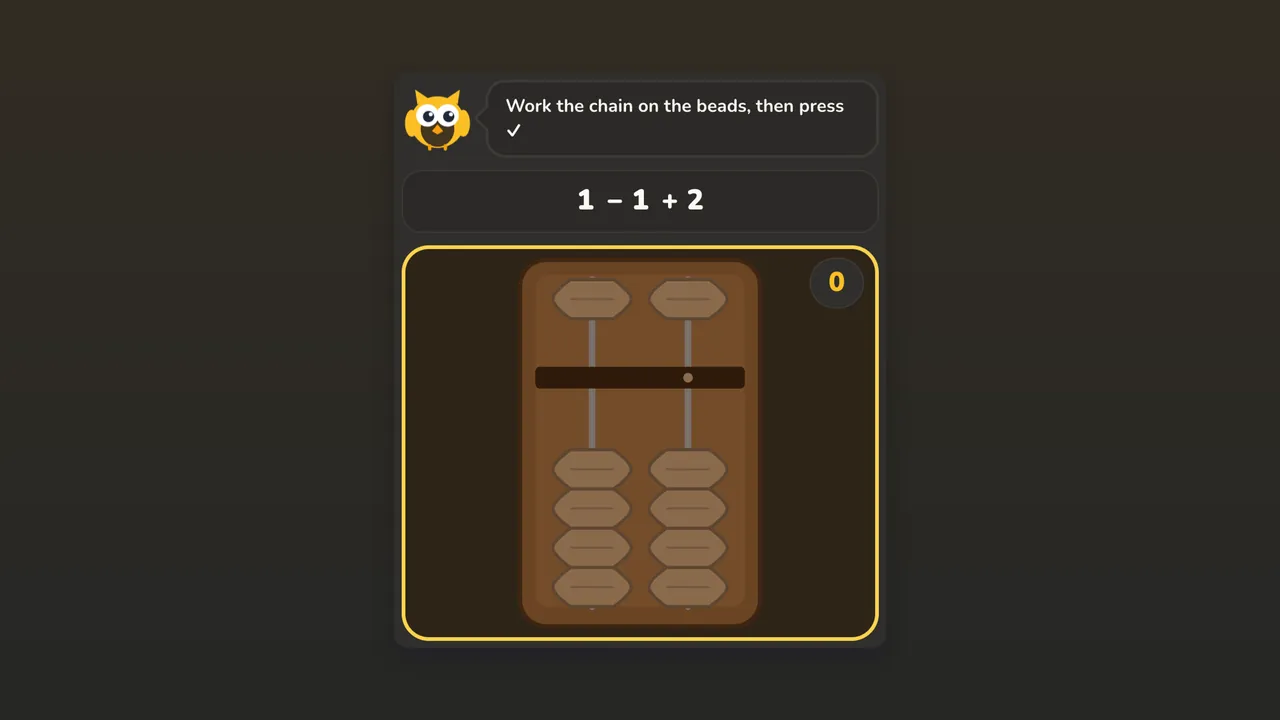 Magic AbacusAges 5–8 · 5 activities in one · 40 lessons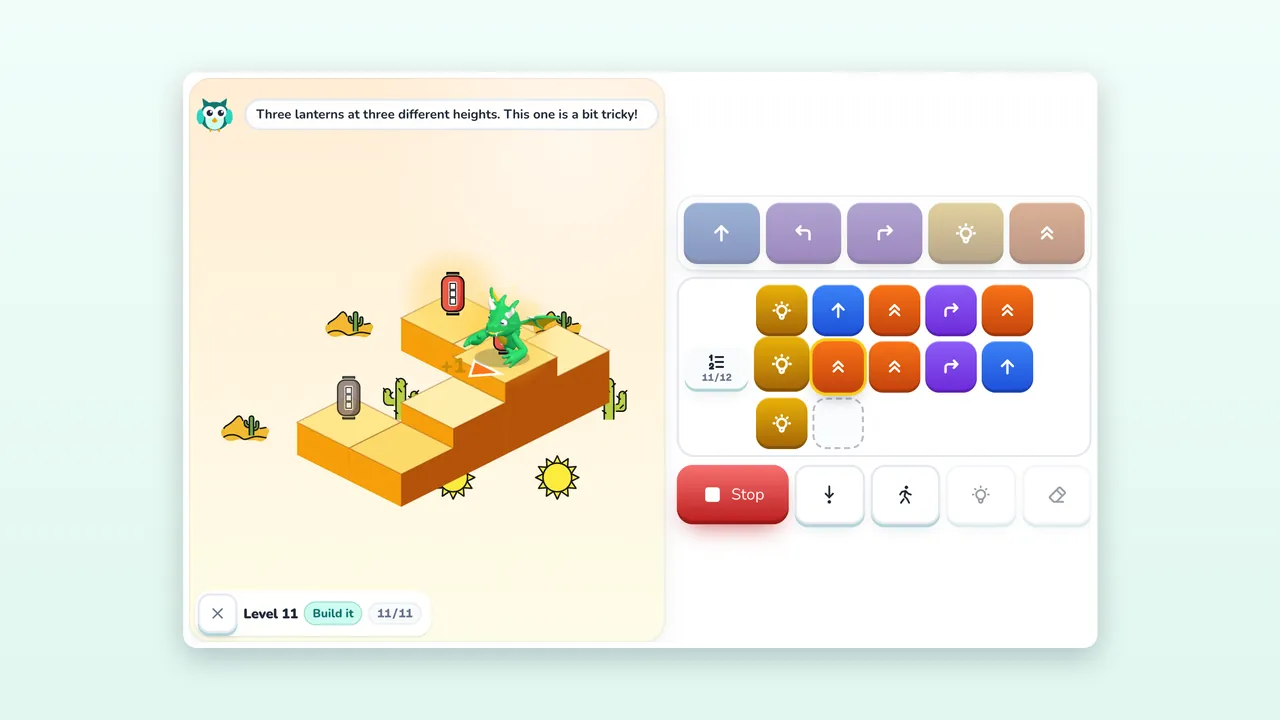
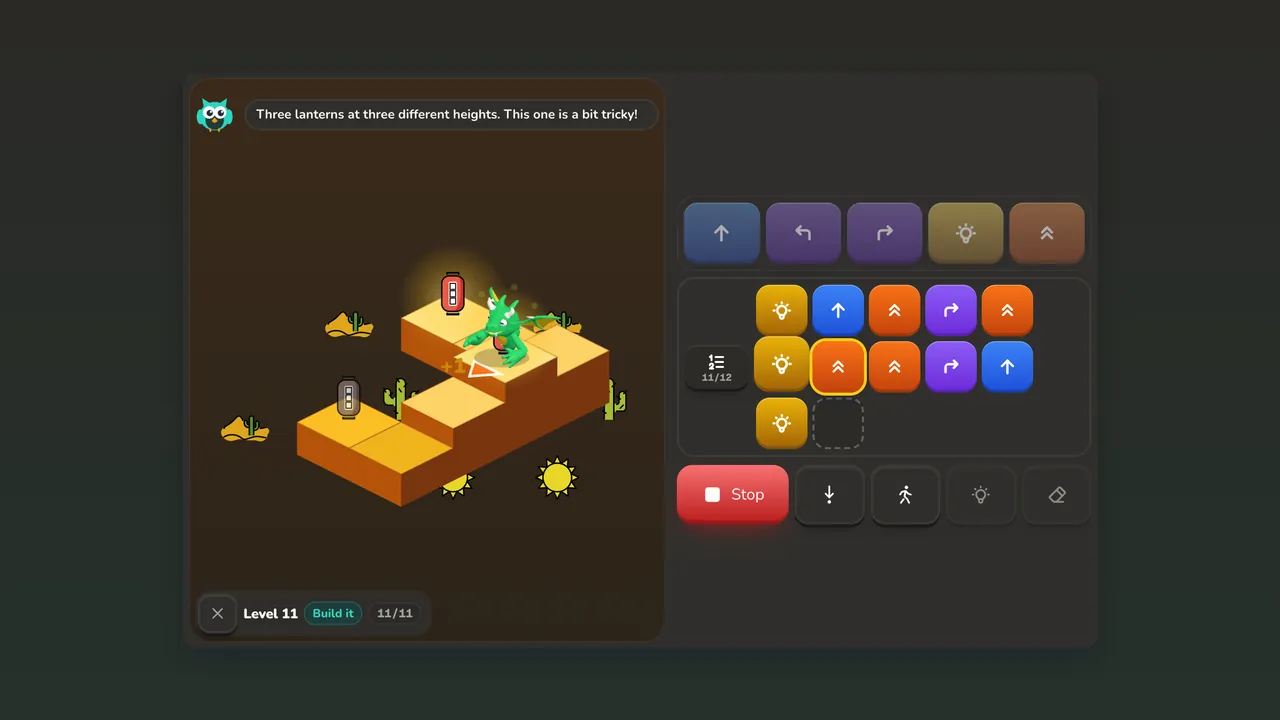 Little Dragon CodeAges 6–8 · 5 lands · 30 levels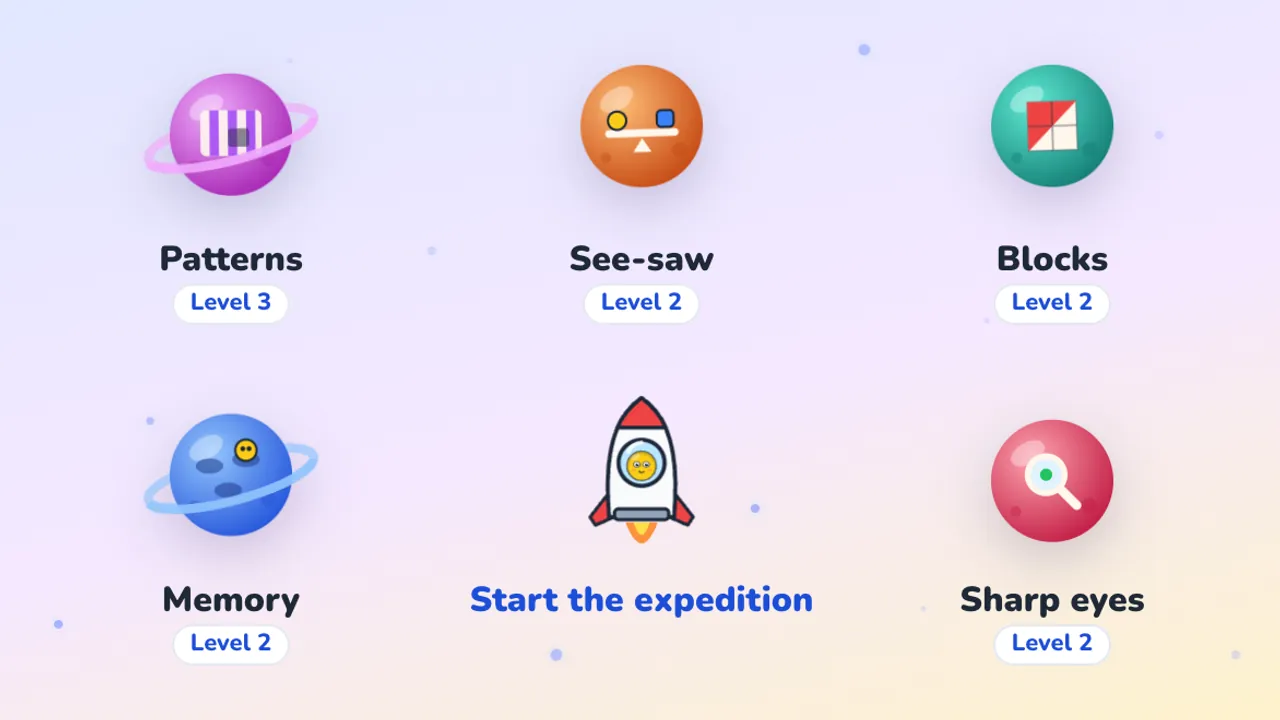
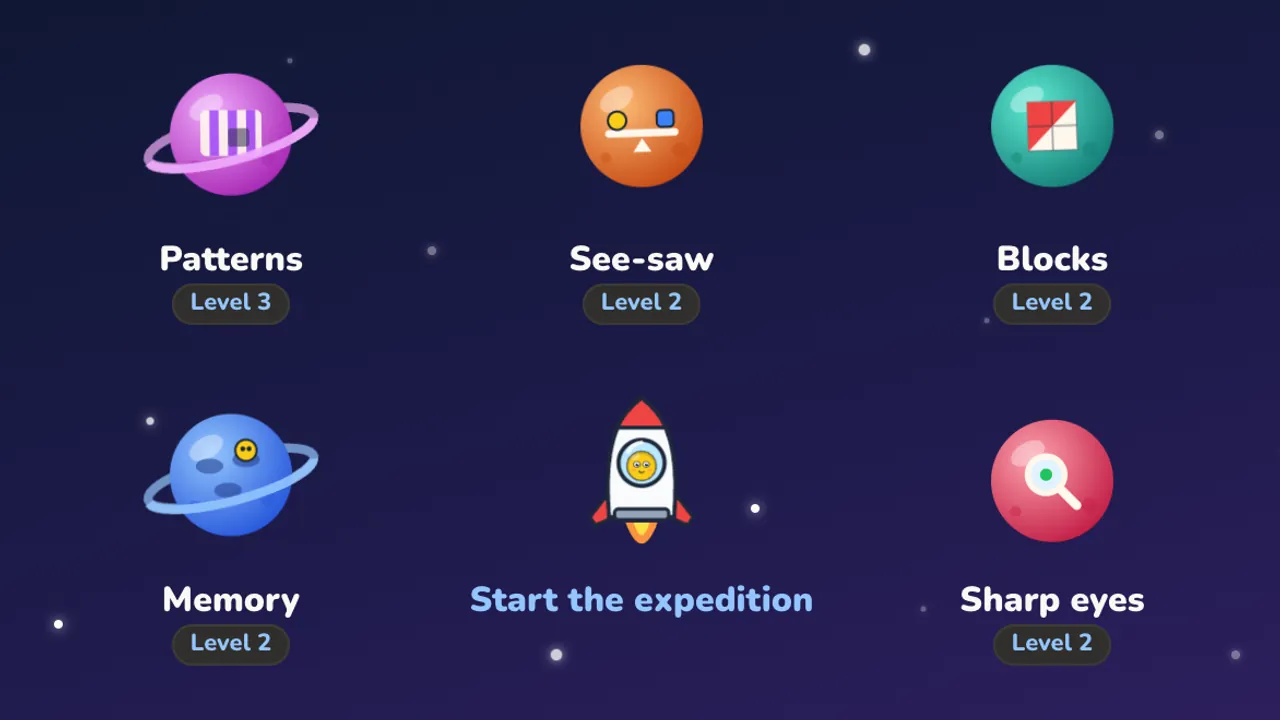 Mind PlanetsAges 5–10 · 5 planets · 3 age bands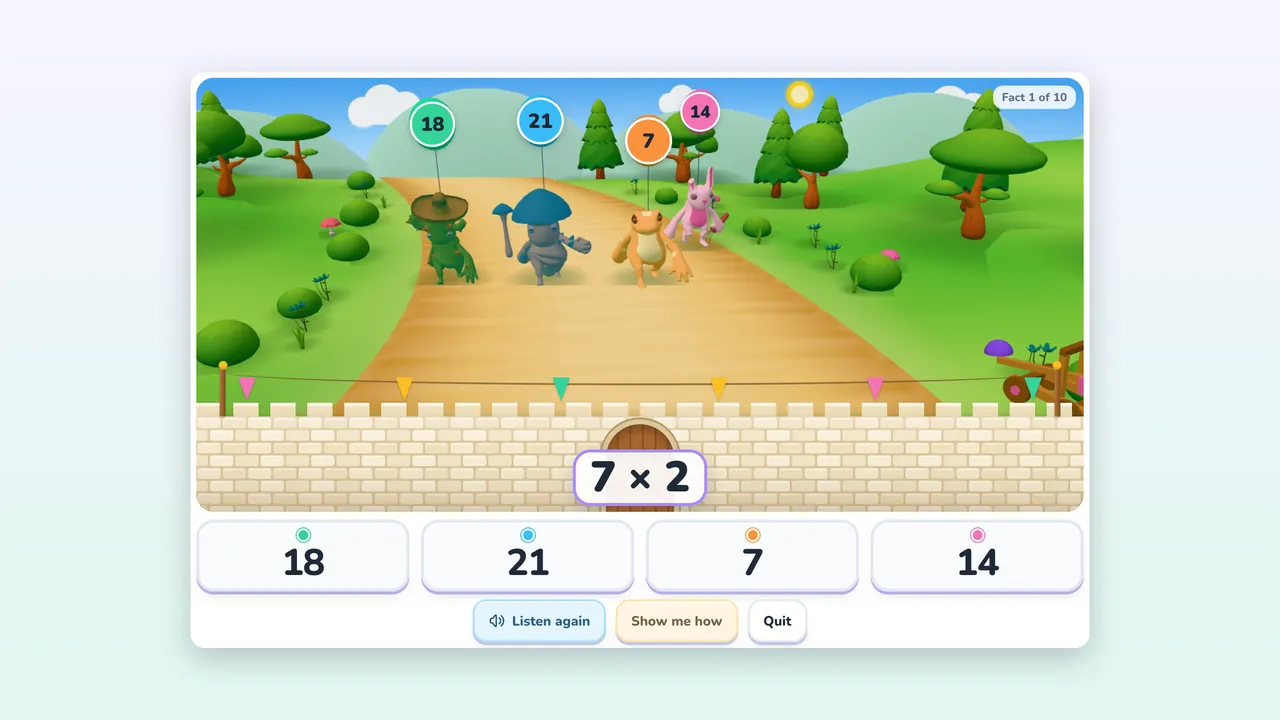
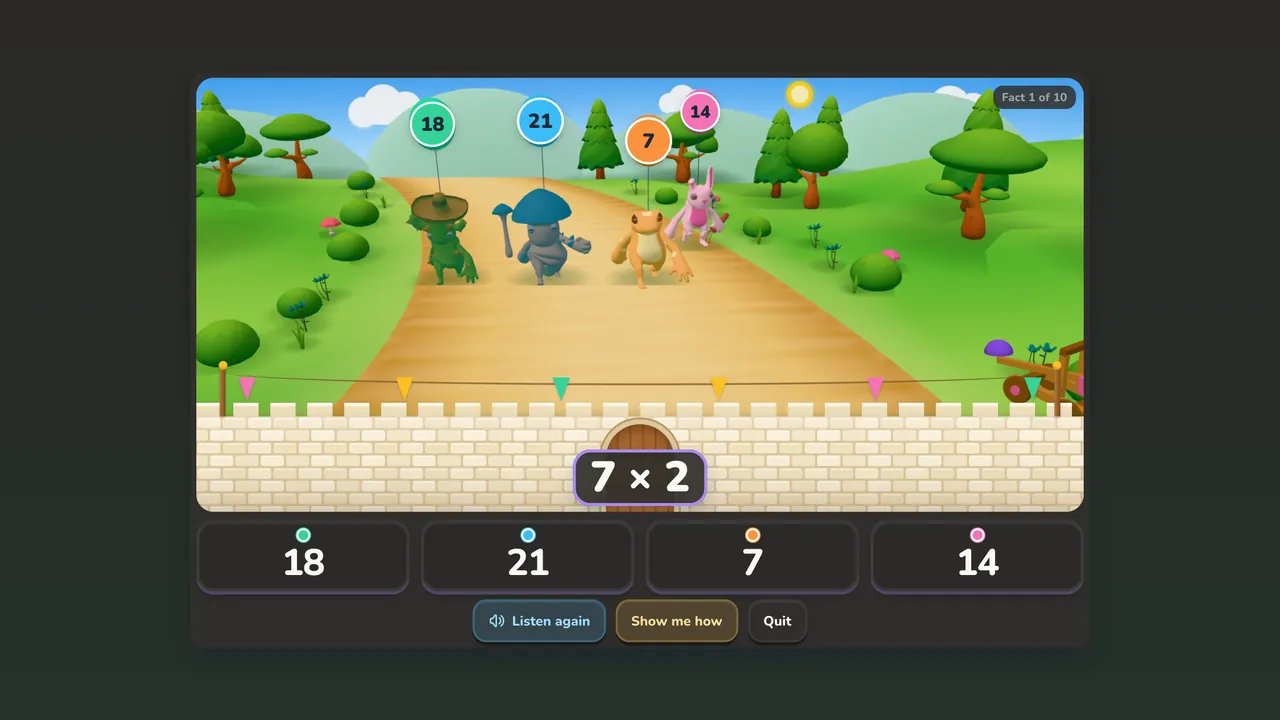 Times FortAges 7–10 · 3 grades · 38 stations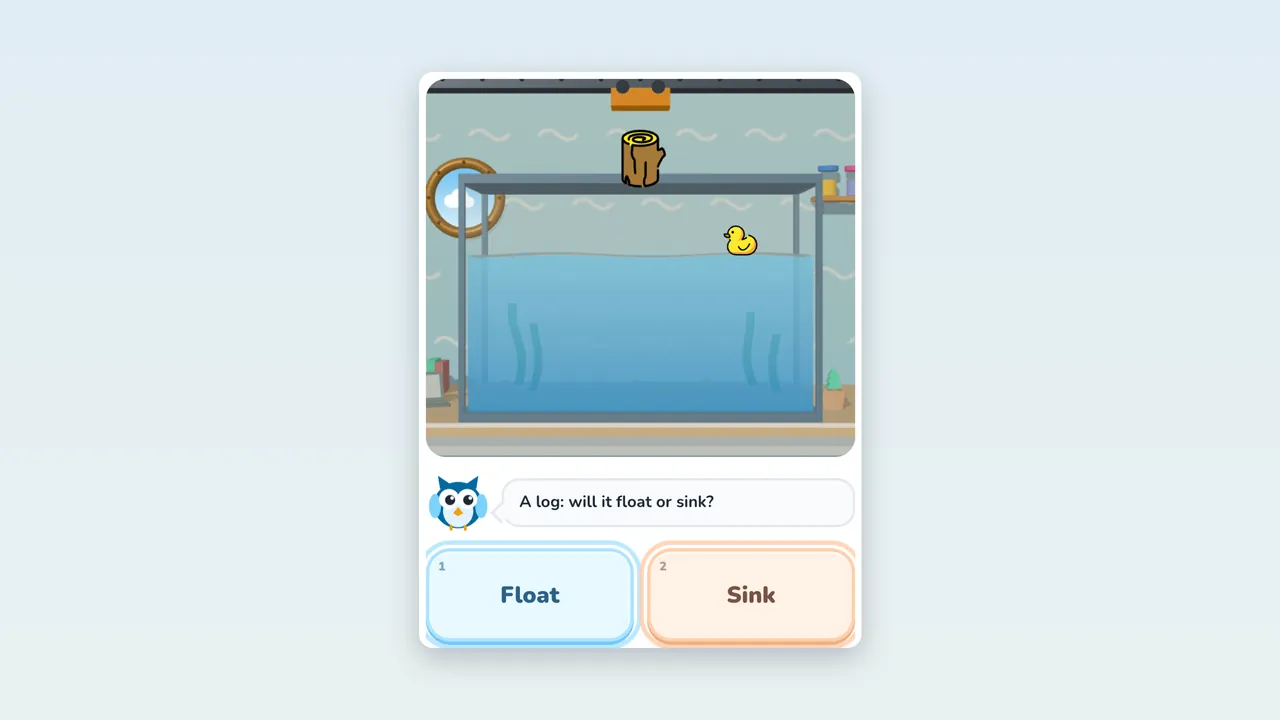
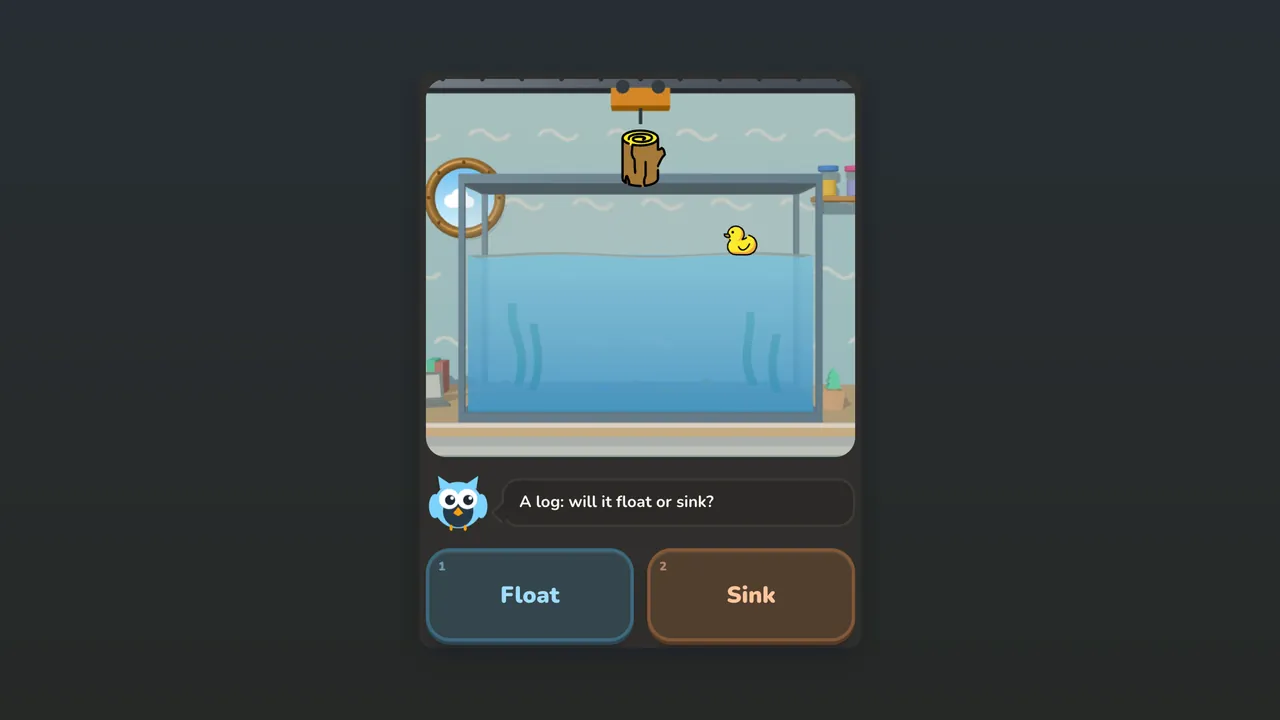 Sink or FloatAges 7–10 · 5 rooms · 24 rounds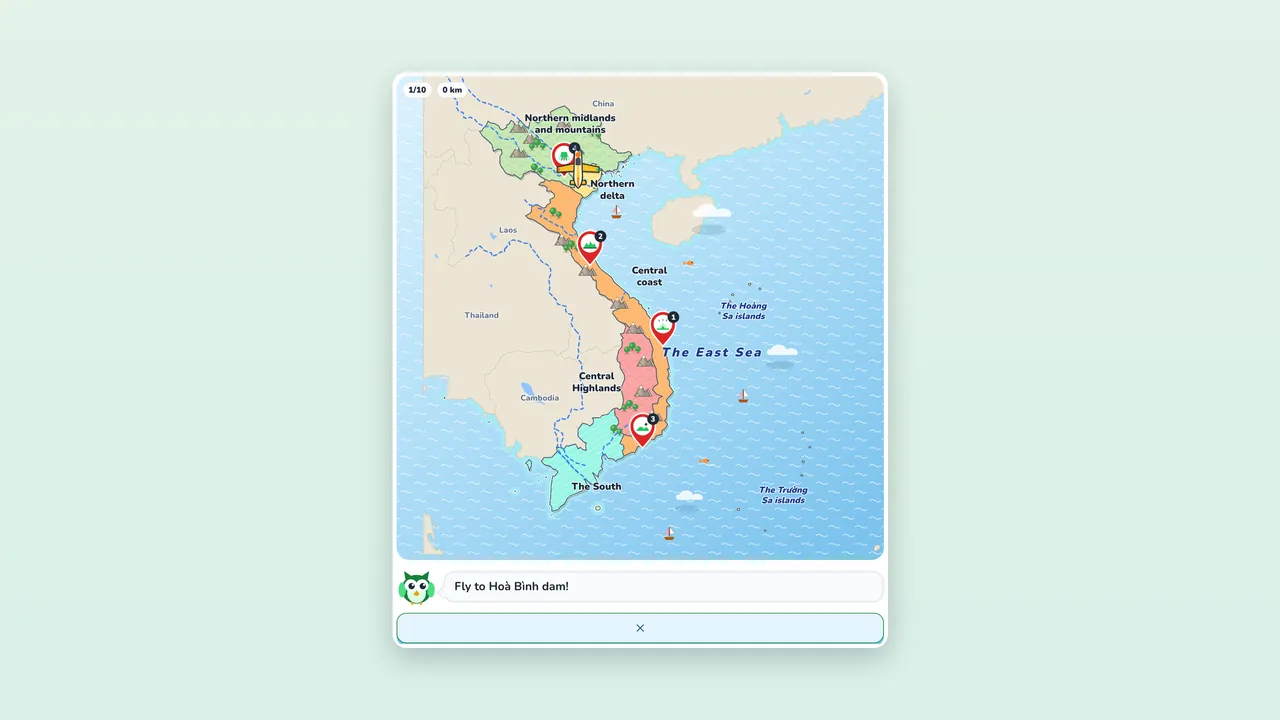
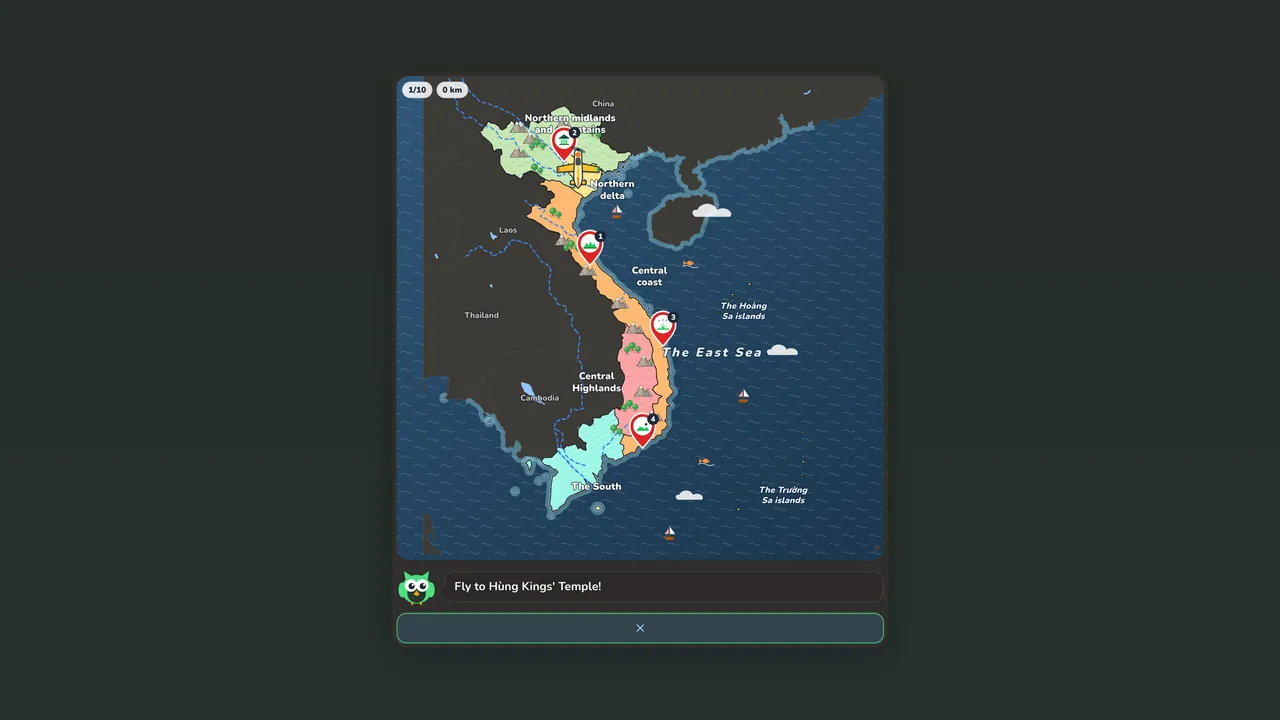 Map PlaneAges 8–10 · 5 regions · 32 flights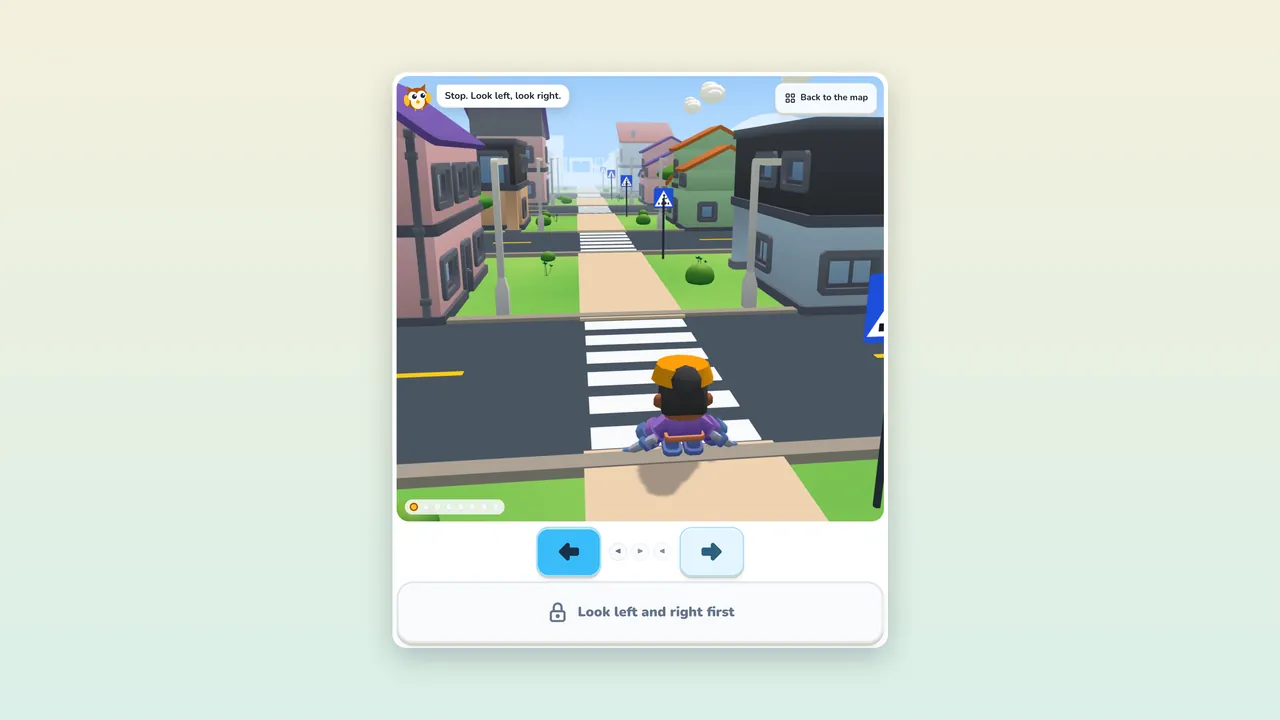
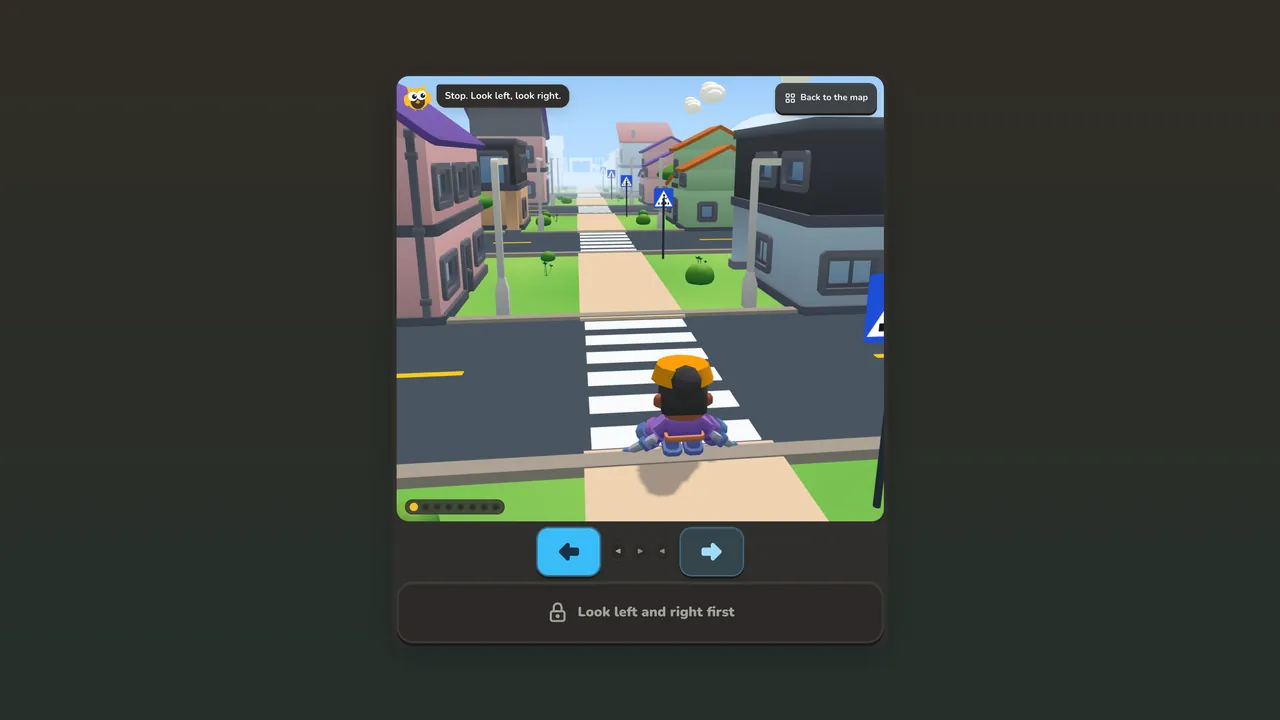 Safe CrossingAges 7–10 · 13 stages · 16 rules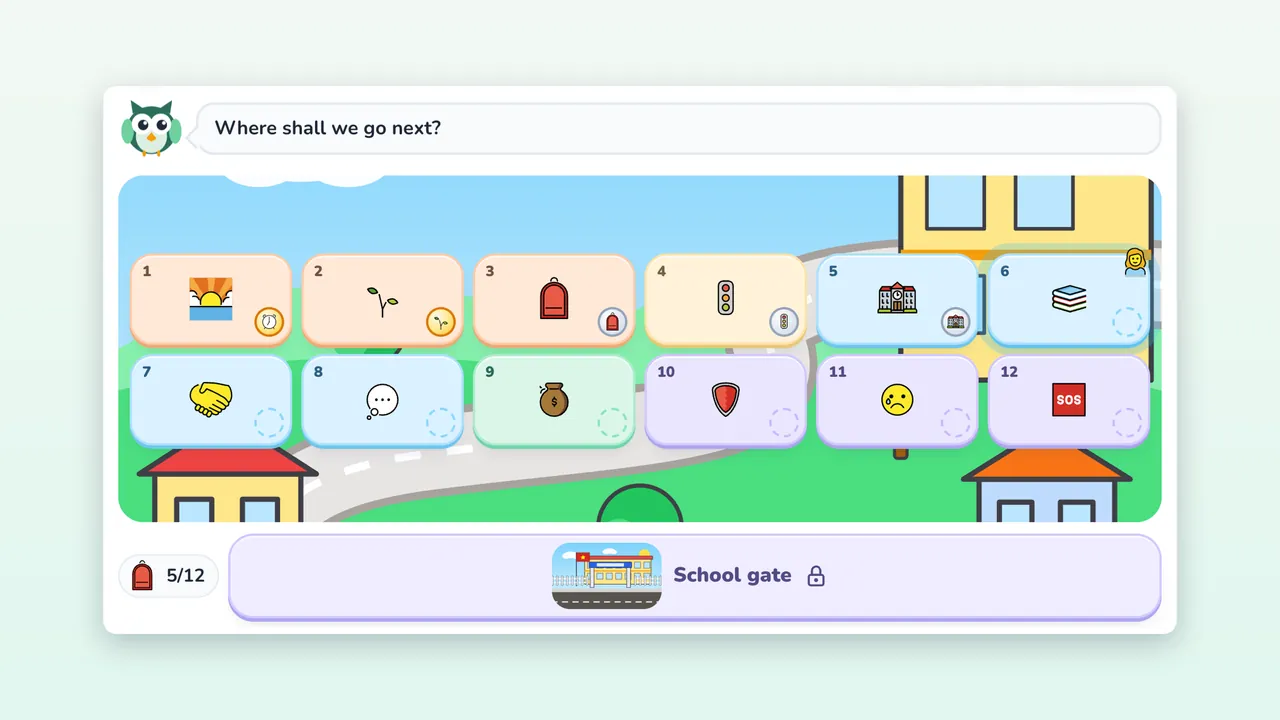
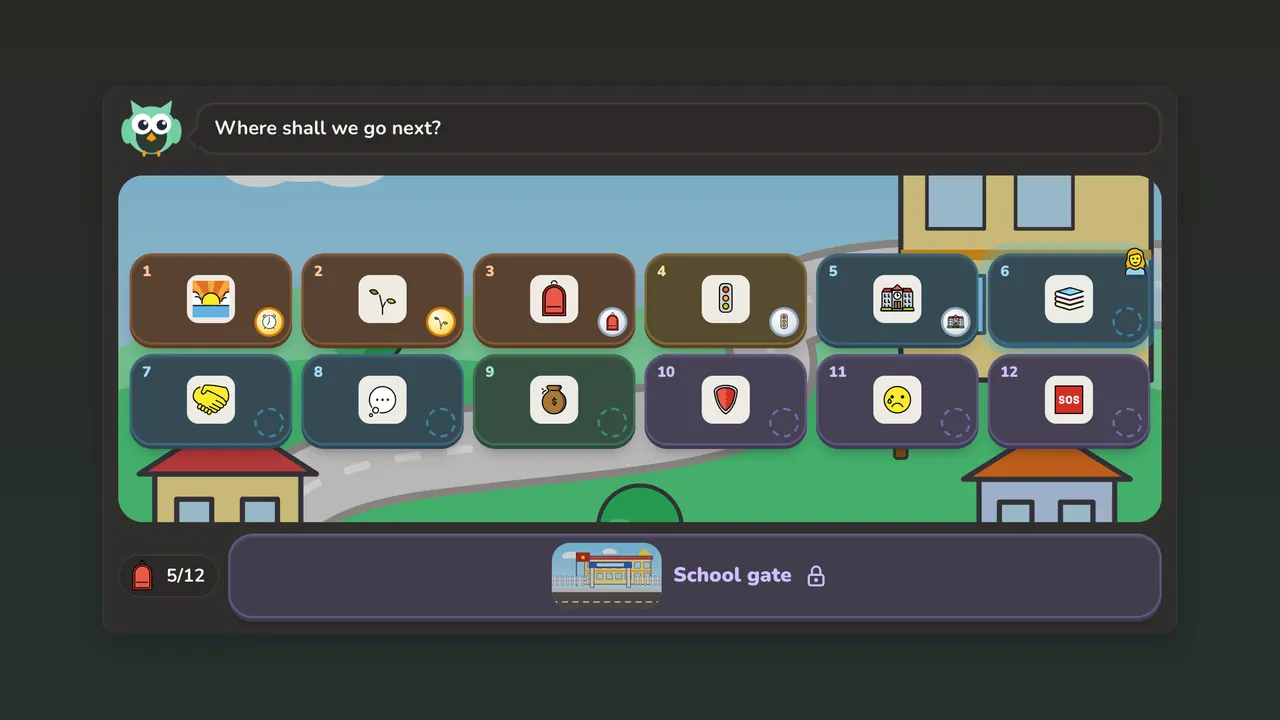 Ready for School!Ages 5–7 · 12 stops · 71 activities
4.Apps: finish the job, then take the result with you
6 apps that run on your machine: photos, answers and drafts stay in your browser and nothing is uploaded. The one exception is Route Board, which sends the addresses you look up to find them on the map.
Every app works in three steps
- It opens with a ready-made example, so you can see what it does before you type anything.
- Do your bit. Your draft is kept in the browser, so reloading the page loses nothing.
- Take the result with you: copy it, download a file, print it or create a share link. Links stored on our server need you to be signed in, and you can remove them from your profile.
Mind Gauge
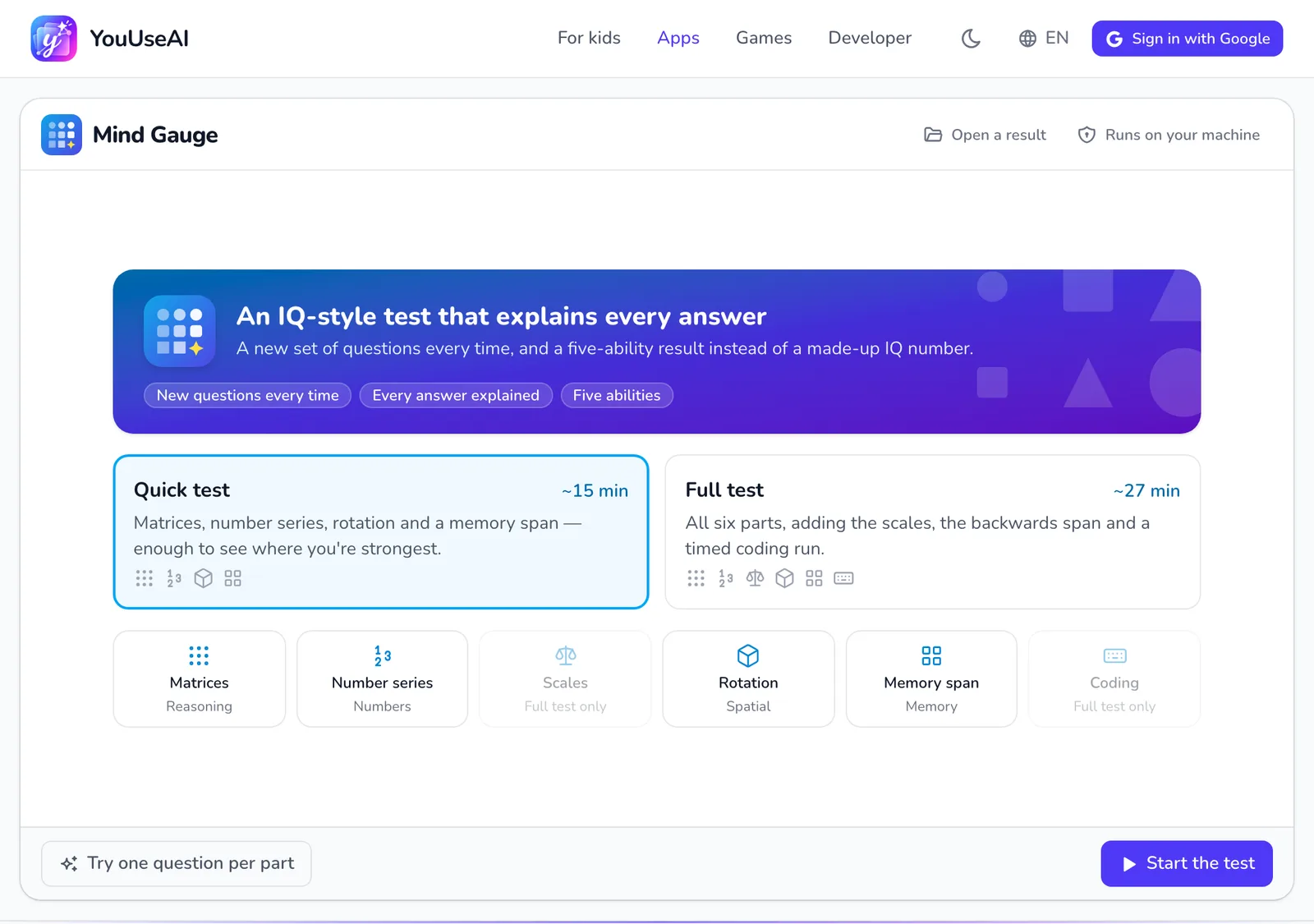
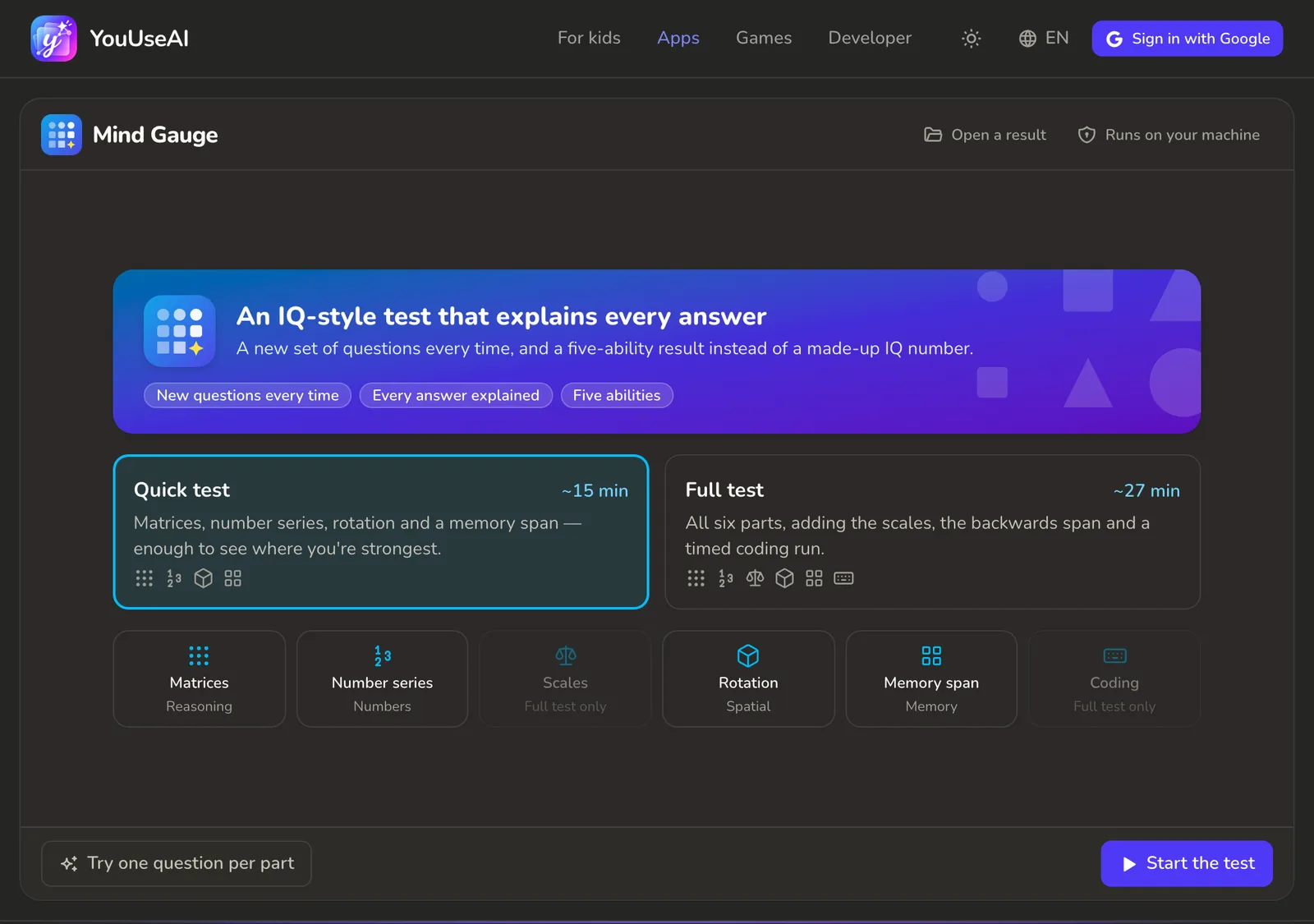
- 1Reopen a result file
- 2Try one question from each part
- 3Start the test
- Choose Quick test or Full test — the time each takes is on its card — then press Start the test. To see what the questions look like first, press Try one question per part.
- Each part has its own timer. Get 4 wrong or skipped in a row and that part ends early; the page tells you when it does.
- At the end you get a profile across five abilities, with every question explained. Download the result card or the result file, or send a link so a friend takes exactly the same test.
- Open a result reopens a result file so you can go through the whole test again.
Route Board
- Press Try the sample paste to see a ready-made trip, or start your own.
- Add stops: pick from Pick from places worth visiting, or paste a place name, coordinates or a Google Maps link and press Add to the route.
- Press Optimise to reorder the stops into the shortest route — the page shows how many kilometres and minutes you save.
- Take it with you: open it in Google Maps or Apple Maps, Print the day sheet, download the KML file, or press Copy link to share it.
My Timetable
- Use the first button in the toolbar to say who the timetable is for: Year 1 to Year 12, university, a teacher, a working week or the whole family.
- Fill it in: Paste a week to paste a week as text, or click a cell and pick a subject.
- Print it on one A4 sheet, or Share it as a link the grandparents can open on their phone.
Photo Lab
- Open photo, or drop a photo onto the frame. No photo to hand? Use a sample.
- Click a tile in the ready-made looks, or Fix it for me. For finer control, open the tool groups on the right. Hold
\to compare with the original. - Download, or open Export to choose a format and save the colour recipe to apply to a whole batch.
Instrument Lab
- Choose an instrument from the list.
- Click or tap it, or play it from your computer keyboard. Not sure what to play? Press Play me something or pick one of the pieces.
- Press Record to capture a take, then download it as WAV or MIDI. The Workshop tab changes the instrument itself: brightness, sustain, where it's struck.
Run Along
- Say whether the viewer is a Kid or an Adult, then choose the character, the scene and the music.
- Open Obstacles to choose the moves for each minute, or let the app deal them.
- Press Play to preview, then go to Export to build the video — you can pick several qualities in one go.
Every app
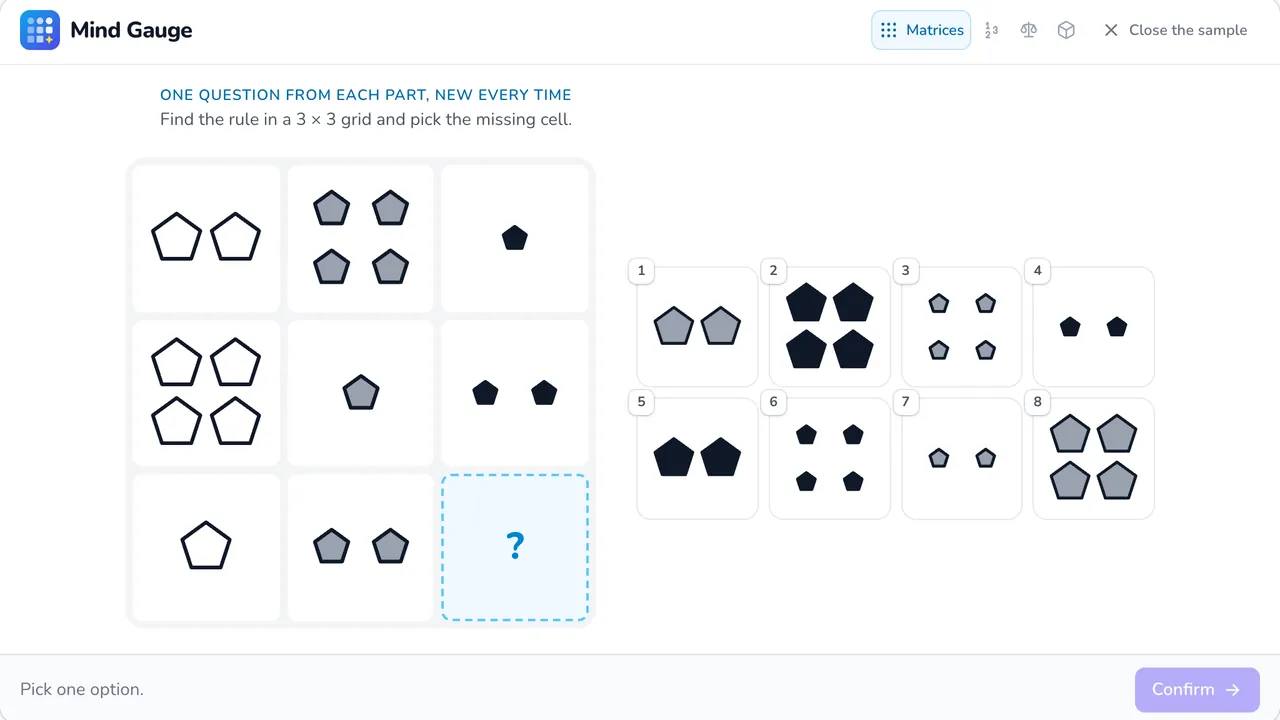
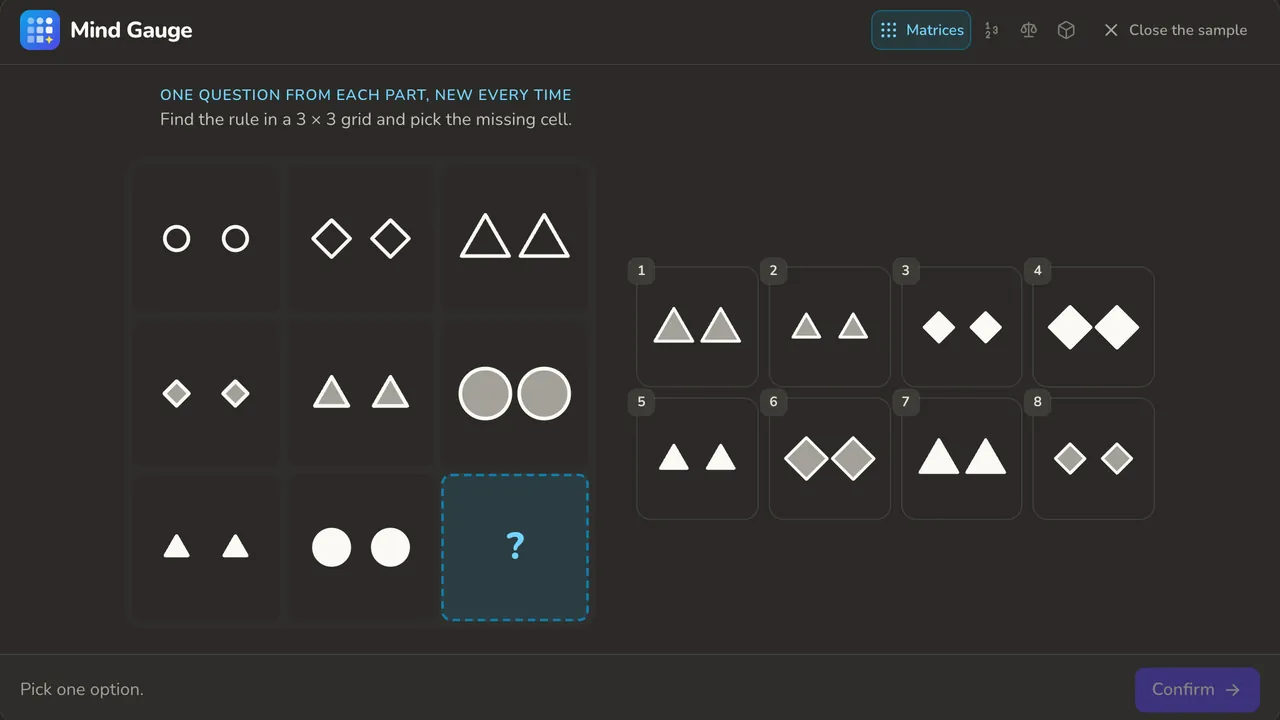 Mind Gauge6 parts · new questions every time · worked answers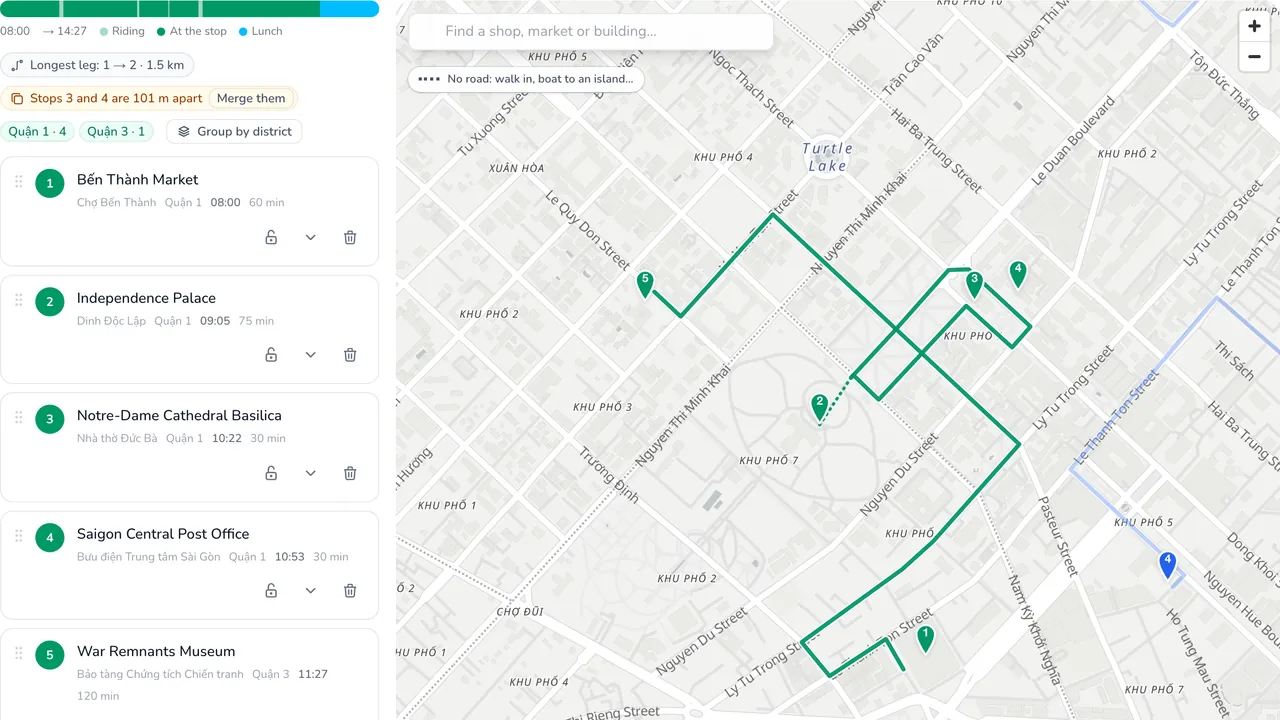
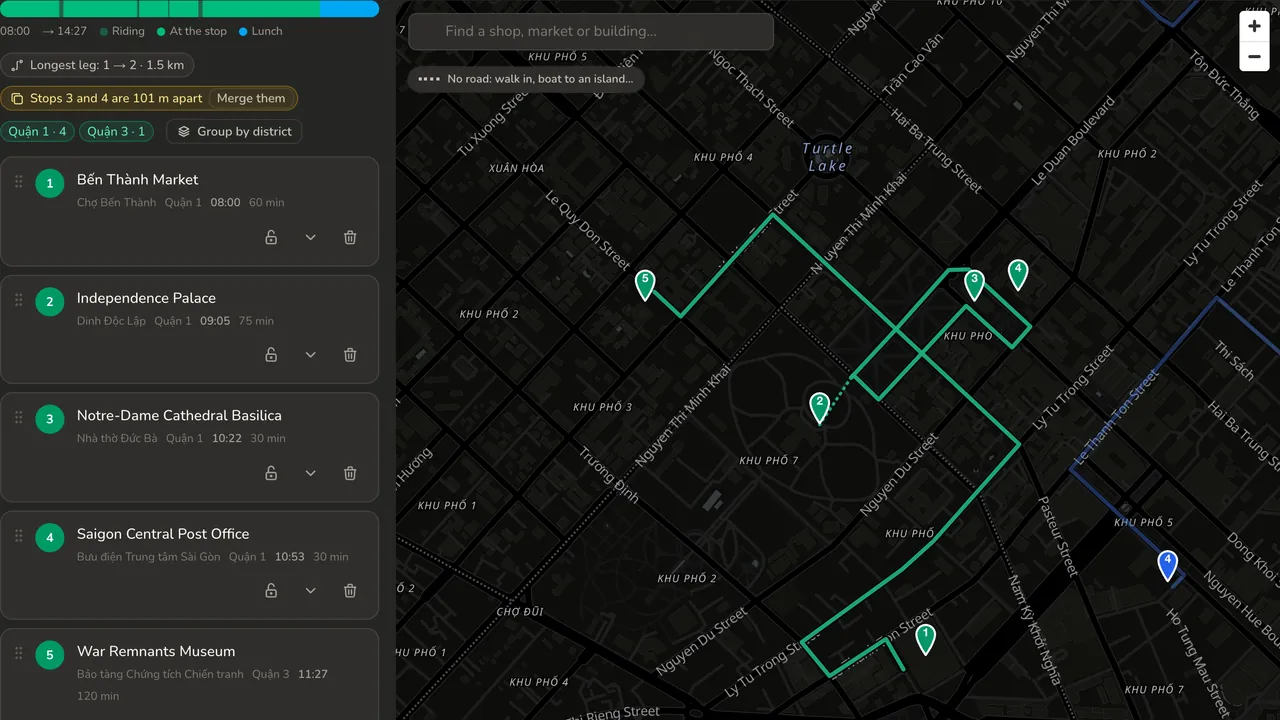 Route Board10 cities · 115 places · up to 5 days
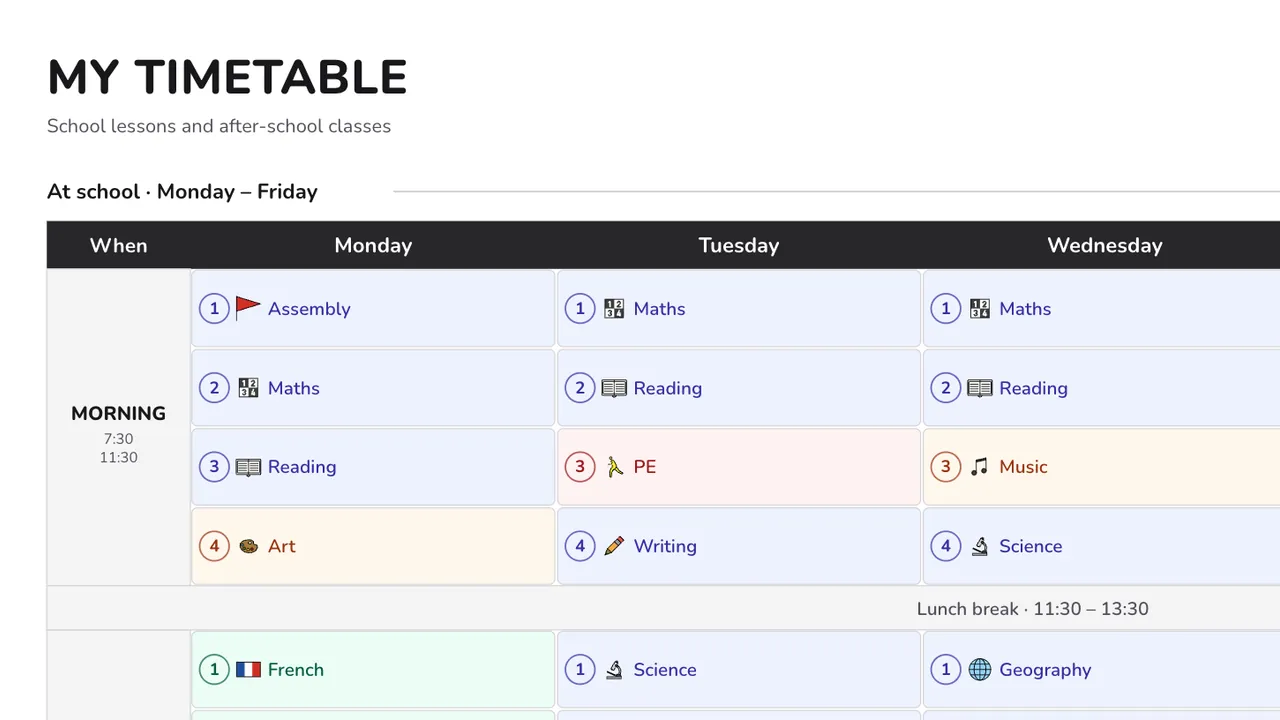 My TimetableStickers · Print · Share
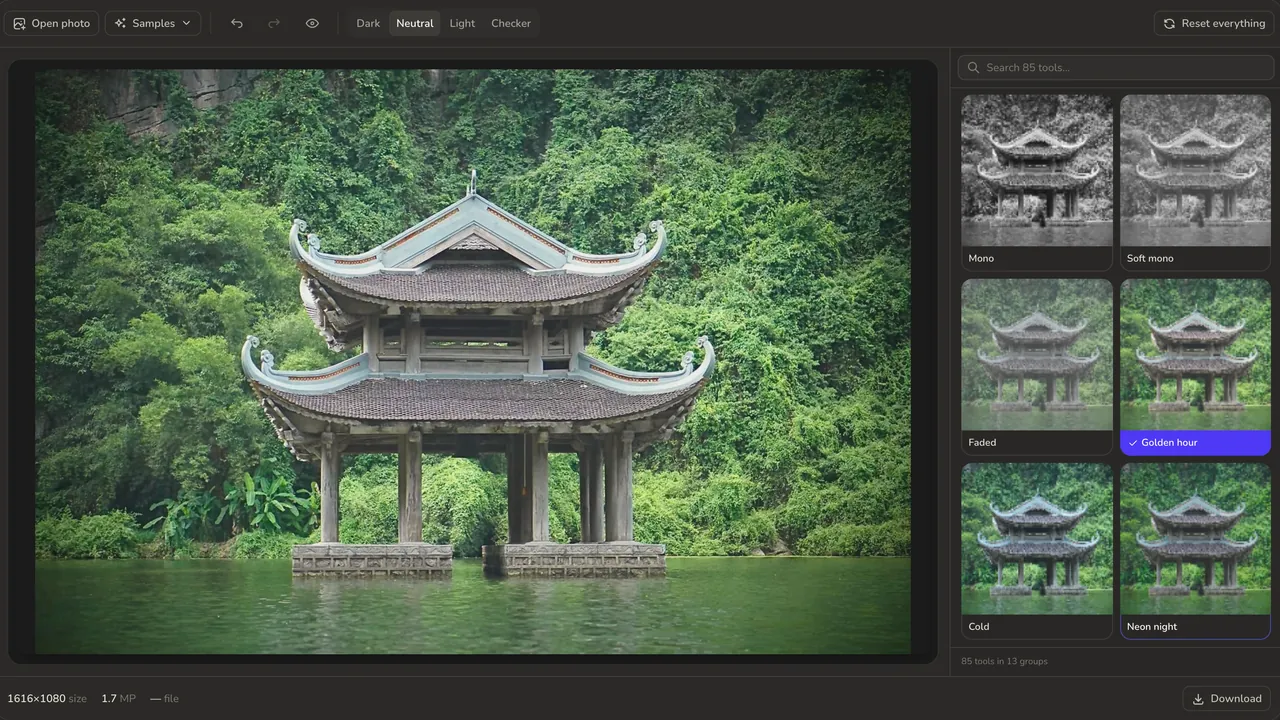 Photo LabNo upload · Batch recipes · .cube export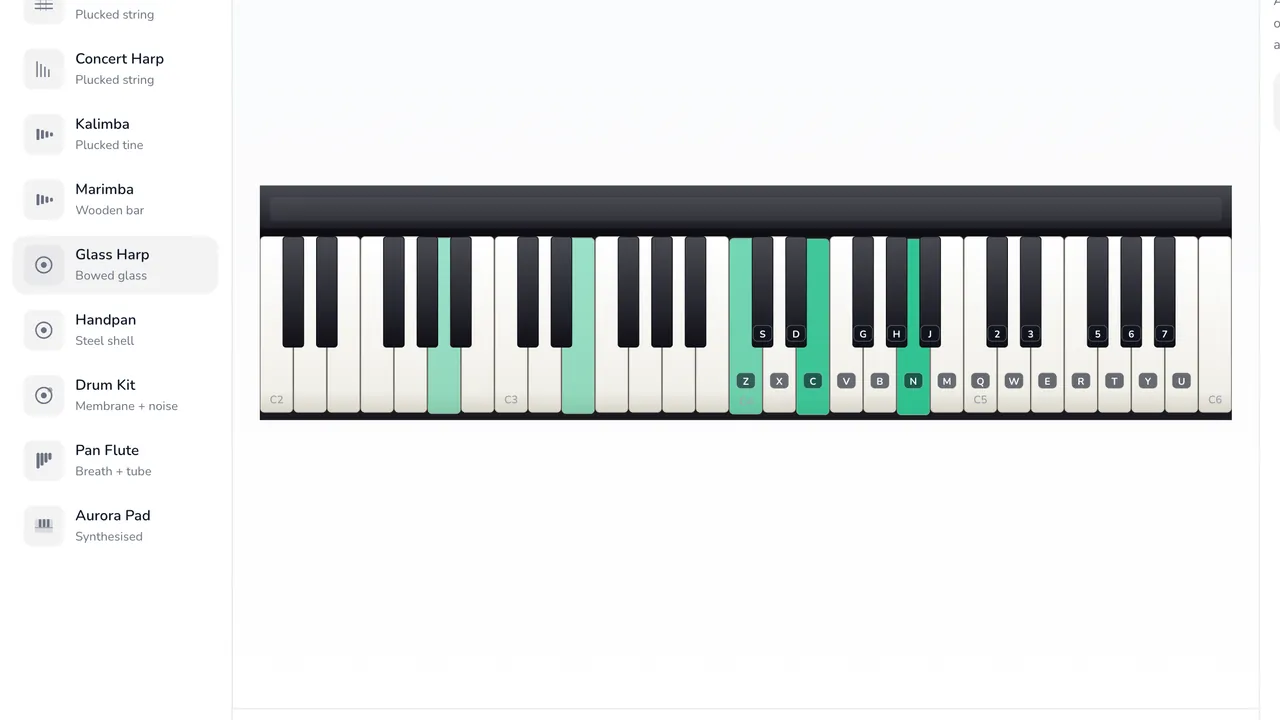
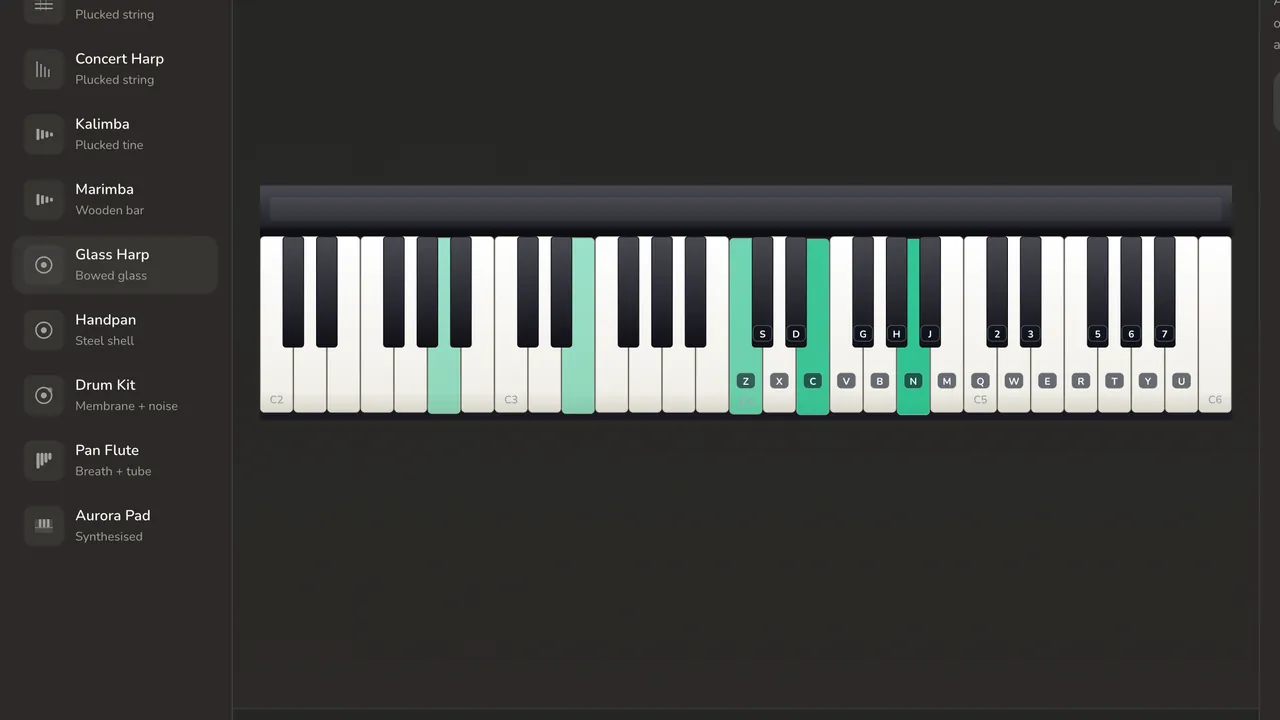 Instrument Lab10 instruments · no samples · WAV + MIDI out
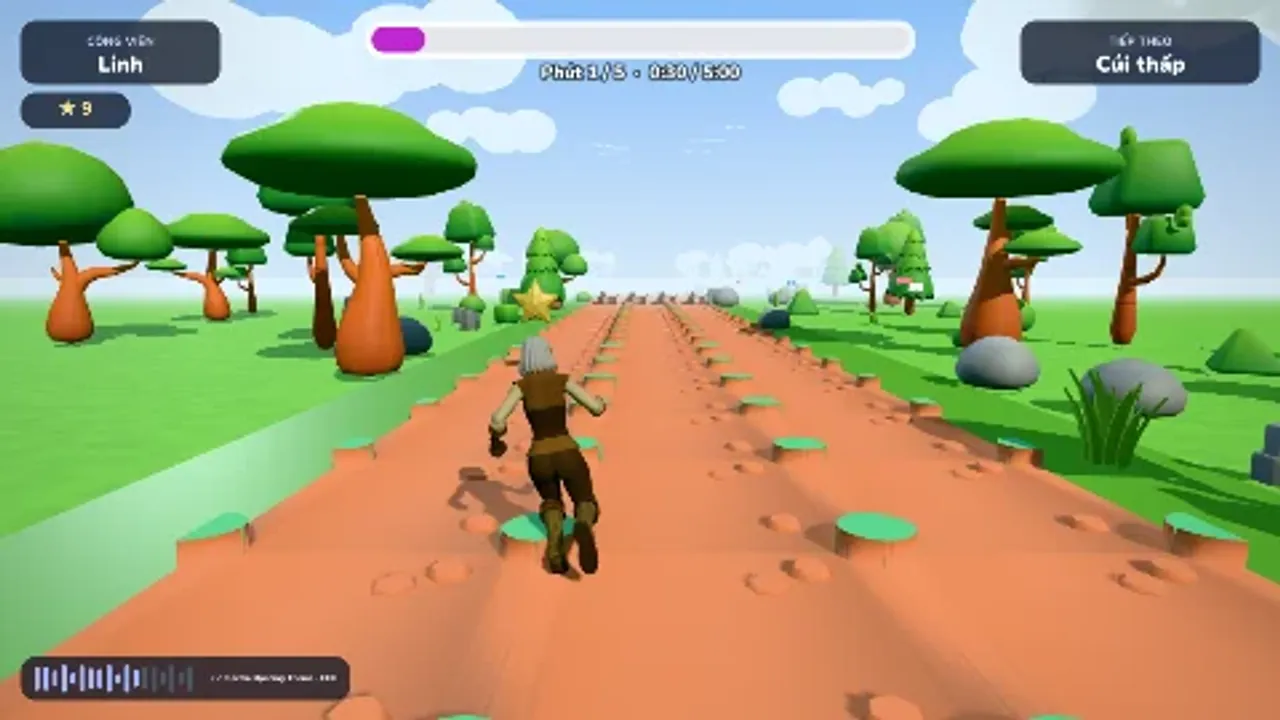 Run Along5-minute video · 5 scenes · exports 4 qualities
5.Games: choose by age, set the difficulty, then play
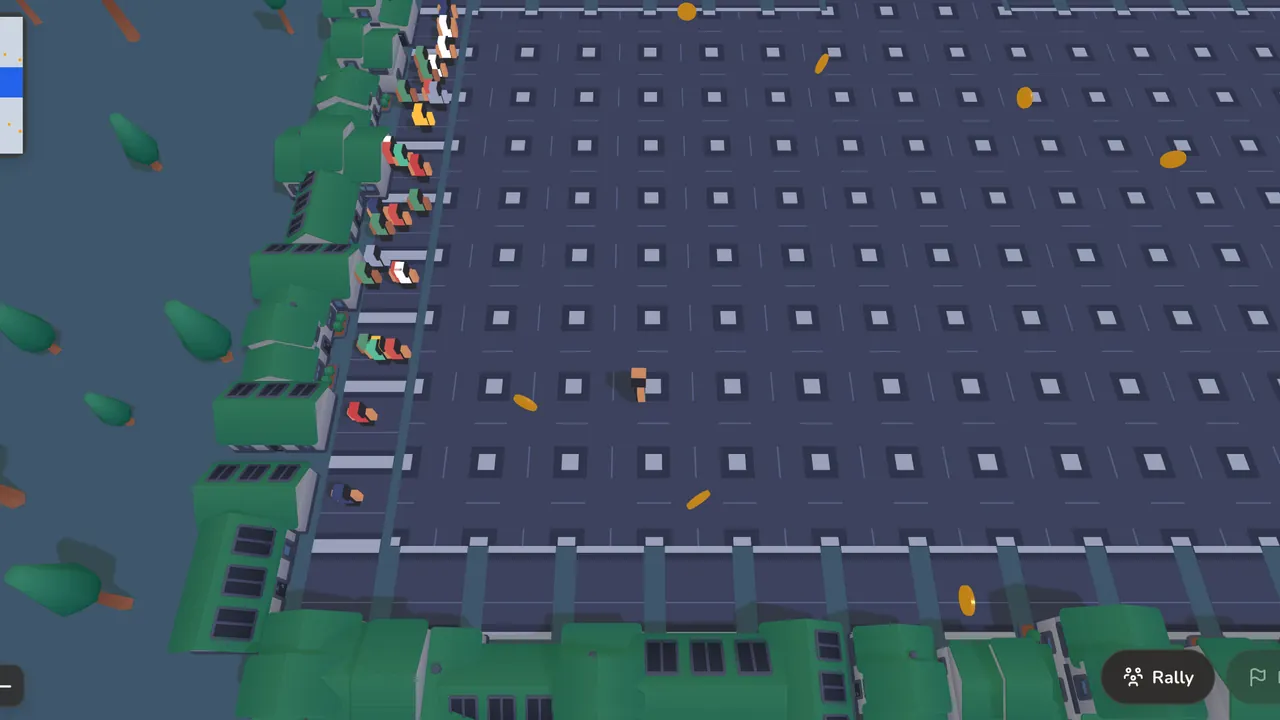
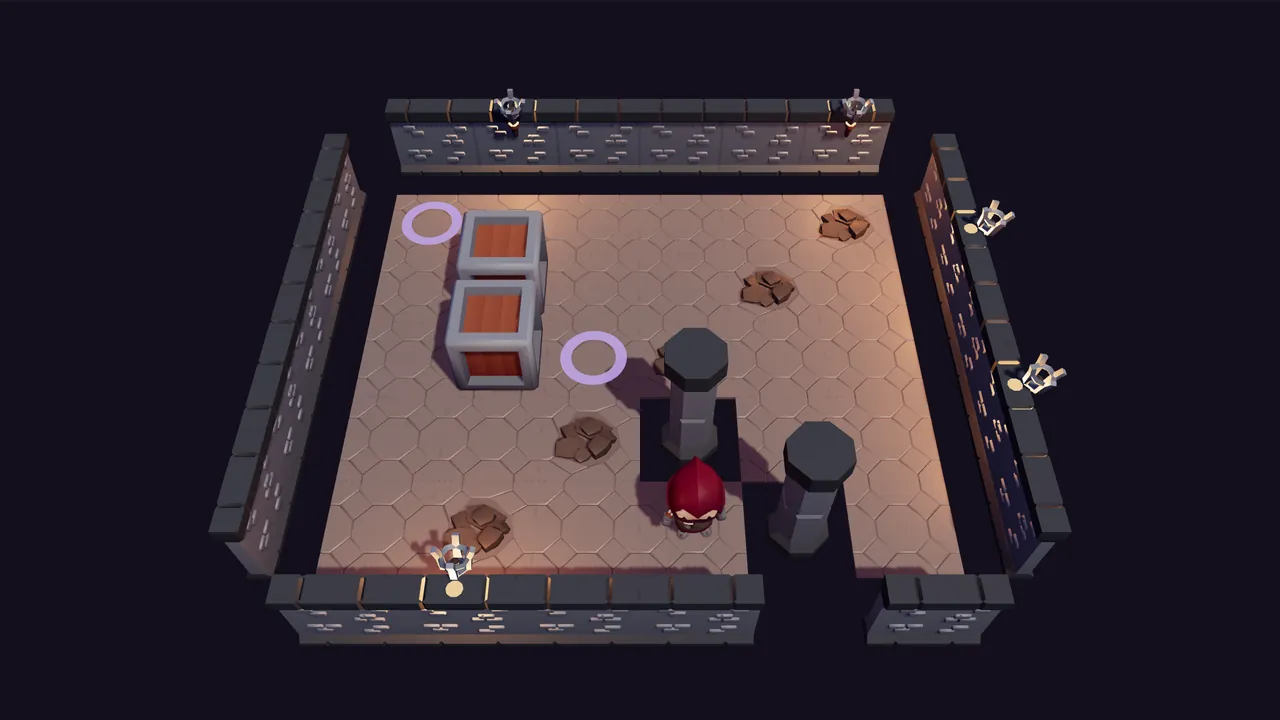
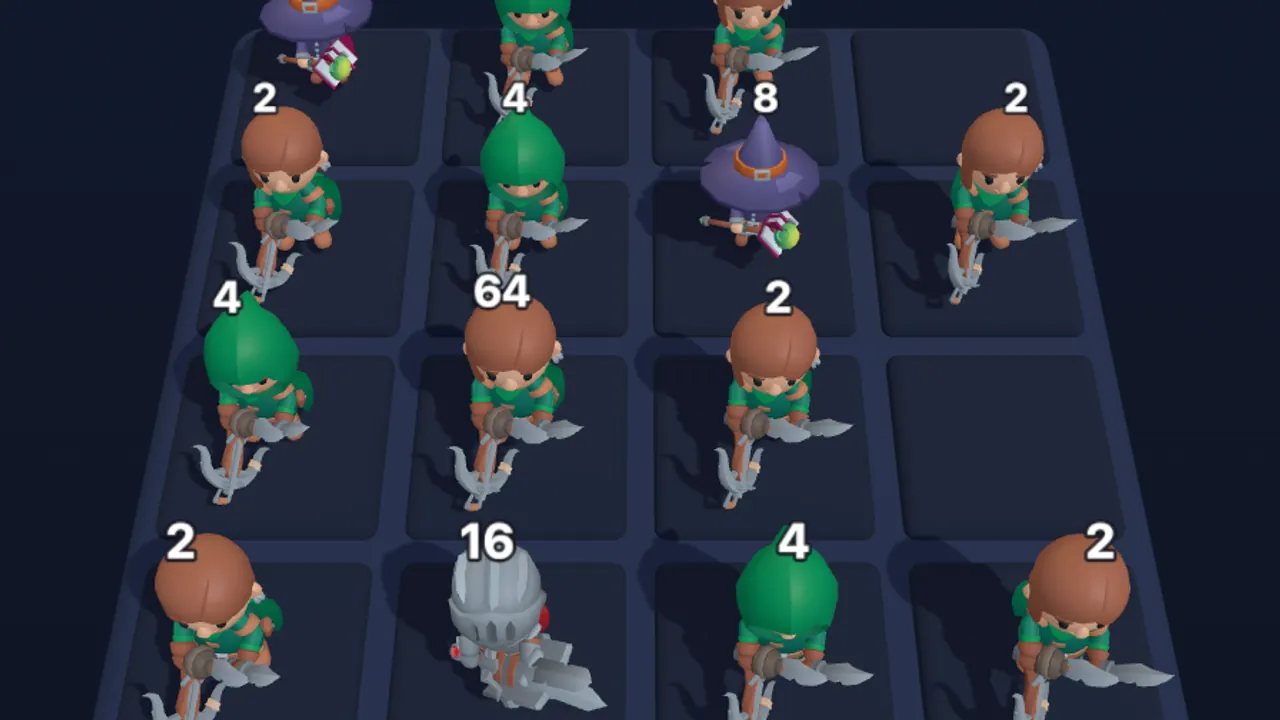
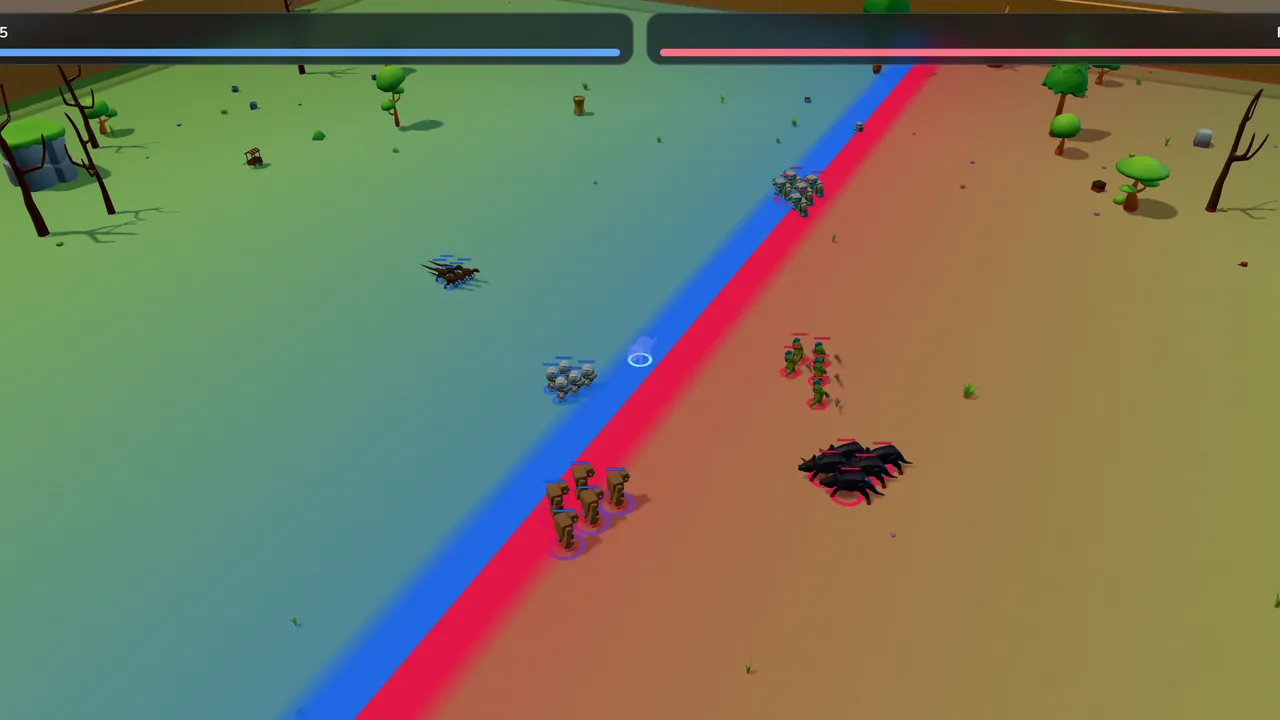
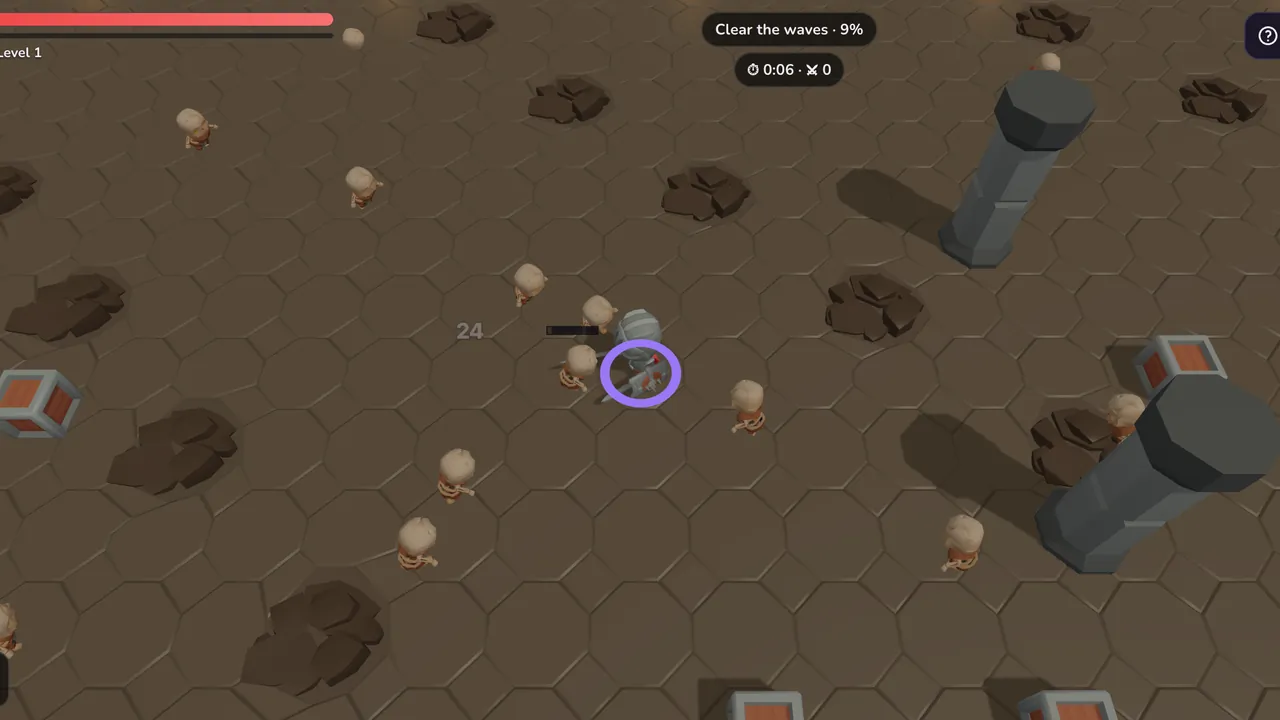
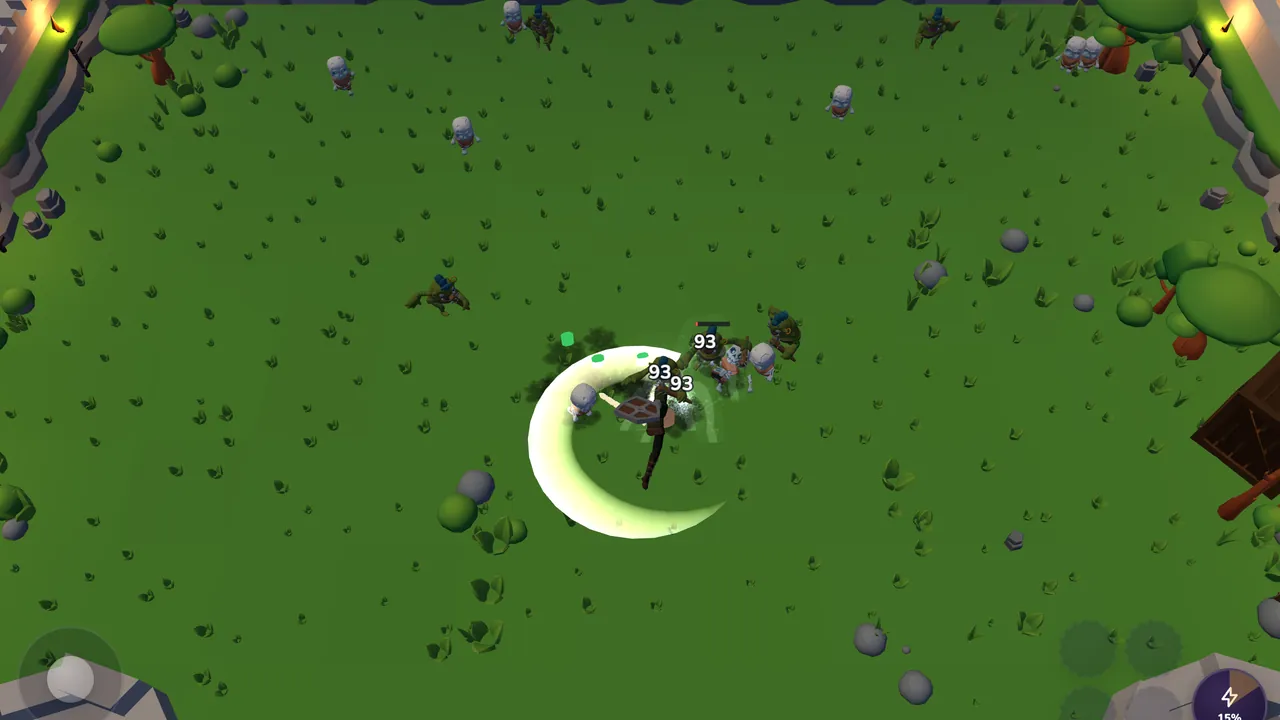
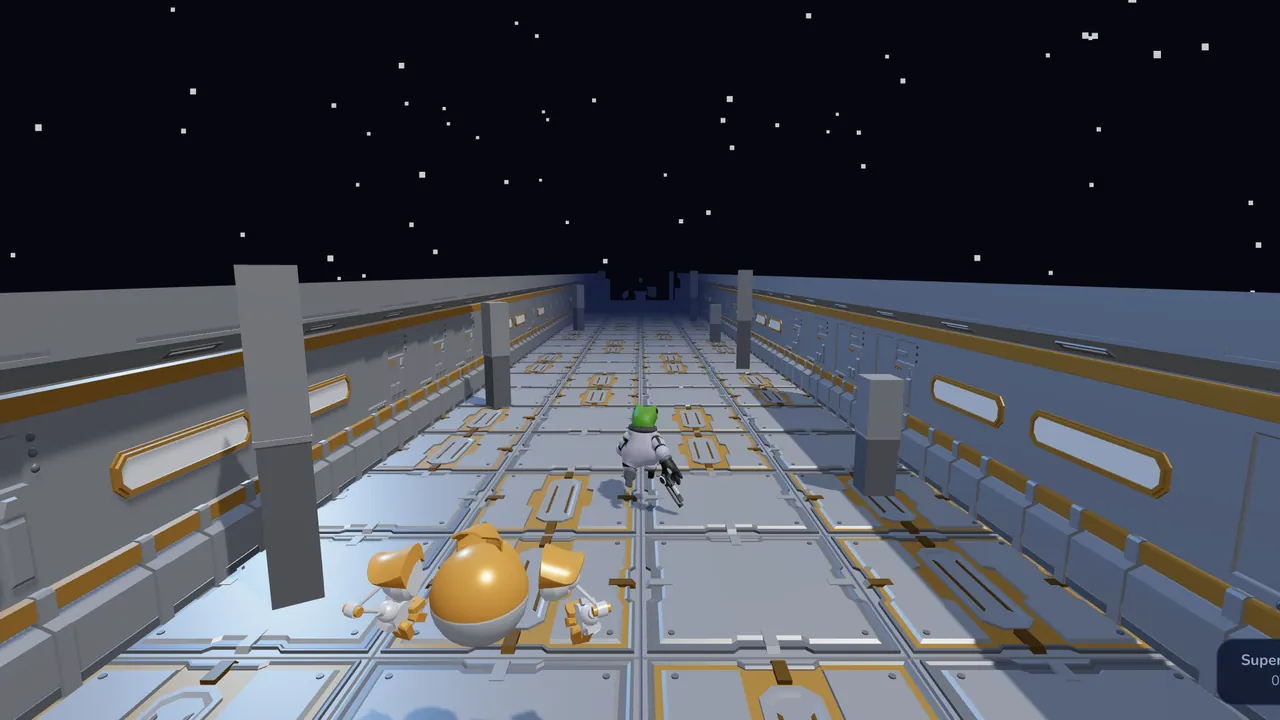
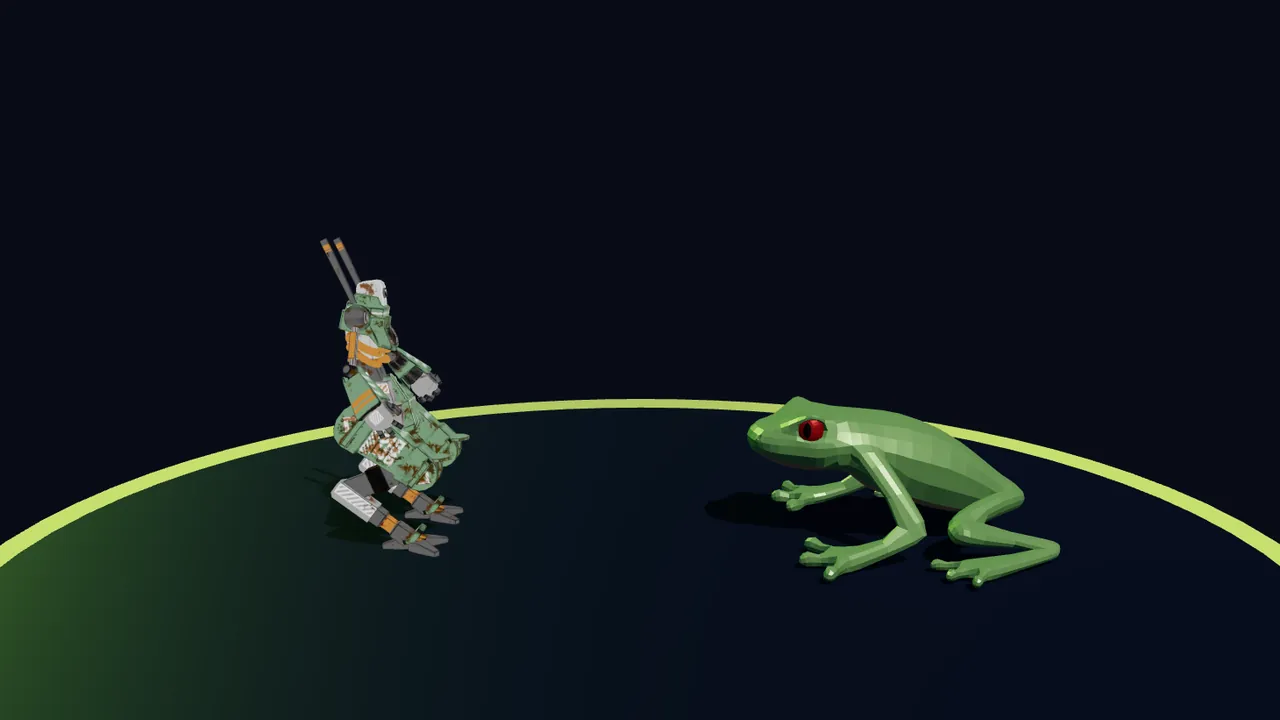
14 games that play in your browser with nothing to install. The Games page sorts them into three age groups.
Choose a game for the right age
The Games page sorts games into three groups under Vietnam's game classification: For everyone · 00+, Ages 12+ and Ages 16+. Nothing is locked by age — parents decide.
The setup screen
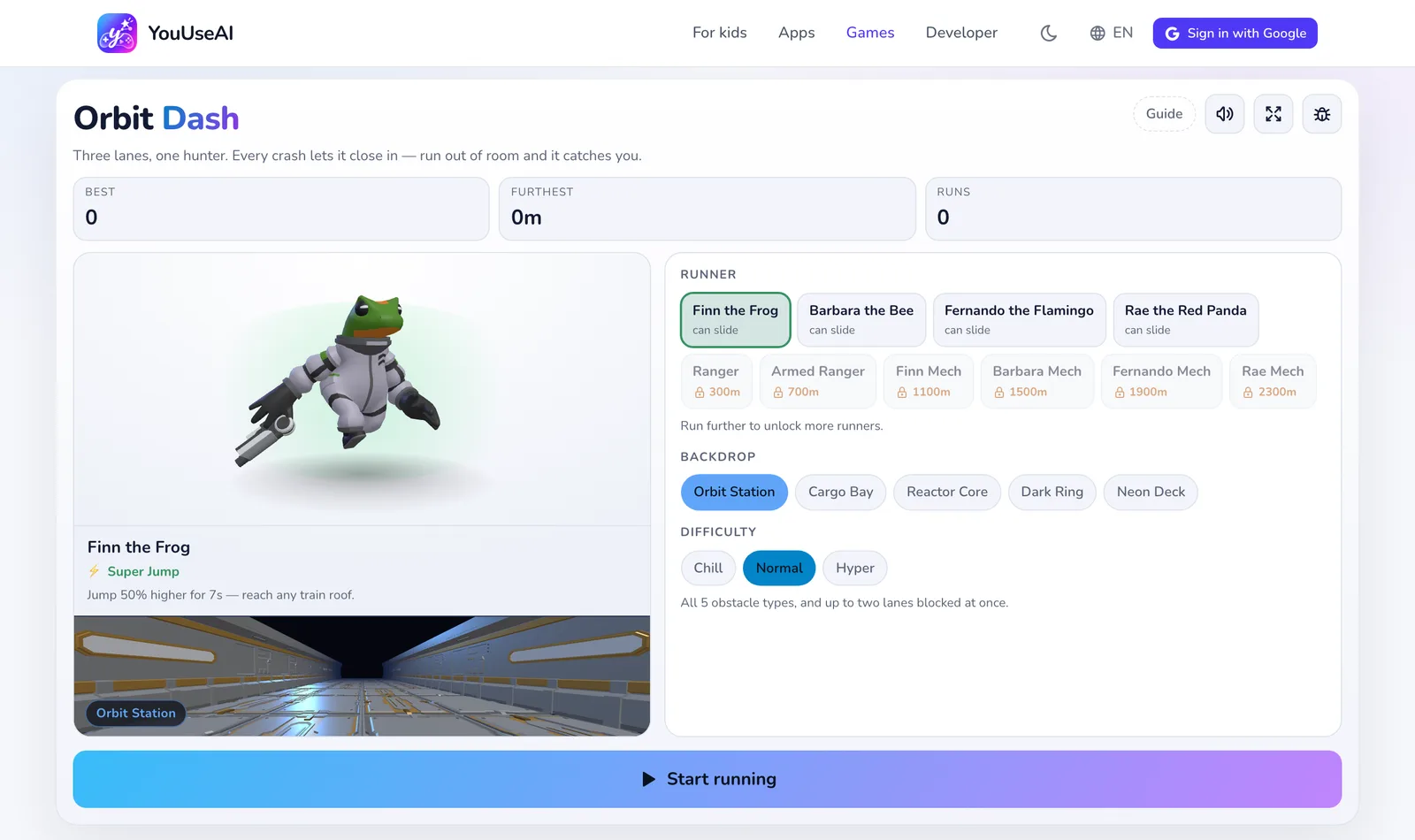
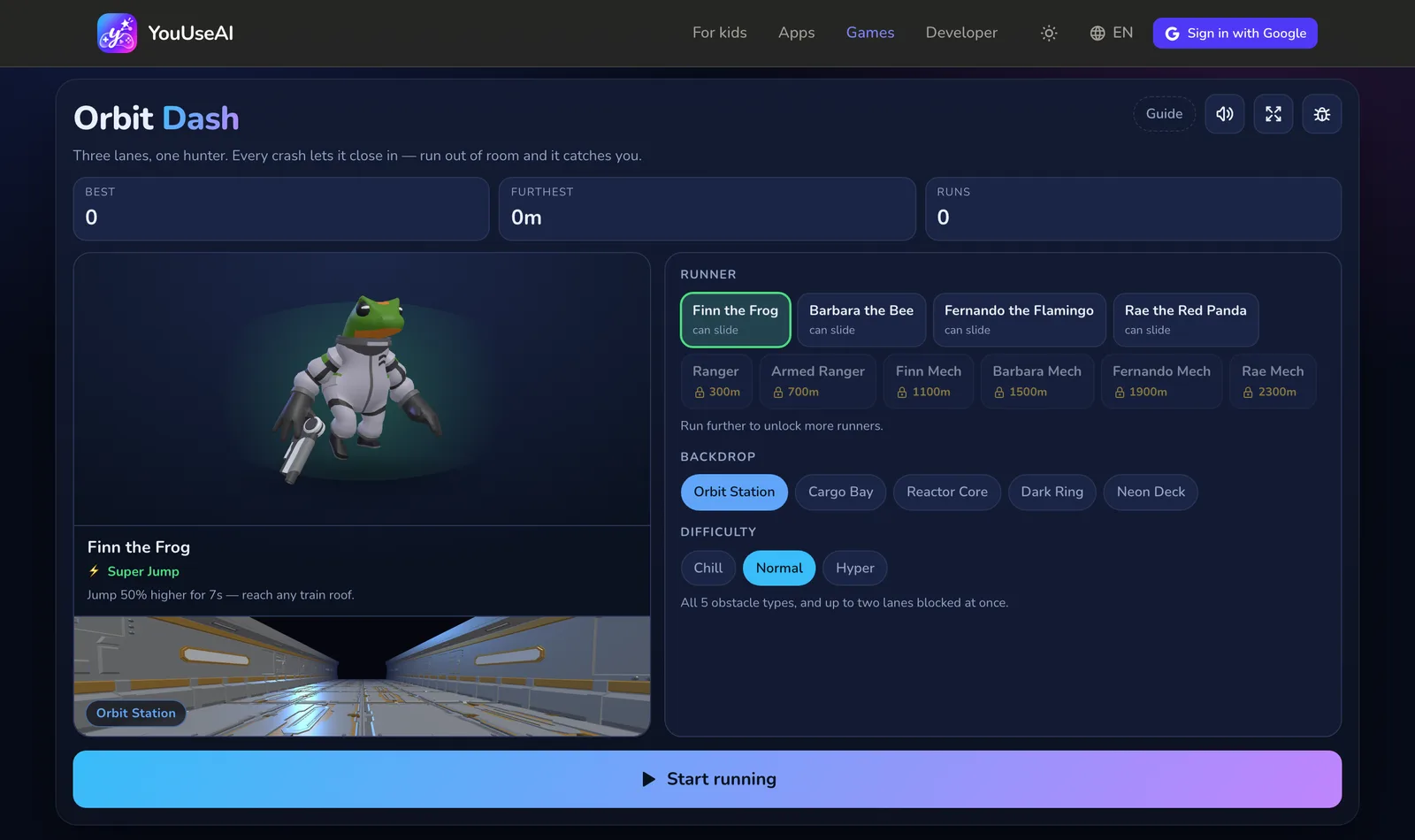
- 1How to play
- 2Full screen
- 3Report a bug
- 4Choose the difficulty
- 5Start playing
Games with characters or difficulties to choose open on a setup screen:
- Choose a character, a stage or a setting.
- Choose the difficulty. Each level changes how the game plays — new kinds of obstacle, less time to decide — not just its speed.
- Press start. Your records and progress are shown on this screen, and a new choice applies from the next run.
While you play
- How to play (Guide in some games) opens the rules: the goal, the controls on a keyboard and on a touch screen, every item, and how the three difficulties differ.
- Most real-time games have a pause button and the
Esckey, and pause themselves when you switch to another tab. - Full screen lets the game fill the screen. On an iPhone it fills the browser window instead.
- Report a bug sends a screenshot, the stage you're on and your last few actions — all you do is pick what went wrong.
Where your progress is kept
Records, cleared stages and stars are saved in the browser on the device you're playing on. Sign in and a copy is kept on your account too: it follows you to another device, and when two devices are merged the higher record wins — it's never lowered. The setup screen has a cloud status line that reads Saved to your account once it's saved.
Every game
For everyone · 00+
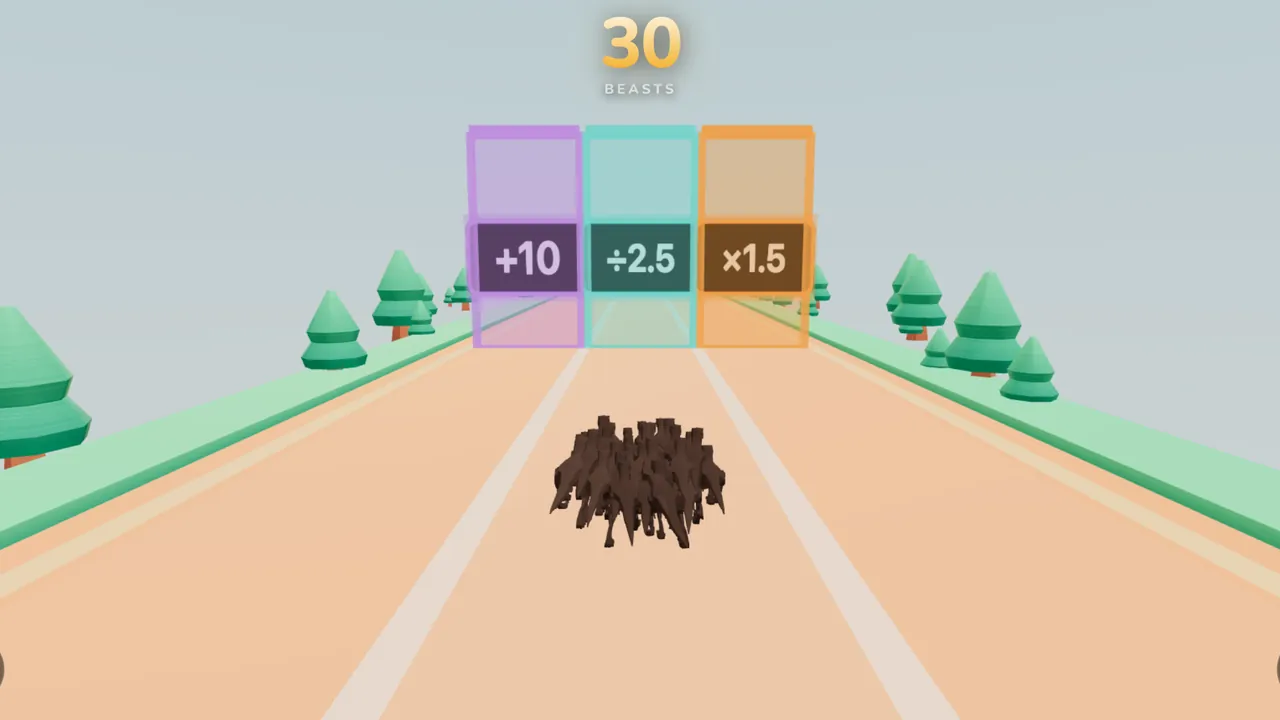
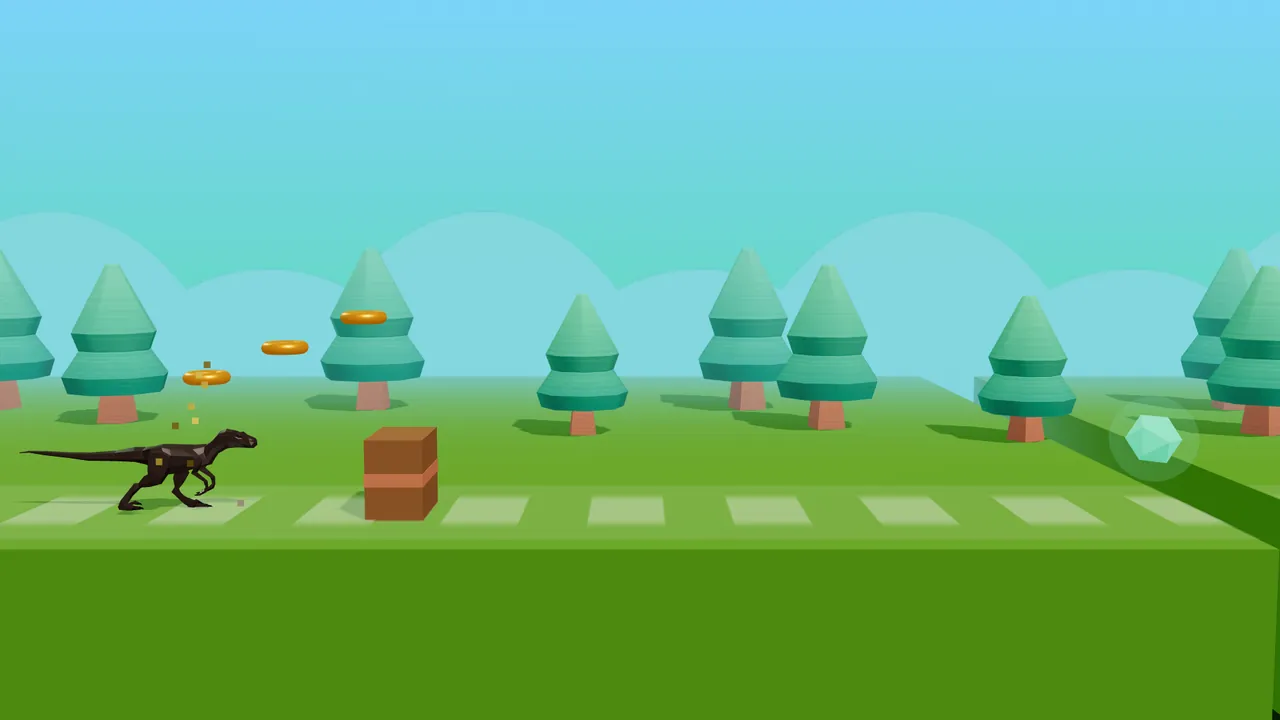

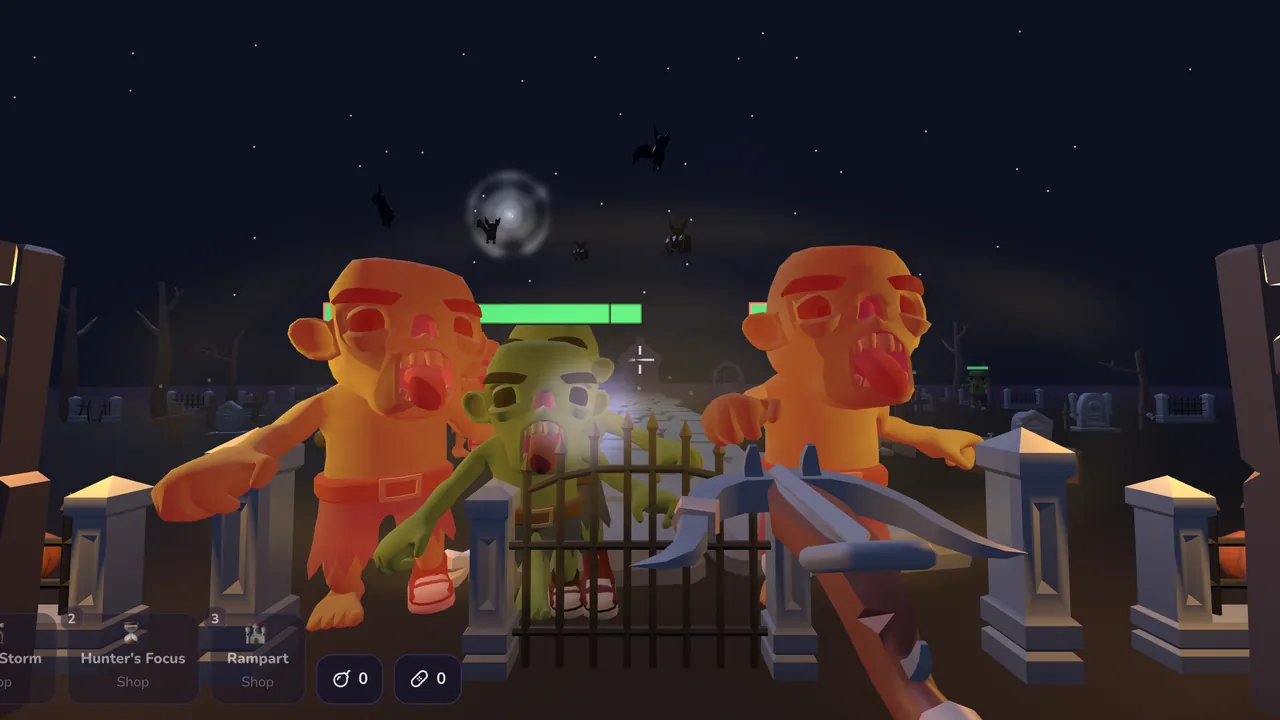
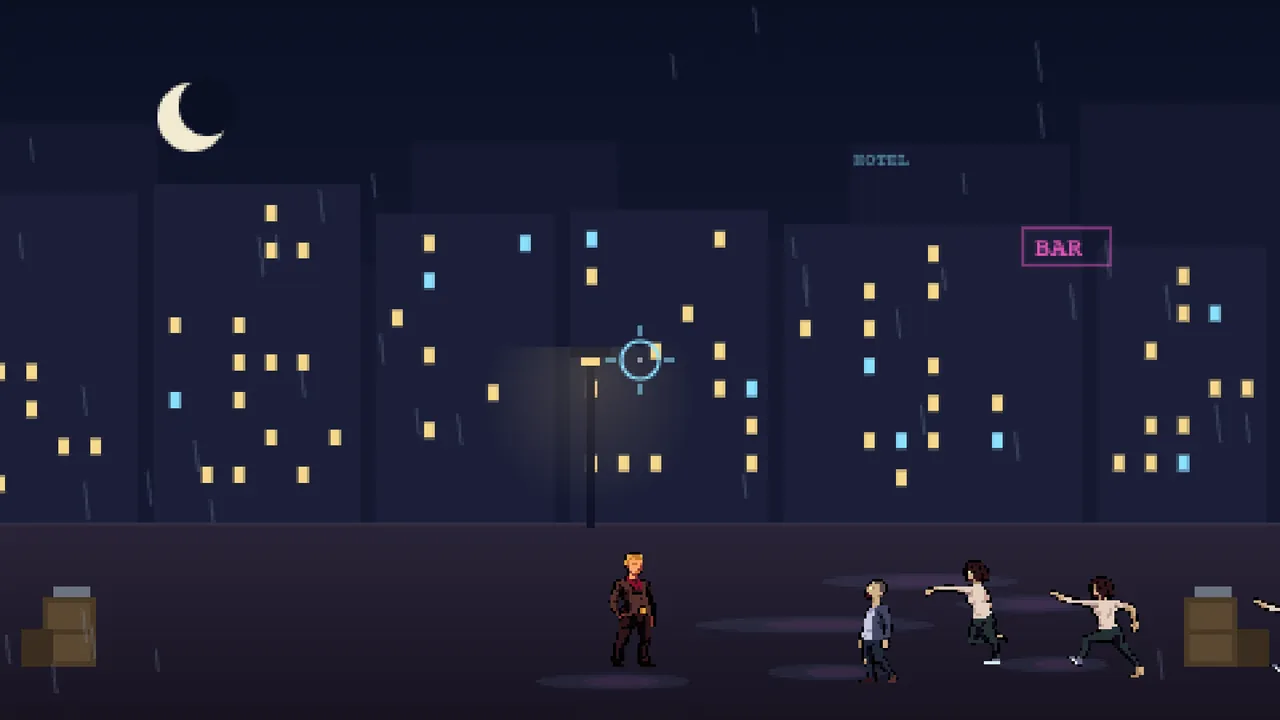
Ages 12+

6.Developer tools: write Markdown, check JSON
2 tools for people who write code, running in your browser. Your content only leaves your machine if you create a share link.
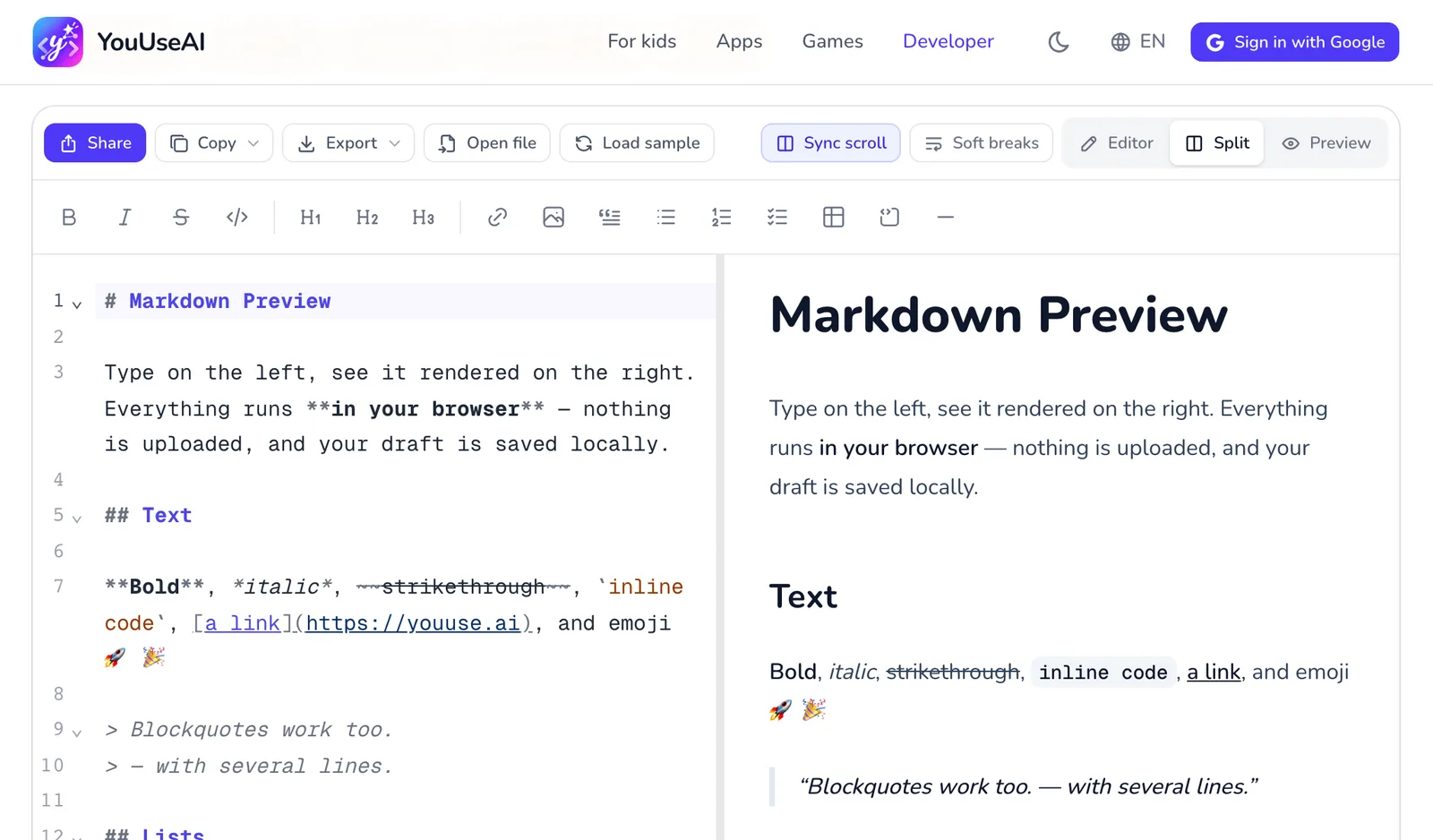
- 1Share as a link
- 2Copy as Markdown or HTML
- 3Export a file or print
- 4Open a .md file
- 5Change the layout
Markdown Preview
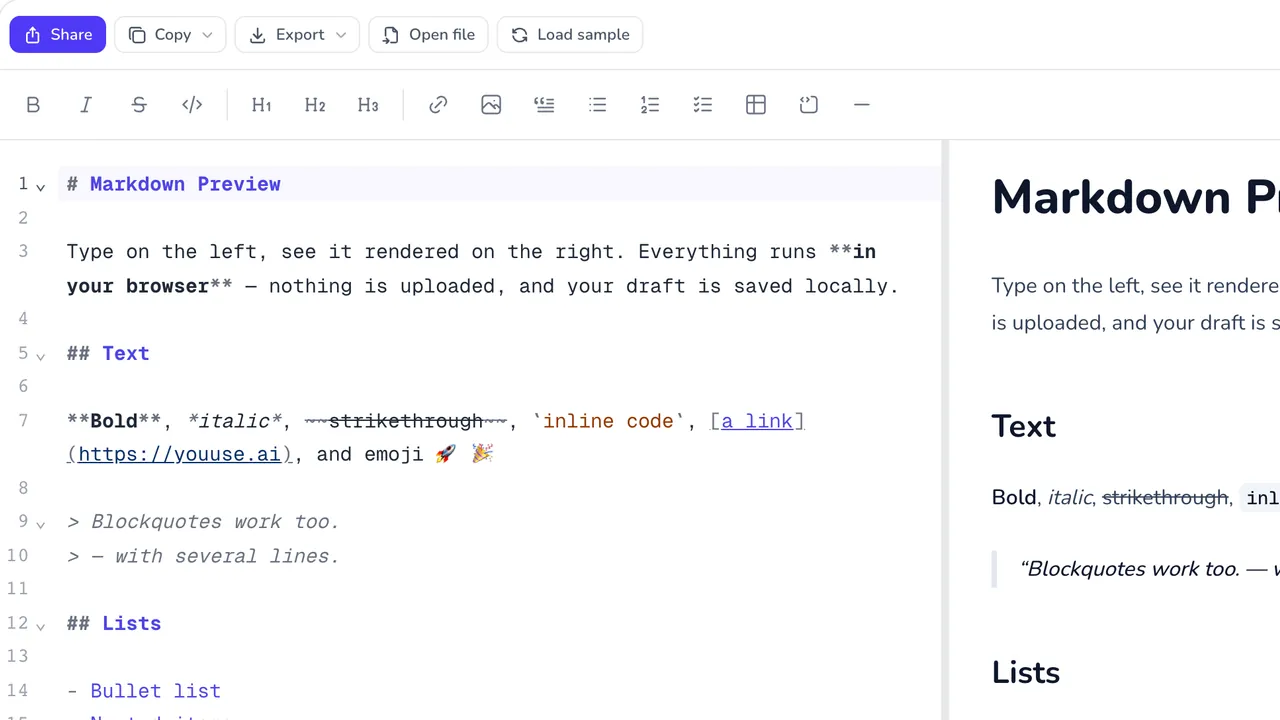
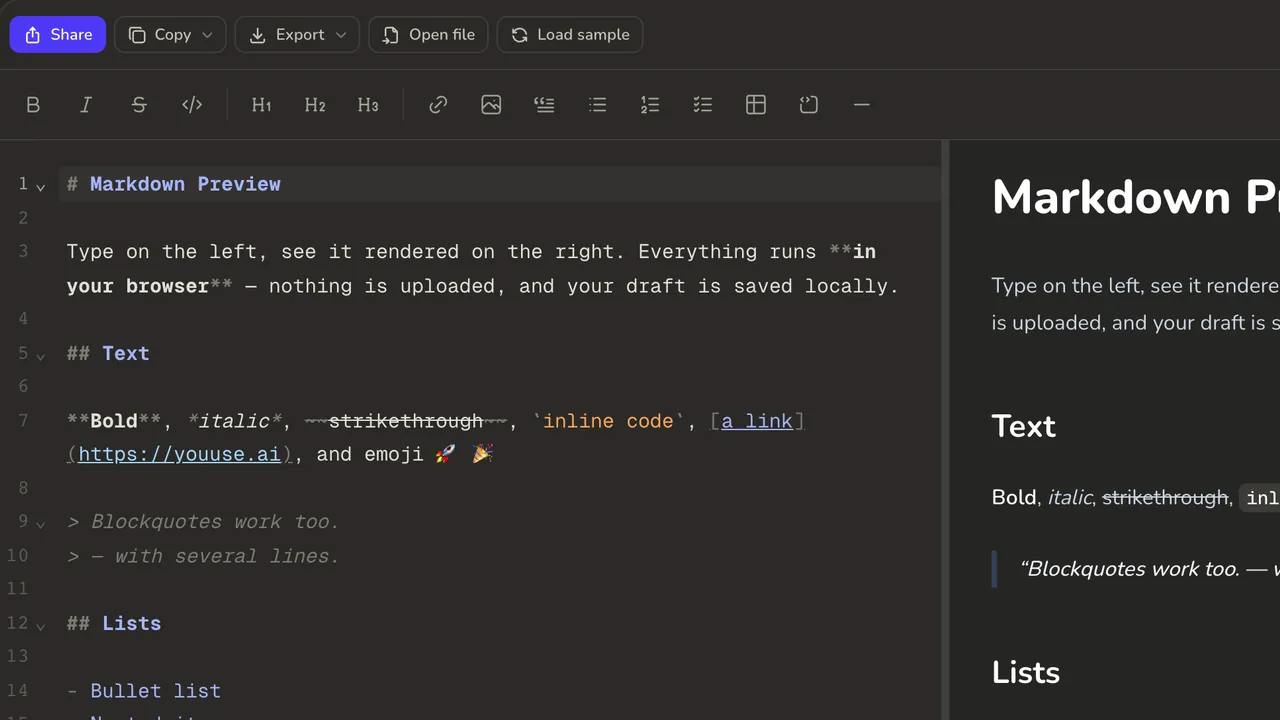
- Type Markdown on the left and see it rendered on the right straight away — tables, code, maths and Mermaid diagrams included.
- Switch the layout with Editor, Split and Preview. Shortcuts:
⌘/Ctrl + B,I,K,E. - Open file, or drop a
.mdfile onto the frame. Load sample shows every piece of syntax. - Copy as Markdown or HTML, Export to
.md,.htmlor a printed PDF, or Share it as a link.
JSON Lab
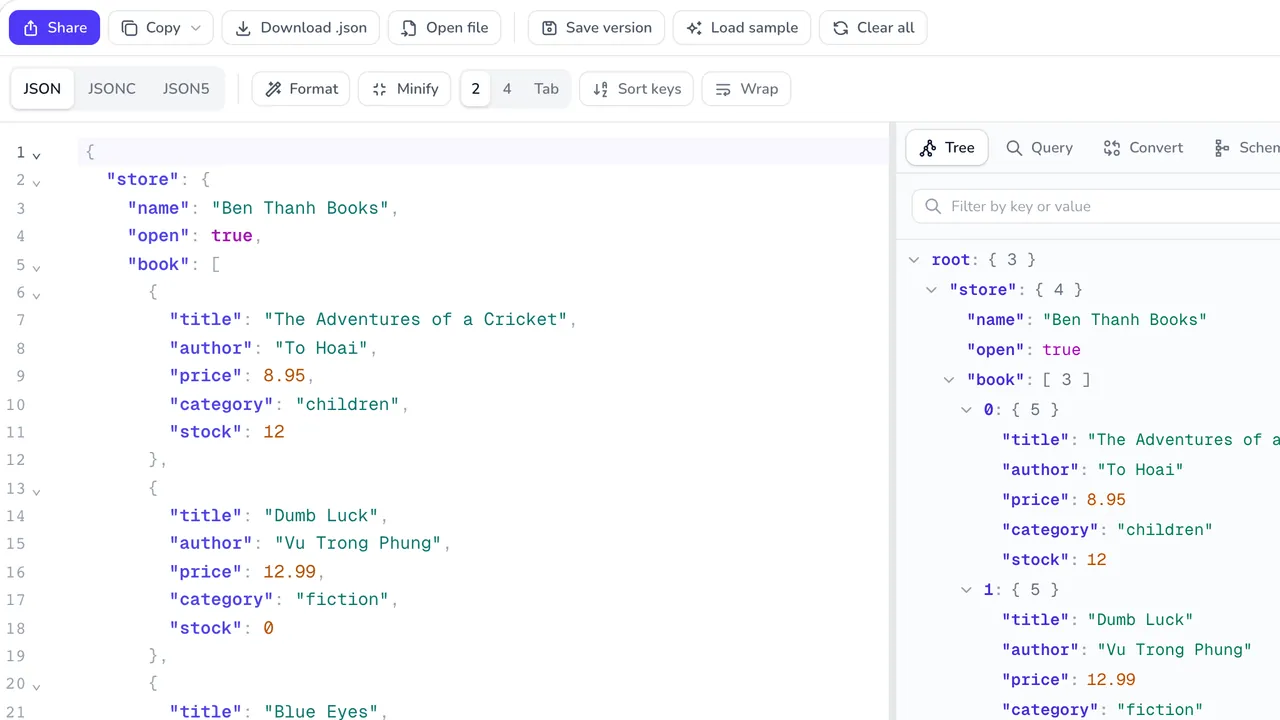
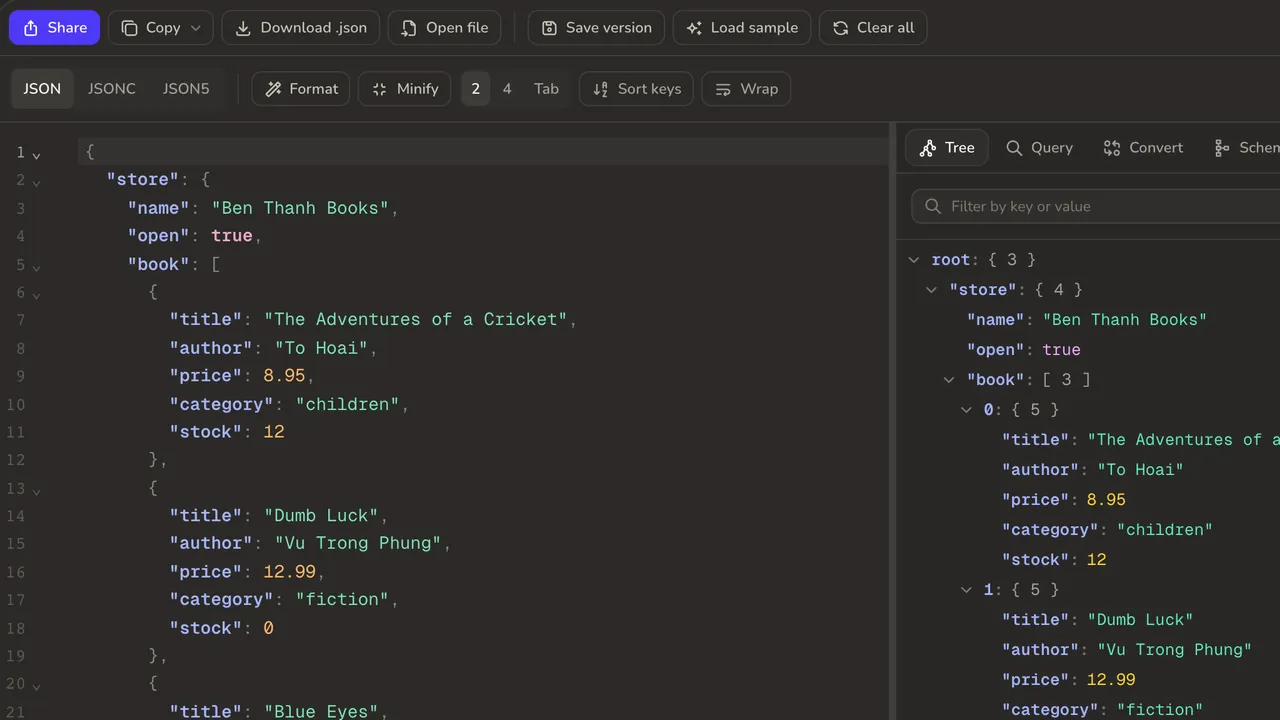
- Paste JSON into the editor. Errors are pinned to the exact line and column; click the error chip to jump there.
- Format or Minify, choose an indent of 2, 4 or Tab, and turn on Sort keys.
- The tabs on the right: Tree to browse, Query with JSONPath, Convert to YAML, CSV or TypeScript, Schema, Diff two documents, and History of saved versions.
- Copy, download the file, or Share it as a link.
Every developer tool
7.Your account and profile
You can use everything without signing in. Sign in with Google to keep your progress across devices, share links and send feedback.
Signing in
- Press Sign in with Google on the right of the top bar. On a small screen it shrinks to a G.
- Choose your Google account. We only receive your email, name and picture — nothing from your Gmail, Drive or contacts.
- That's it: your picture appears on the right. Click it to open the account menu.
Your nameyou@gmail.com
- My profile
- My feedback
- Sign out
Your profile
Only you can see Your profile. It has three tabs:
- Games: games with progress saved to your account, each with Keep playing and Delete progress.
- Apps: the routes, Markdown and JSON documents and timetables you've shared, with how often each was opened. Copy link to send one again, or remove the link when you no longer want it opened.
- Account: the feedback you've sent, and My data.
Deleting your data
My data has two groups, each with its own Clear the group button:
- On your account — Follows you to every device. Deleting here deletes it on the server.
- On this device — Lives in this browser only and never syncs anywhere.
Delete everything clears both at once; type DELETE to confirm. Your account stays. To delete the account itself, send a request through Feedback & feature requests.
Signing out
Open the account menu and press Sign out. On a shared computer, clear On this device before you leave.
8.Feedback and bug reports
Something broken, something awkward, or something you'd like added — tell us. The YouUseAI team reads every message.
Sending feedback
- Open Feedback & feature requests — from the footer, or My feedback in the account menu. You need to be signed in so we can reply.
- Choose the kind — Something is broken, Feature request or Other — and the priority.
- Write a title (4–120 characters) and the details (10–4000 characters); Markdown works. Say what you did, what the screen showed and what you expected.
- Press Send feedback. It appears in your list straight away, marked New, In progress, Resolved, Declined or Closed, and any reply from an admin shows there too.
Feedback can't be edited or deleted once it's sent — it's a conversation with the admins.
Reporting a bug from inside a game
Every game and every activity in For kids has a Report a bug button, no sign-in needed. Pick what went wrong and add a note if you like; the stage, the time, your device and a screenshot are attached for you. Reports are deleted once the bug is fixed, and after 90 days at the latest.
Other ways to reach us
Our Facebook page, email address and official channels are all on the Contact page.
9.When something isn't working
The problems people run into most, and what to do about each one.
My child can't hear the voice
Check the sound button on the activity's bar and the device's volume. Then open Parents → Settings to pick another voice: Google's voices read Vietnamese tones far better than the one built into most devices.
Our progress has disappeared
Progress lives in the browser on each device. A different device, a different browser, a private window or clearing the site's data all start afresh. Sign in to keep a copy on your account.
A game is jerky
3D games need a reasonably capable device. Close other tabs, plug the charger in (many devices slow themselves down on a low battery), or play on a computer rather than an older phone.
I can't sign in
Try once more. If the page says your account is blocked, message us on Facebook — the link is on the Contact page.
A shared link won't open
The person who shared it may have removed it from their profile. Ask them for a new link.