
Parts of the guide
4.Apps: finish the job, then take the result with you
7 apps that run on your machine: photos, answers and drafts stay in your browser, and nothing is uploaded unless you make a share link yourself. Route Board is different — it sends the addresses you look up to find them on the map.
Every app works in three steps
- It opens with a ready-made example, or a button on the screen that loads one, so you can see what it does before you type anything.
- Do your bit. Your draft is kept in the browser, so reloading the page loses nothing. Most apps have Undo and Redo for when something goes wrong.
- Take the result with you: copy it, download a file, print it or create a share link. Links stored on our server need you to be signed in, and you can remove them from your profile.
A card for Mom
- 1Open a sample card again
- 2Change the template
- 3Add owl stickers
- 4Choose the file type and size
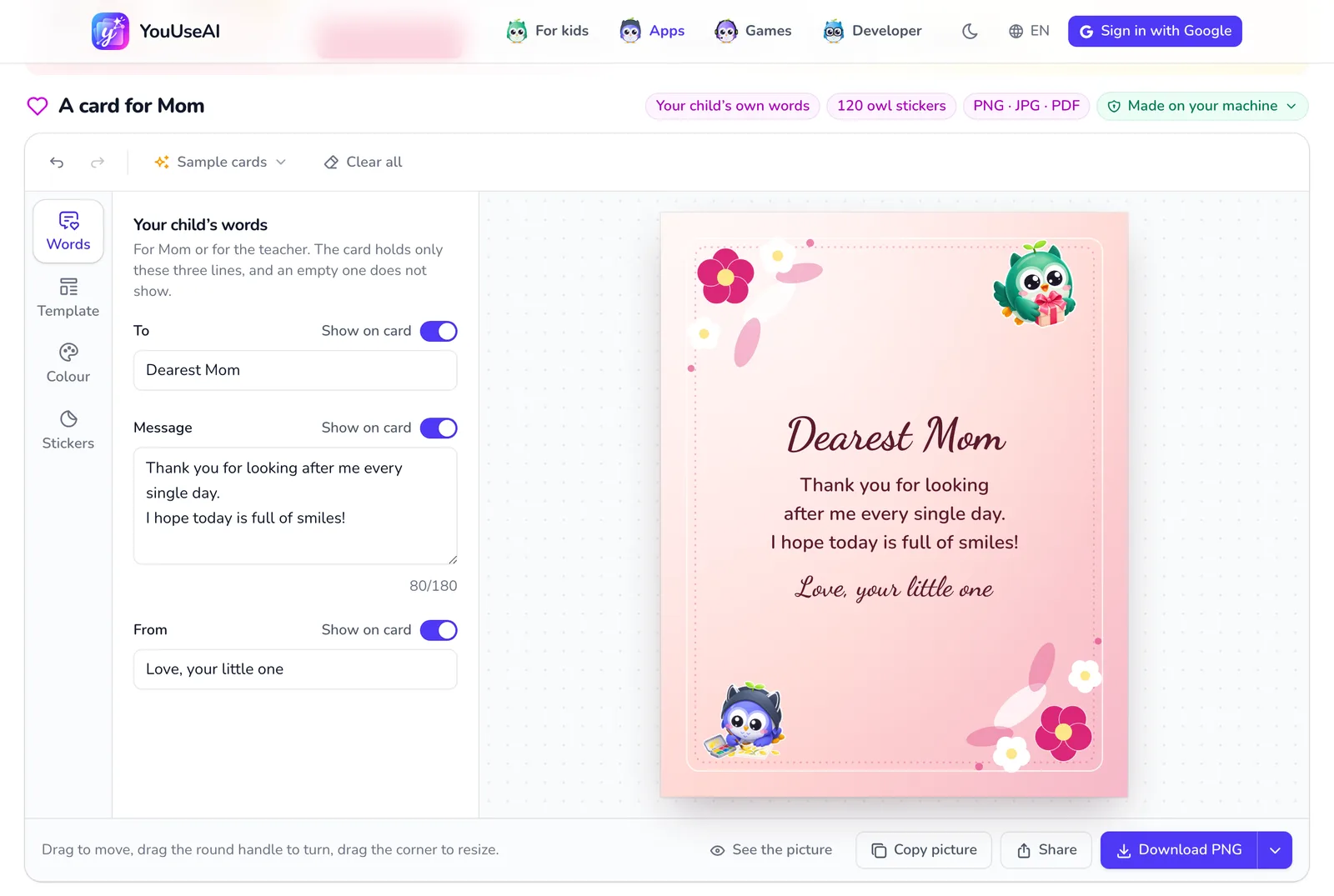
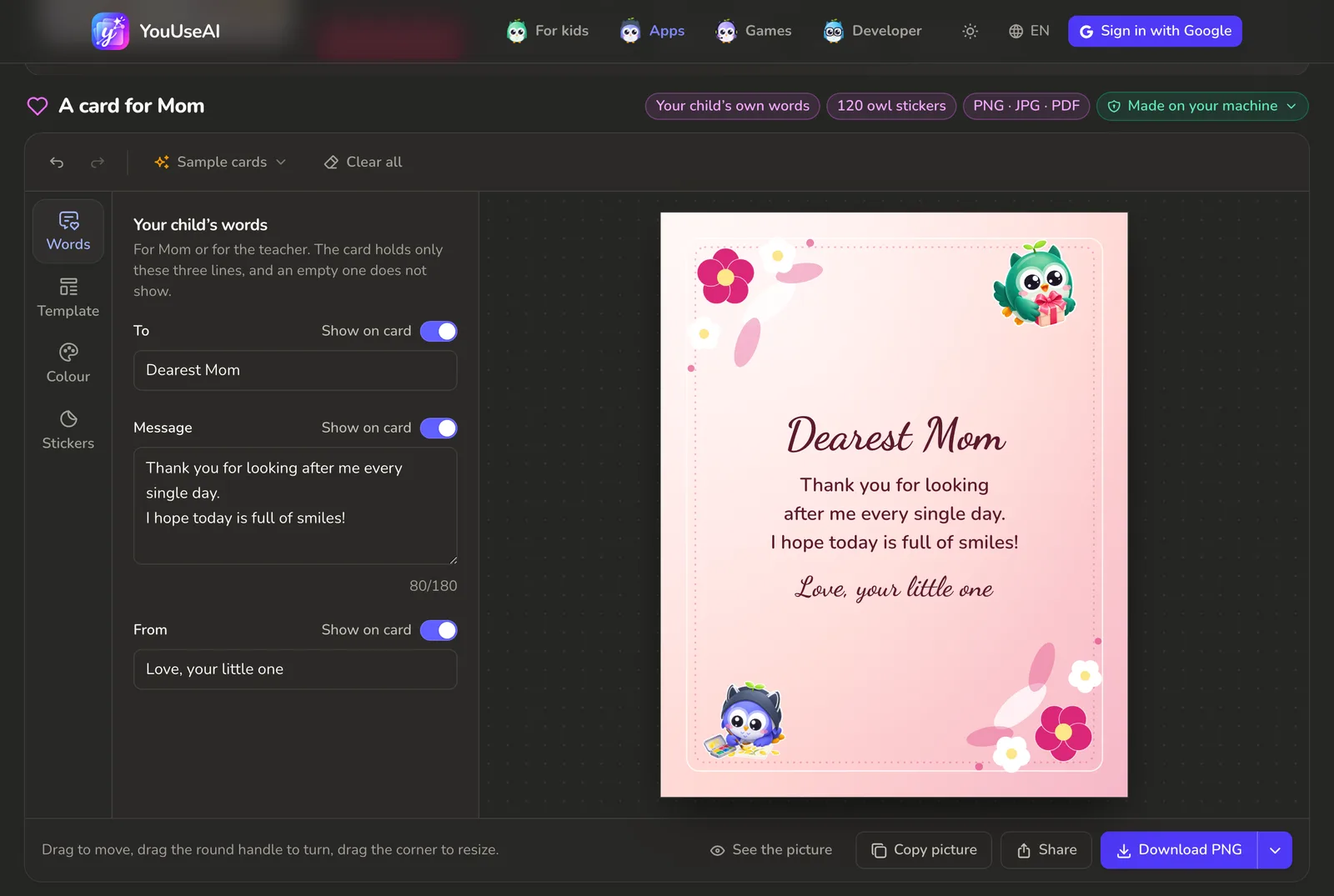
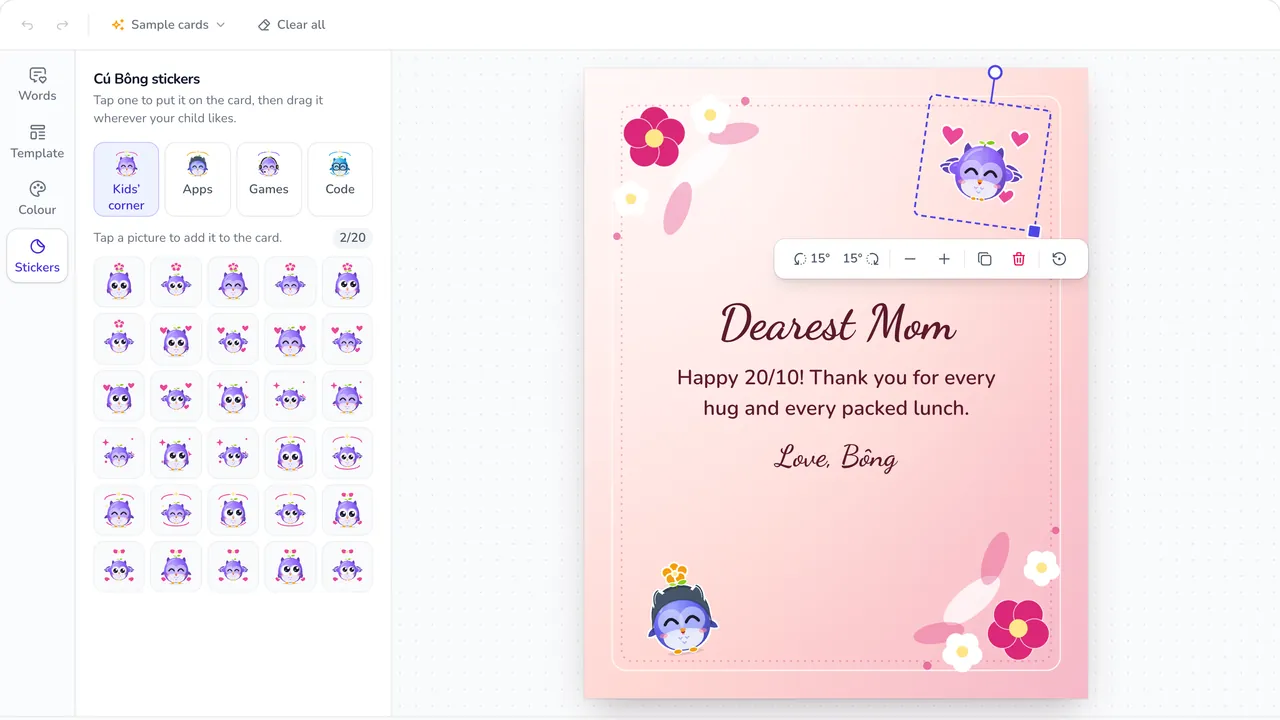
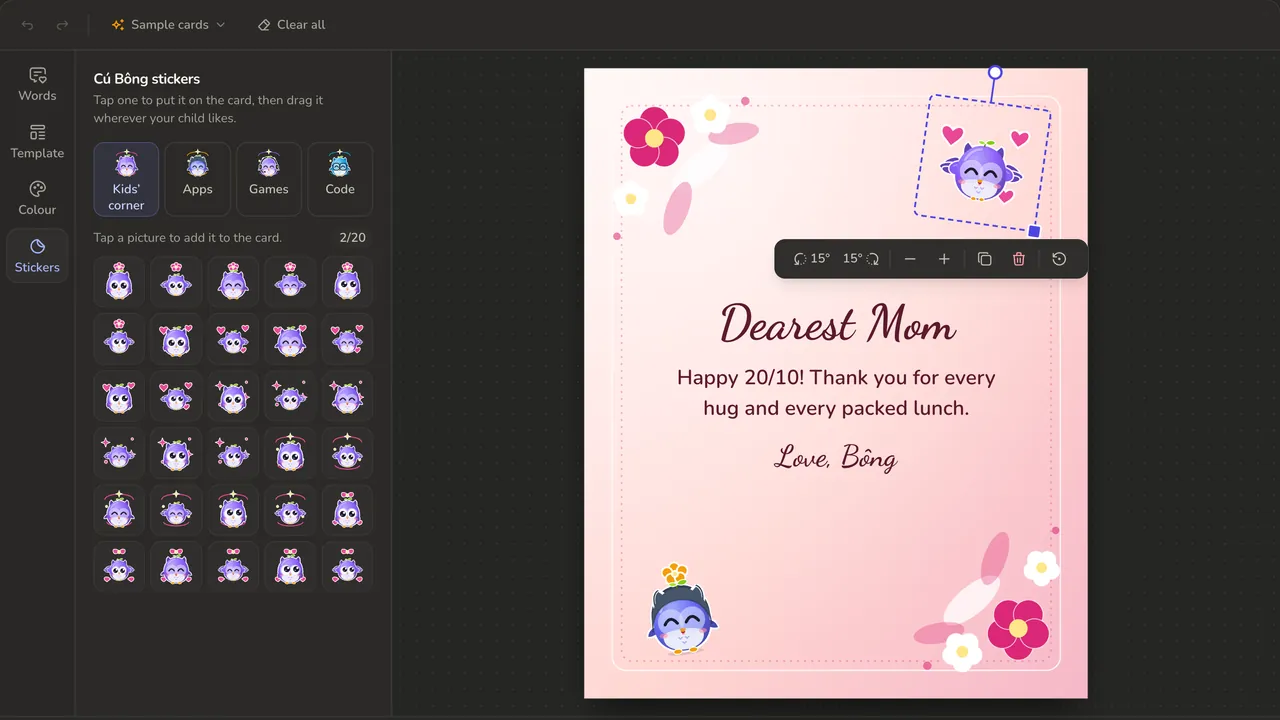
- The app opens on a blank card with 5 sample cards under the prompt: For Mom, For the teacher, For Grandma, For my sister, Happy Women’s Day (8/3, 20/10). Press one to see a finished card; Sample cards on the toolbar brings any of them back at any time, in 2 designs each, every one with a preview.
- On the Words tab, type the three lines — To, Message and From — up to 180 characters each. A line left empty does not appear, and nothing else is ever written on the card.
- Template changes the frame and the lettering, Colour the paper, and Stickers holds 120 owl stickers to add, up to 20 on one card. On the card, drag the words or a sticker to move it, the round handle to turn it and the square corner handle to resize it; on a tablet, pinch with two fingers. If something goes wrong, press Undo (⌘/Ctrl + Z).
- To take it with you, Download PNG saves the picture, and the arrow beside it picks PNG, JPG, WebP or PDF in Small, Medium or Large; for printing, take the PDF. Copy picture puts it straight into a message, and Share sends the picture through WhatsApp or Messenger, or makes a link for the person to open. Only a link stores the card on our server, and it needs you to be signed in.
Mind Gauge
- 1Reopen a result file
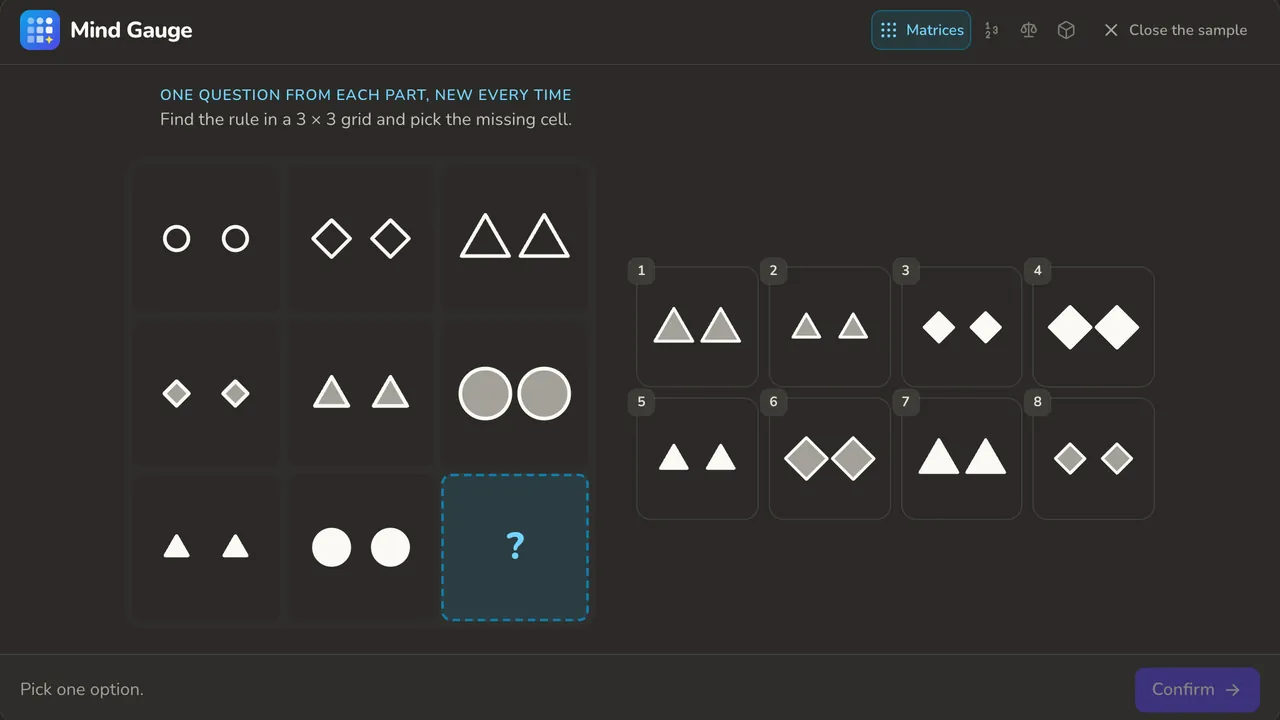
- 2Try one question from each part
- 3Start the test
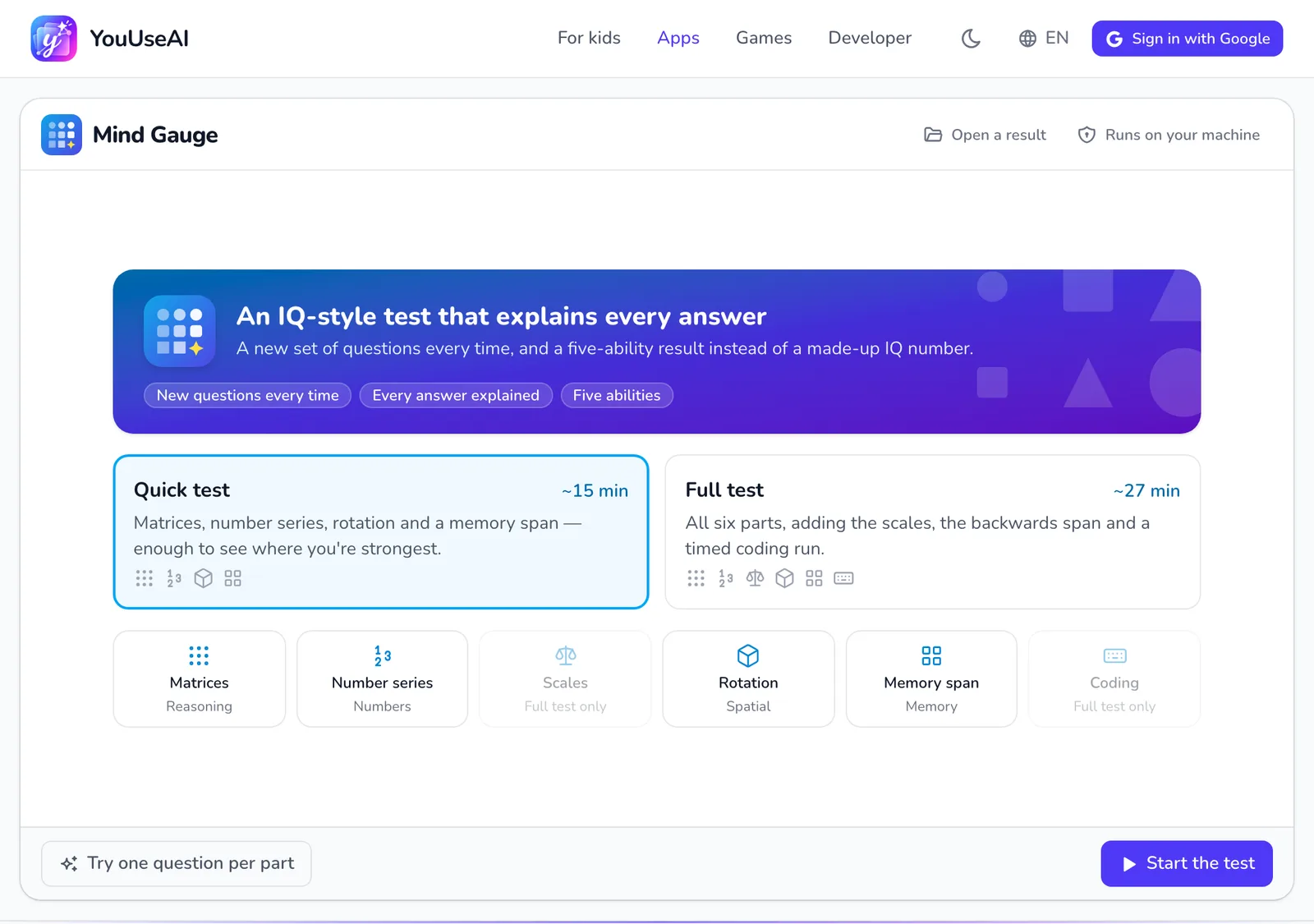
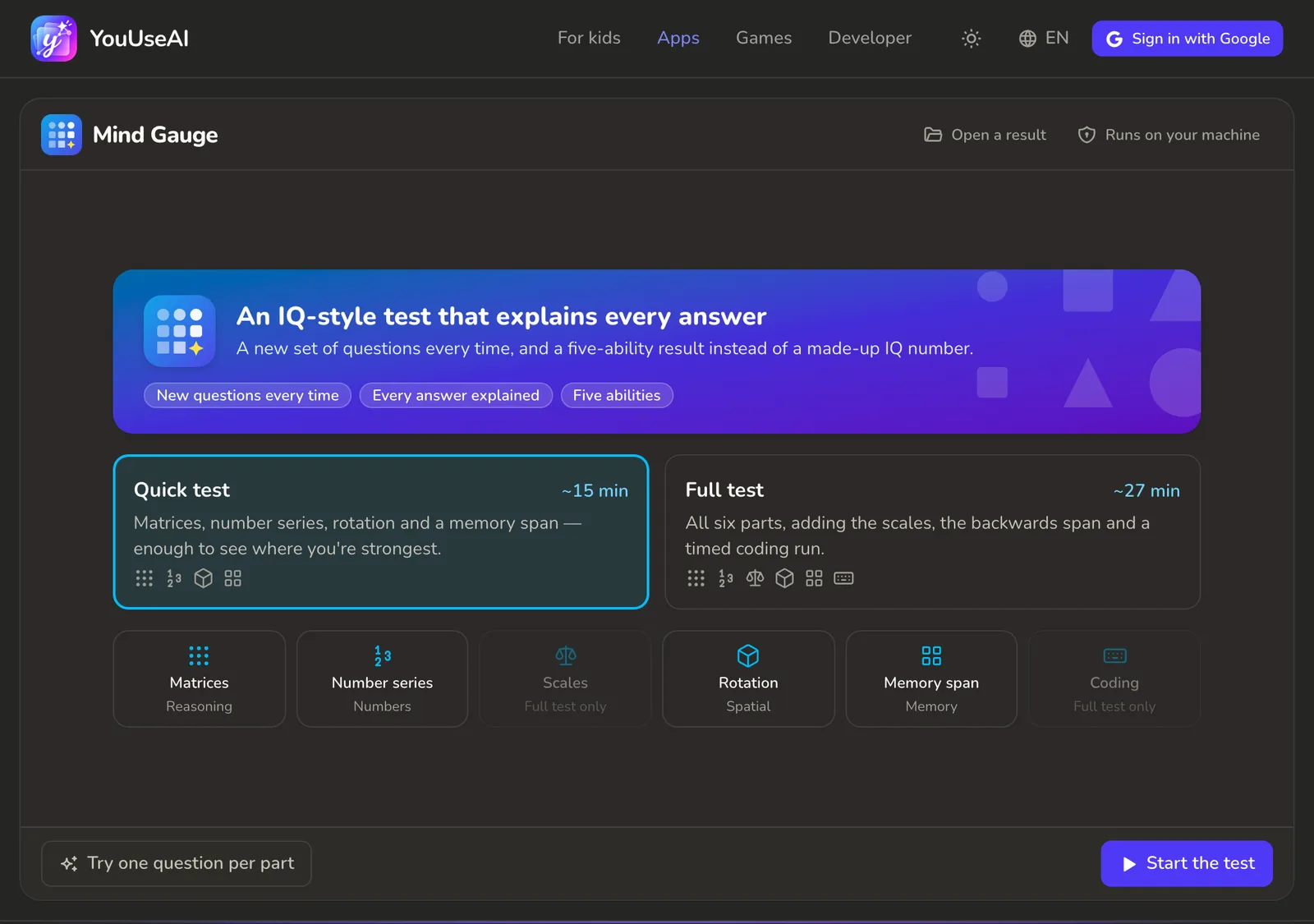
- Choose Quick test or Full test — each card shows how long it takes and which parts it has — then press Start the test. To see what the questions look like first, press Try one question per part.
- Each part has its own timer. Get 4 wrong or skipped in a row and that part ends early; the page tells you when it does.
- At the end you get a profile across five abilities, with every question explained. Download the result card or the result file, or send a link so a friend takes exactly the same test.
- Open a result reopens a result file so you can go through the whole test again.
Route Board
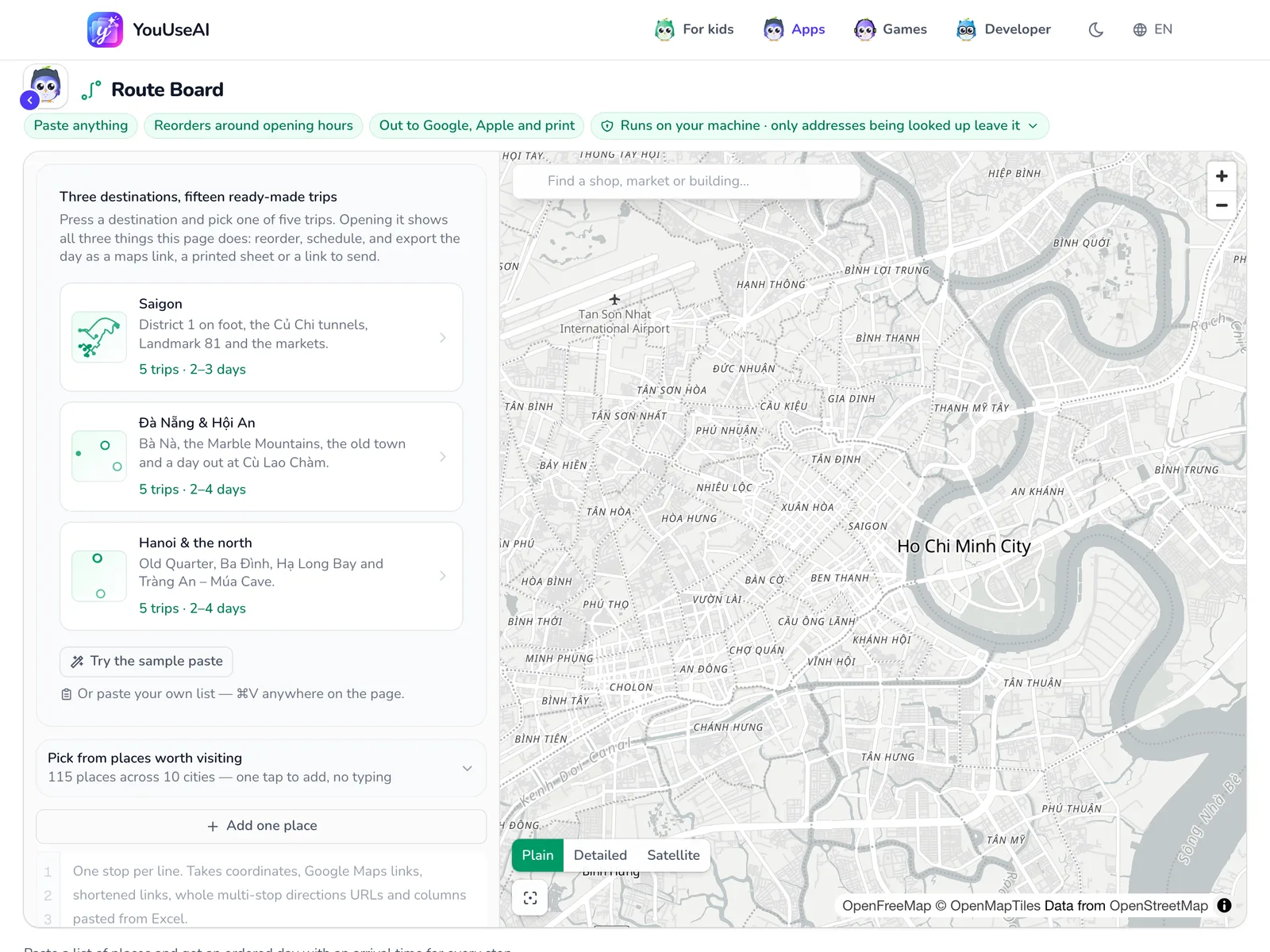
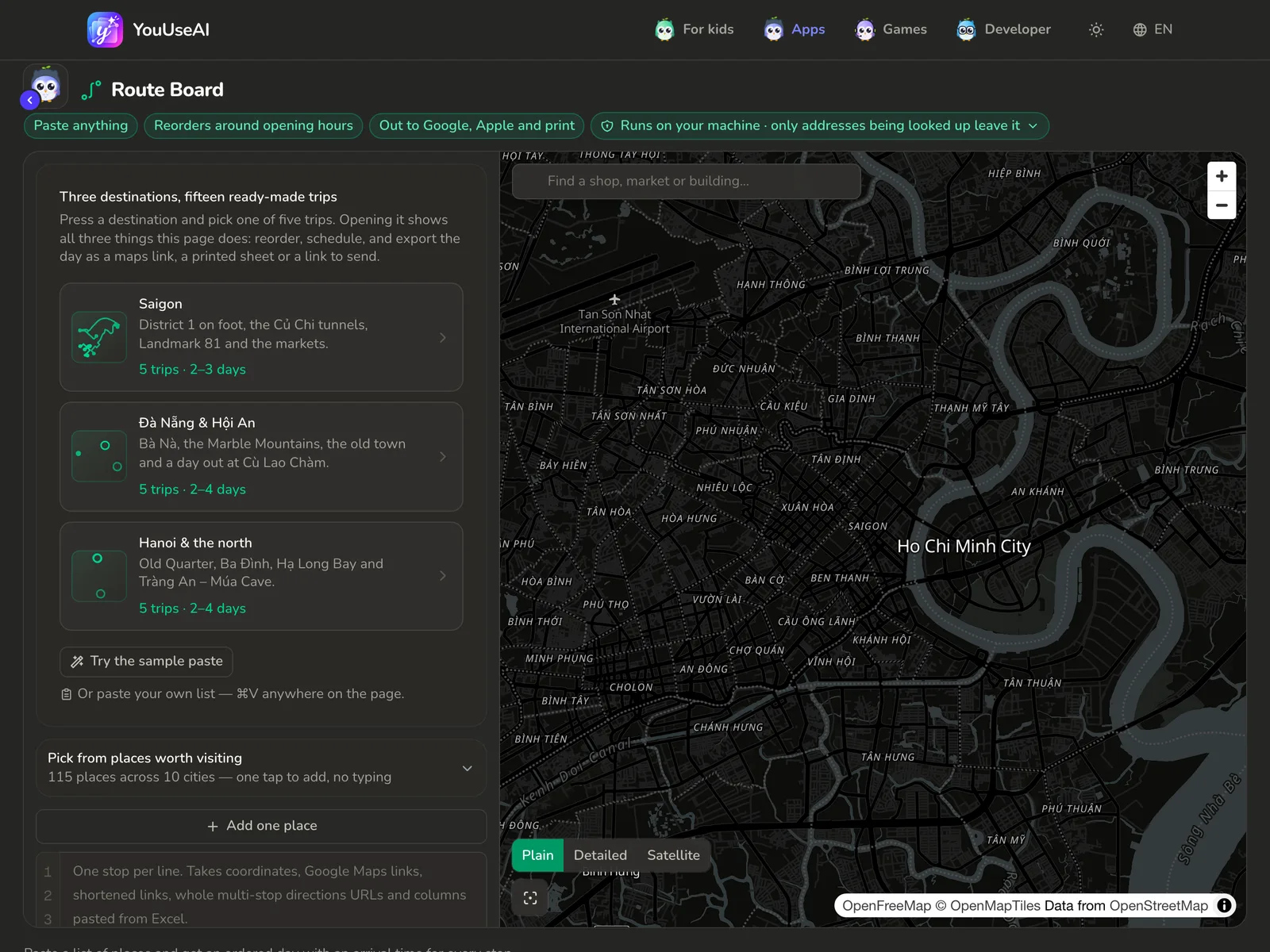
- 1Try it with a sample list
- 2Pick from ready-made places
- 3Add a stop by name, coordinates or link
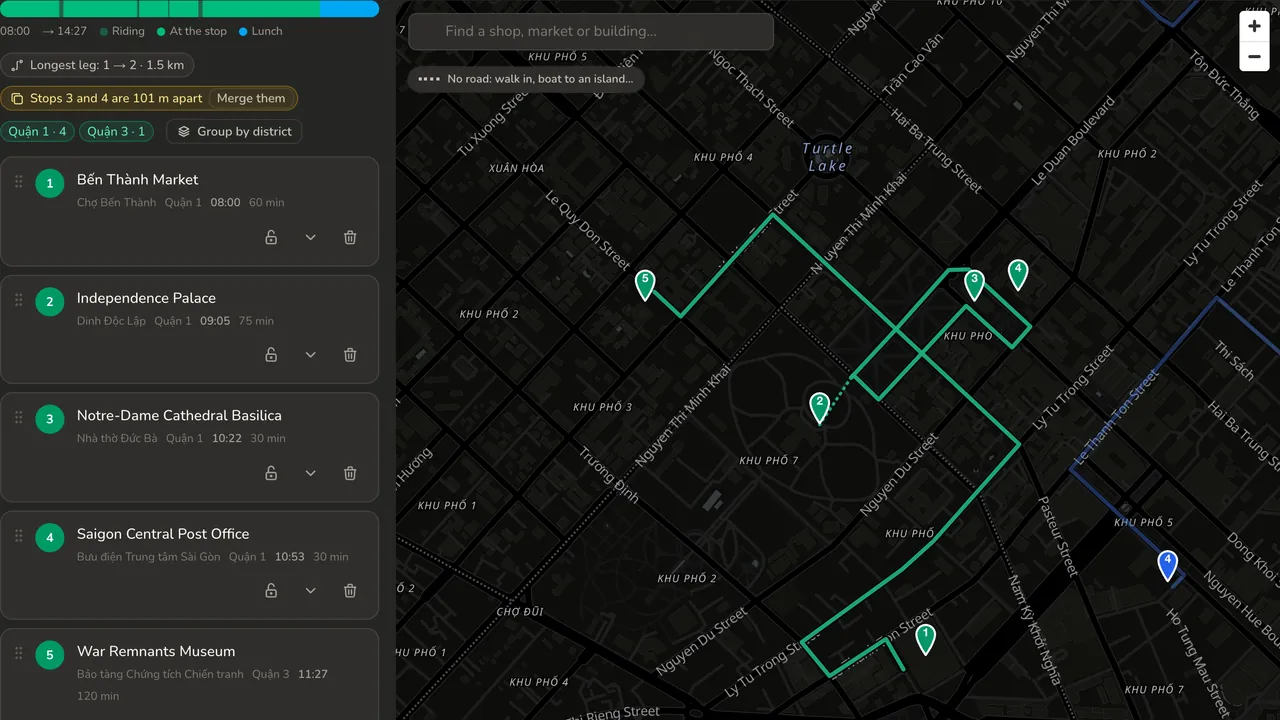
- Not sure where to start? Pick one of the ready-made trips at the top of the left-hand column, or press Try the sample paste to drop in a sample list and watch it become a day plan.
- Add stops: press Add a stop — type a name or paste a whole list at the end of the day, type a place name, coordinates or a Google Maps link, and press Add to the route; the same panel holds Pick from places worth visiting to pick from the list and Add one place for opening hours and notes. Already have a list? Press
⌘V(orCtrl + V) anywhere on the page to paste the lot. - When the page finds a better order it says so at the top of the left-hand column — for example "Swap stops 3 and 4 — 1.2 km shorter". Press Apply to take it, or ✕ to wave it away. Vehicle, start time, lunch, round trip and Optimise are in the settings chip next to Take away.
- Press Take away and choose: open it in Google Maps or Apple Maps, Copy link, QR code, Print the day sheet, or download the KML file.
My Timetable
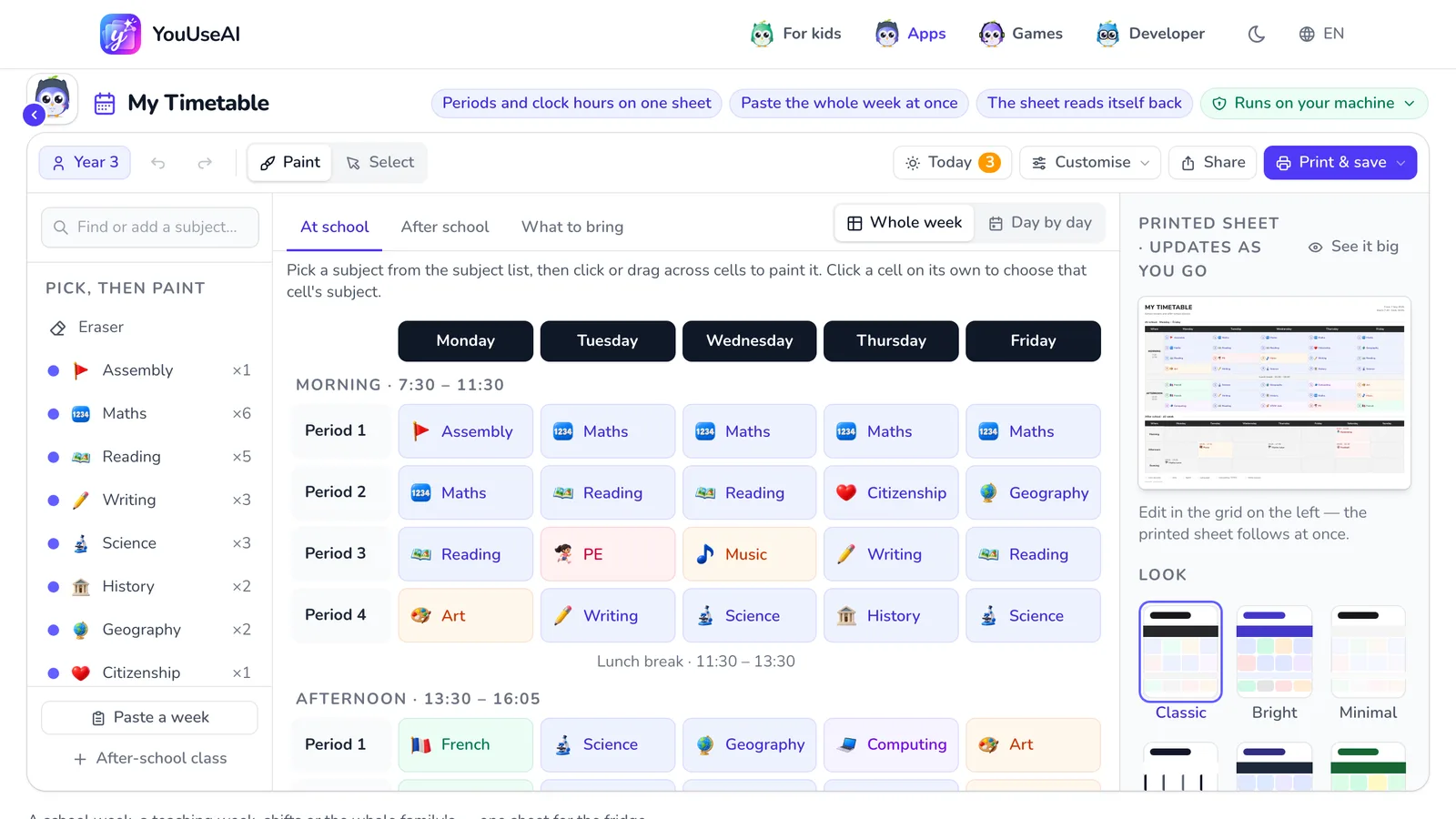
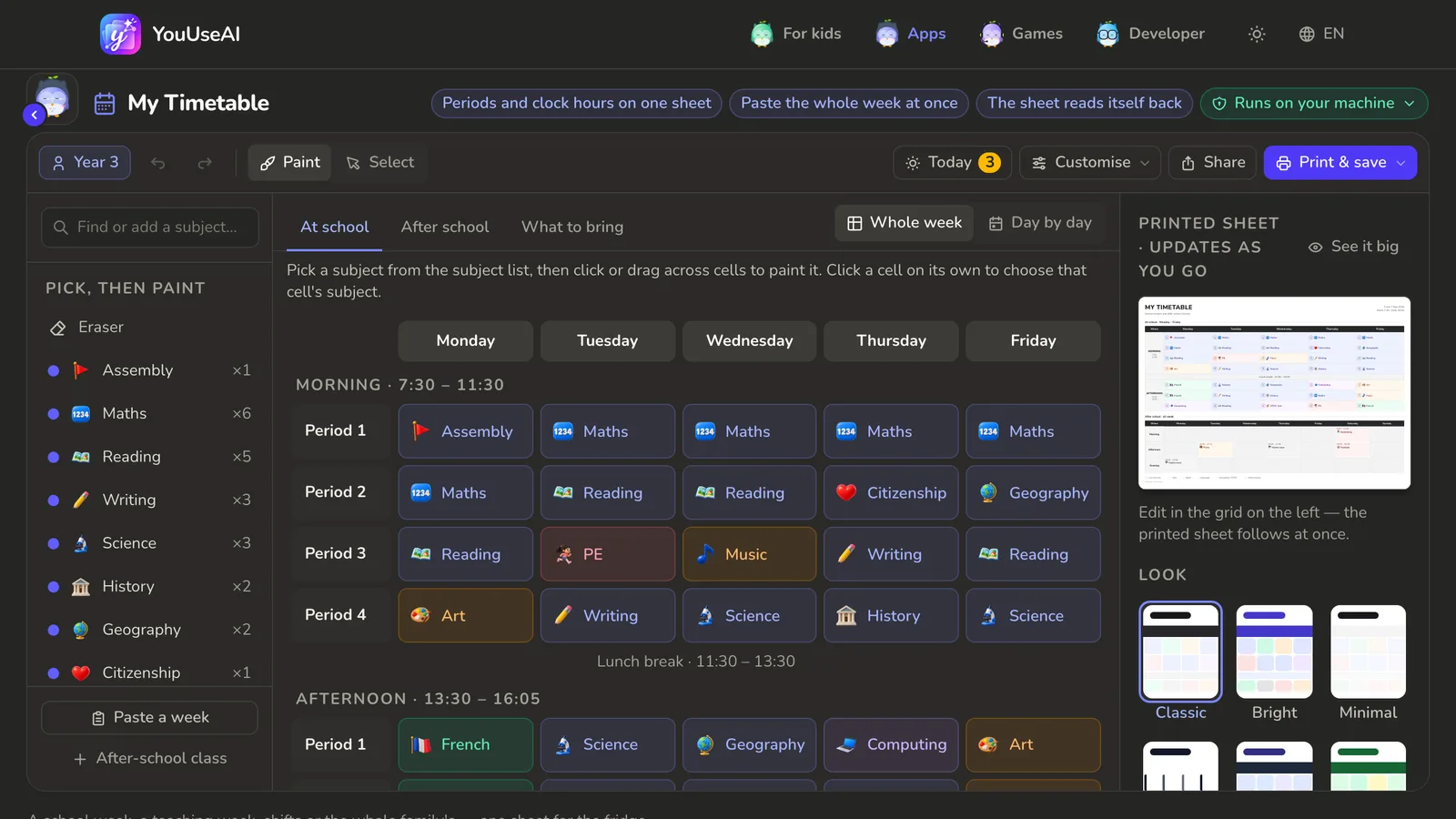
- 1Select several cells to change at once
- 2Paste a week as text
- 3Share as a link
- 4Print, or save a picture or a file
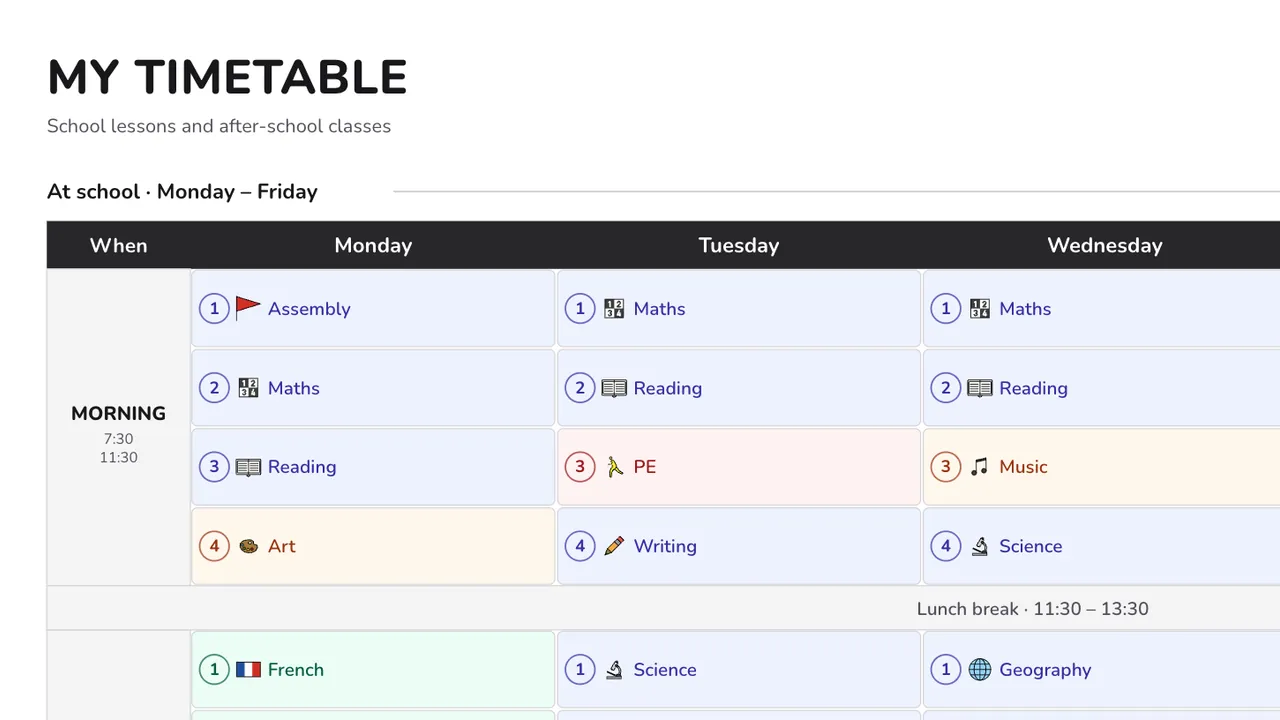
- The first button in the toolbar (it shows whose sheet it is and the class) says who the timetable is for: a school year from 1 to 12, University, Teacher, Working or Family. Choose once and you get the right week and subject list.
- Fill it in on the big grid in the middle: pick a subject in the left-hand column, then click or drag across cells to paint it; Eraser empties cells the same way. With nothing picked, clicking a cell lets you choose that one cell's subject. Already have the week as text? Paste a week at the foot of the left column takes it in one go — one line per day, straight from the teacher's message if you like.
- Three tabs sit over the grid: At school for lessons, After school for classes by the clock, What to bring for what to pack each day. Press Day by day (or a day's name) to edit one day at a time with bigger cells — a phone opens that way. To change several cells at once, press Select, drag over a block of cells and use the bar that floats above them: change the subject, add a room, Fill this period all week or empty them. The small printed sheet on the right follows every change — See it big shows it full size; on a smaller screen open Customise → Look and paper.
- Open Print & save and choose Print for one A4 sheet. On a computer the page sets the paper the right way round; on an iPad or iPhone the sheet turns itself to fill the page, so you just press print. In Safari on a Mac, choose landscape yourself.
- The pictures are in Print & save too: Picture (2x) to send in a chat, Picture (3x, for a print shop) to take to a print shop. On an iPad or a phone your device's share sheet opens — Save Image puts it in Photos, or you can send it straight to whoever needs it.
- Share it as a link the grandparents can open on their phone. Even without signing in you can copy a long link that carries the whole sheet and never touches a server.
Photo Lab
- 1Open your photo
- 2Before and after on the same photo
- 3The light and colour mode
- 4Balance light and colour for me
- 5Pick the format and size, then download
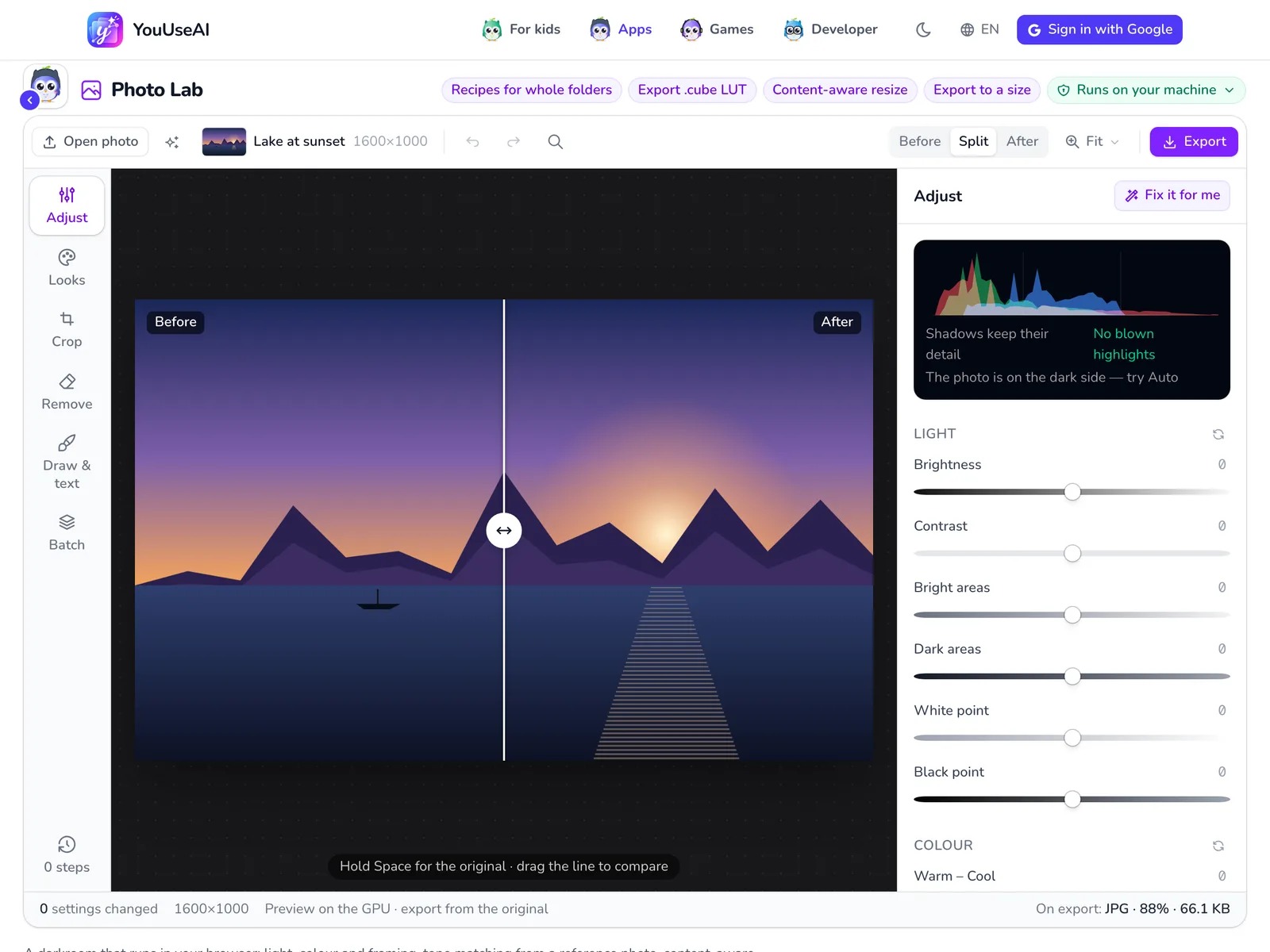
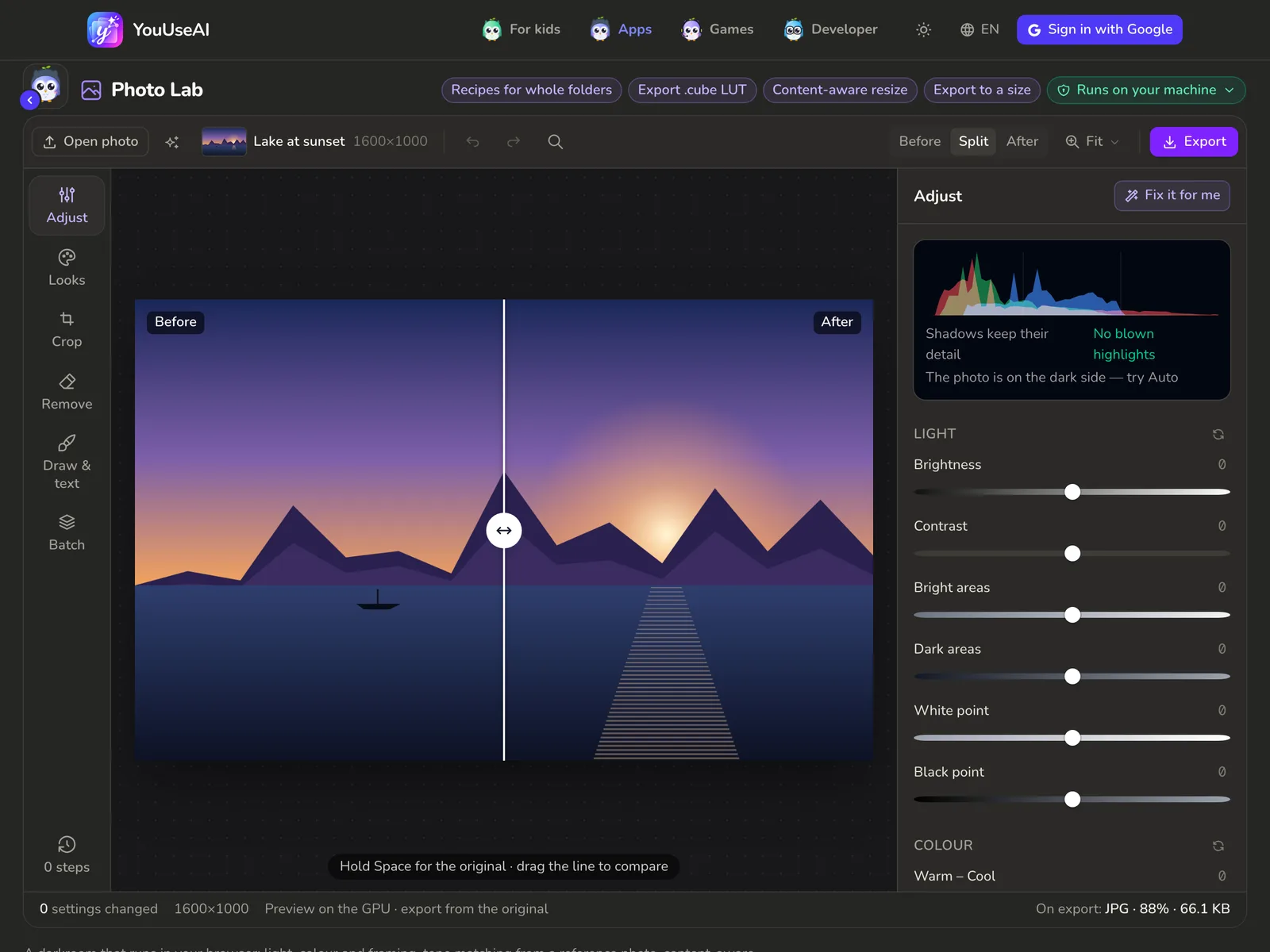
- Open photo, or drop a photo onto the frame. No photo to hand? Press Use a sample in the middle of the frame; the sparkle button next to Open photo has the other samples.
- The column on the left holds the modes — Adjust, Looks, Crop, Remove, Draw & text and Batch. Pick one and the column on the right shows that mode's tools.
- In Adjust, press Fix it for me to let the app balance light and colour, then fine-tune the Light and Colour sliders. The histogram above them says whether anything is blown out or lost in the shadows; the deeper groups sit folded under Advanced.
- Split shows the photo half before, half after — drag the line to compare, or hold Space for a quick look at the original.
- Export lets you choose the format, the quality or a maximum file size, then download; it also copies the image and saves the recipe or a .cube file. The Batch mode applies the same recipe to a whole set of photos.
- Can't remember where a tool lives? Press the magnifying glass (or ⌘K) and type its name.
Instrument Lab
- 1Record a take
- 2Hear a sample
- 3Download the take as WAV
- 4Change the instrument itself
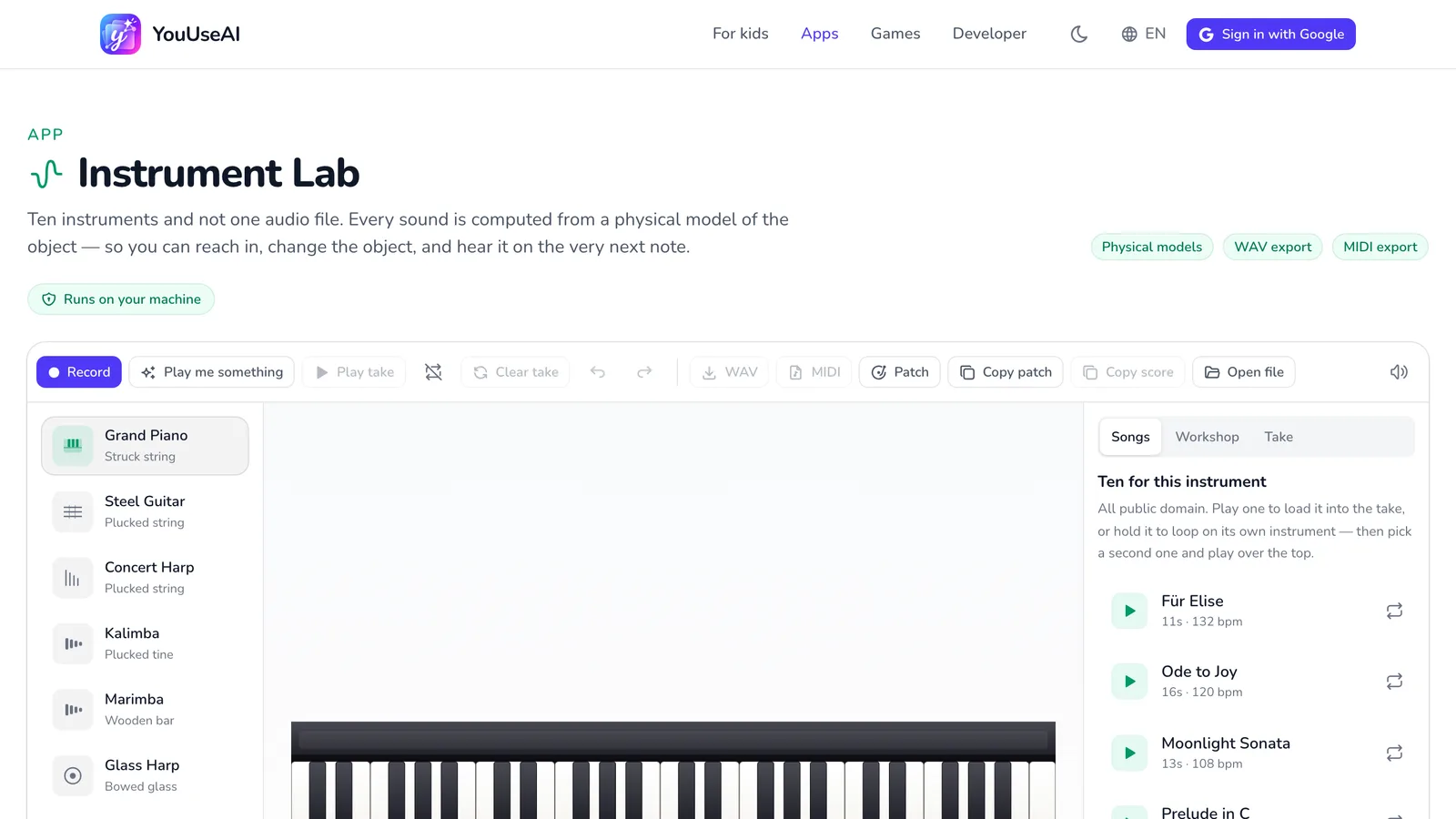
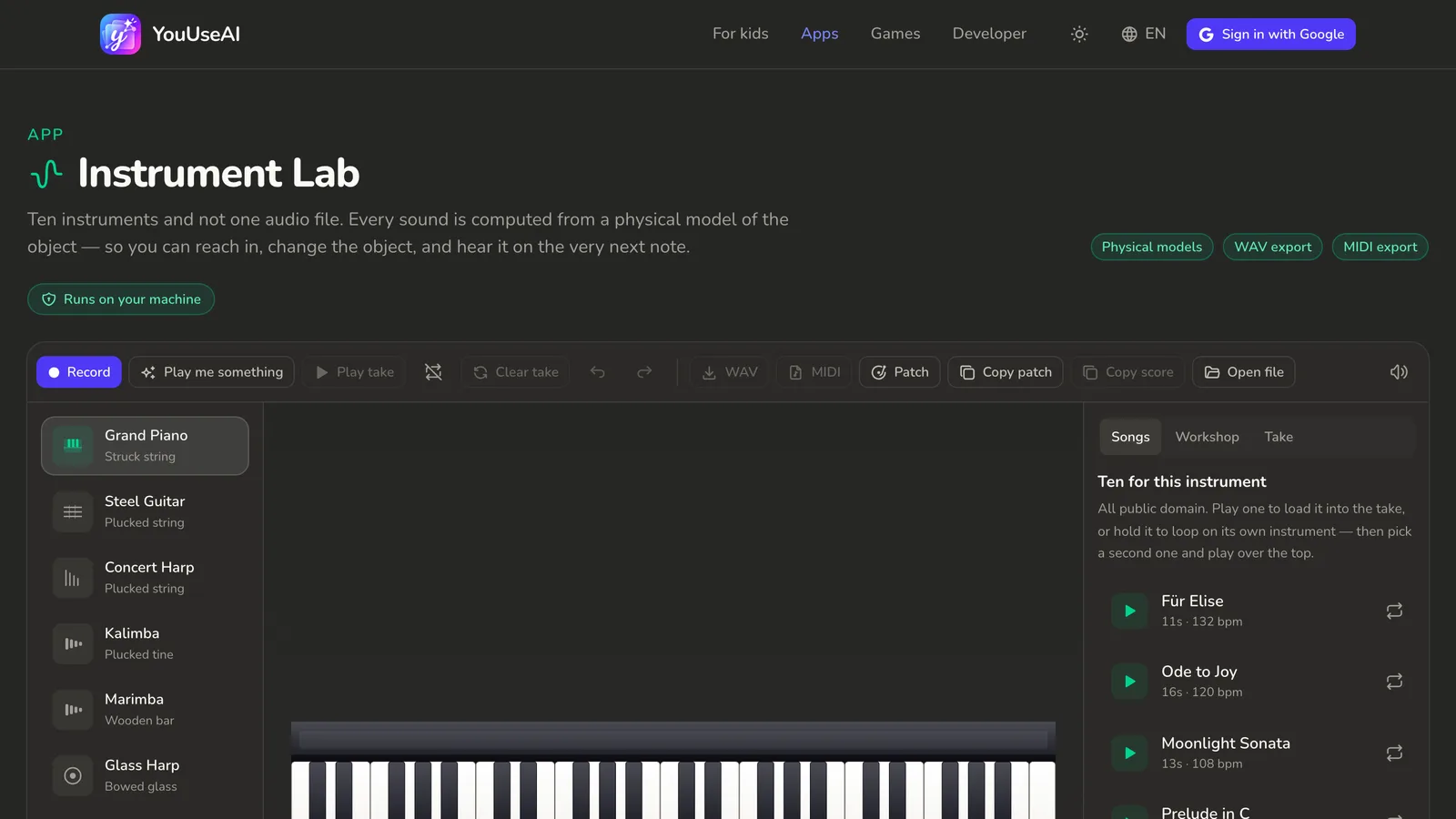
- Choose an instrument from the left-hand column.
- Click or tap it, or play it from your computer keyboard. Not sure what to play? Press Play me something, or pick a piece from the Songs tab.
- Press Record to capture a take and press it again to stop. The take shows in the Take tab; download it as WAV to listen, or MIDI to open in music software.
- The Workshop tab changes the instrument itself: how bright it sounds, how long it rings, where it's struck.
Run Along
- 1A video for a child or an adult
- 2Choose the moves for each stage
- 3Build and download the video
- 4Preview
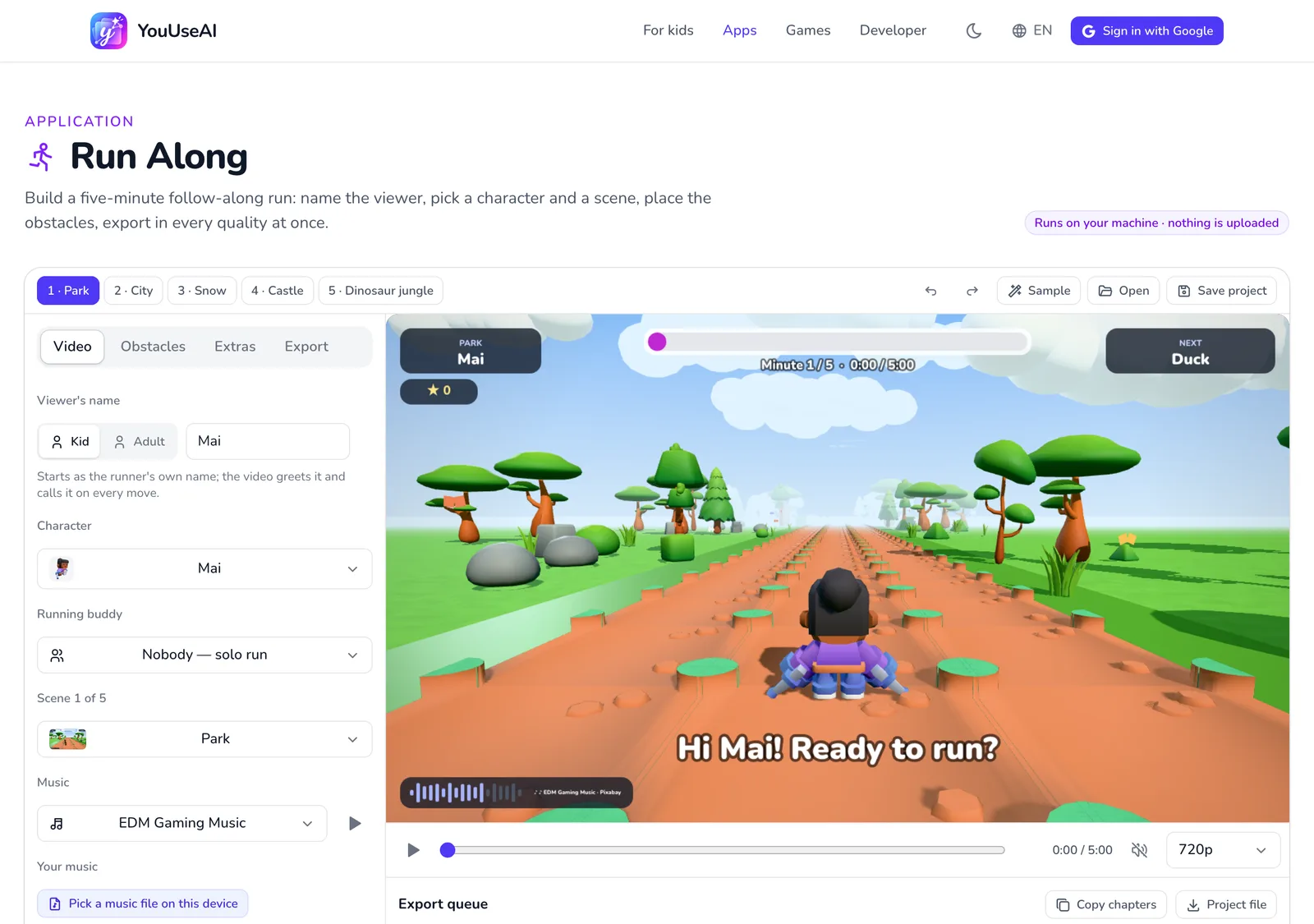
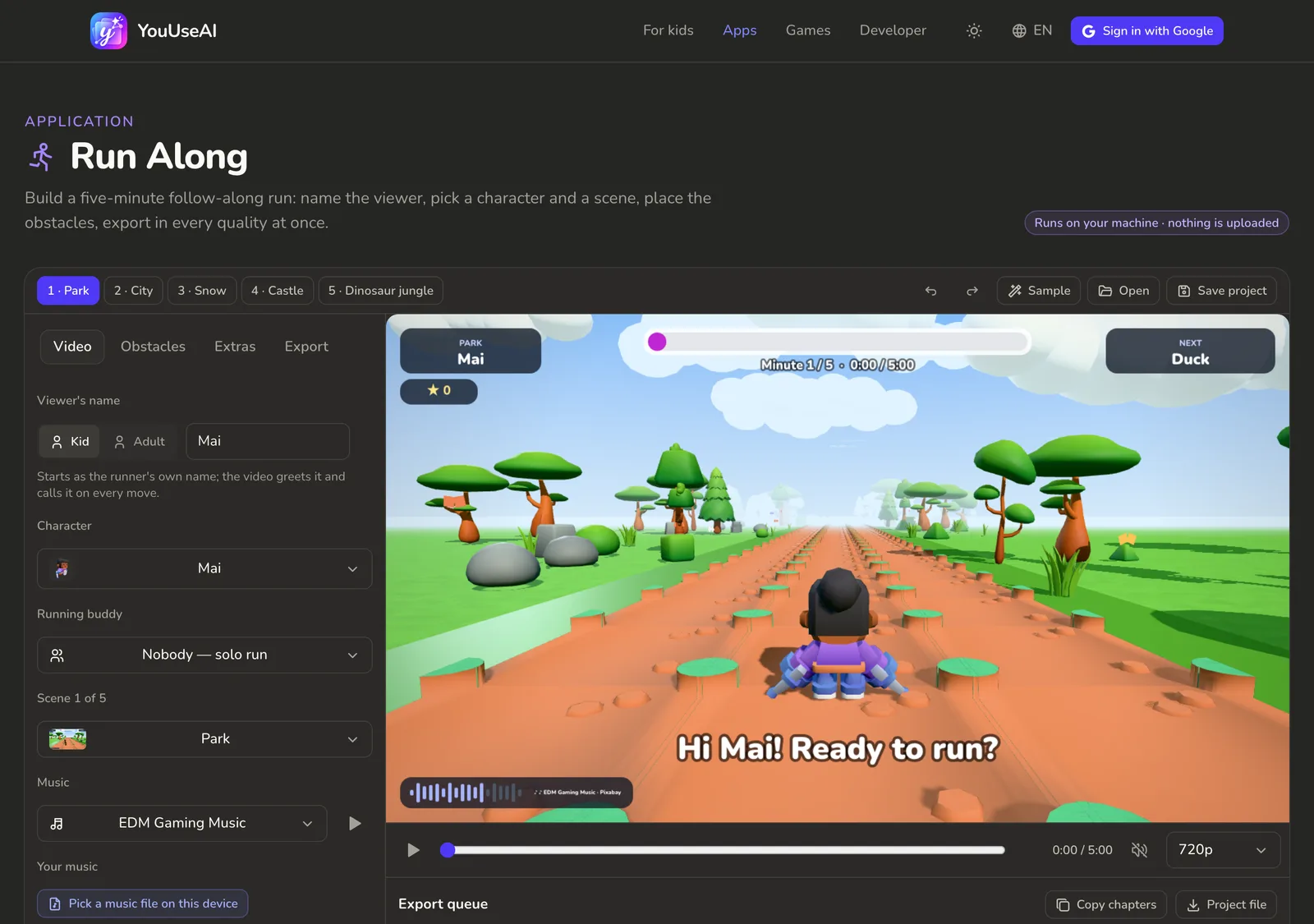
- On the Video tab, say whether the viewer is a Kid or an Adult and type their name — the video greets them and calls it out. Then choose the character, a running partner, the scene and the music.
- The scene tabs along the top are the video's stages. Open Obstacles to choose the moves for each stage, or let the app deal them.
- Press Play to preview it right there.
- Go to Export to build the video — you can pick several qualities in one go. It's built on your own machine, so a faster computer finishes sooner.
Every app
 A card for Mom20/10 · For Mom and the teacher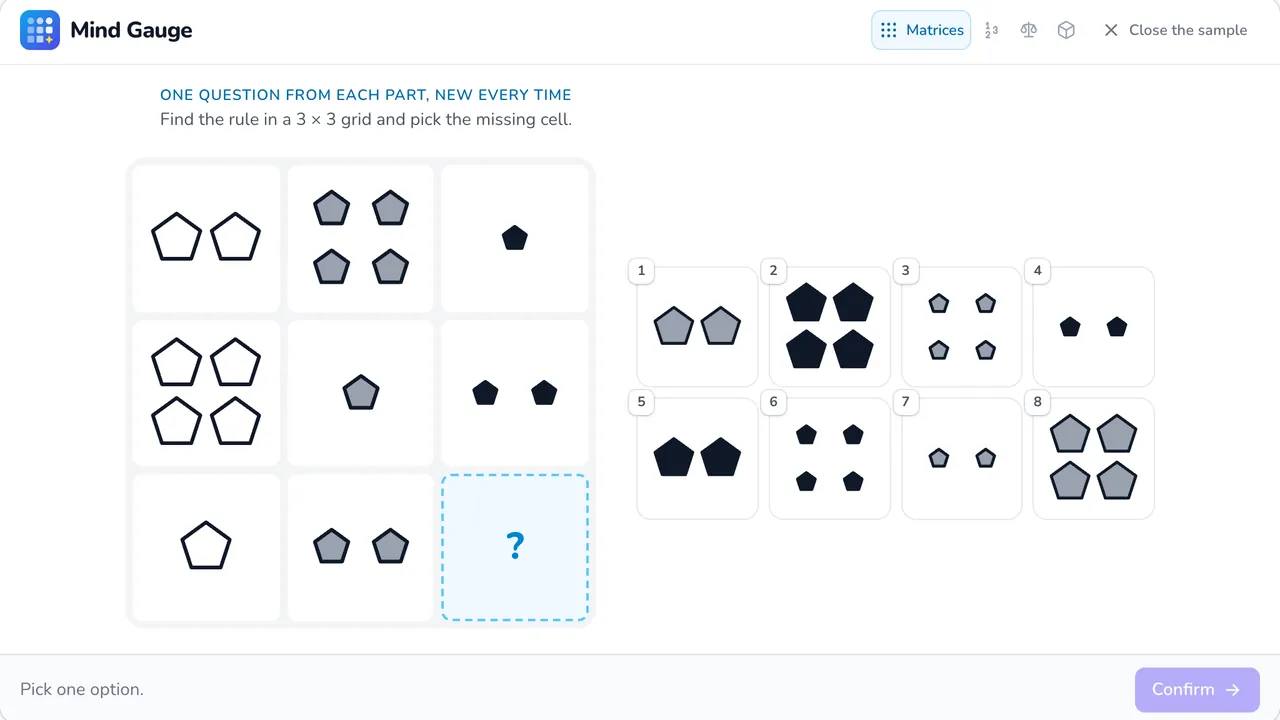
 Mind Gauge6 parts · new questions every time · worked answers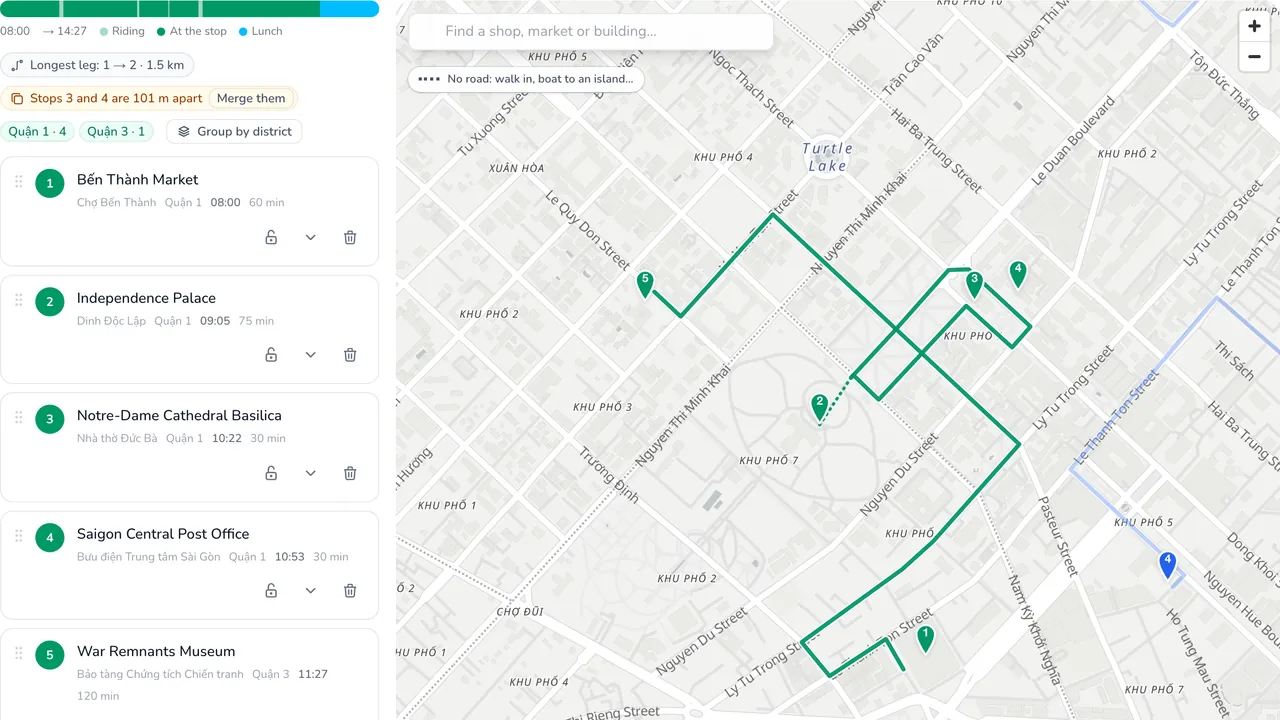
 Route Board10 cities · 115 places · up to 5 days
 My TimetableStickers · Print · Share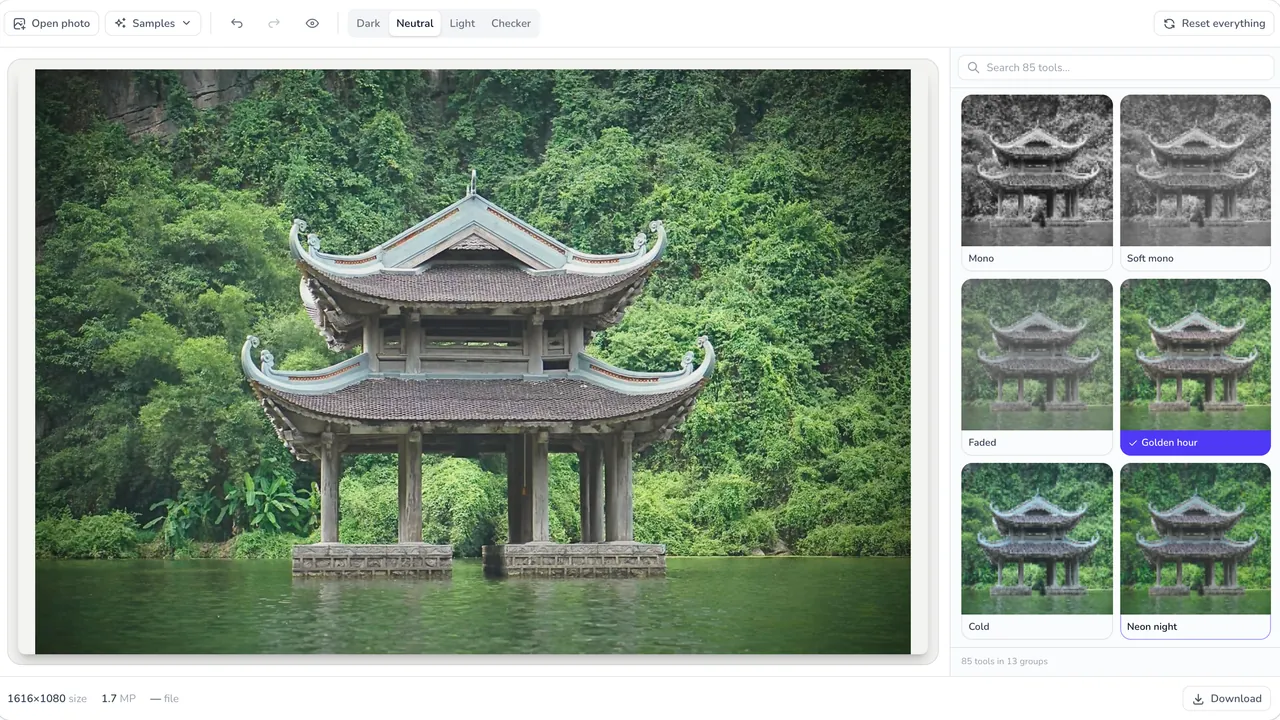
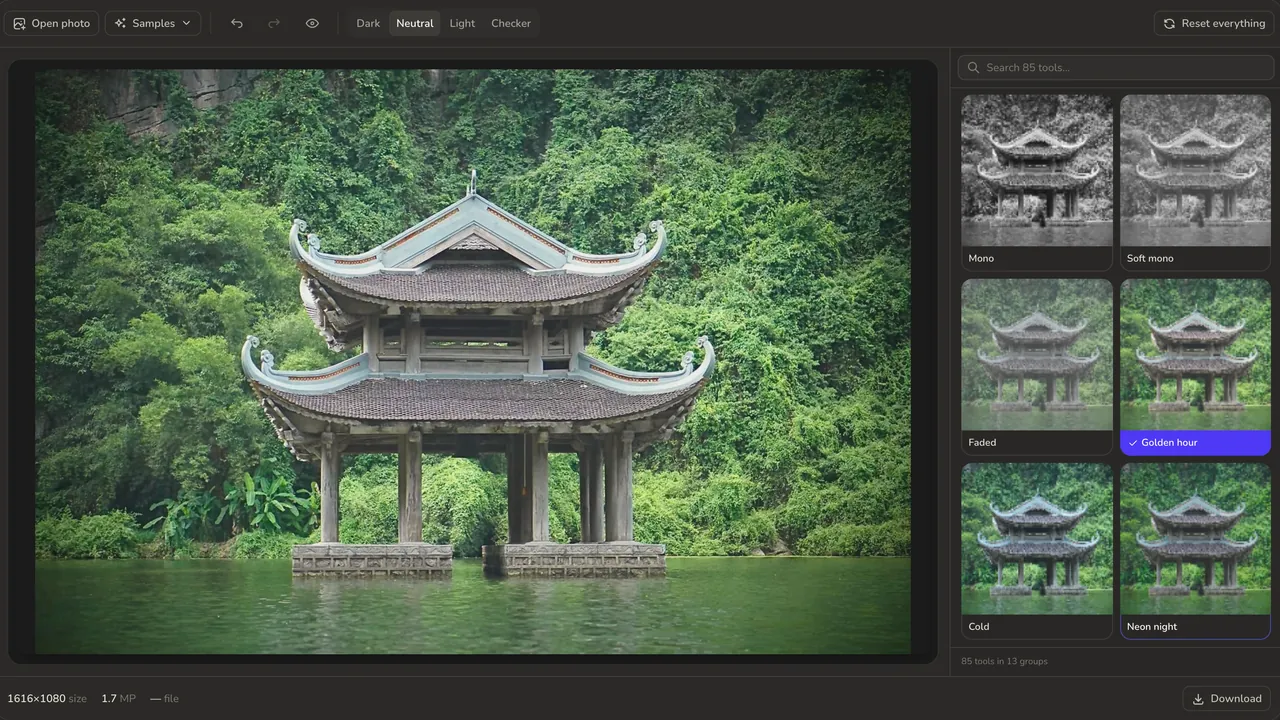 Photo LabNo upload · Batch recipes · .cube export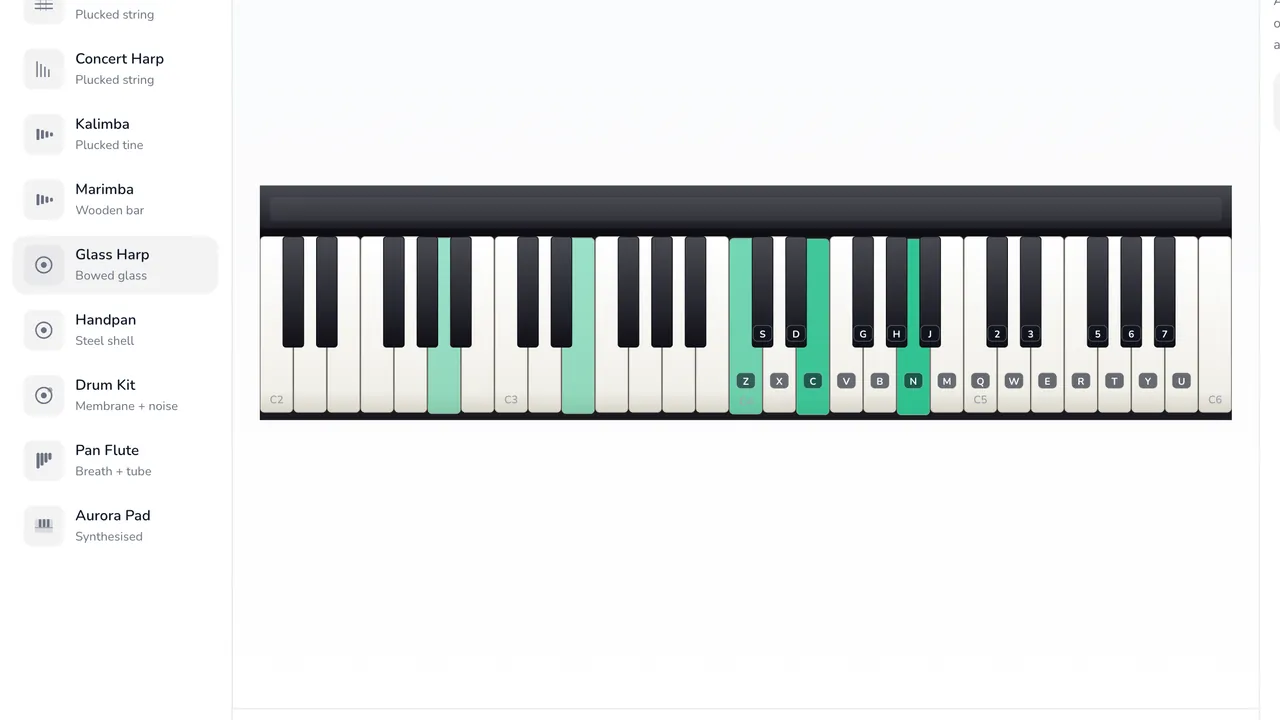
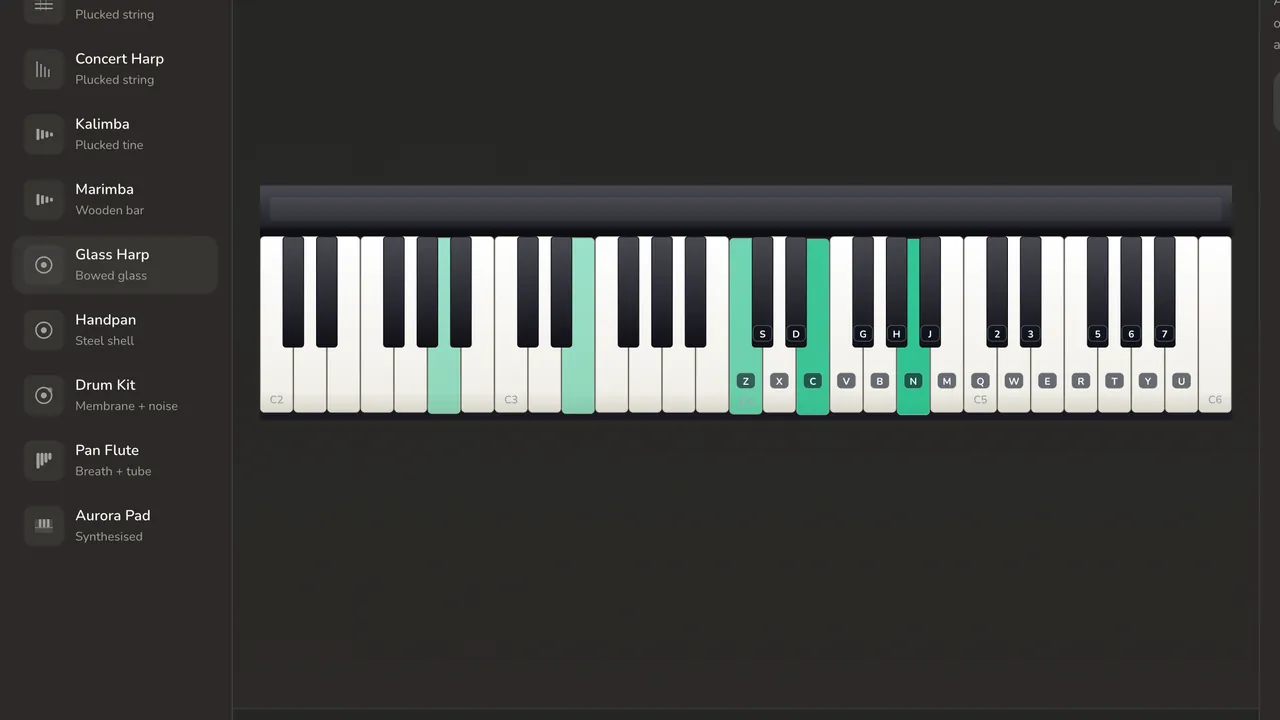 Instrument Lab10 instruments · no samples · WAV + MIDI out
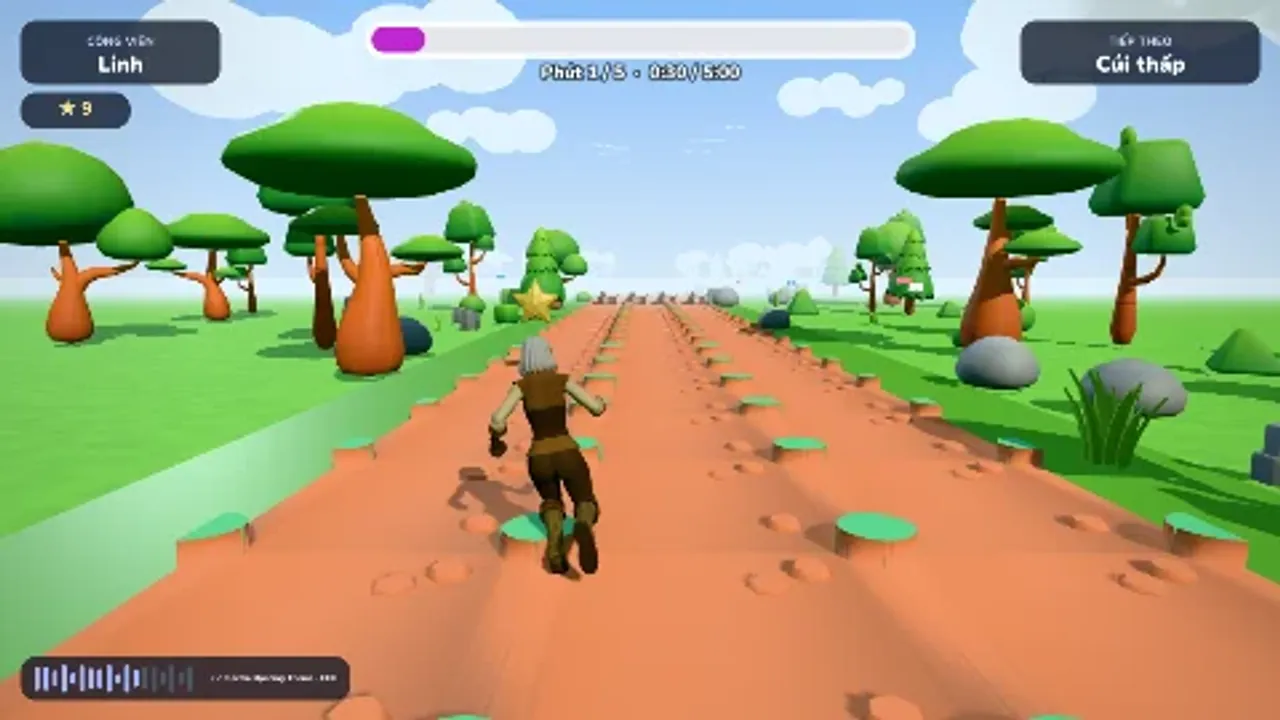 Run Along5-minute video · 5 scenes · exports 4 qualities