
Parts of the guide
3.For kids: they play, you see what they've learnt
22 activities for children from age 3 to Year 4. They don't need to read yet: every activity talks them through it with big buttons, and when they get one wrong the owl shows them how and lets them try again.
Pick an activity for your child's class
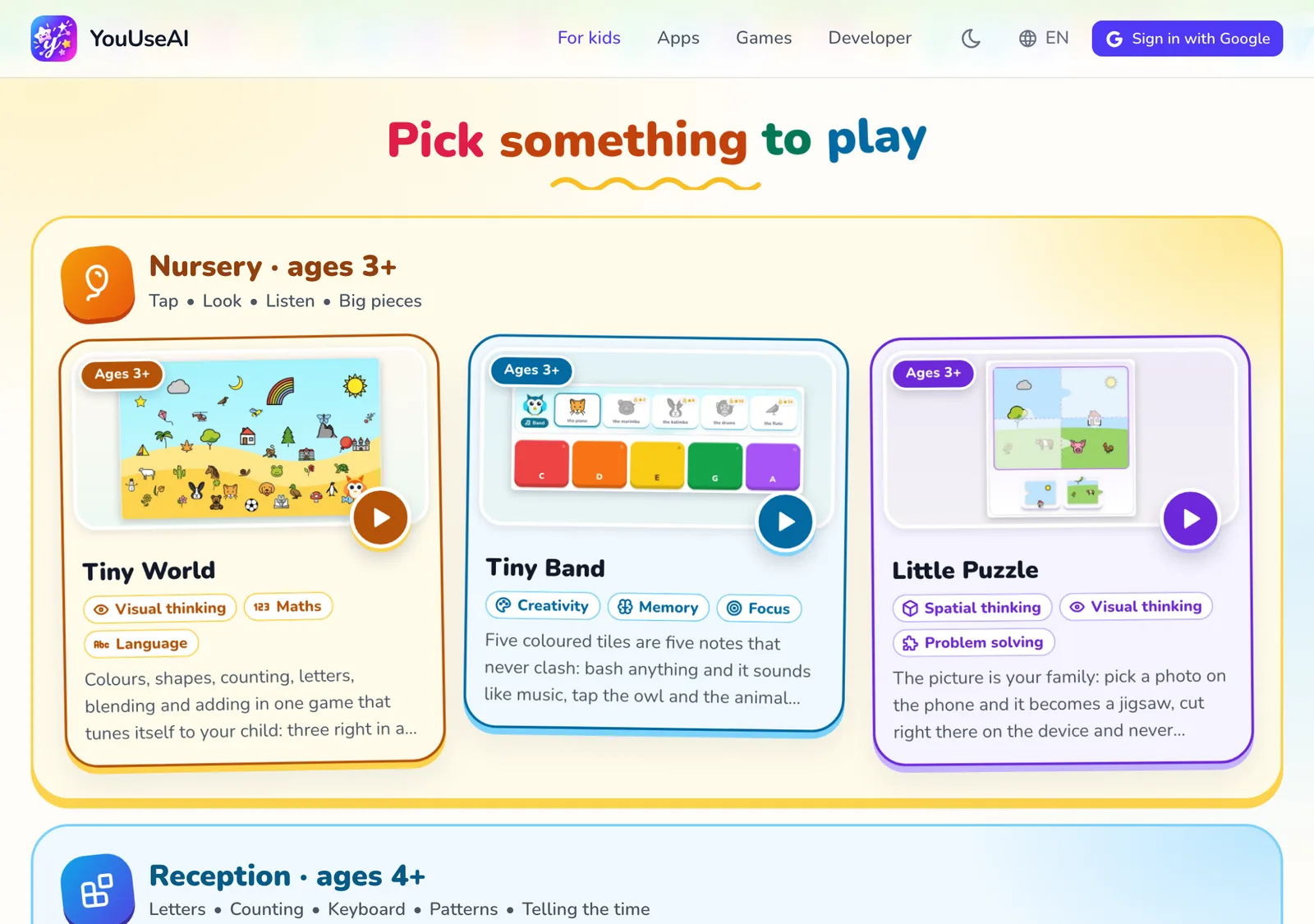
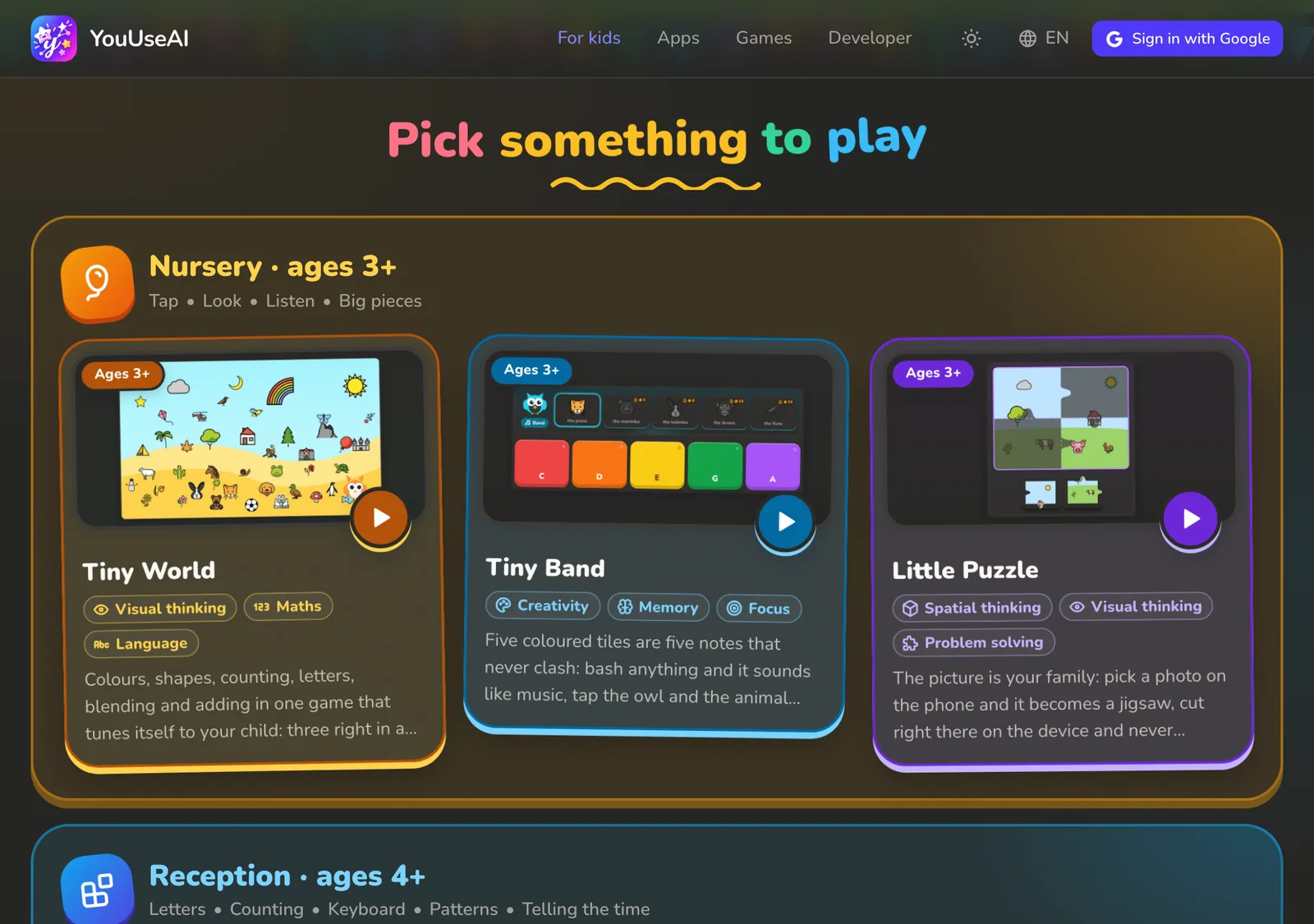
- 1What each activity solves and teaches
- 2One band of activities, with what children practise
The The kids' corner page groups activities into four bands: Nursery · ages 3+, Reception · ages 4+, Grade 1 · ages 6+ and Grades 2–4 · ages 7+. The small line under each band says what children practise there, and every card shows the age and the skills it works on.
Nothing is locked: a Year 1 child can go back to a younger band to revise, or try an older one once they're ready.
Once your child has played, the top of the page also shows their stars, their daily streak, today's minutes and a Carry on card that takes them straight back to where they left off.
What is each one for?
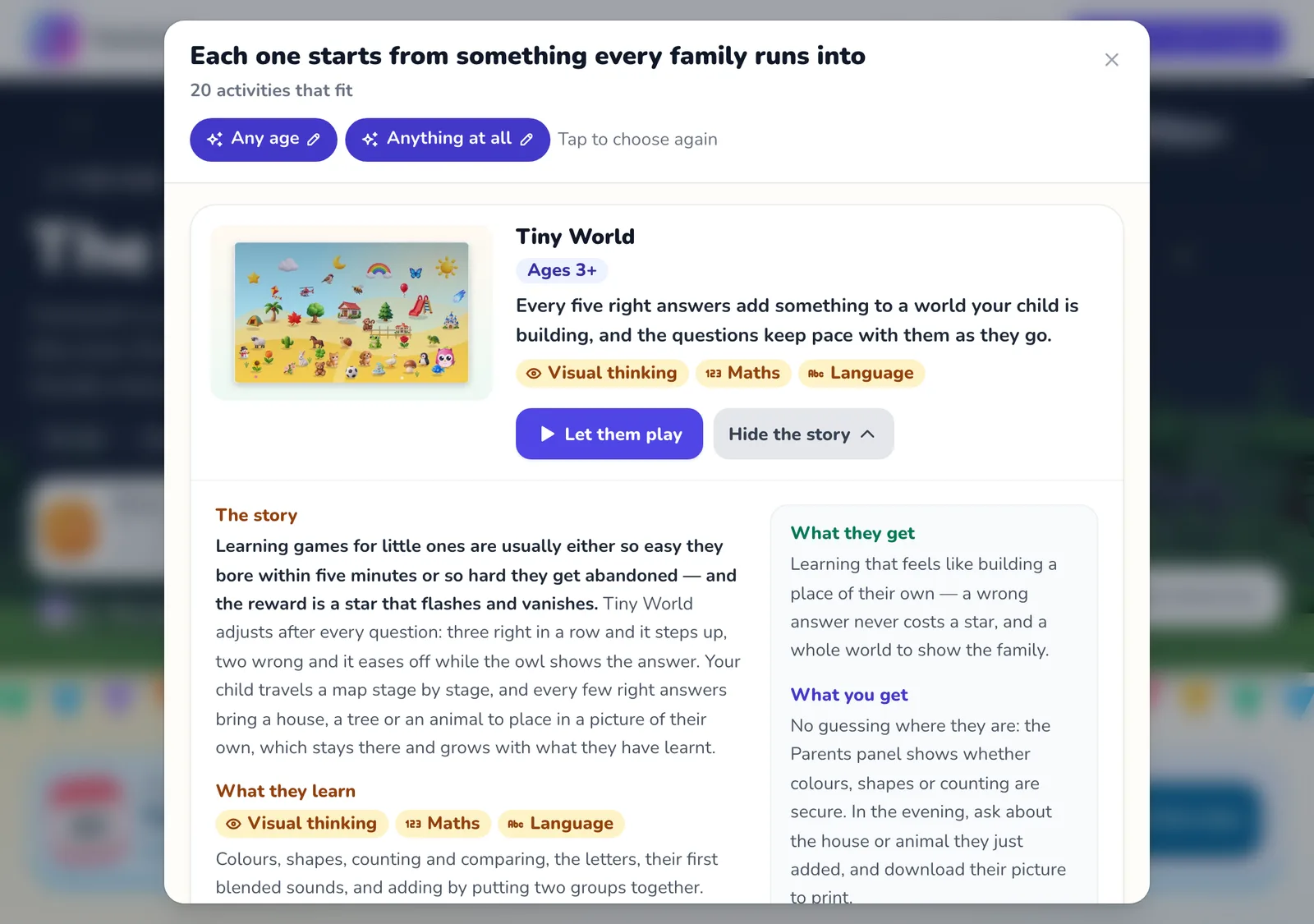
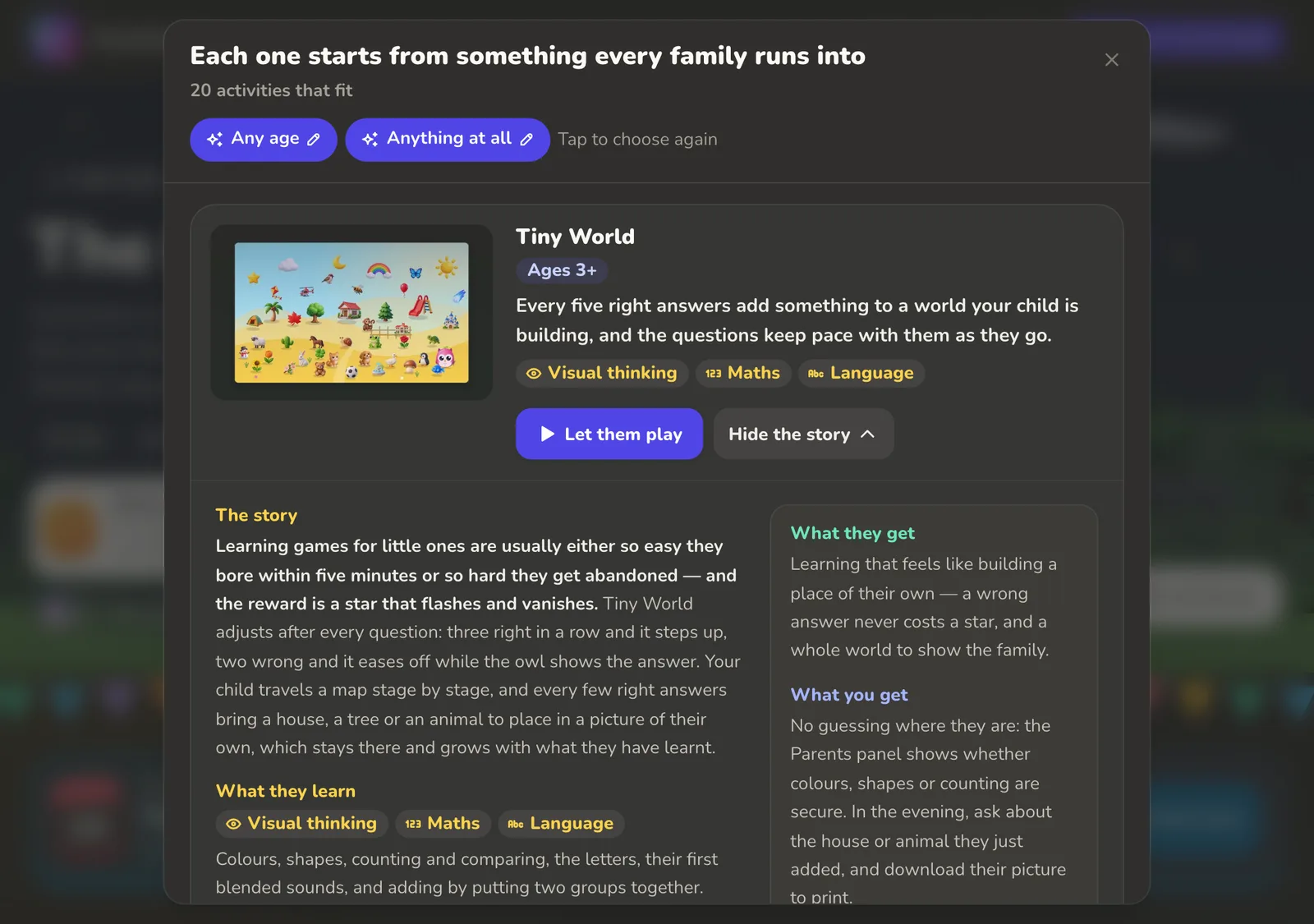
- 1The activities that fit
- 2Your answer — tap it to choose again
- 3One activity opened: its story and what it teaches
To see what an activity teaches before handing over the device, tap What is each one for? at the top of the page. It asks two short questions — how old your child is, and what you'd like them to practise — then shows the activities that fit. Each one has:
- The story: the everyday problem at home it helps with.
- What they learn: the skills it practises, such as visual thinking, maths or language.
- What your child gets and what you get: what it gives them, and what it tells you about them.
Read the story opens those parts on a card, and Let them play takes your child straight into the activity. To change an answer, tap it at the top of the panel.
The bar on every activity
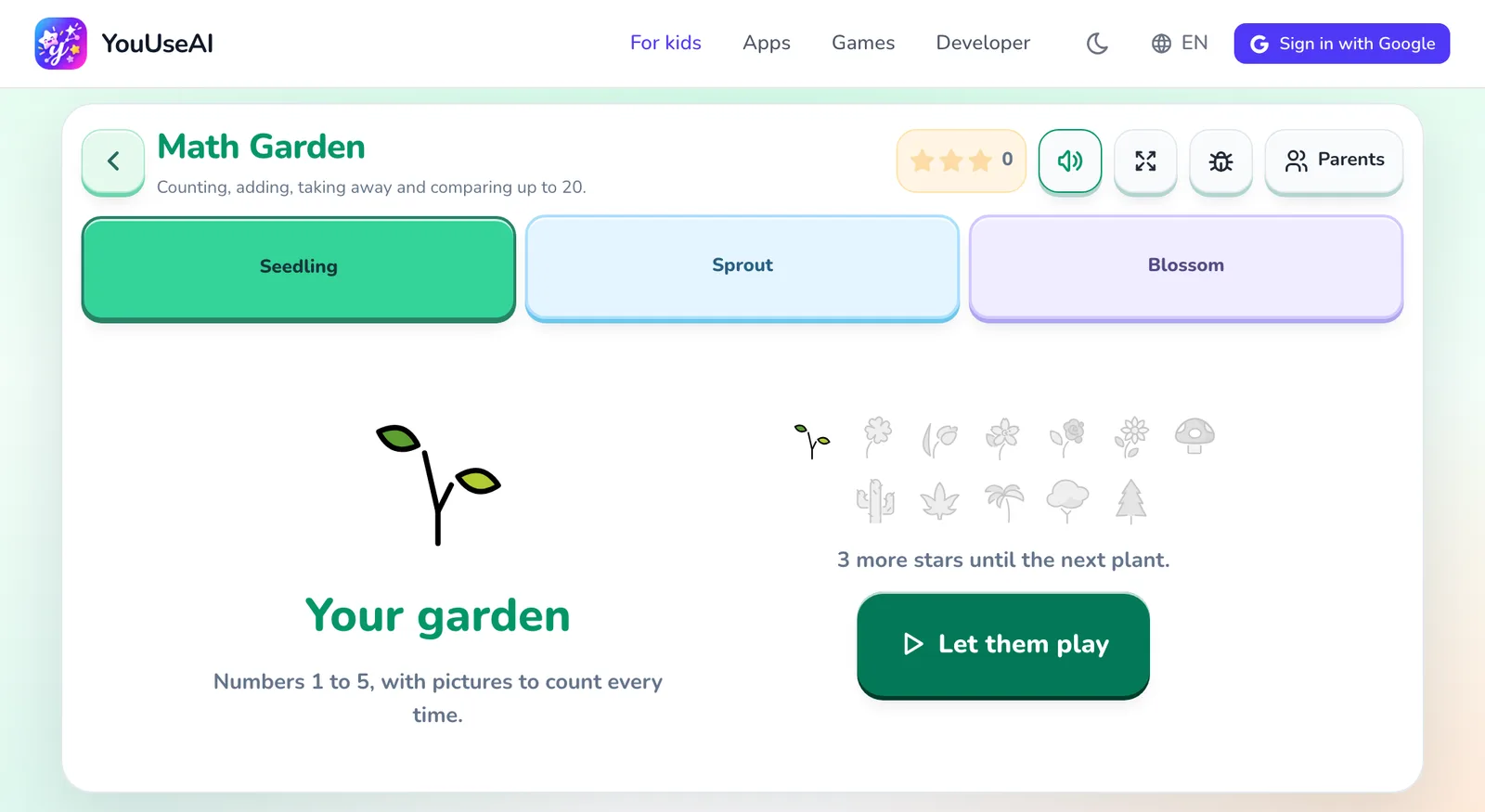
- 1Back to For kids
- 2Sound off or on
- 3Full screen
- 4Report a bug (behind the parents' gate)
- 5Parents panel (behind the parents' gate)
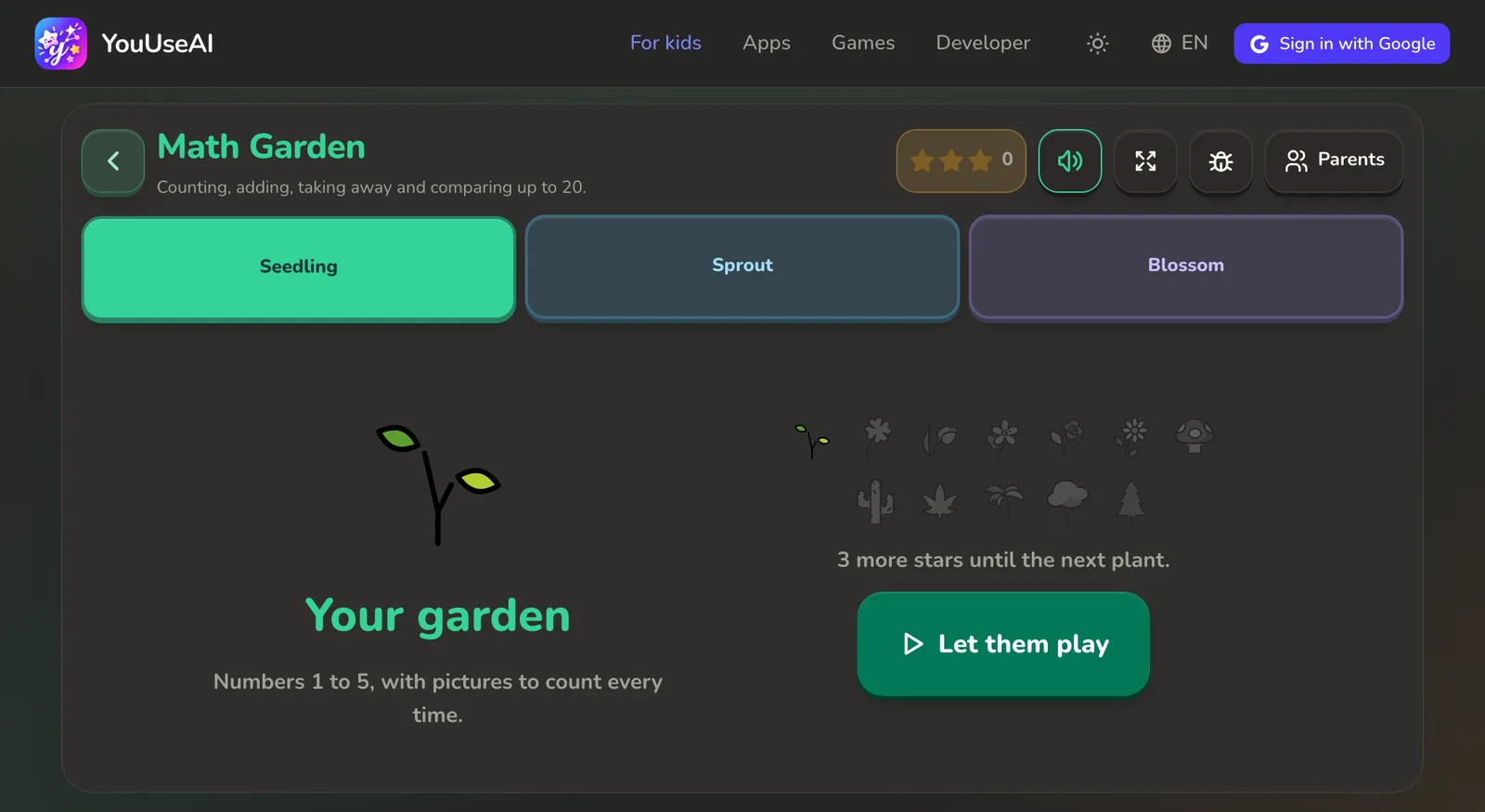
Every activity in For kids has the same bar along the top, so once your child knows one, they know them all. Report a bug and Parents sit behind the parents' gate, so nothing gets pressed by accident.
Under the bar are the activity's levels, where it has more than one. Choose the level before you tap Let them play.
How a round works
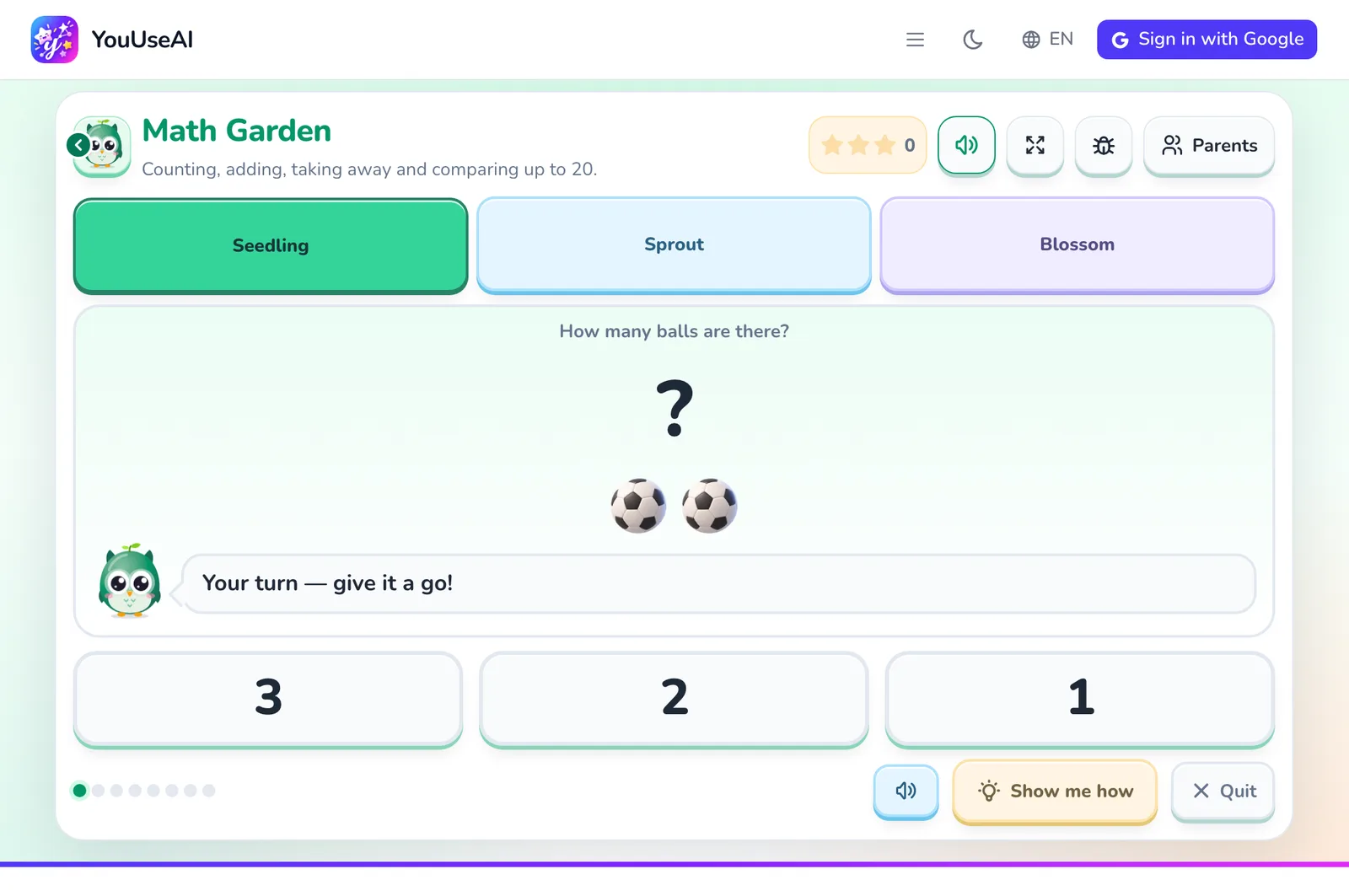
- 1Hear the question again
- 2I don't know — the owl shows how
- 3Leave the round
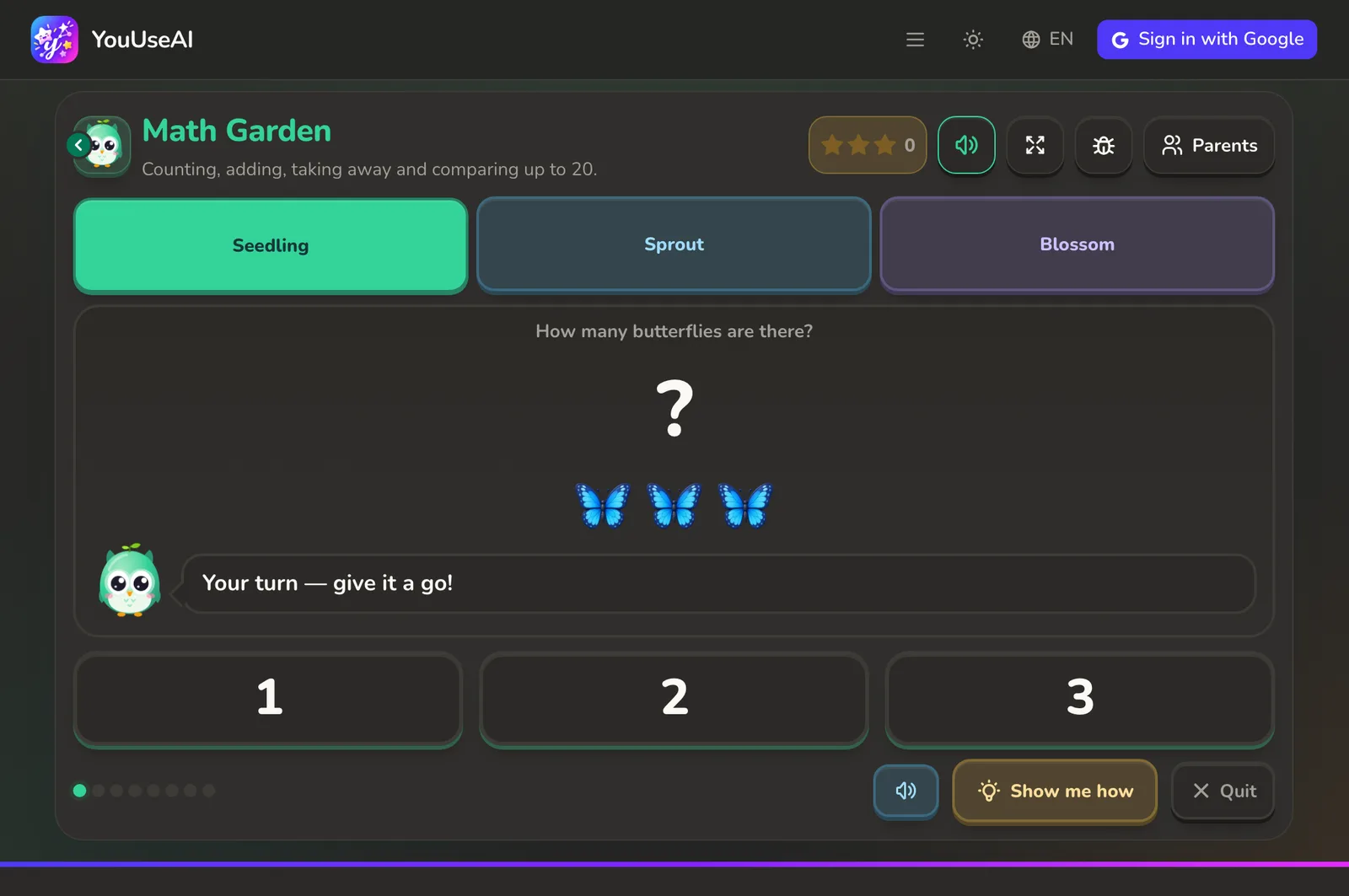
- Your child hears the question — it's also on screen in words and pictures, so you can follow along.
- They tap an answer. Get it right and on they go to the next one; every few right answers bring a cheer.
- Didn't catch it? Listen again plays it again. Stuck? Show me how has the owl show them how, then lets them try again.
- A wrong answer is never punished, and there's no losing screen. On a second miss, the owl points to the right place.
- At the end of a round they see how many they got right and the stars they've earned, then choose Play again or Quit.
The parents' gate
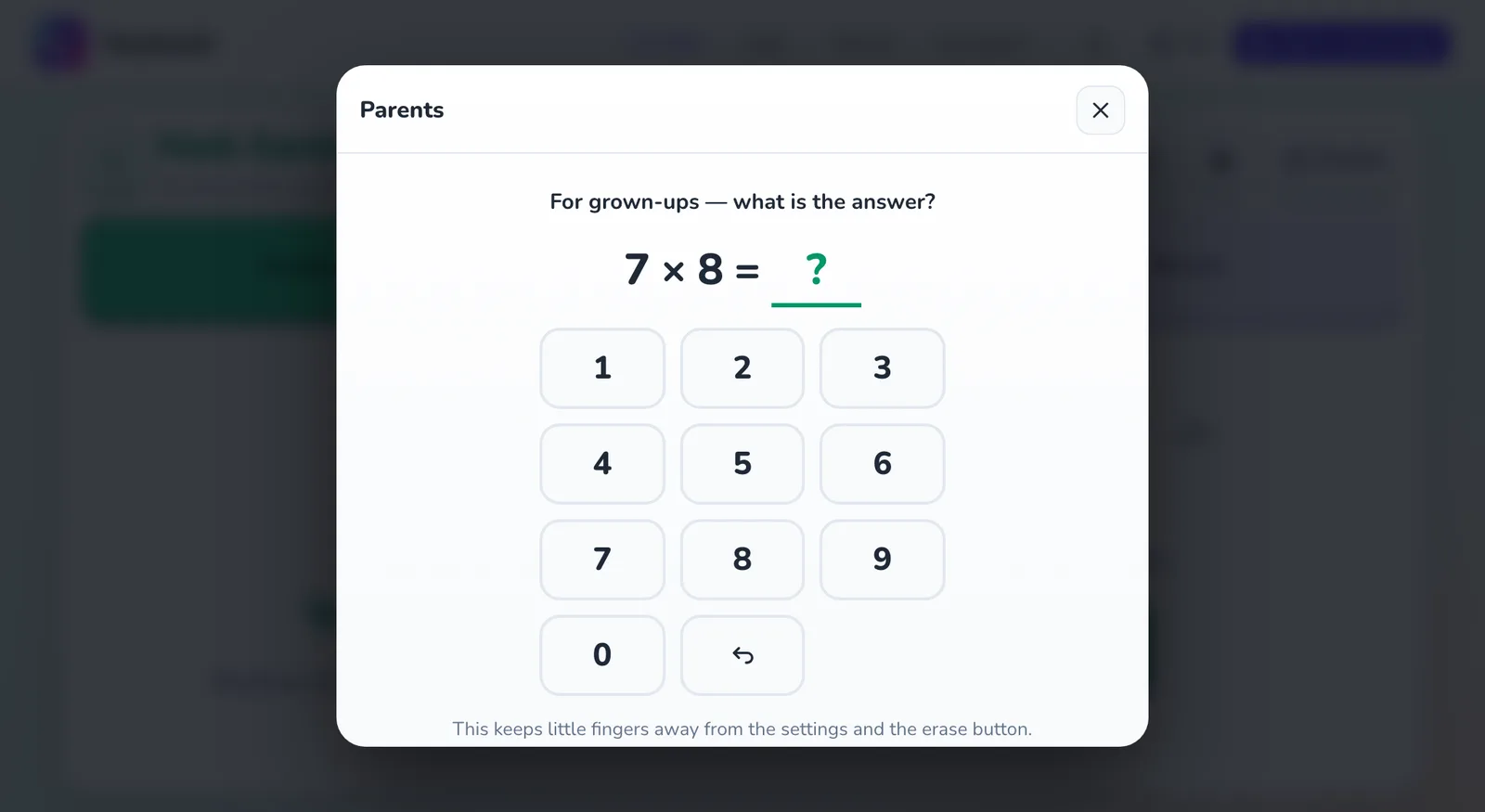
Parents and Report a bug first ask one multiplication of two single digits; tap the answer on the keypad to get in. Too hard for a small child, instant for you — so nobody resets progress or changes the settings by mistake.
The Parents panel
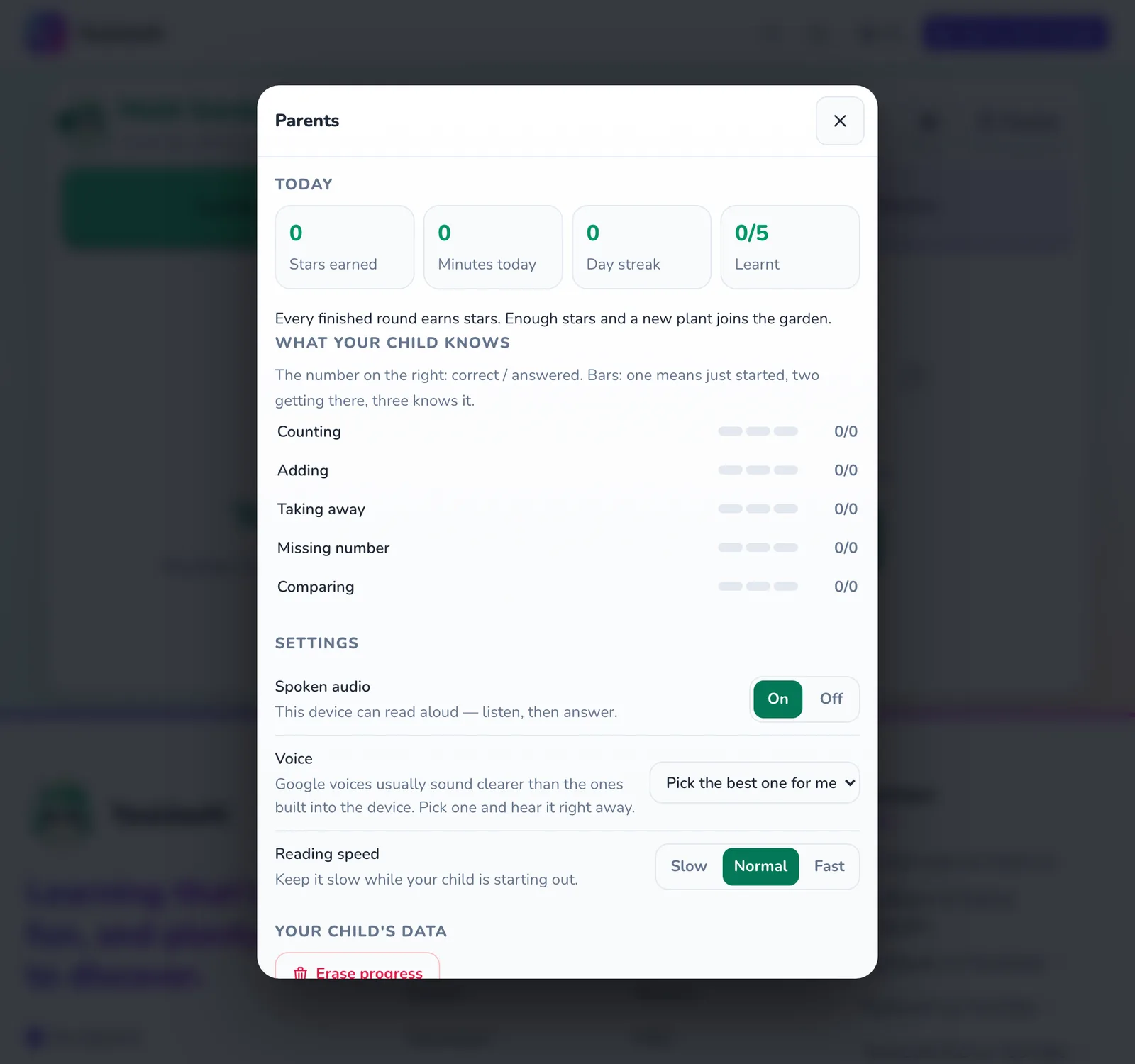
- 1Stars, minutes and streak for today
- 2Where each skill stands
- 3Reading voice and speed
- 4Clear this activity's progress
- Today: stars earned, minutes played today, the daily streak and how many skills they've mastered.
- What your child knows: each skill in this activity, with bars showing Just started, Getting there or Knows it, and the number right out of the number tried.
- Settings: turn the Spoken audio on or off; Voice when the device has several; set the Reading speed to Slow, Normal or Fast. Keep it slow for a beginner.
- Your child's data: Erase progress clears this activity's progress. It asks once more to be sure; once it's gone, it can't be brought back.
If you're signed in, a line at the bottom of the panel tells you whether your child's progress has been saved to your account. Sign in with the same account on another device and they carry on from there.
Every activity in For kids
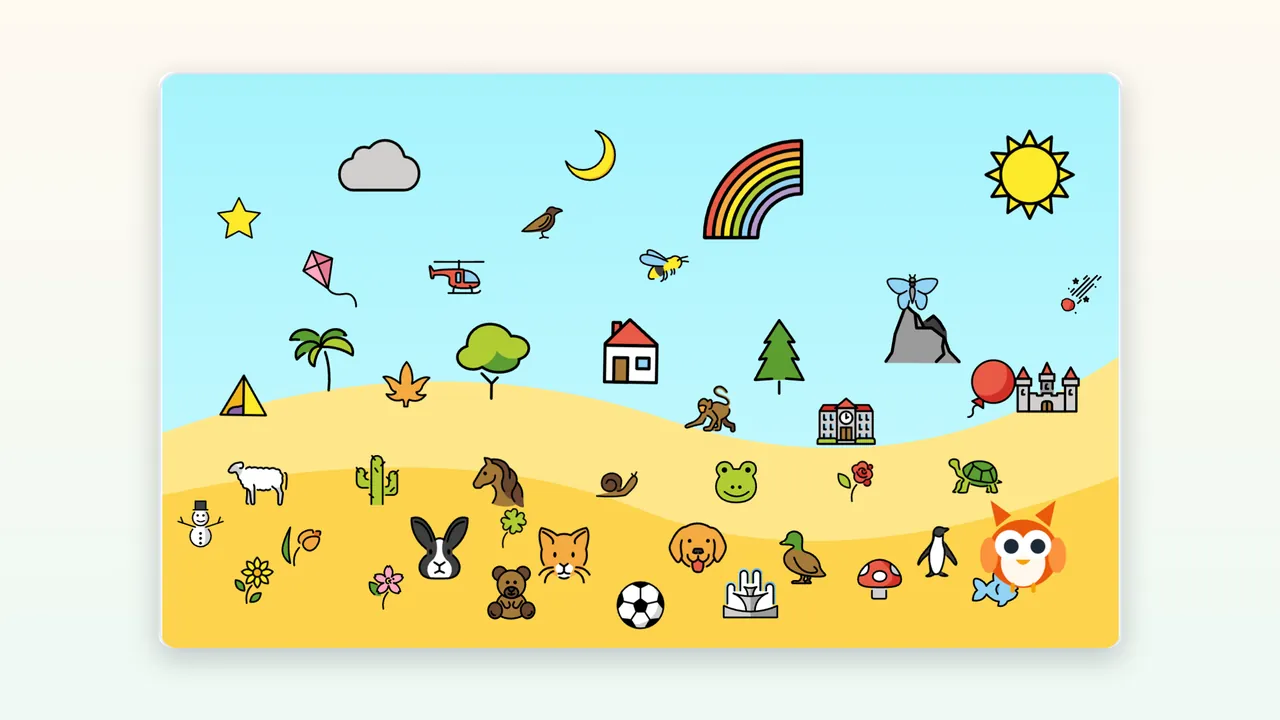
 Tiny WorldAges 3+ · adapts itself · 44 rewards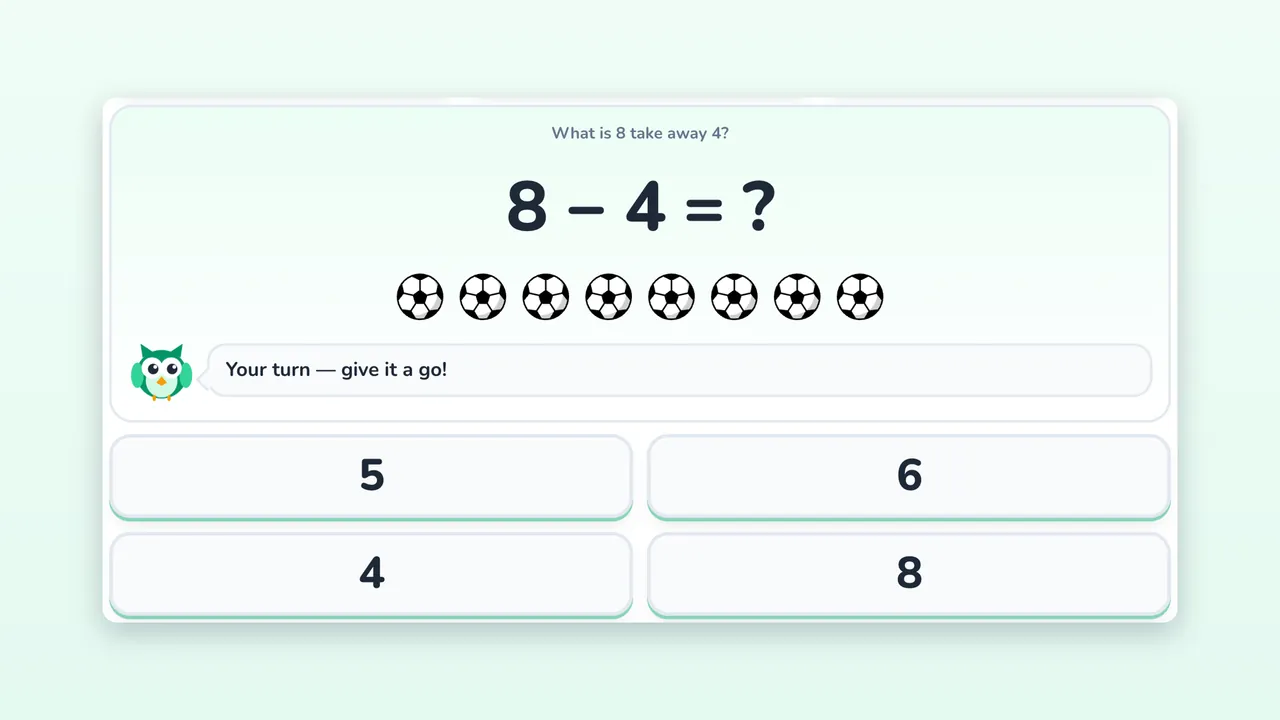
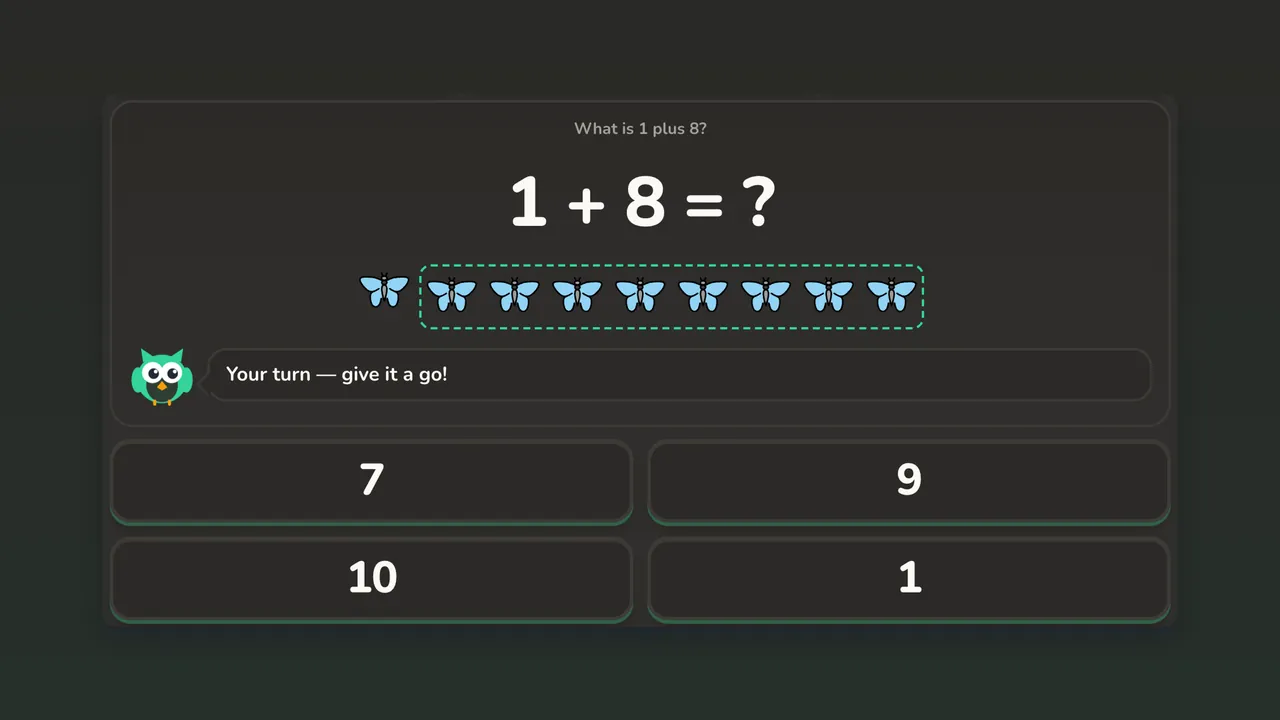 Math Garden3 levels · teaches the answer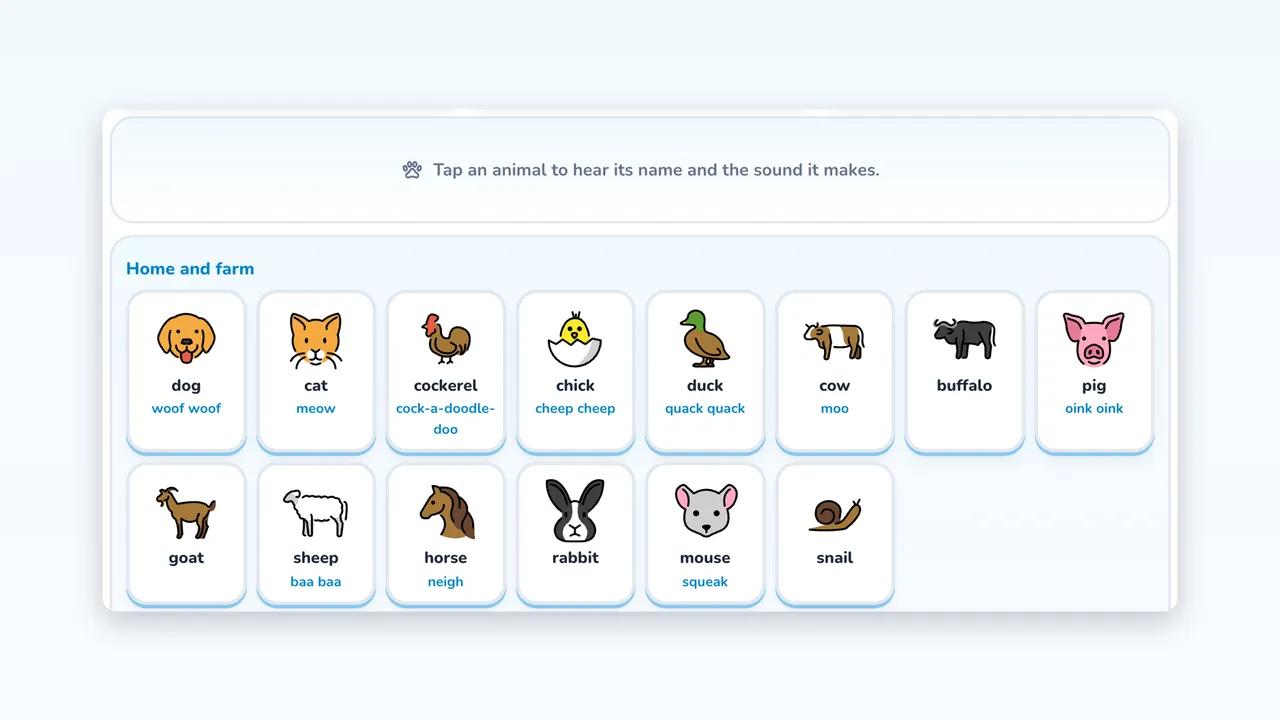
 ABC Zoo26 letters · 3 quiz levels · 50 animals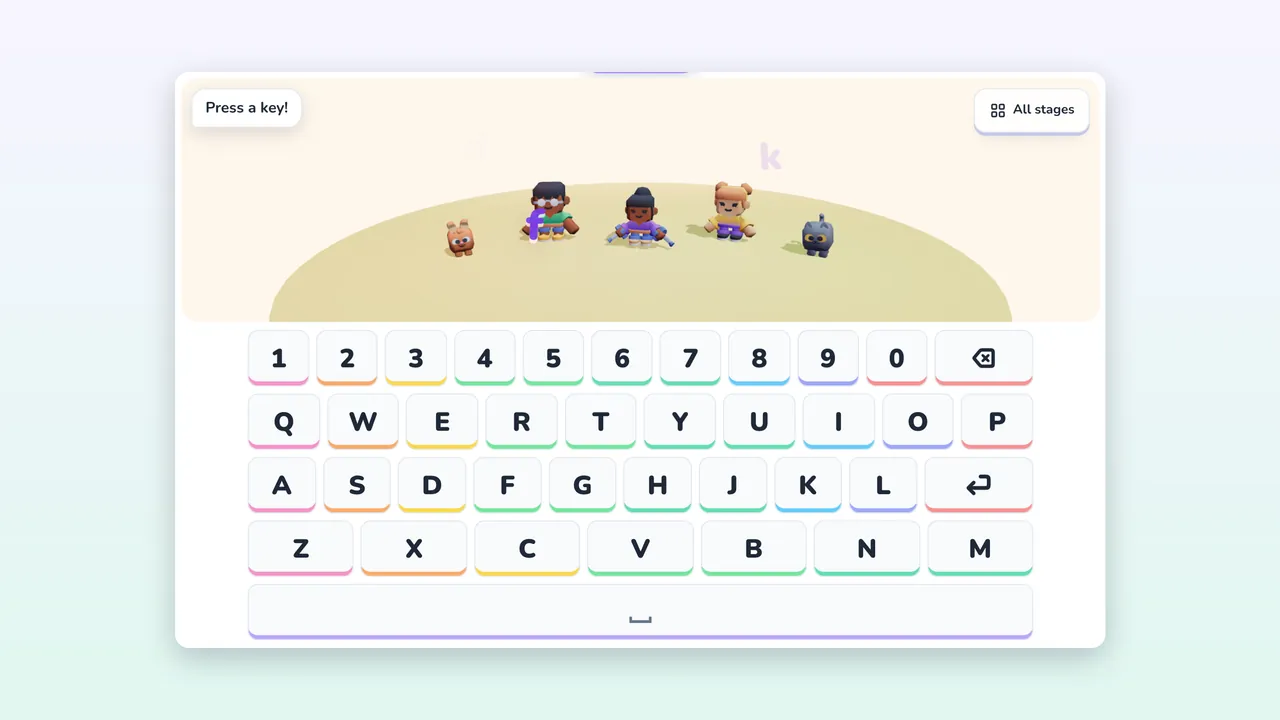
 Key DanceAges 4+ · real keyboard · finger hints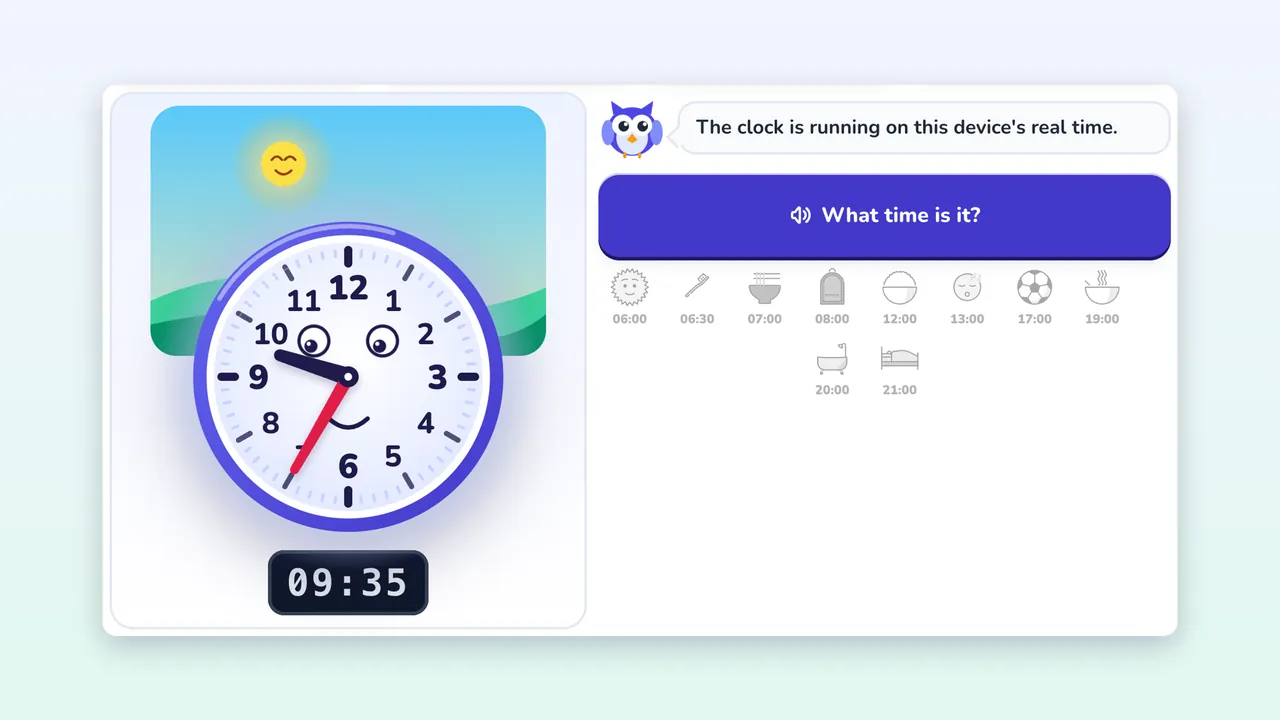
 Clock LabAges 5+ · 3 levels · sleeps countdown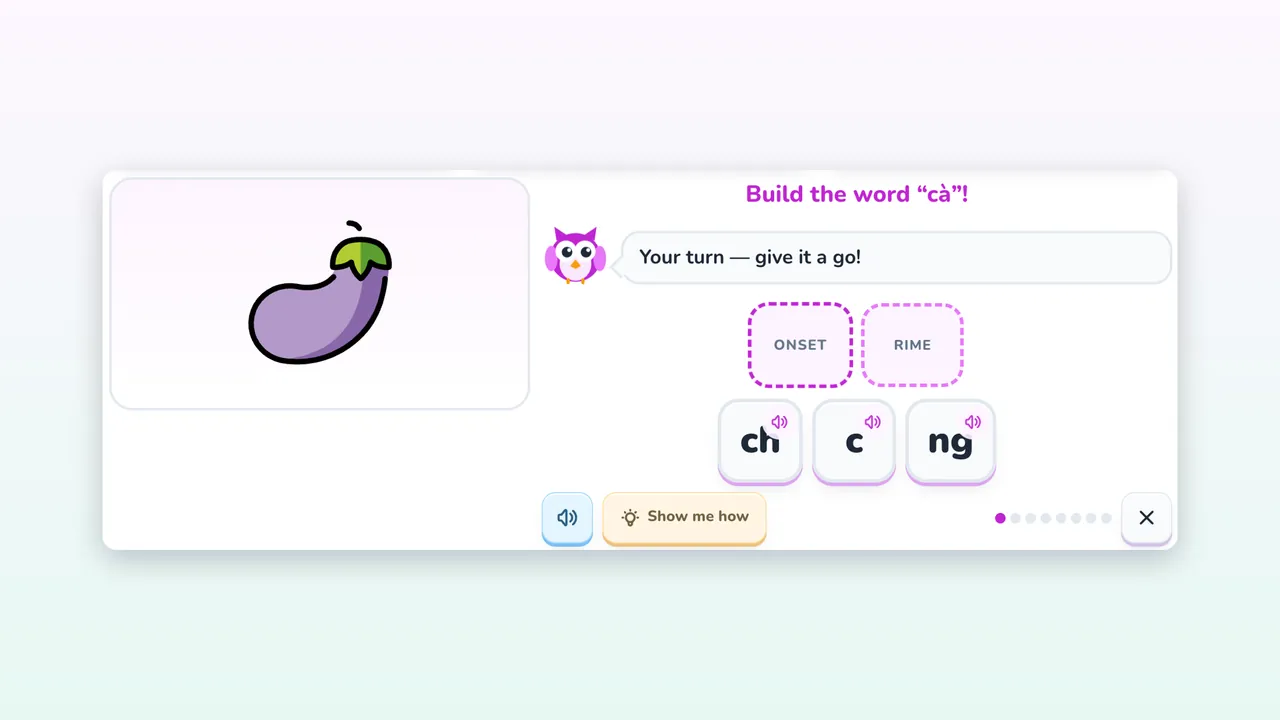
 Little ReaderAges 6+ · 3 levels · phonics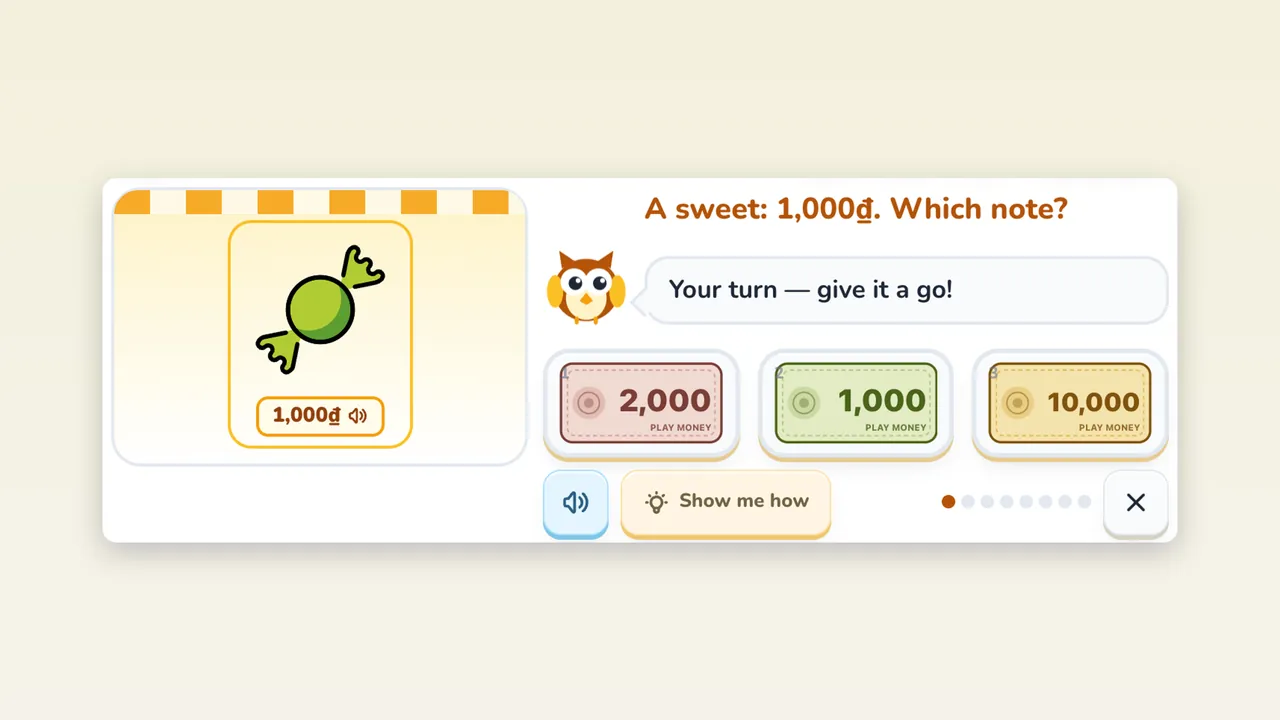
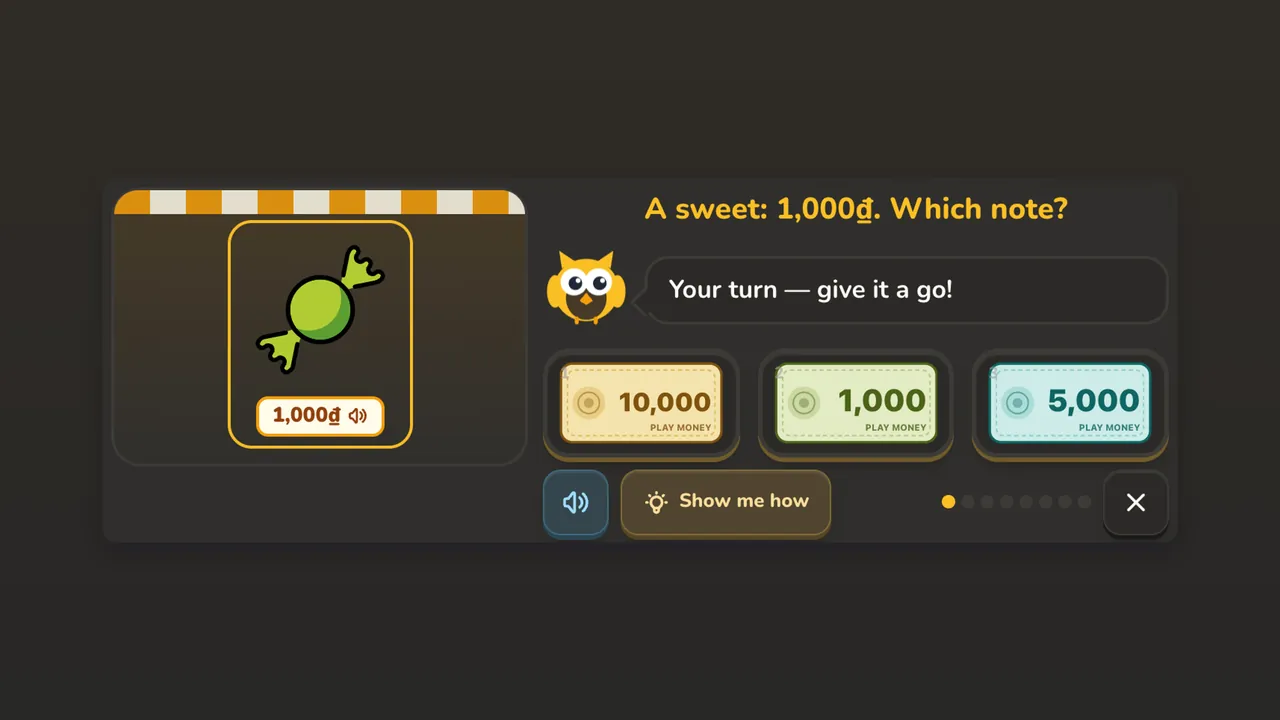 Little MarketAges 6+ · 3 levels · Vietnamese money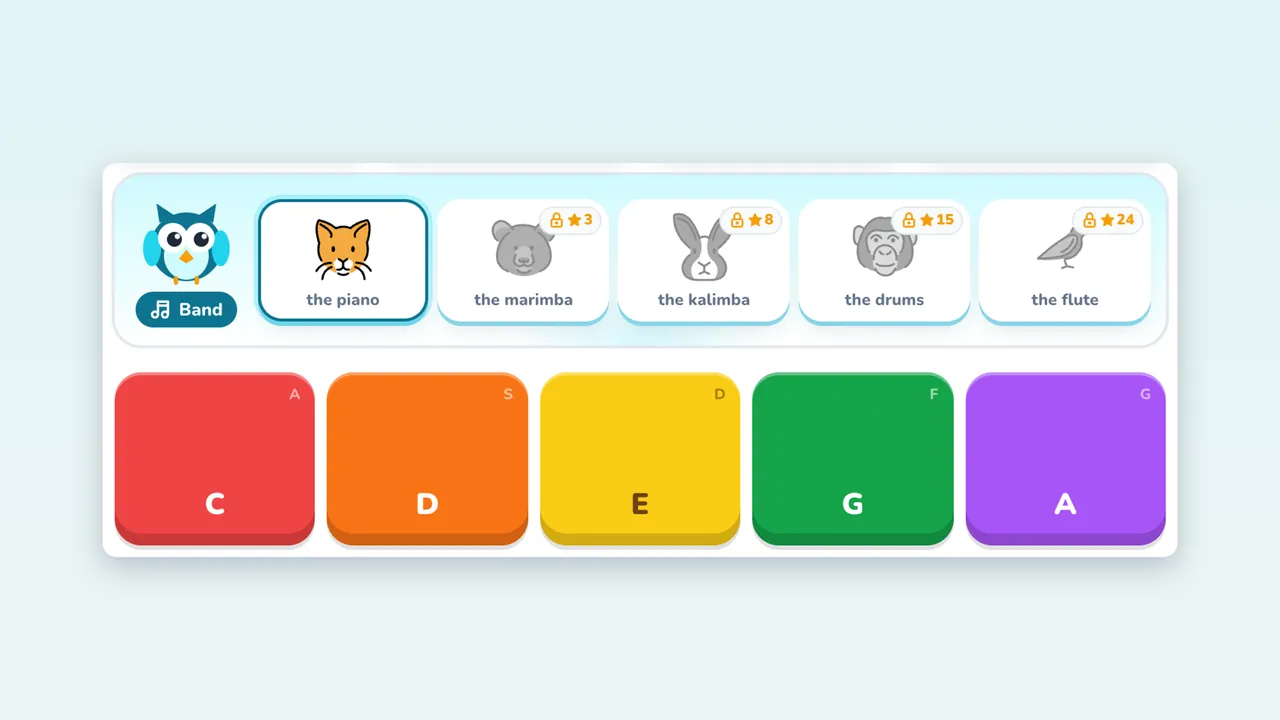
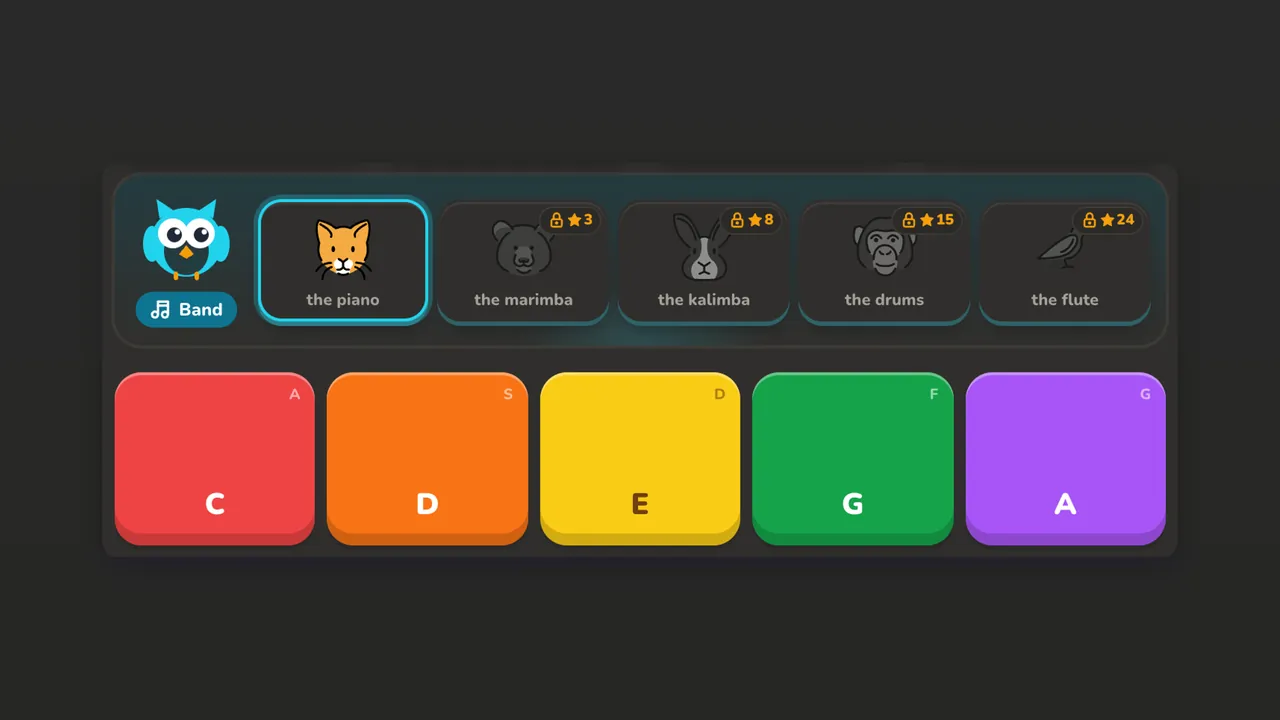 Tiny BandAges 3+ · 5 instruments · 6 songs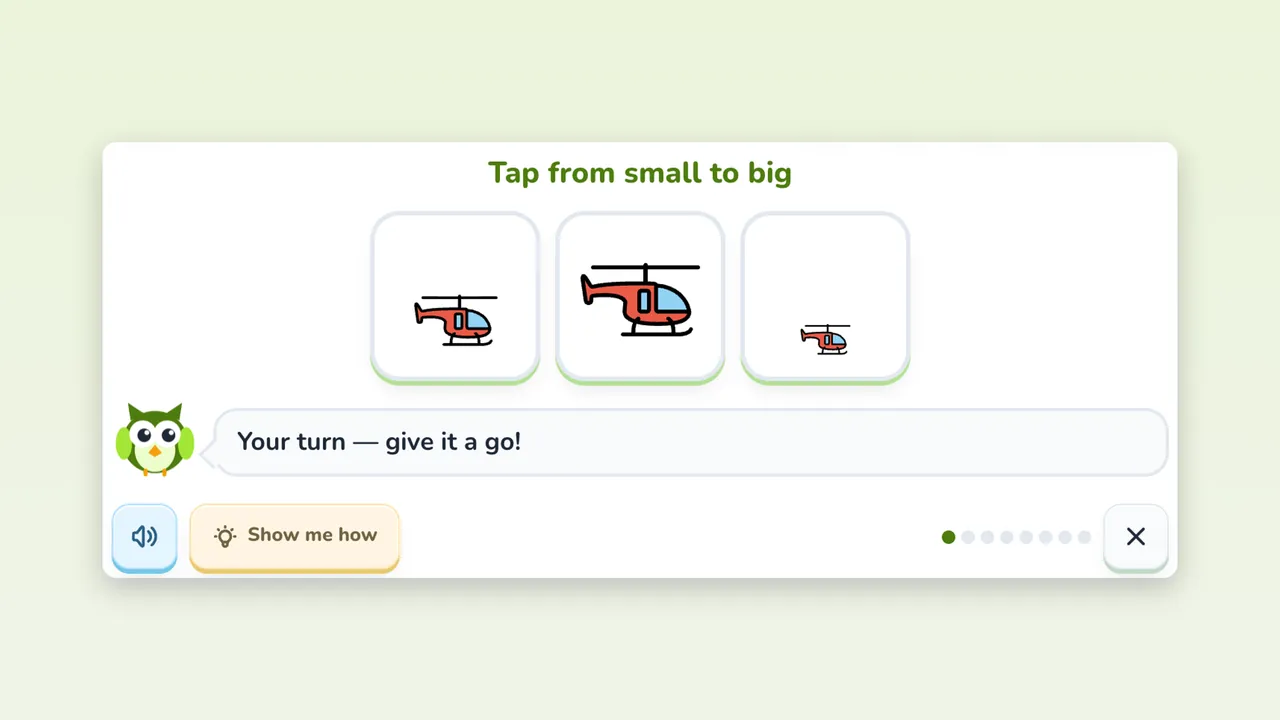
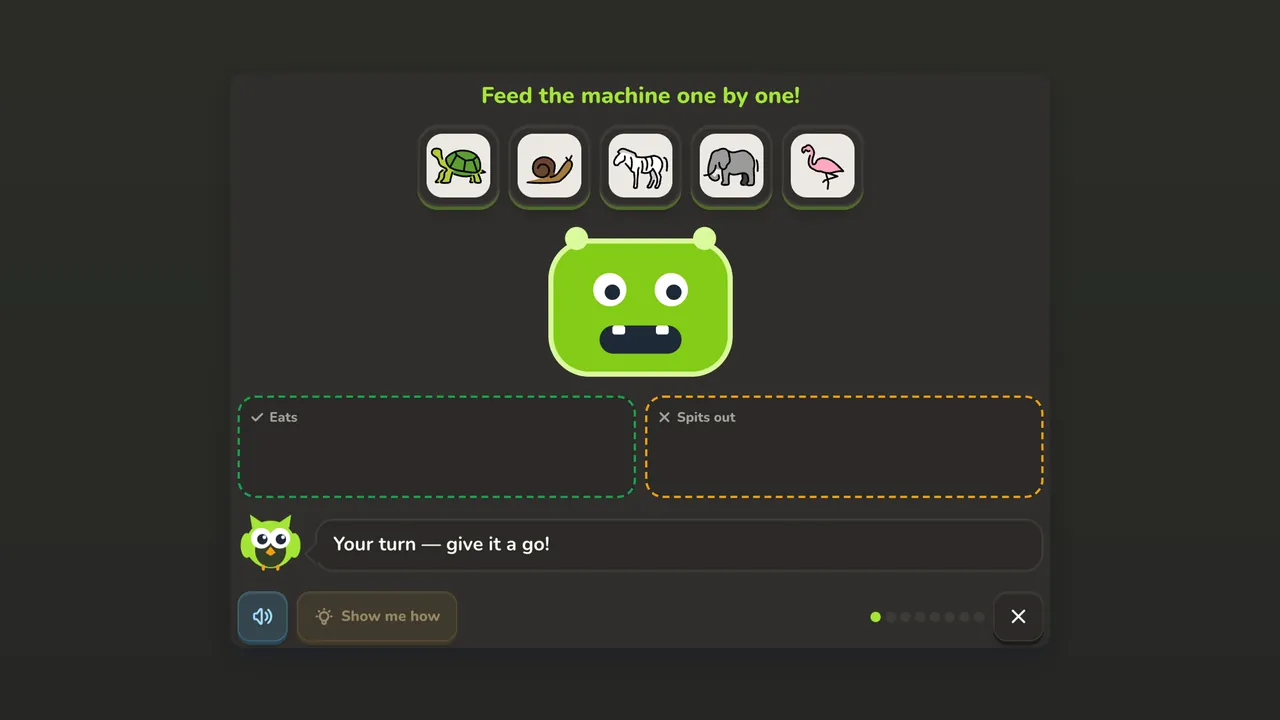 Logic GardenAges 4+ · 3 levels · 8 puzzle types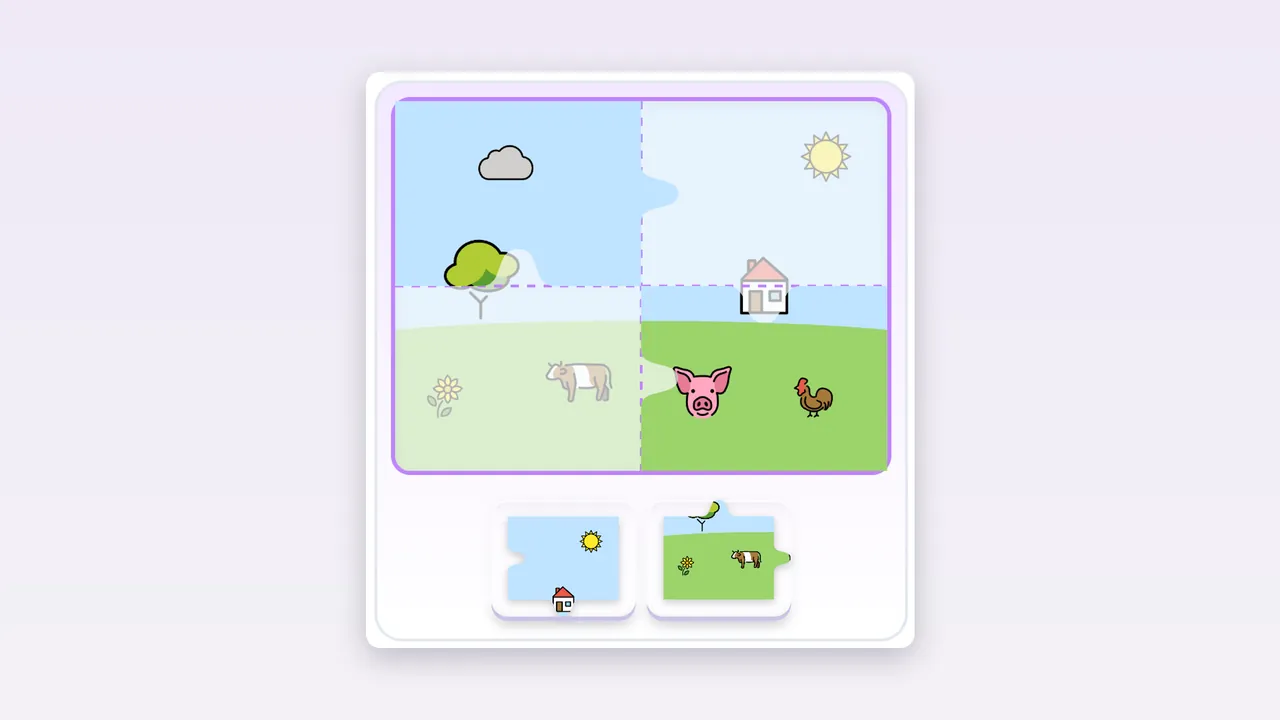
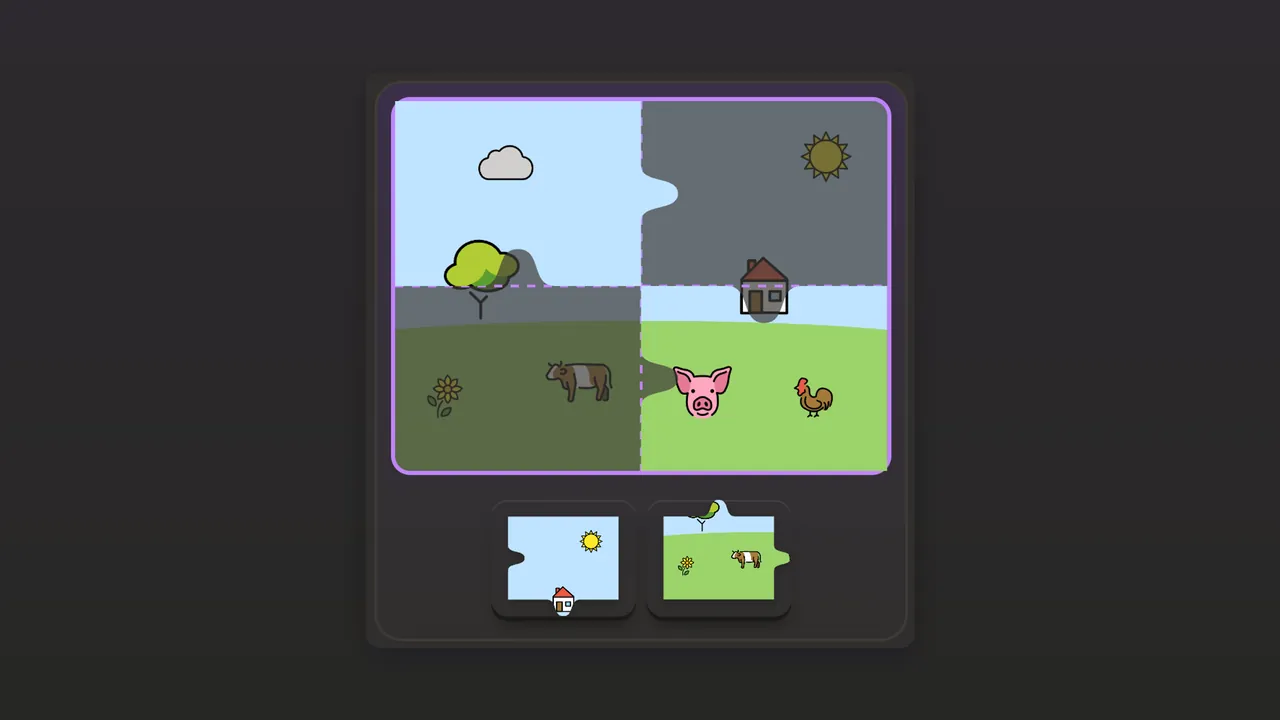 Little PuzzleAges 3+ · 4 sizes · your own photos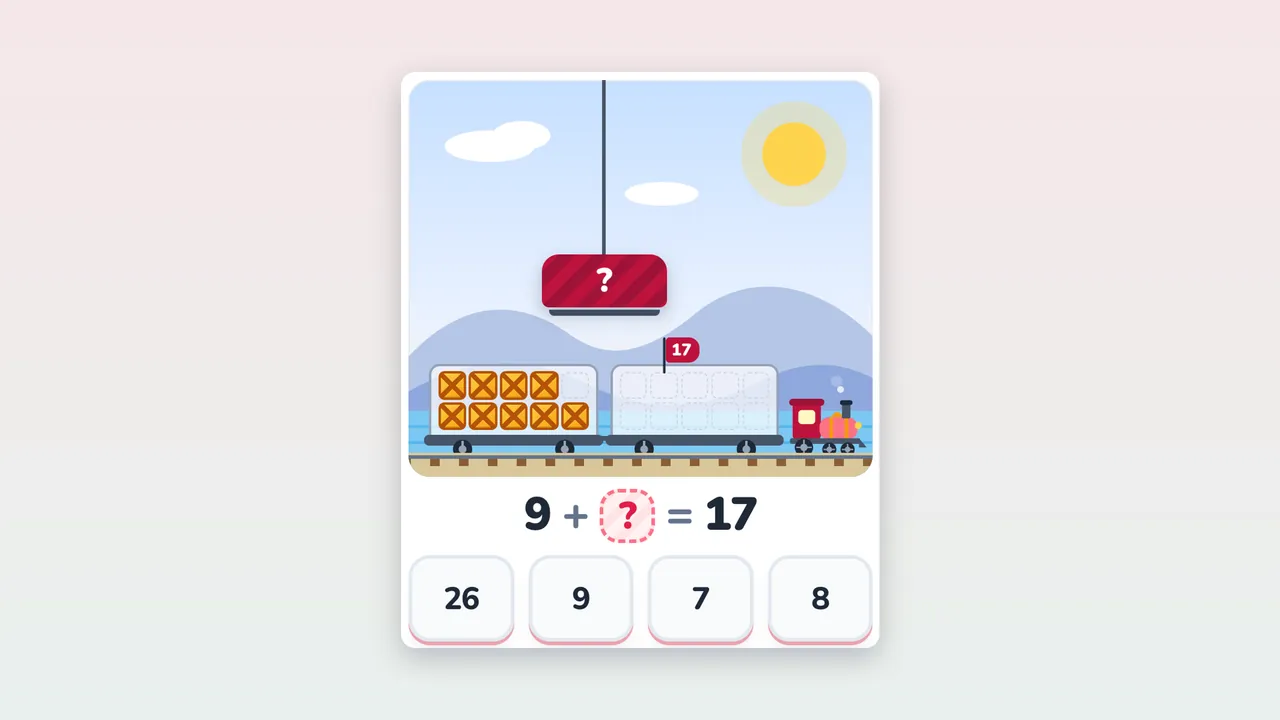
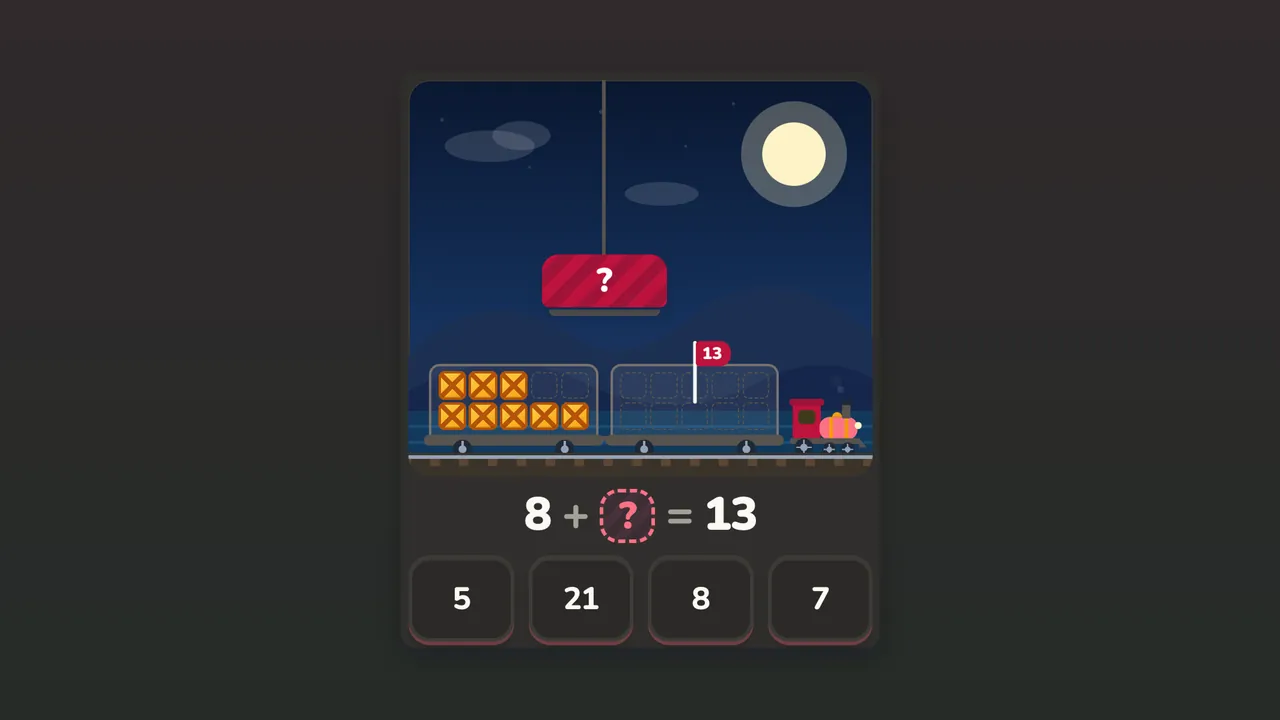 Math ExpressAges 6–8 · 3 lines · 90 stations
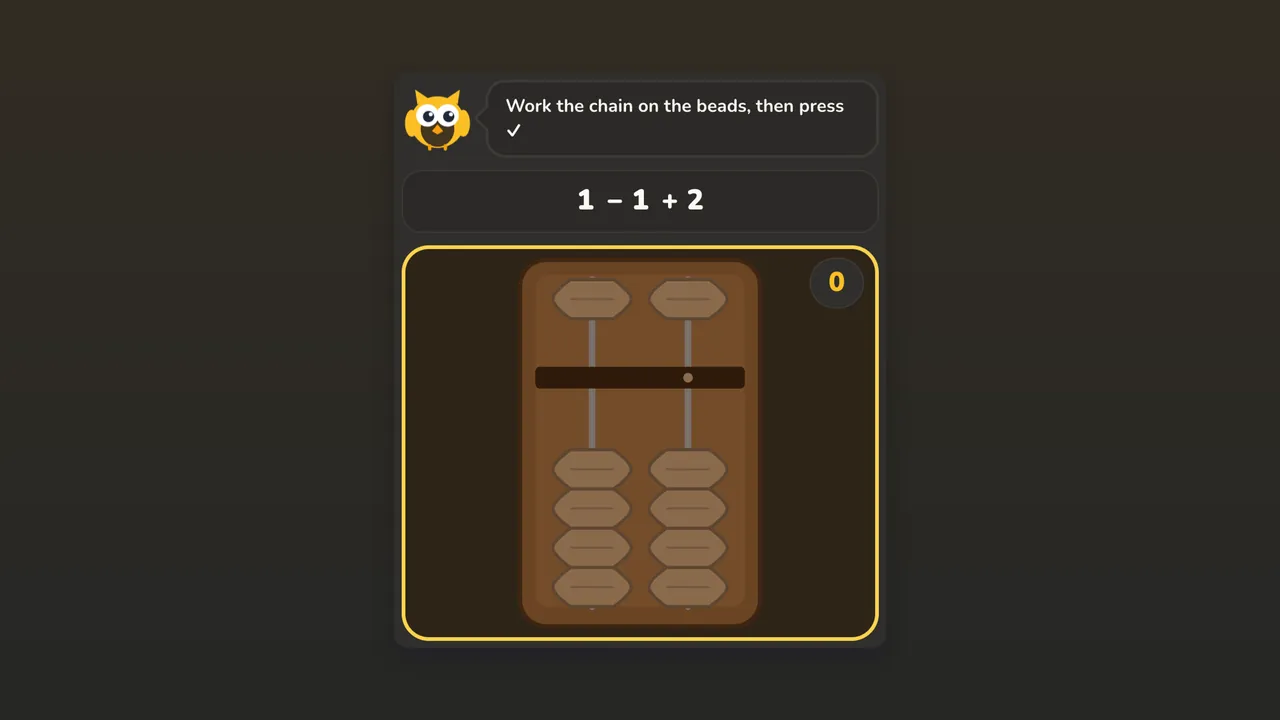 Magic AbacusAges 5–8 · 5 activities in one · 40 lessons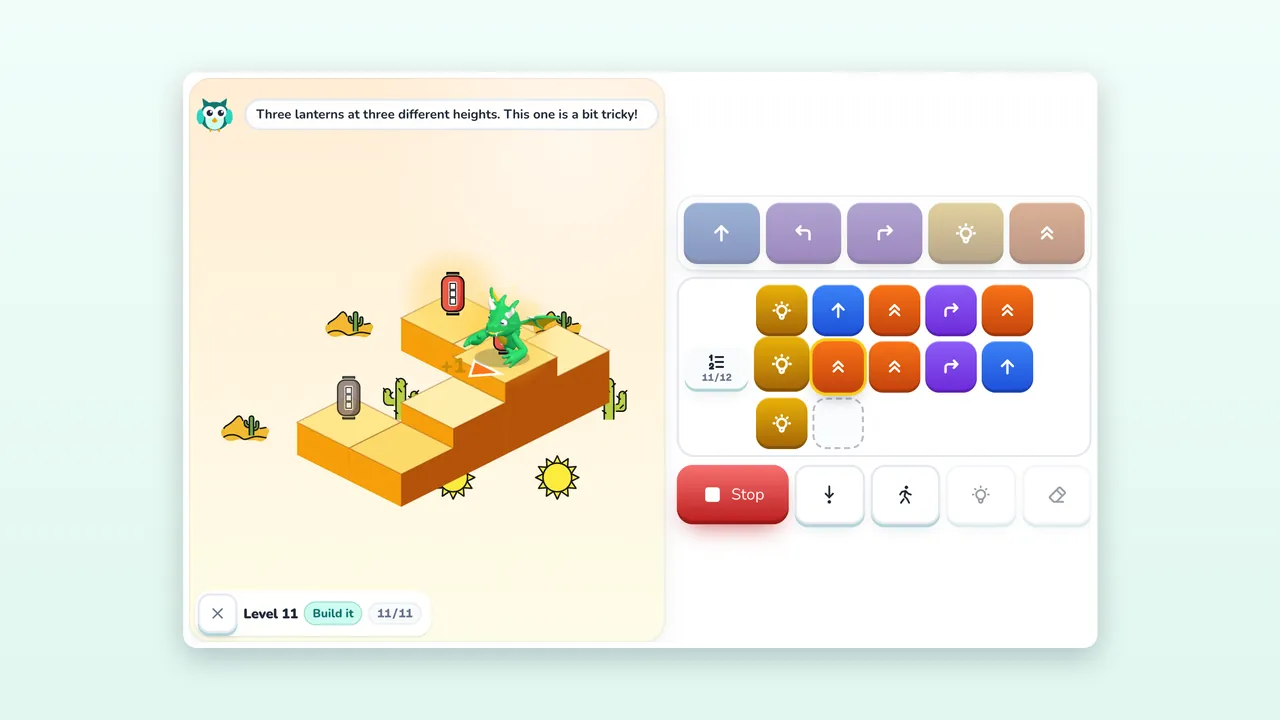
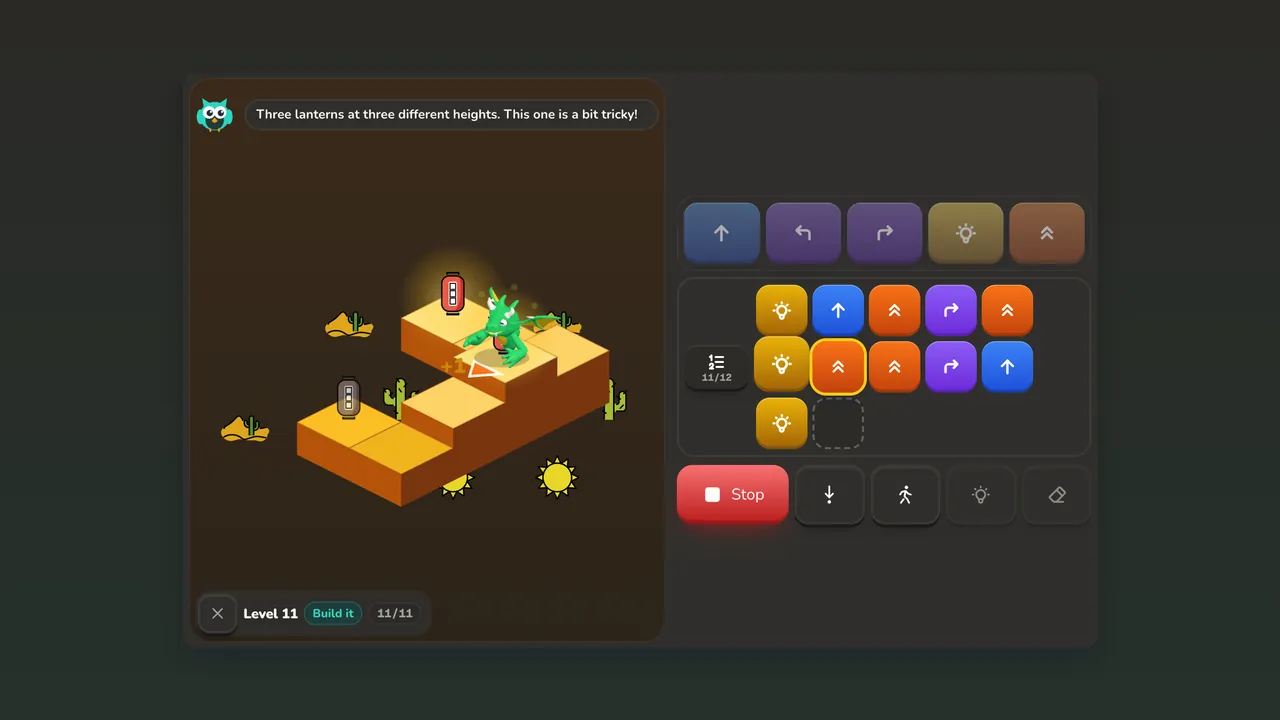 Little Dragon CodeAges 6–8 · 5 lands · 30 levels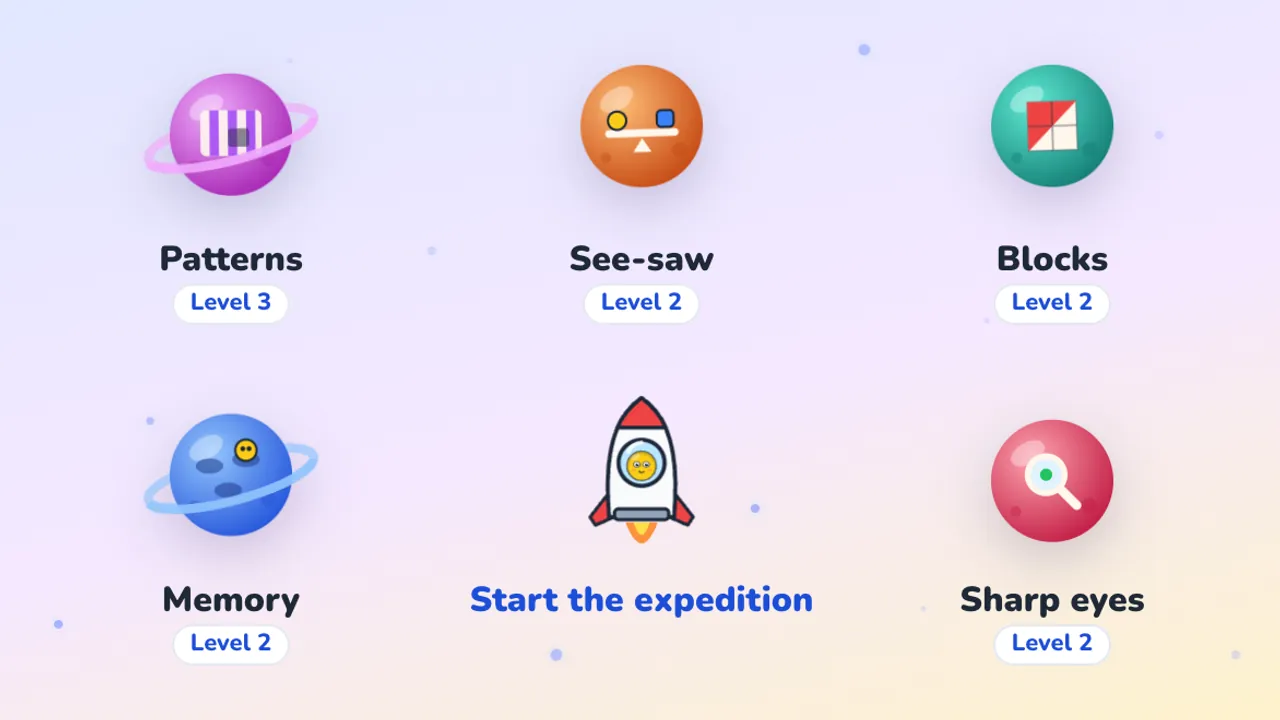
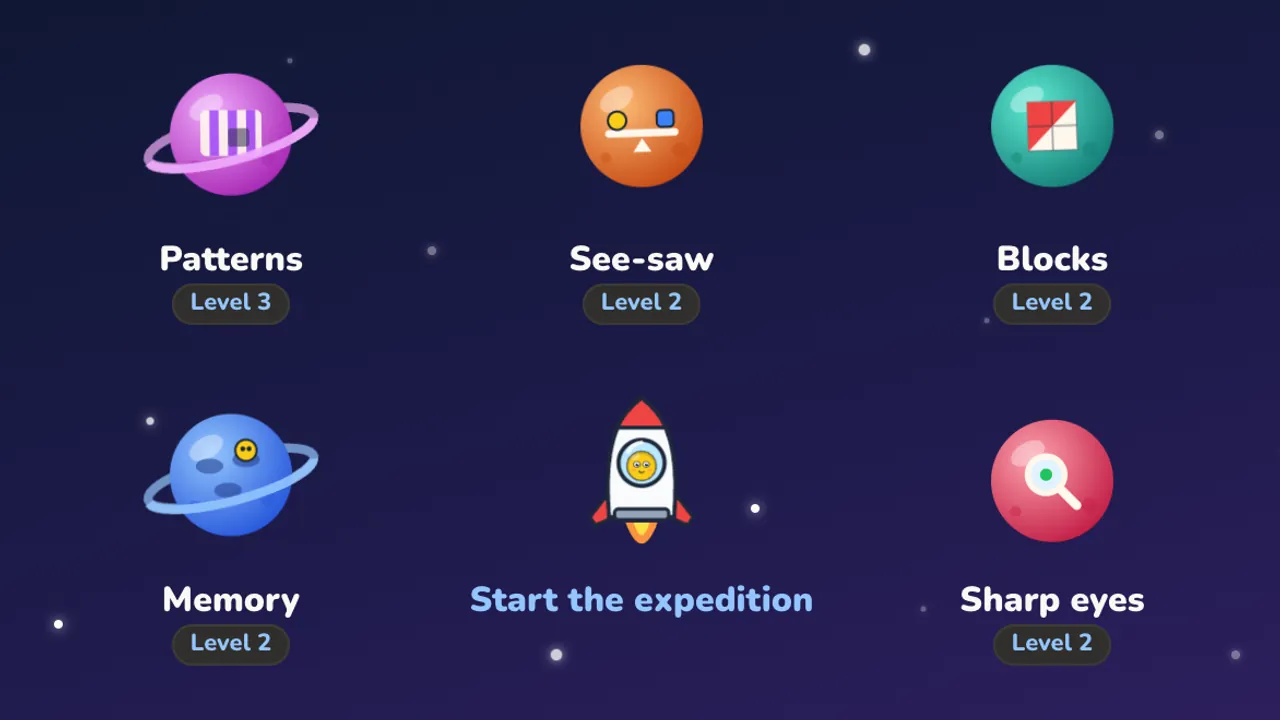 Mind PlanetsAges 5–10 · 5 planets · 3 age bands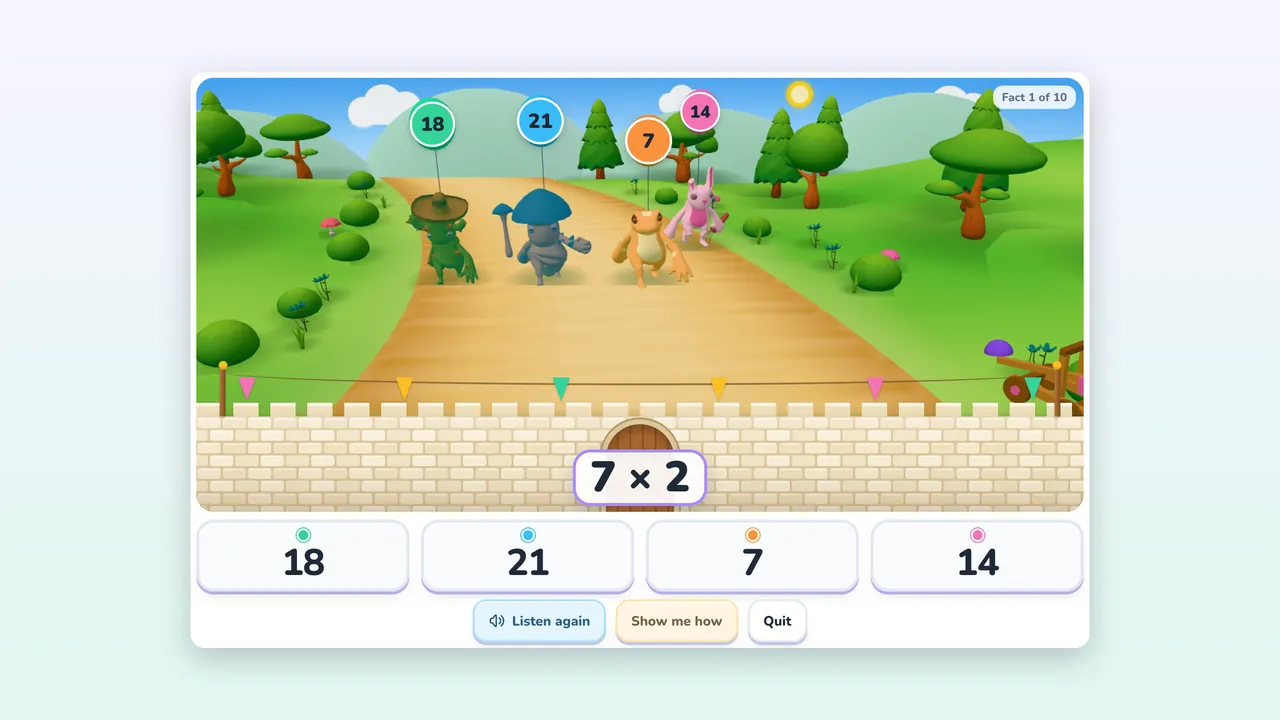
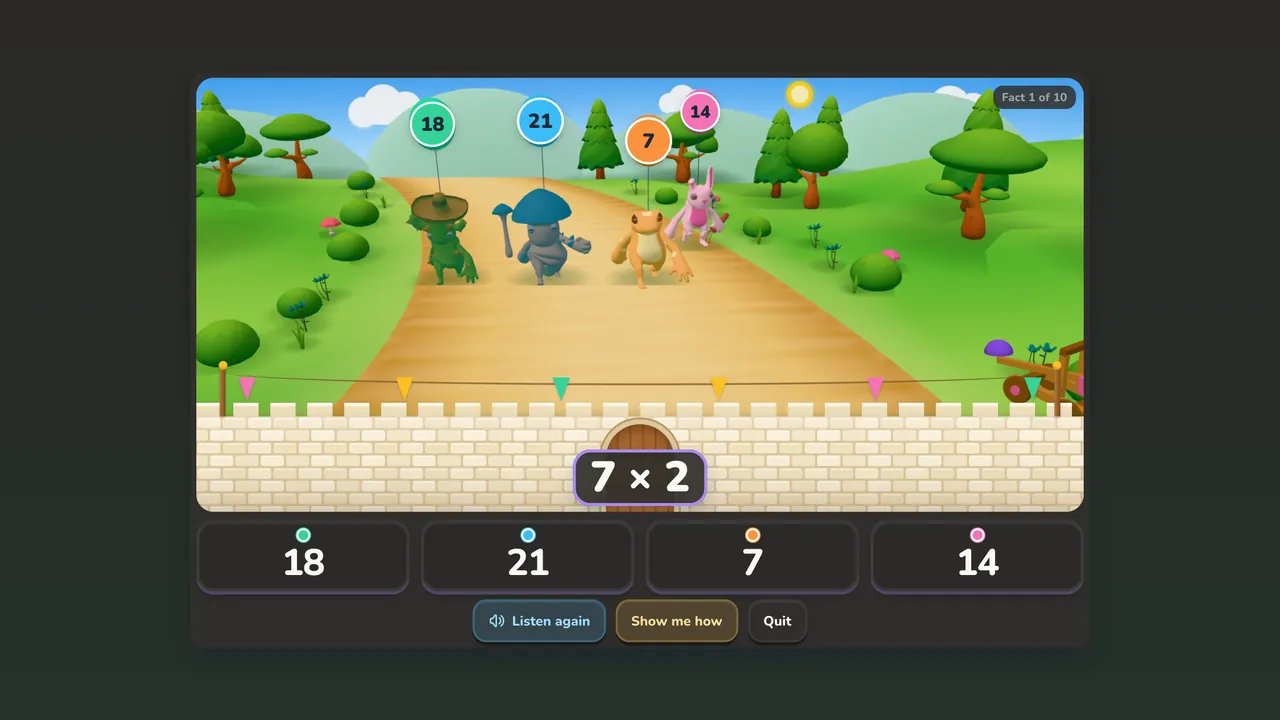 Times FortAges 7–10 · 3 grades · 38 levels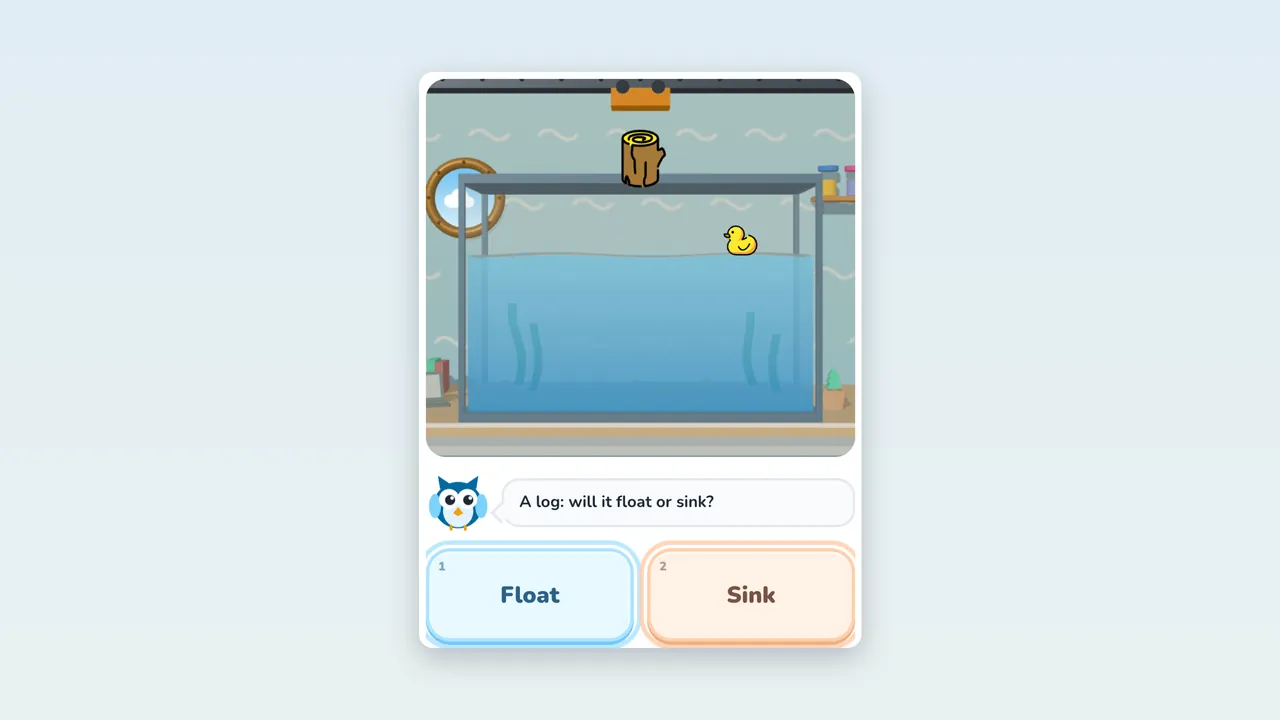
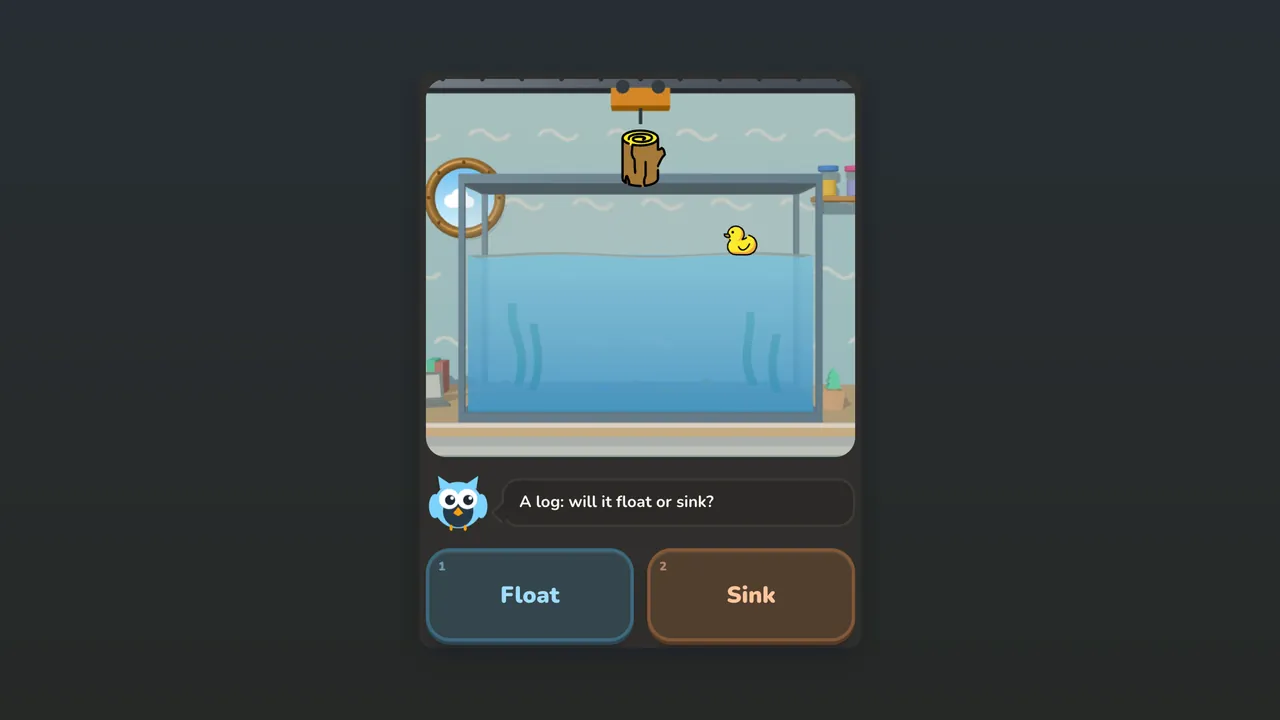 Sink or FloatAges 7–10 · 5 rooms · 24 rounds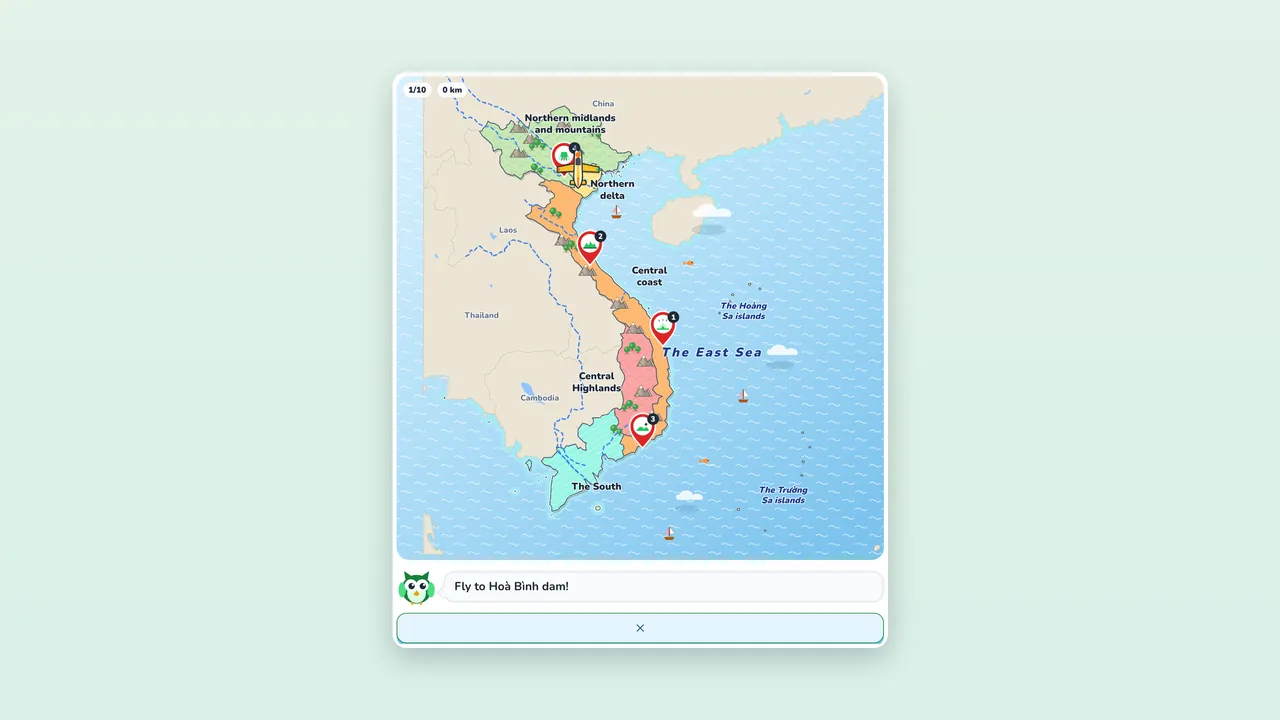
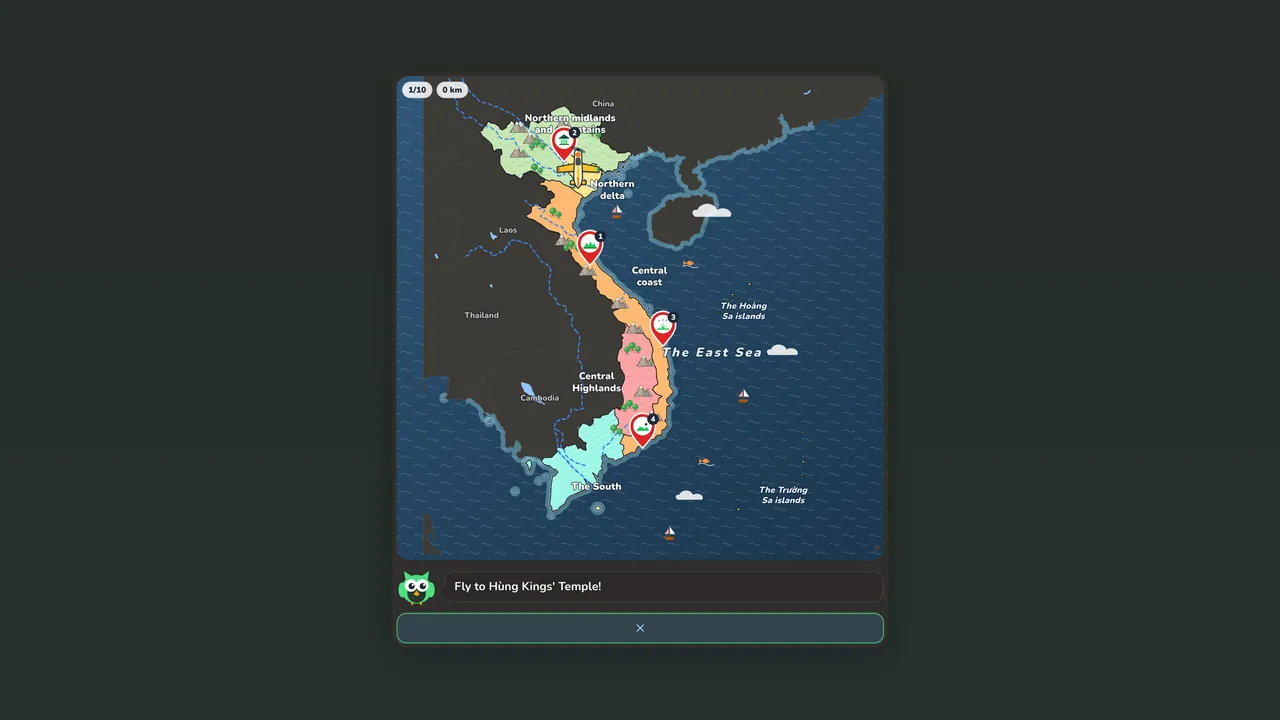 Map PlaneAges 8–11 · 5 regions · 32 flights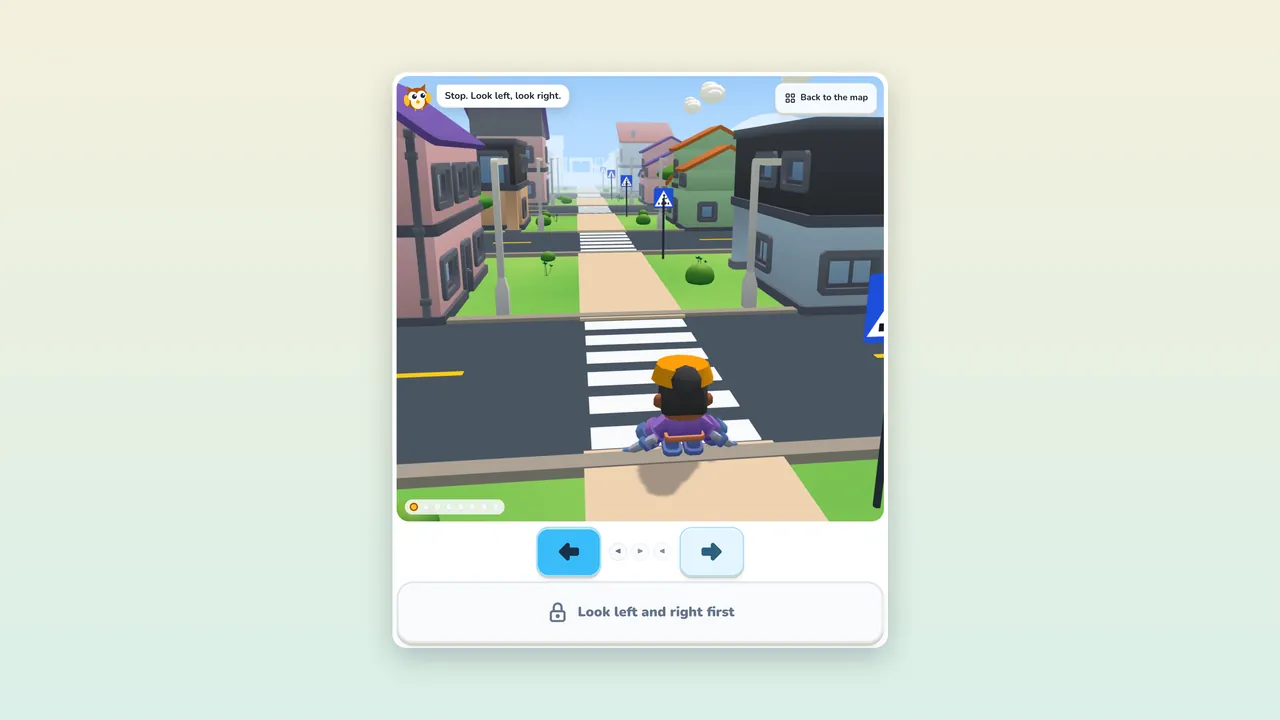
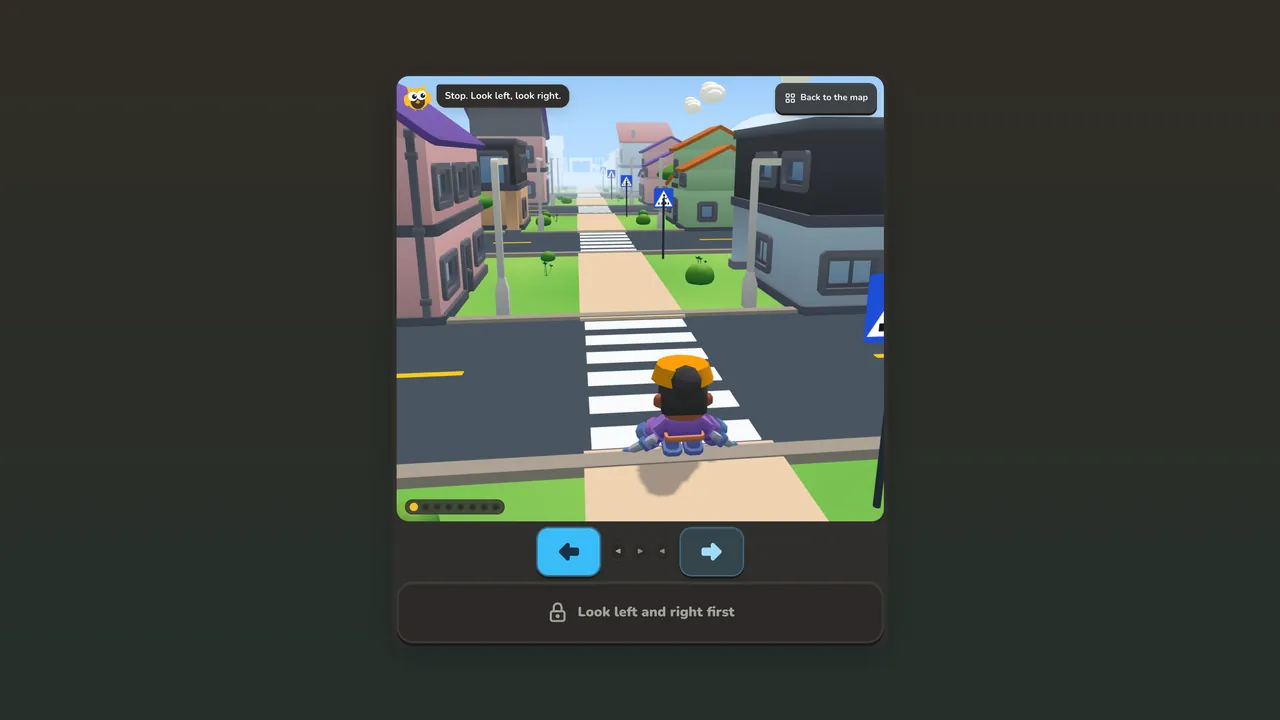 Safe CrossingAges 7–10 · 20 stages · 23 rules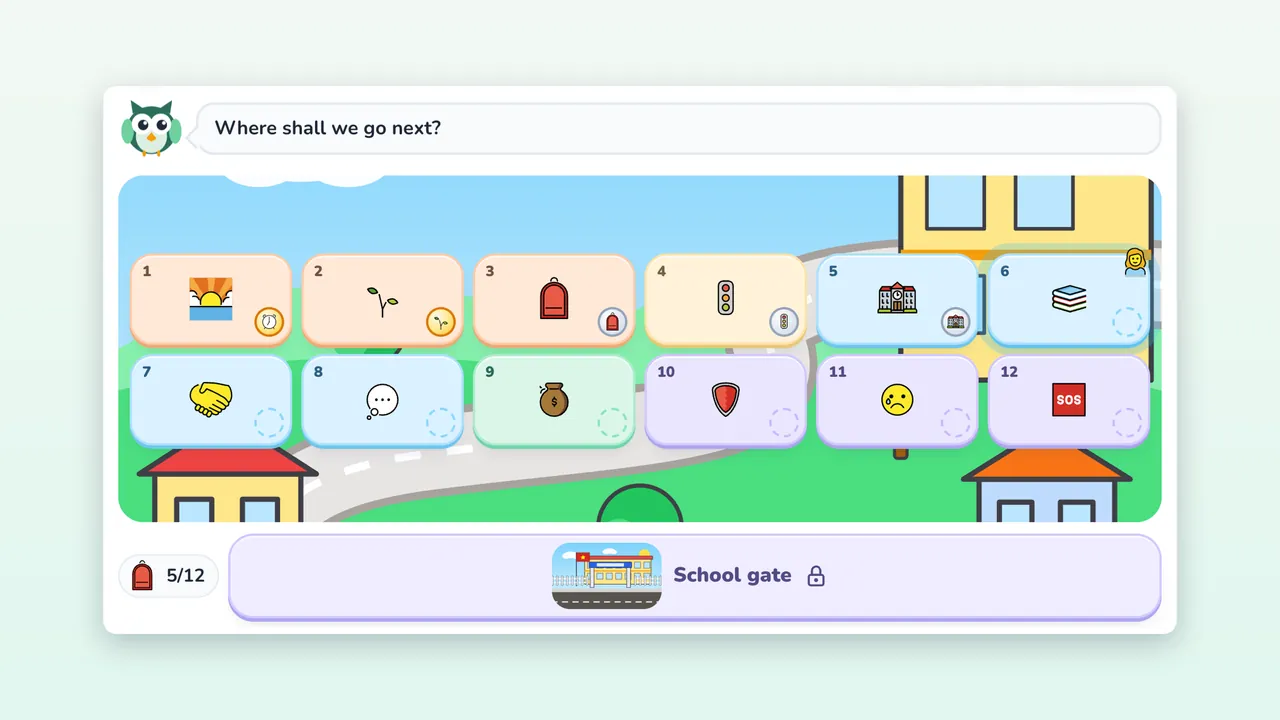
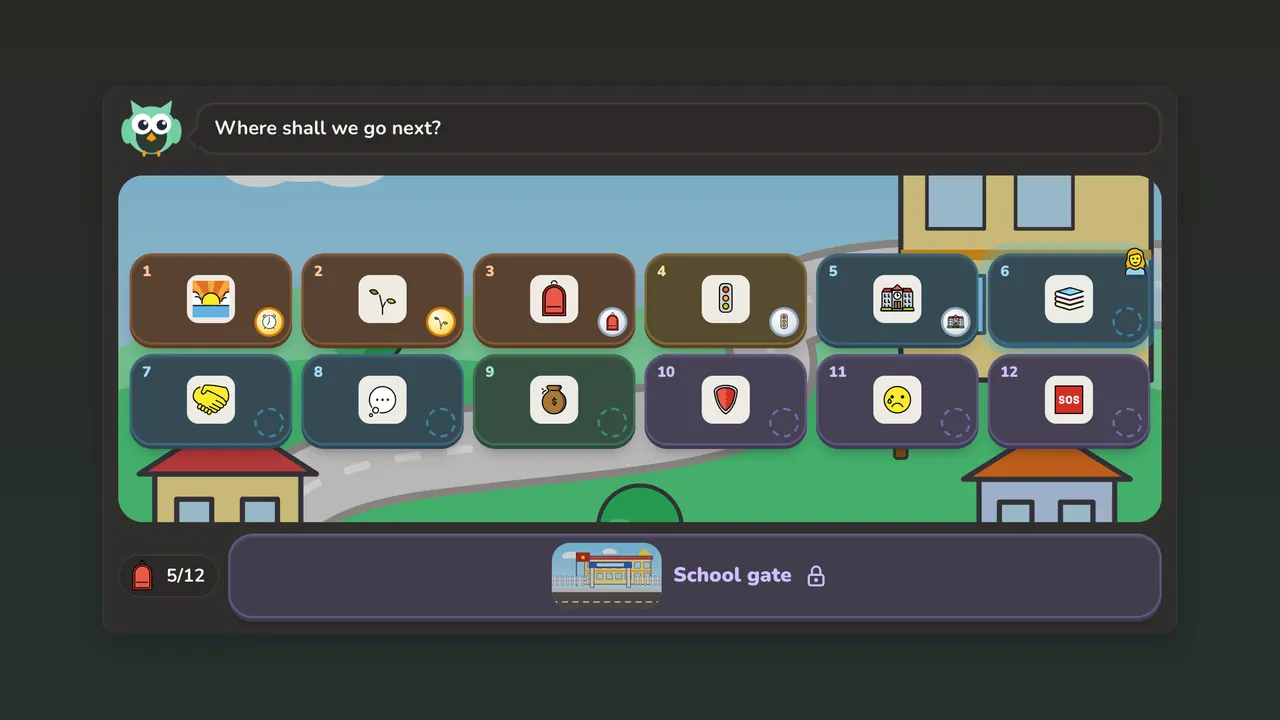 Ready for School!Ages 5–7 · 12 stops · 71 activities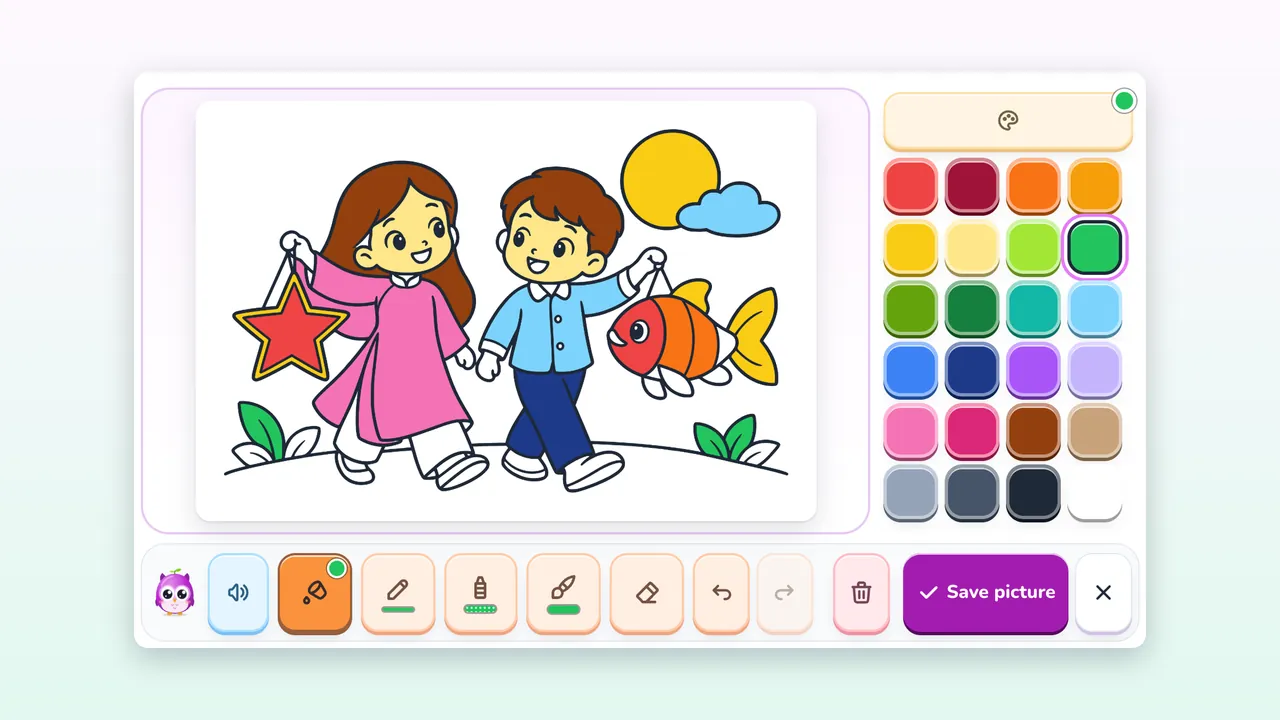
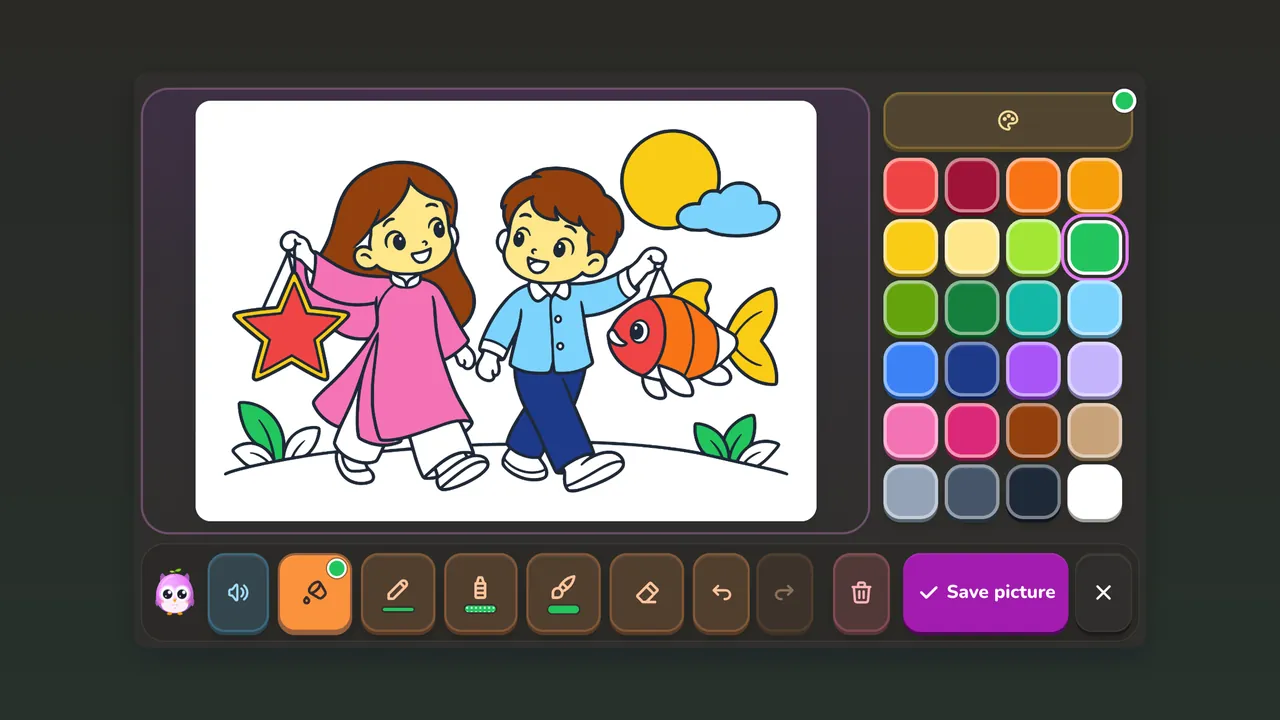 Little PainterAges 3–11 · 80 pictures · 6 themes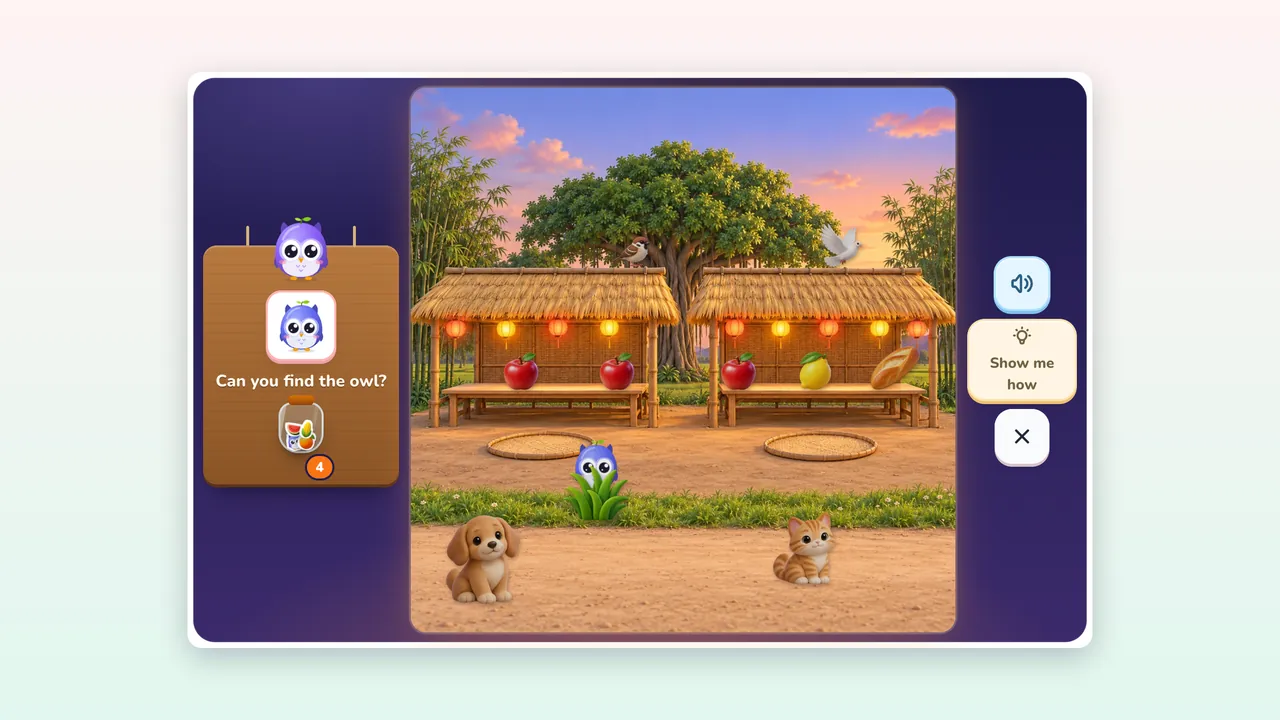
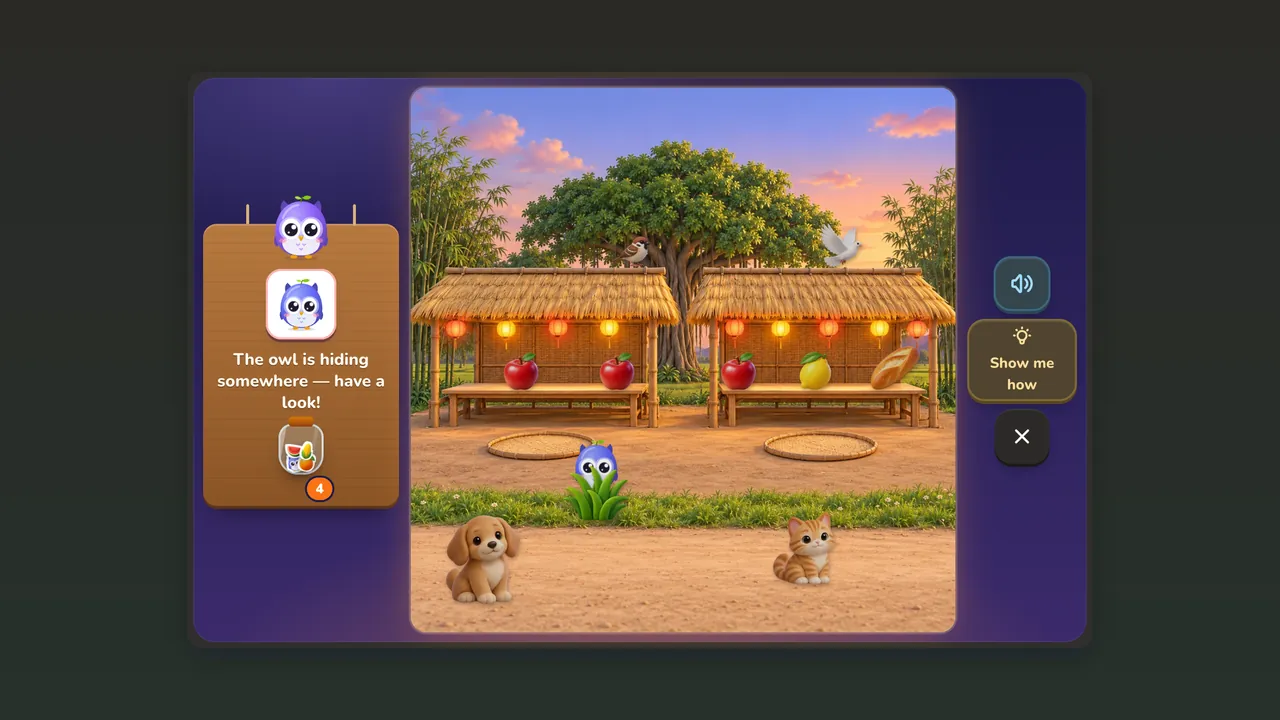 Picture HuntAges 3–7 · 8 places · 3 levels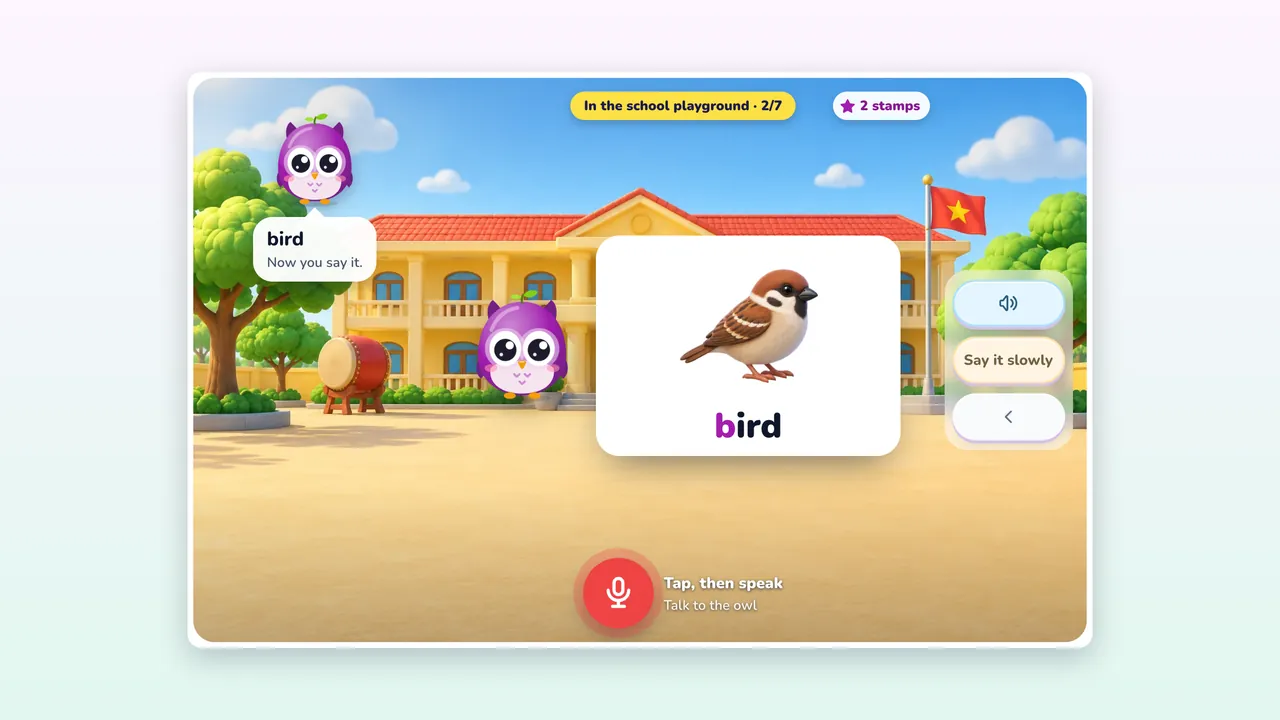
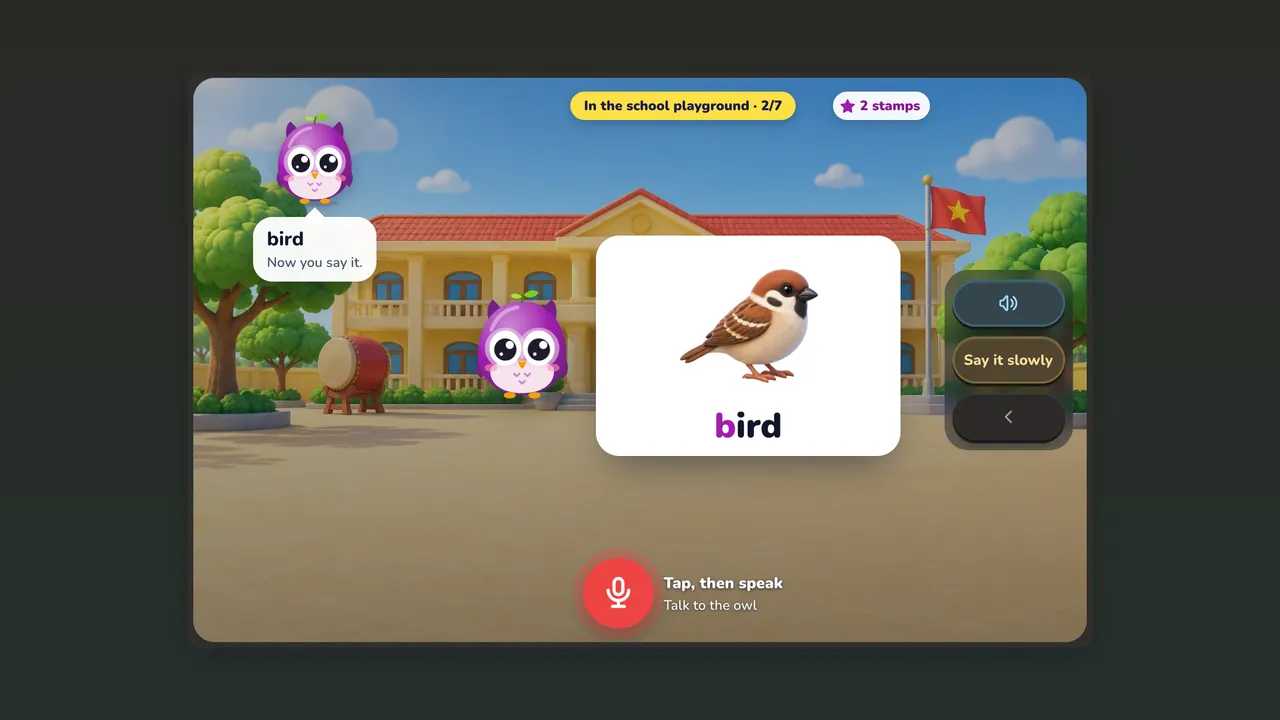 Little TalkerAges 4–9 · 4 classes · 34 stations