Parts of the guide
5.Games: choose by age, set the difficulty, then play
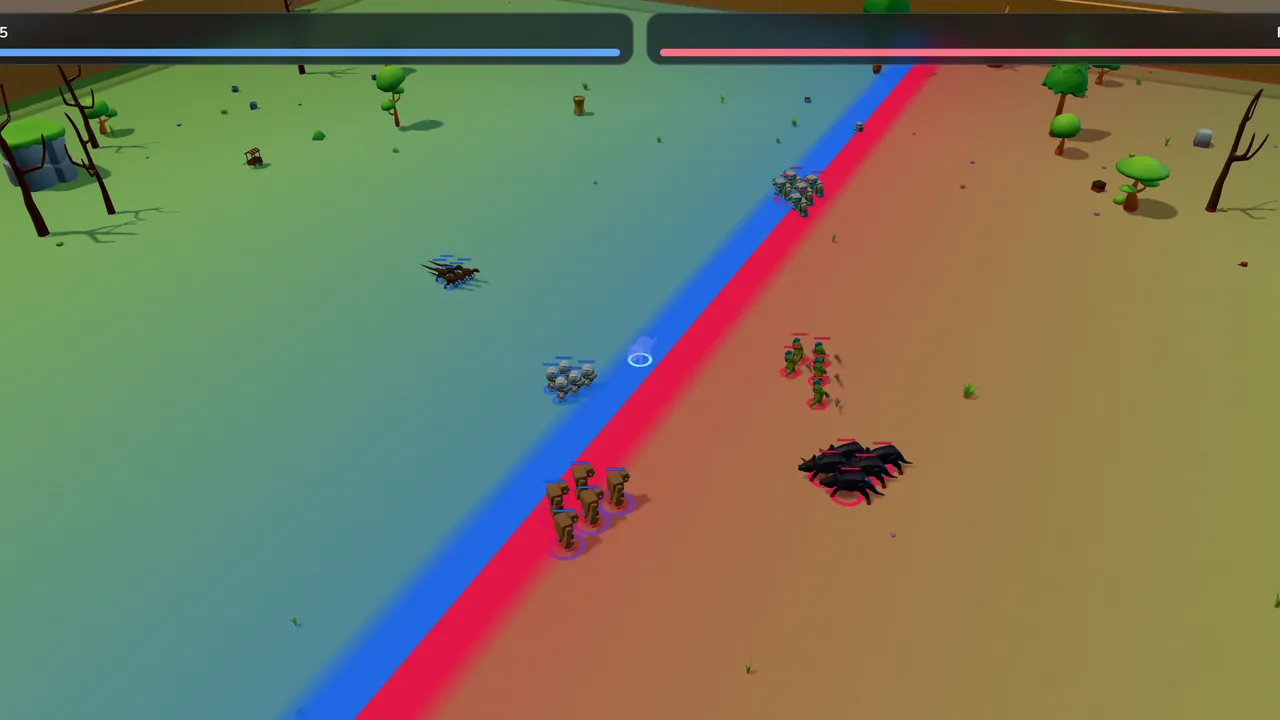
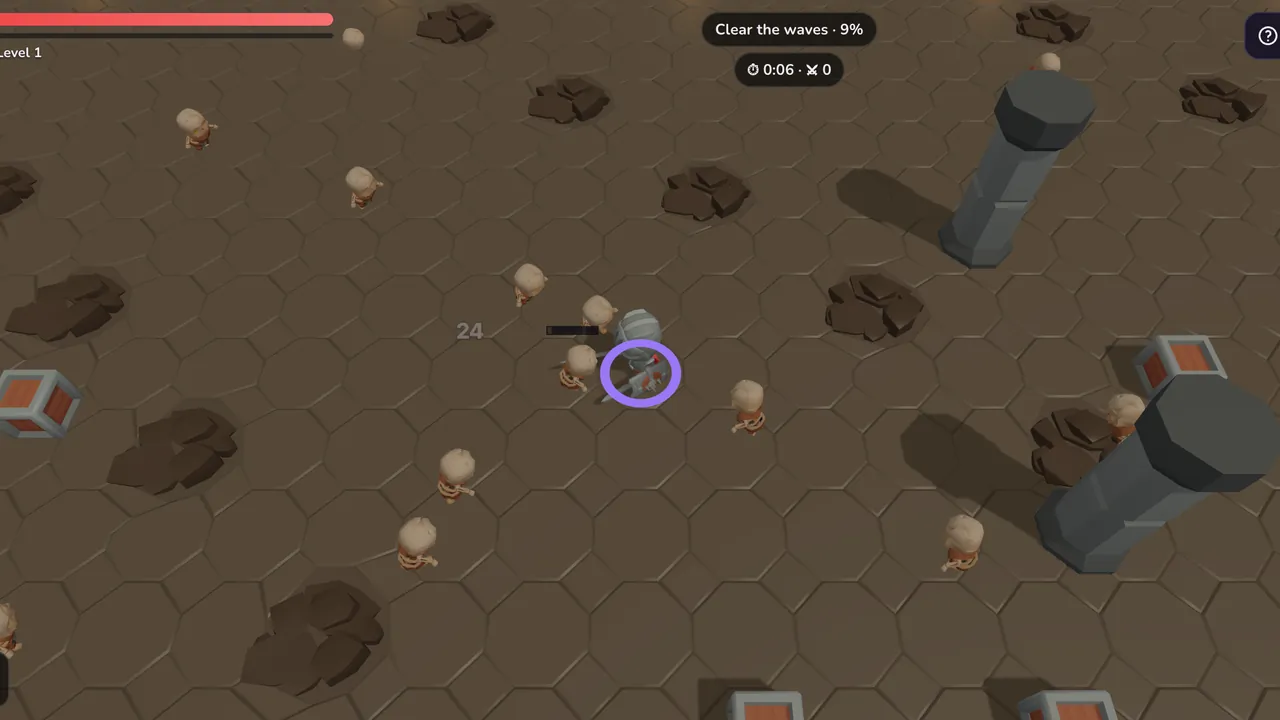
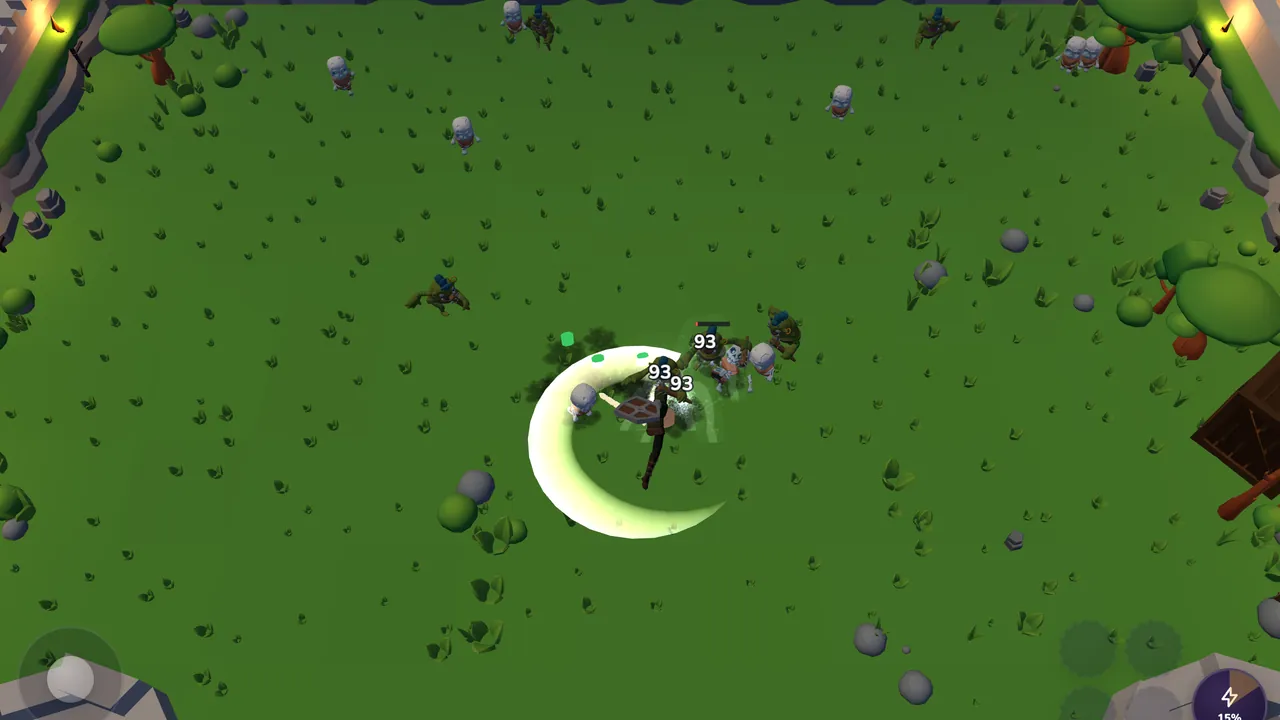
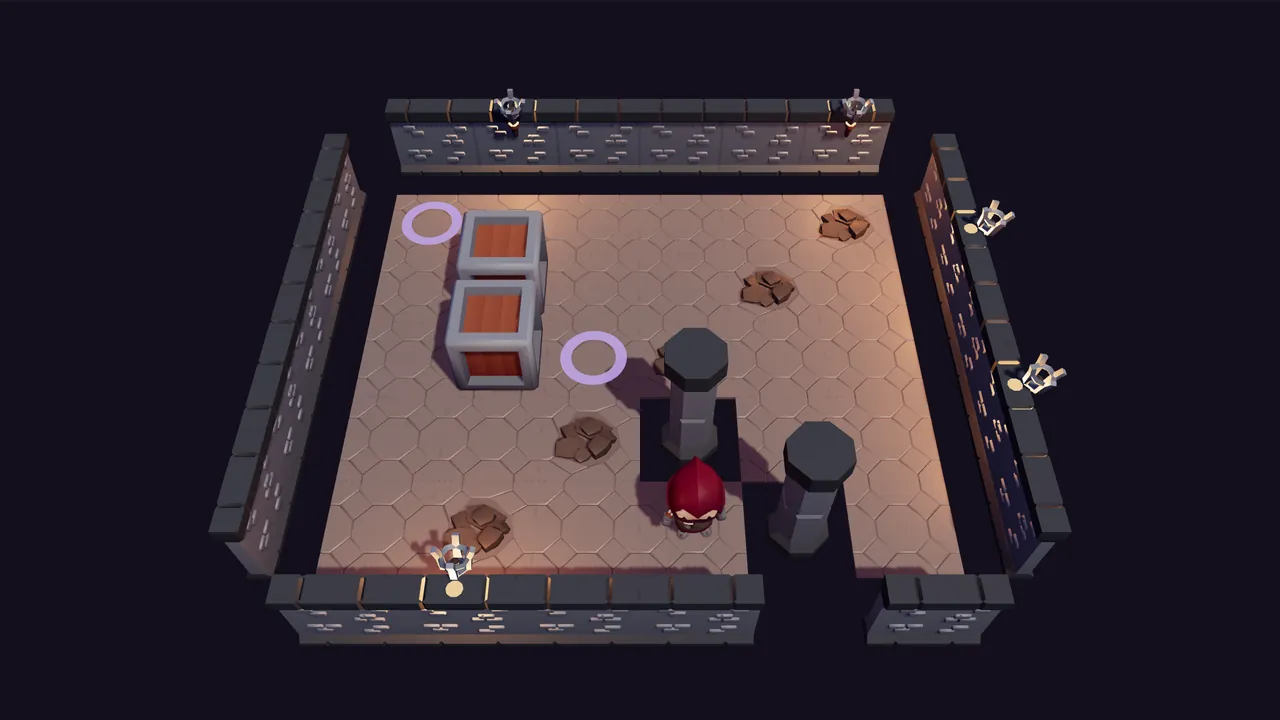
14 games that play in your browser with nothing to install. This part covers choosing one for the right age, setting the difficulty, reading the rules and keeping your records.
Choose a game for the right age
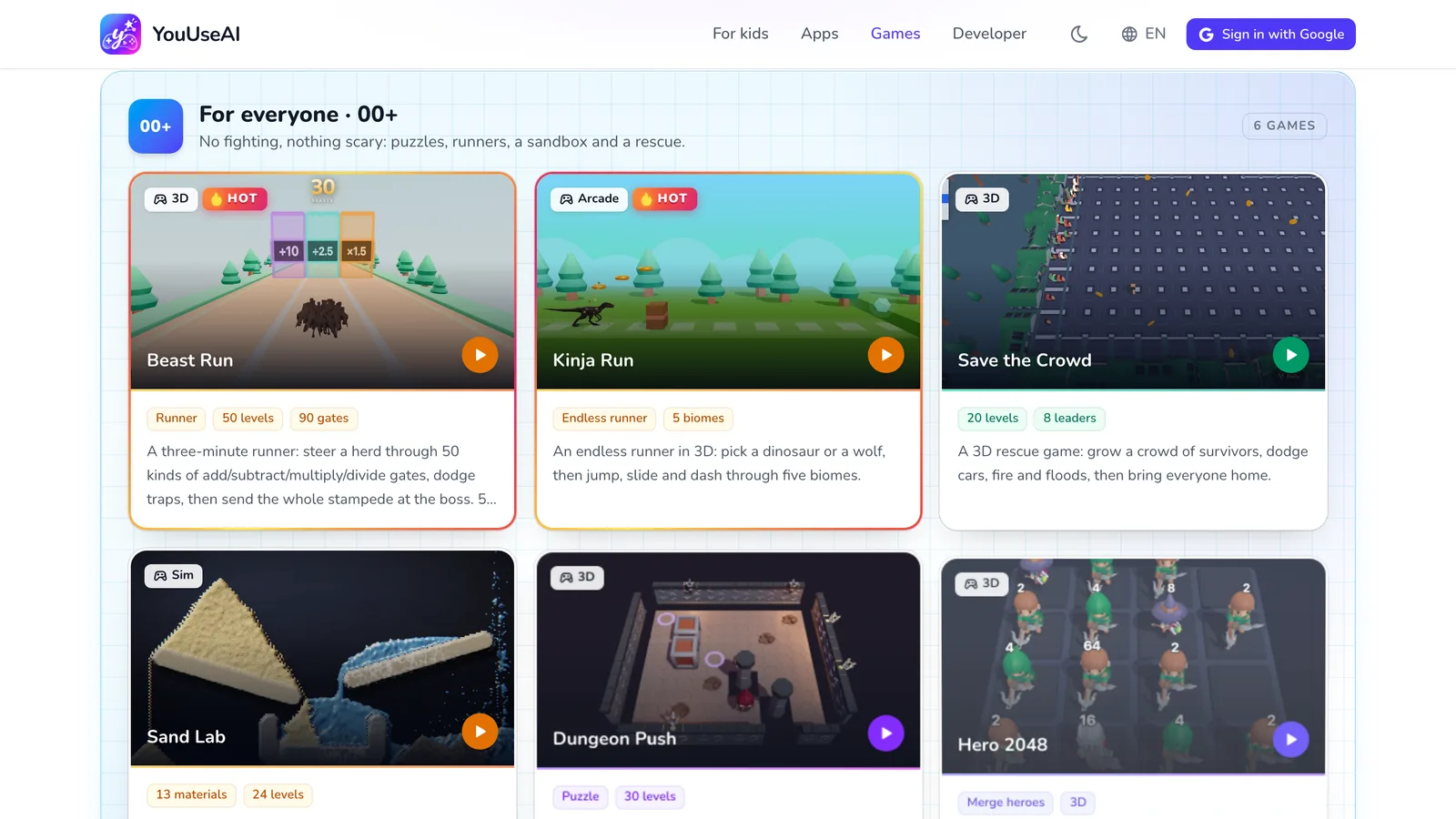

- 1An age group, with a line on what it holds
The Games page sorts games into three groups under Vietnam's game classification: For everyone · 00+, Ages 12+ and Ages 16+. The small line under each group says what you will and won't find in it.
Every card shows the kind of game (3D, Arcade, Simulation…), how many stages it has and a line about it. Nothing is locked by age — parents read the group and decide.
The setup screen
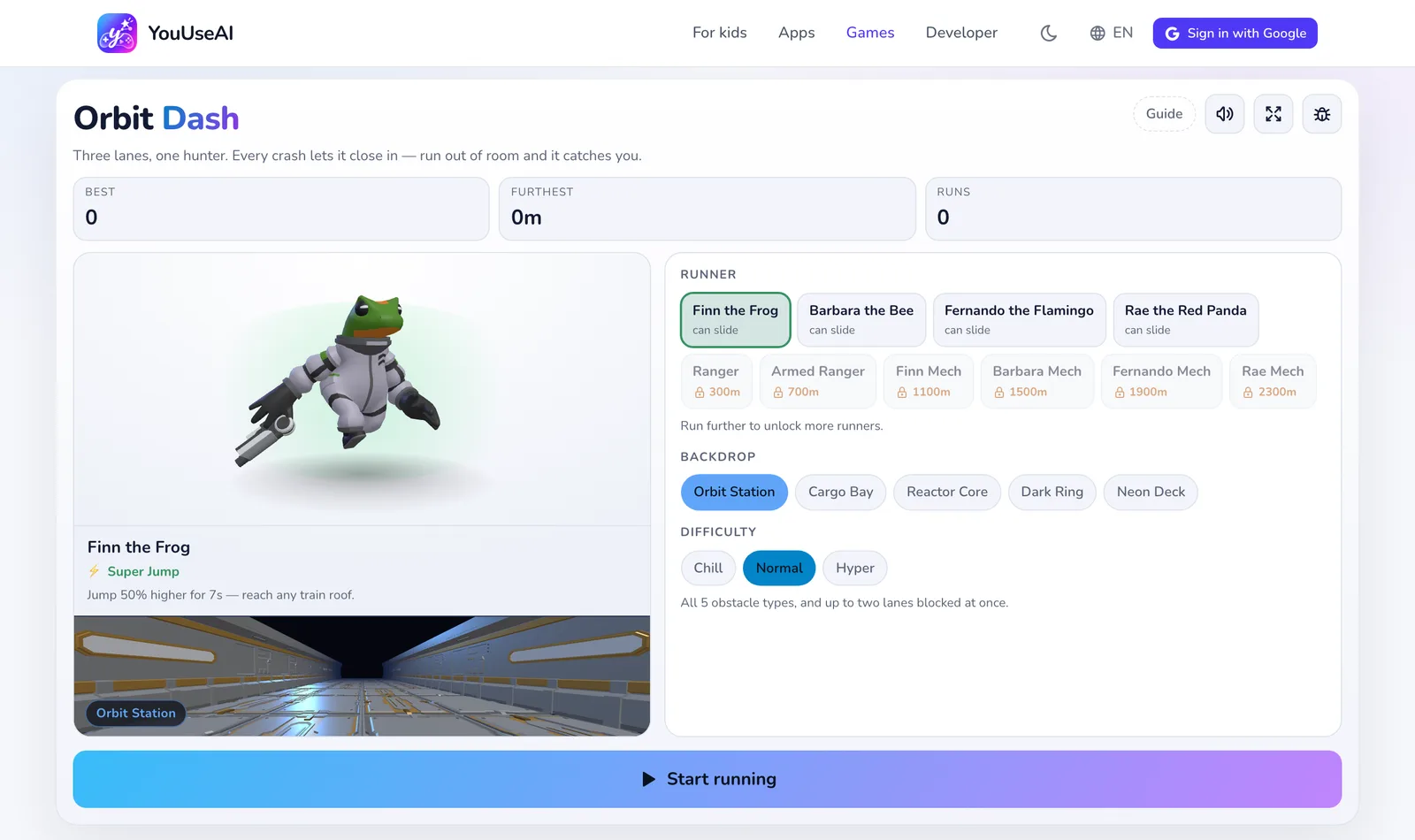
- 1How to play
- 2Full screen
- 3Report a bug
- 4Choose the difficulty
- 5Start playing
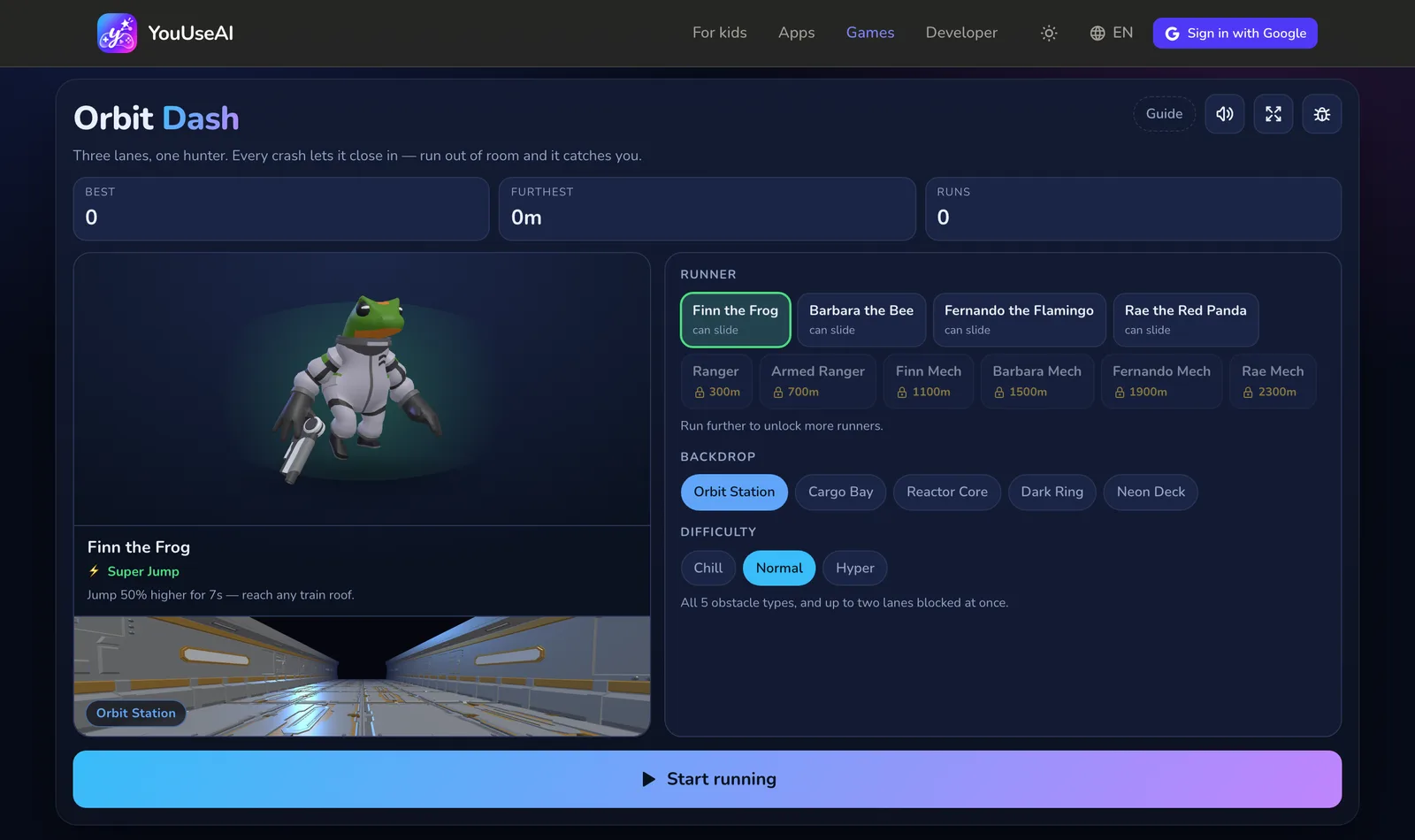
Games with characters or difficulties to choose open on a setup screen:
- Choose a character, a stage or a setting.
- Choose the difficulty. Each level changes how the game plays — new kinds of obstacle, less time to decide — not just its speed.
- Press start. Your records and progress are shown on this screen, and a new choice applies from the next run.
The rules
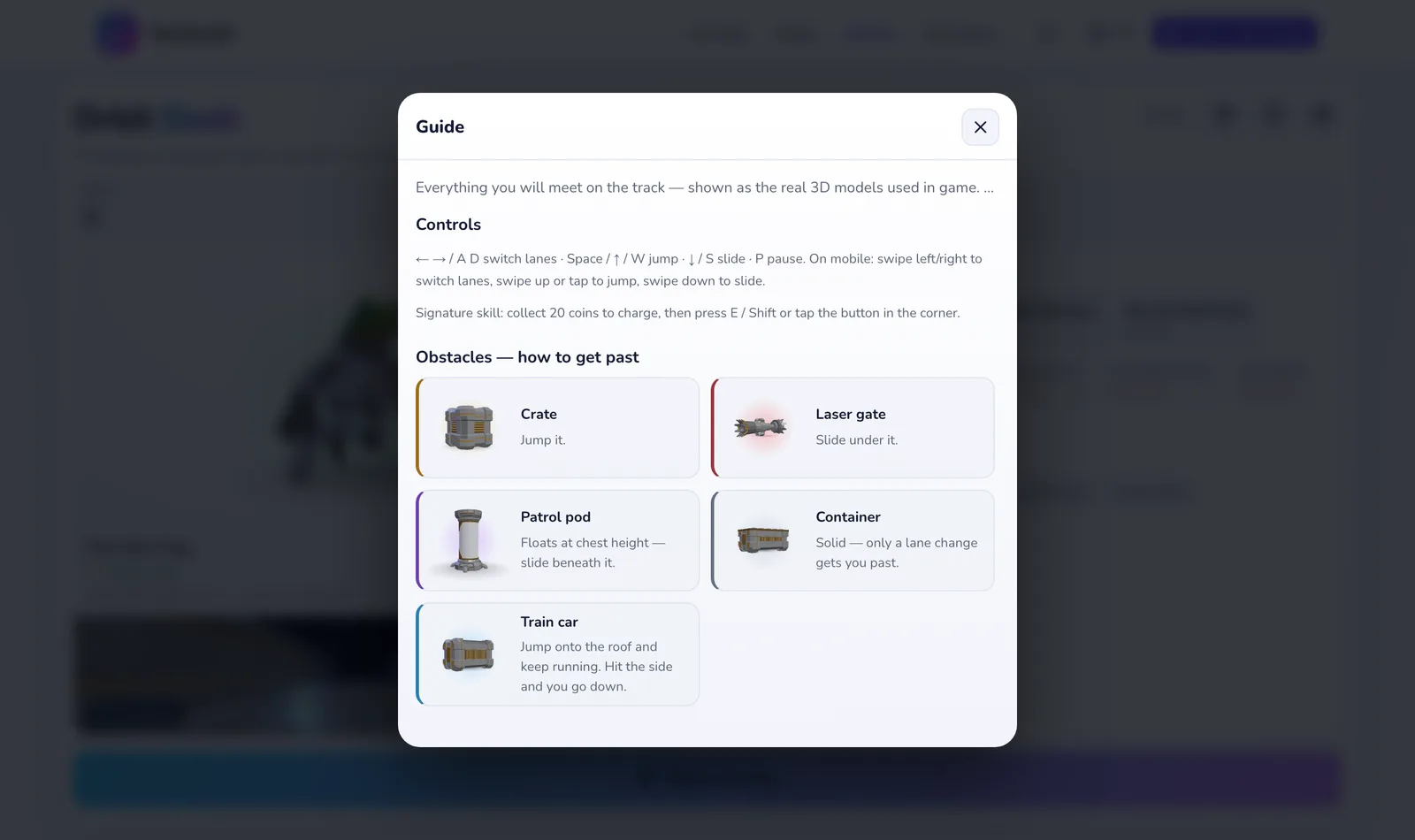
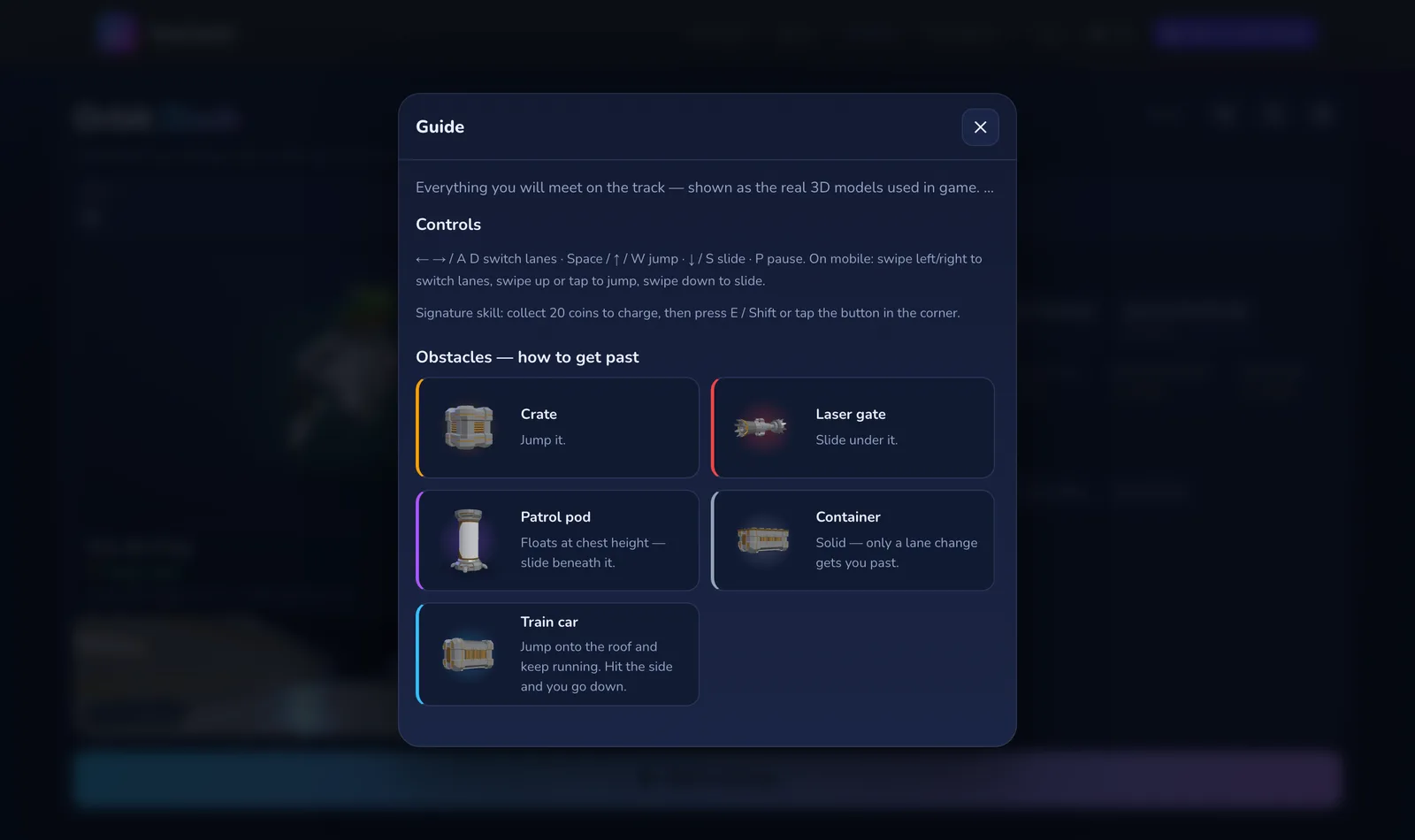
- 1Keys, and swipes on a phone
How to play (Guide in some games) opens the rules right on the setup screen:
- Controls: the keys on a keyboard, and the swipes and taps on a phone.
- Obstacles and items: pictures straight from the game, with what to do to get past.
- How the three difficulties differ.
One read before the first run is plenty, and it opens again whenever you like.
While you play
- Most real-time games have a pause button and the
Esckey, and pause themselves when you switch to another tab. - Full screen lets the game fill the screen. On an iPhone it fills the browser window instead.
- The sound button on the game's bar turns the sound off and on.
- Report a bug sends a screenshot, the stage you're on and your last few actions — all you do is pick what went wrong. See Feedback and bug reports.
Where your progress is kept
Records, cleared stages and stars are saved in the browser on the device you're playing on. Sign in and a copy is kept on your account too: it follows you to another device, and when two devices are merged the higher record wins — it's never lowered. The setup screen has a save line that reads Saved to your account once it's saved.
Every game
For everyone · 00+



Ages 12+