
Parts of the guide
1.Getting started: everything opens straight away, no account needed
Every children's activity, game and app works as soon as you open it. This part covers your child's first go, finding your way around, and the buttons in the bar along the top.
Let your child play straight away
- Tap For kids in the top bar.
- Pick the group that suits your child's class — each one shows the class and the age.
- Tap an activity, then the big Let them play button.
Children who can't read yet can still play on their own: every question is read aloud, and the buttons are big enough for small fingers. Choosing activities, seeing what your child has learnt and changing the reading voice are all under For kids.
The top bar
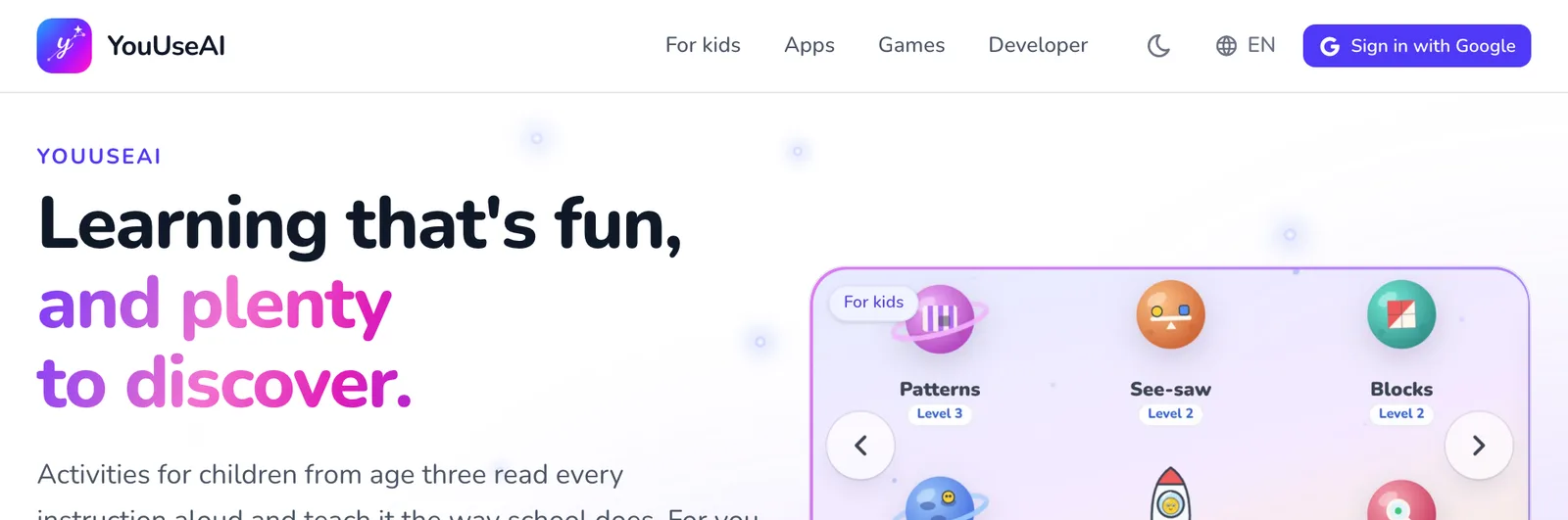
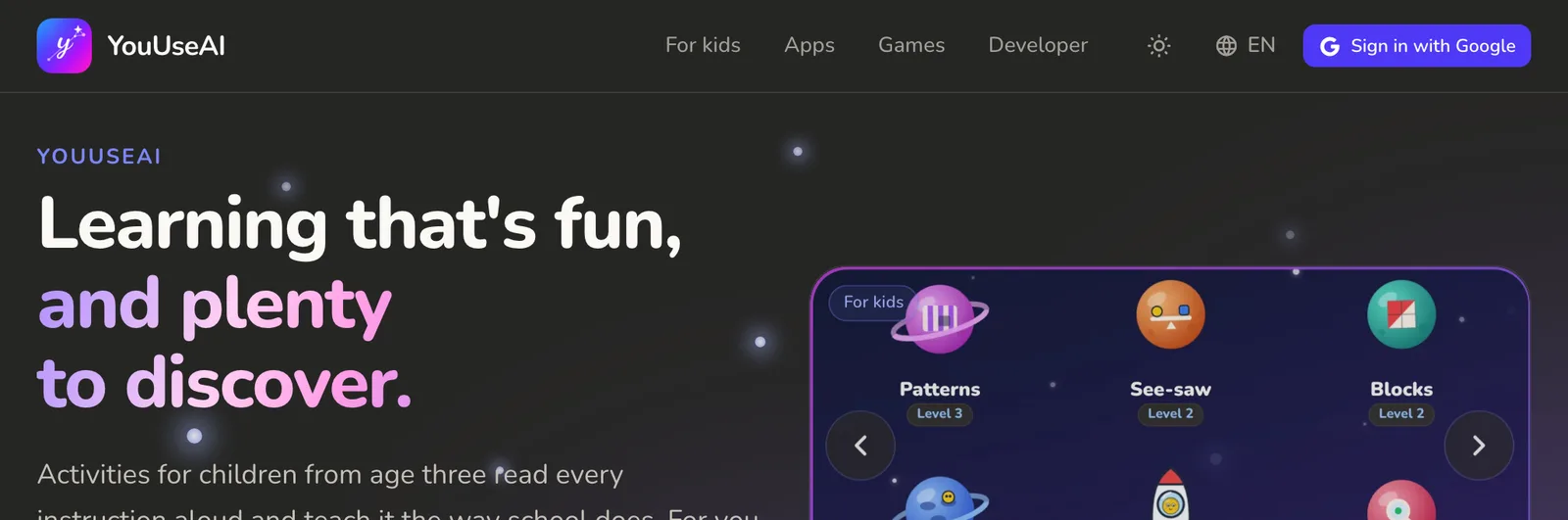
- 1Logo — back to the home page
- 2The four main sections
- 3Light or dark background
- 4Vietnamese or English
- 5Sign in with Google
The bar sits at the head of every page, so wherever you end up you can find your way back:
- The logo takes you to the home page.
- The section names — For kids, Apps, Games, Developer — open that section. The one you're in is highlighted.
- The moon button (or the sun) switches between a light and a dark background.
- The globe button switches between Vietnamese and English.
- Sign in with Google sits on the right. Once you're signed in, your picture appears there instead.
On a phone
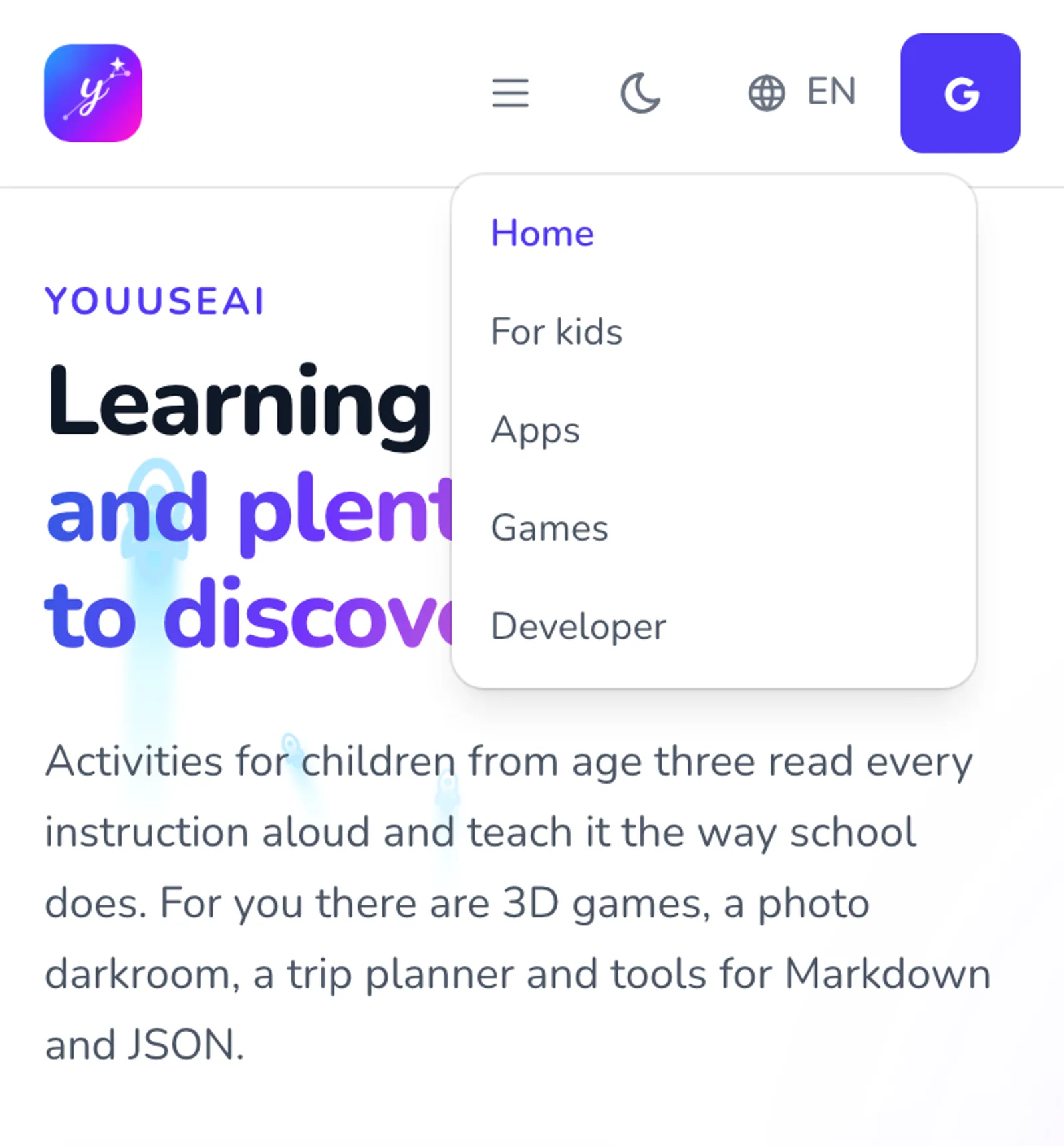
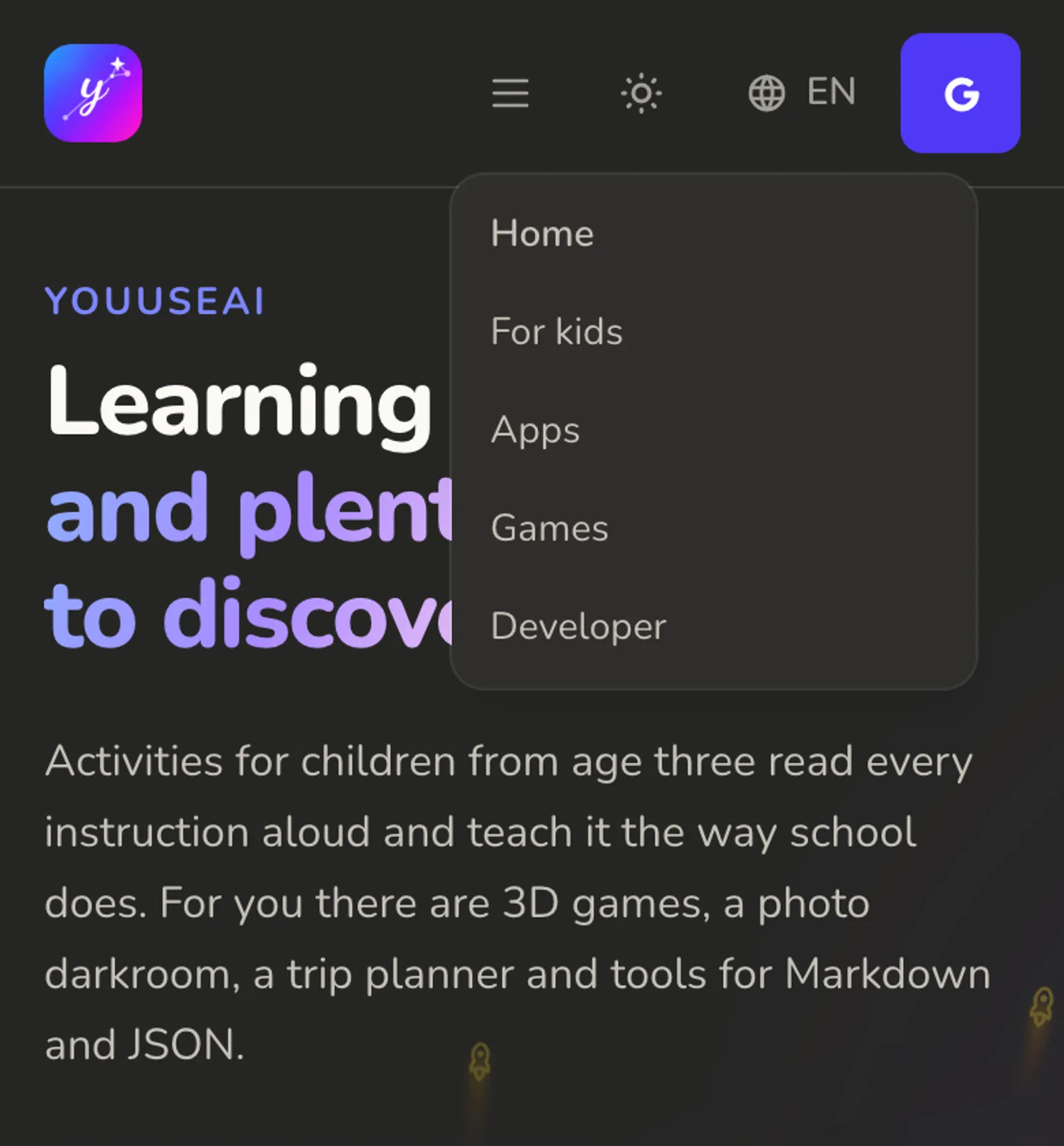
- 1Back to the home page
- 2The first section: For kids
- 3The last section: Developer
A narrow screen has no room for four section names, so they're tucked behind the three-line Menu button on the right. Tap it to open the list, then tap a section to go there. A tablet held upright shows the same; turn it on its side and you get the full bar.
Light or dark
Tap the moon to switch to a dark background, and tap again (it's a sun by then) to go back. The dark one is easier on the eyes in the evening, and the site remembers your choice on that device.
Vietnamese or English
The globe button switches language — the buttons, the reading voice in For kids and this guide all change with it. English pages have /en at the start of the address, so whoever you send a link to sees the page in the language you were reading.
Do I need to sign in?
No. Without an account, your child's progress and your drafts are still kept on the device you're using. Sign in only to carry progress to another device, keep share links on your account or send feedback — see Your account and profile.