Parts of the guide
6.Developer tools: write Markdown, check JSON
2 tools for people who write code, running in your browser. Your content only leaves your machine if you create a share link.
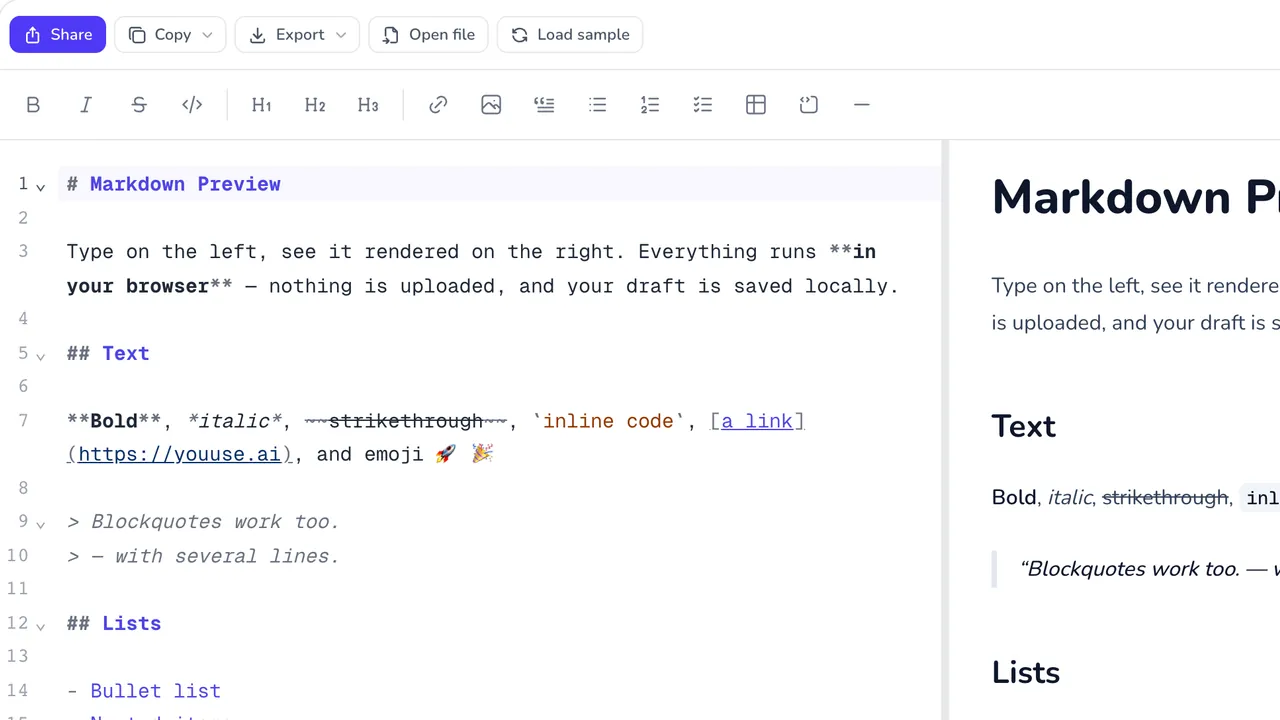
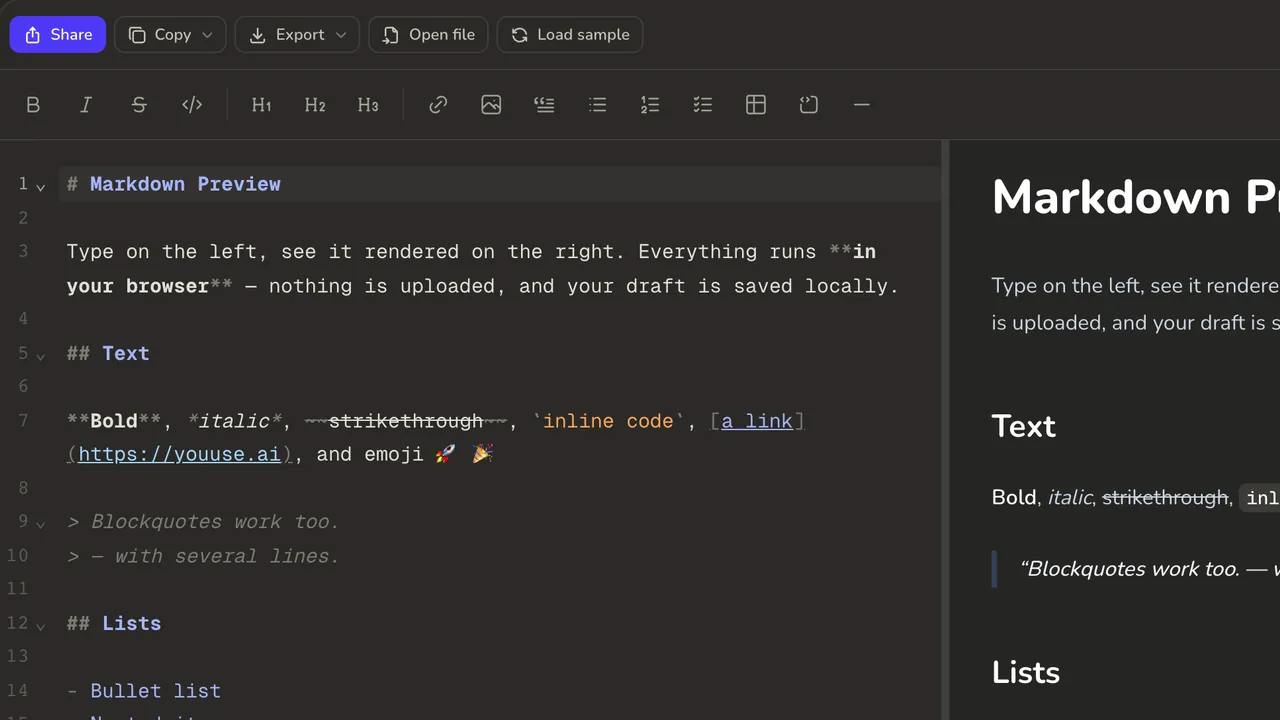
Markdown Preview
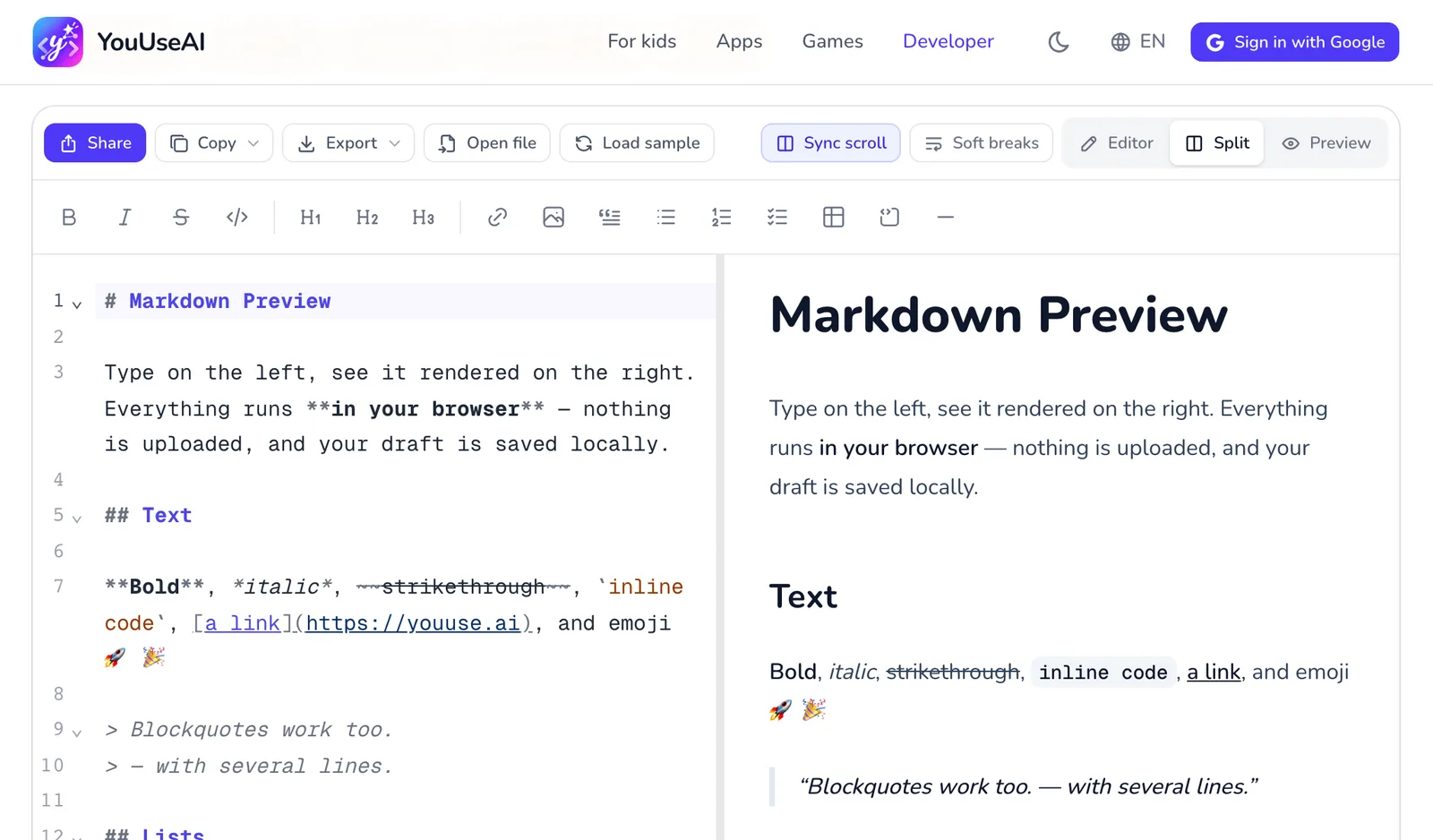
- 1Share as a link
- 2Copy as Markdown or HTML
- 3Export a file or print
- 4Open a .md file
- 5Change the layout
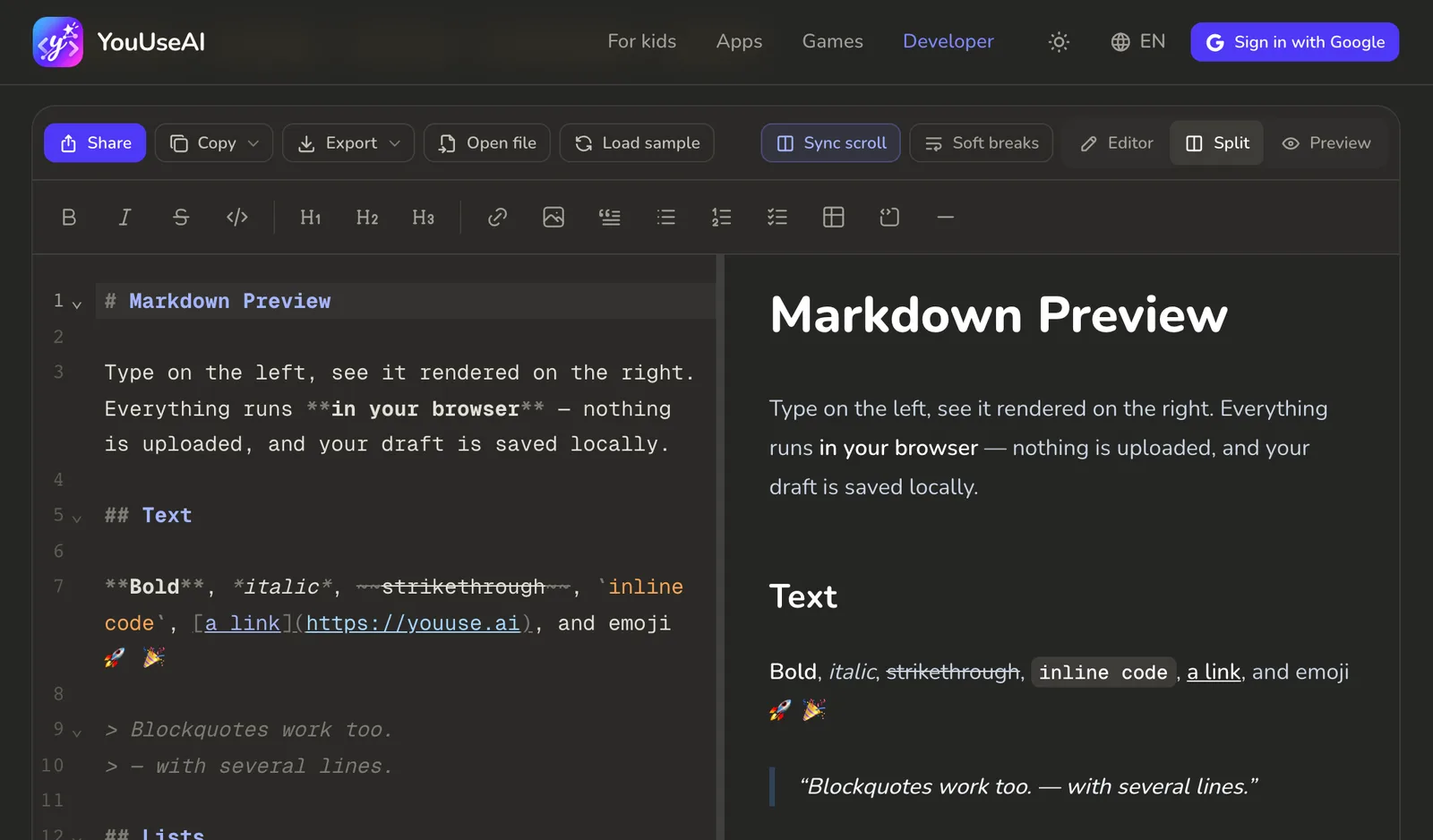
- Type Markdown on the left and see it rendered on the right straight away — tables, code, maths and Mermaid diagrams included.
- Switch the layout with Editor, Split and Preview. Shortcuts:
⌘/Ctrl + Bbold,Iitalic,Klink,Ecode. - Open file, or drop a
.mdfile onto the frame. Load sample loads a sample that uses every piece of syntax. - Copy as Markdown or HTML, Export to
.md,.htmlor a printed PDF, or Share it as a link.
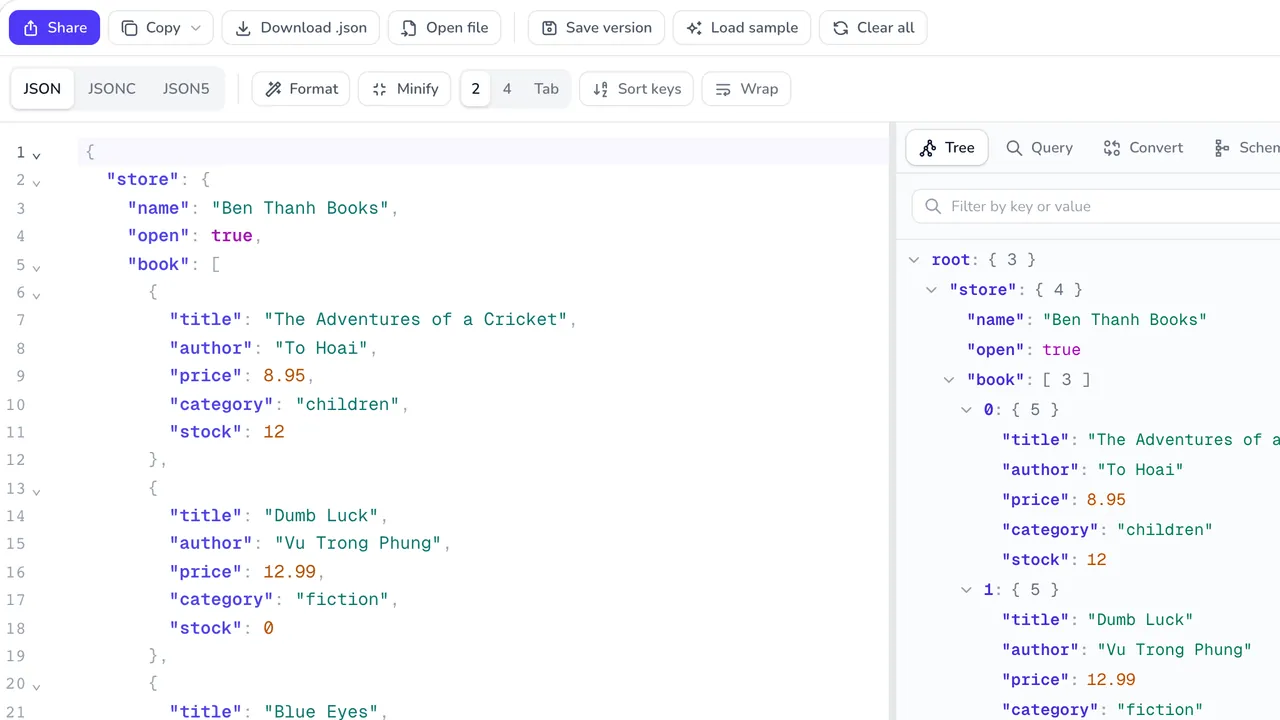
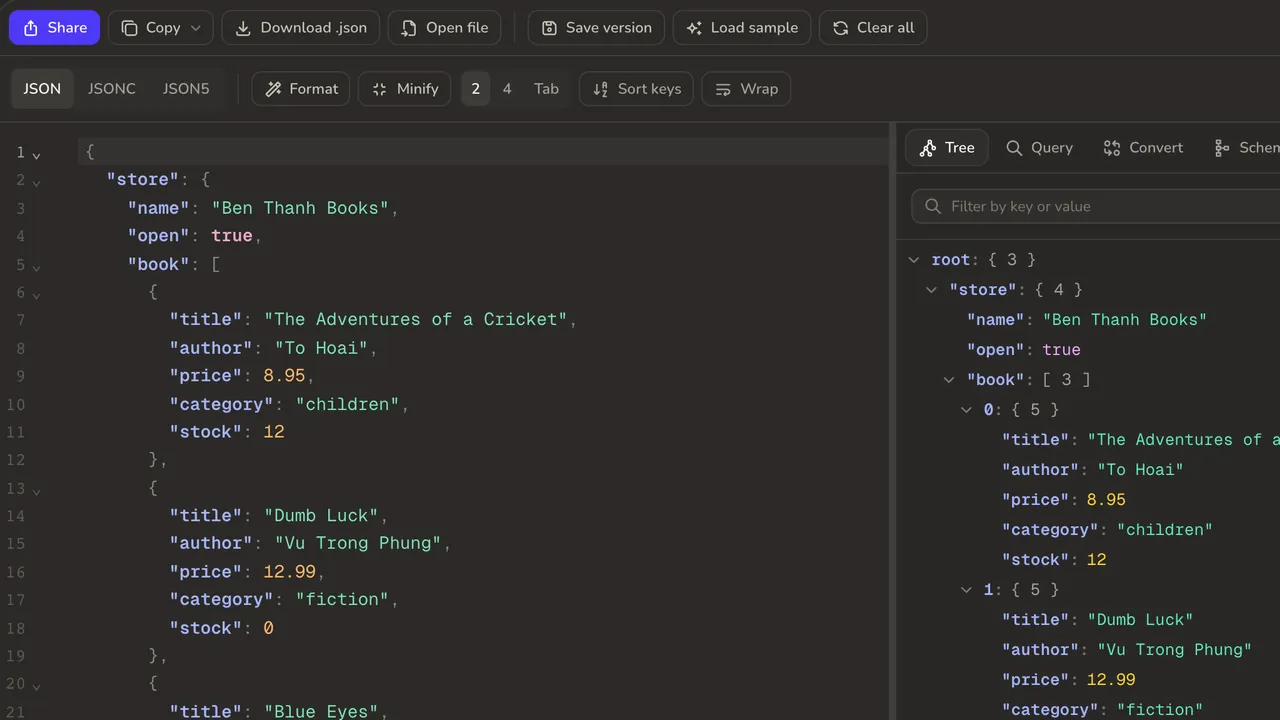
JSON Lab
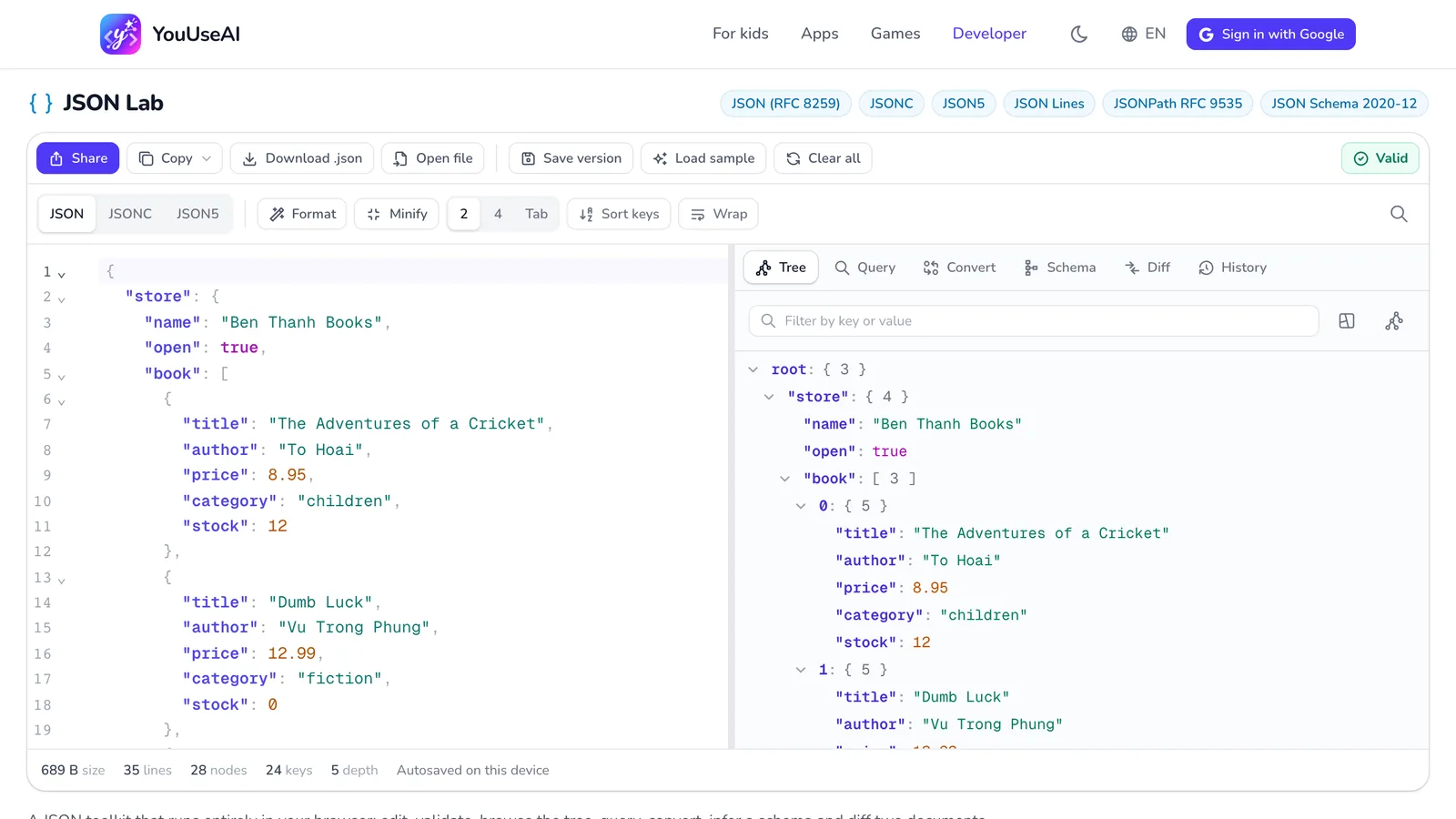
- 1Share as a link
- 2Format for reading
- 3Browse as a tree
- 4Convert to YAML, CSV or TypeScript
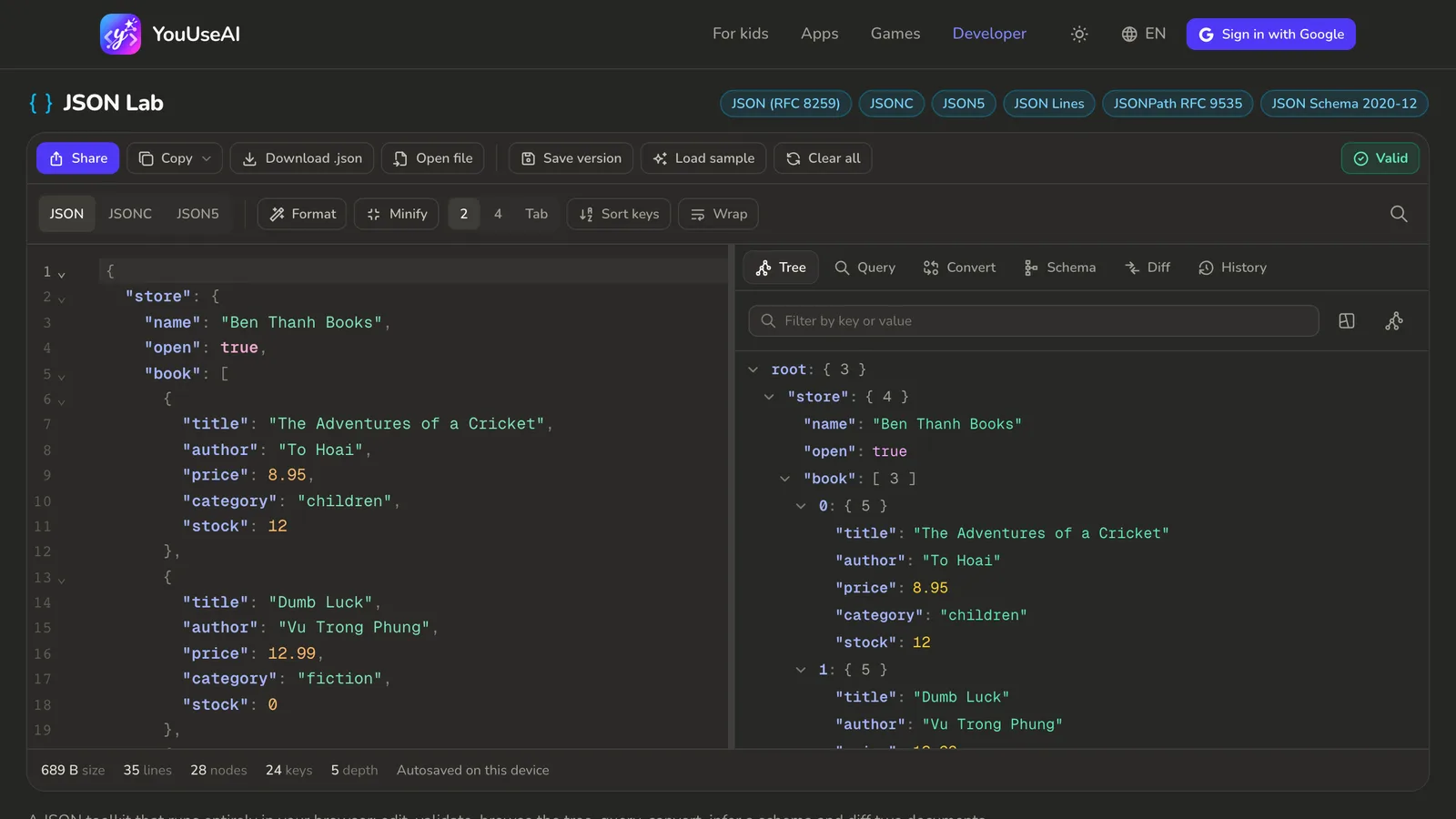
- Paste JSON into the editor, or Open file. Errors are pinned to the exact line and column; click the error to jump straight to it.
- Format or Minify, choose an indent of 2, 4 or Tab, and turn on Sort keys.
- The tabs on the right: Tree to browse, Query with JSONPath, Convert to YAML, CSV or TypeScript, Schema, Diff two documents, and History of saved versions.
- Copy, download the file, or Share it as a link.